
Microsoft Teams Helpdesk Chatbot
Free Technology Chatbot Template
Internal IT helpdesk bot for Teams with troubleshooting flows and ticket creation

What Is a Microsoft Teams Helpdesk Chatbot?
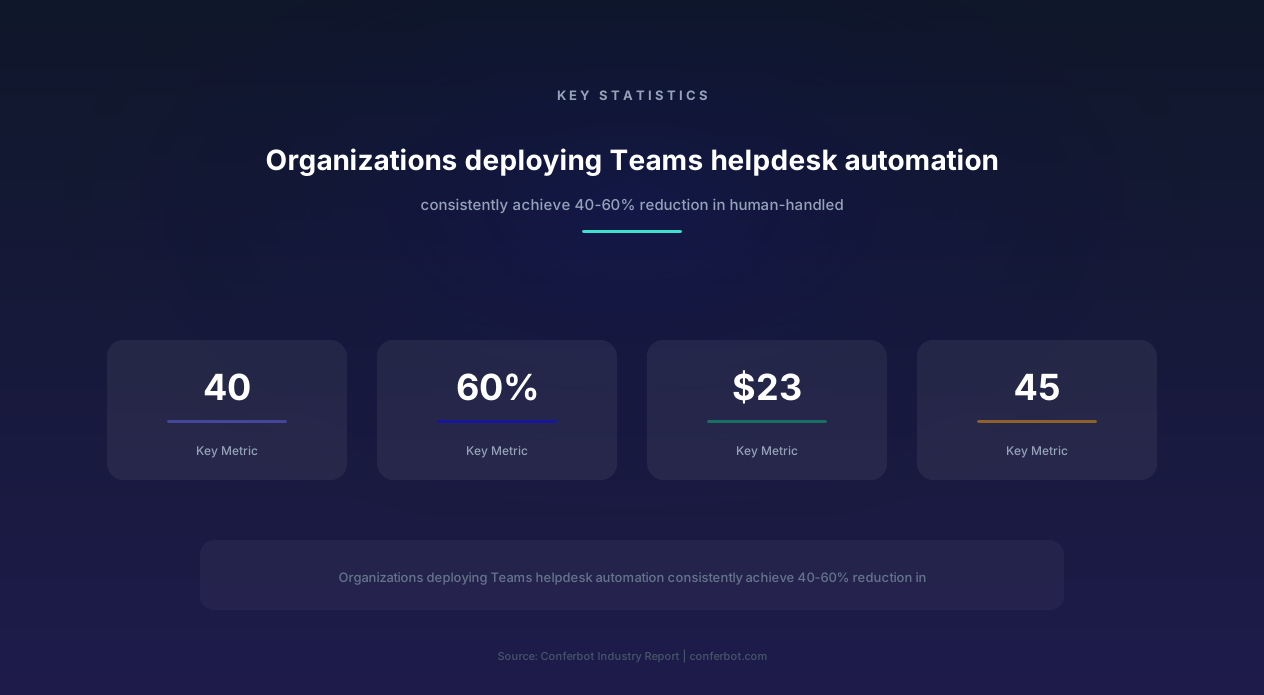
A Microsoft Teams helpdesk chatbot is an AI-powered IT support assistant that operates directly within the Teams interface — the same collaboration platform where 320+ million monthly active users already work, communicate, and manage their daily tasks. Instead of employees navigating to a separate IT portal, submitting a ticket, and waiting hours or days for response, they simply message the helpdesk bot in Teams and receive immediate assistance for password resets, device configuration, software requests, VPN troubleshooting, meeting room bookings, policy lookups, and dozens of other routine IT support scenarios. In 2026, organizations deploying Teams-native helpdesk automation report 40-60% reduction in IT ticket volume, 87% faster resolution for common issues, and $23-45 savings per automated interaction compared to human agent handling.
Why Microsoft Teams Is the Right Channel for IT Support
Employees already spend their workday in Teams — an average of 2.5 hours daily for knowledge workers according to Microsoft's workplace analytics. Placing IT support inside this existing workflow eliminates the context-switching cost that makes employees hesitate to seek help. Instead of opening a browser, navigating to an IT portal, logging in with separate credentials, filling out a ticket form, and then checking back later for updates, the employee types a message in Teams and receives an immediate response. This friction reduction means employees actually seek help for productivity-blocking issues rather than working around them — a behavioral change that produces organizational productivity gains far exceeding the direct support cost savings.
The Teams environment also provides contextual information that improves support quality. The bot can identify the user's department, role, location, device enrollment, and Active Directory group memberships from their Teams profile and organizational metadata. This context enables personalized support without requiring employees to provide information the organization already knows. A user in the Finance department asking about "the reporting tool" can be correctly directed to Power BI rather than receiving a generic "which reporting tool?" clarification, because the bot understands their departmental context.
Why Teams Helpdesk Chatbot vs. Microsoft Copilot Studio
Microsoft's own Copilot Studio (formerly Power Virtual Agents) offers Teams bot development, but at significant cost and complexity. Copilot Studio licensing starts at $200/month for limited message capacity, requires Power Platform expertise for configuration, demands IT administrator involvement for deployment, and produces relatively rigid conversational flows. In contrast, the Conferbot template deploys in hours without Power Platform knowledge, costs a fraction of Copilot Studio licensing, provides more natural conversational AI powered by large language models, and includes pre-built IT support flows that Copilot Studio requires building from scratch. For organizations seeking rapid IT support automation without enterprise-platform complexity, the Conferbot approach delivers equivalent outcomes at 70-80% lower total cost of ownership.
Who Deploys This Template
- Mid-size companies (200-2,000 employees): Organizations with IT teams too small to provide instant support but too large for informal "walk to the IT desk" resolution.
- Distributed workforces: Companies with remote, hybrid, or multi-office employees who cannot physically visit IT support and rely on digital channels.
- Fast-growing startups: Organizations scaling rapidly where IT support demand grows faster than IT staffing, creating ticket backlogs and employee frustration.
- Managed service providers (MSPs): IT service companies managing multiple client environments who need scalable, cost-effective first-line support.
- Enterprises standardizing IT support: Large organizations consolidating disparate IT support processes into a consistent, automated, measurable system.
Built on Conferbot's AI chatbot builder, this template integrates with Active Directory, ITSM platforms (ServiceNow, Jira Service Management, Freshservice), and identity providers through the API integration framework, enabling true end-to-end automation rather than simple Q&A deflection.
How the Microsoft Teams Helpdesk Chatbot Works
The Teams helpdesk chatbot operates as an always-available IT support specialist within the Microsoft Teams environment, combining natural language understanding with deep integration into IT infrastructure systems. Employees interact through natural conversation — "I forgot my password," "my VPN won't connect," "I need Photoshop installed" — and the bot either resolves the issue autonomously or creates a properly categorized, information-complete ticket for the IT team.
Stage 1: Intent Recognition and Contextual Understanding
When an employee messages the helpdesk bot, the AI engine identifies the support intent from natural language input. Unlike rigid keyword-matching systems, the conversational AI understands variations: "locked out," "can't sign in," "password expired," "forgot my credentials," and "login not working" all correctly map to the authentication/password-reset category. Beyond intent, the bot extracts contextual parameters: which system the employee cannot access, when the problem started, what device they are using, and whether they have attempted self-service resolution. The bot's integration with Active Directory provides immediate employee context — department, manager, enrolled devices, assigned applications, group memberships, and location — enabling personalized resolution without interrogation.
Stage 2: Automated Resolution or Guided Troubleshooting
For issues within automation capability, the bot executes resolution directly. Password resets trigger multi-factor identity verification followed by automated password reset through Active Directory integration. Software provisioning requests verify the employee's entitlement (license availability, department authorization, device compatibility) and initiate deployment through SCCM, Intune, or your software distribution system. VPN troubleshooting runs a diagnostic sequence specific to your VPN solution (Cisco AnyConnect, GlobalProtect, Zscaler, etc.), providing step-by-step resolution for common connection failures. Meeting room bookings check availability through Exchange/Outlook calendar integration and confirm reservations instantly.
For issues requiring diagnostic conversation, the bot conducts structured troubleshooting: "Is this happening on your laptop, phone, or both?" → "When did it start?" → "Have you restarted the device?" → "Are other people in your area experiencing the same issue?" These guided conversations collect the diagnostic information that Level 1 support agents would gather anyway, but instantly and without queue wait times. The diagnostic data either enables automated resolution or produces a complete ticket for Level 2 support with all relevant troubleshooting already performed.
Stage 3: Ticket Creation with Full Context
When the bot cannot resolve an issue autonomously, it creates a ticket in your ITSM platform (ServiceNow, Jira Service Management, Freshservice, or Zendesk) with comprehensive information: categorized and prioritized appropriately, employee context attached, diagnostic steps already performed, relevant screenshots or error messages collected, and impact assessment (single user vs. multiple affected). This information-rich ticket reduces the IT team's handling time by 65% compared to tickets submitted through manual forms, because no clarification requests or information gathering is needed — the bot has already done this work. The ticket creation is transparent to the employee, who receives the ticket number and can check status directly through the bot without visiting external portals.
Stage 4: Status Updates and Communication
The bot maintains the communication thread throughout the ticket lifecycle. When the IT team updates ticket status — acknowledged, in progress, awaiting vendor, resolved — the employee receives a proactive Teams message notification rather than an email they might miss. If the IT team needs additional information, the request comes through the same Teams conversation, and the employee's response flows back to the ticket automatically. This bidirectional communication through Teams eliminates the email ping-pong and portal-checking that frustrates employees during open ticket resolution. Resolution confirmation requests the employee's acknowledgment that the issue is fixed, closing the feedback loop and enabling satisfaction measurement.
Stage 5: Knowledge Base Learning and Improvement
Every resolved interaction contributes to the bot's expanding knowledge base. When the IT team resolves a ticket that the bot couldn't handle autonomously, the resolution steps are analyzed for automation potential. Recurring issues that follow consistent resolution patterns are flagged for automation development. Employee feedback on bot responses — helpful/not helpful ratings — tunes response quality. Over time, the bot's autonomous resolution rate increases from the initial 40-50% toward 70-80% as the knowledge base expands and new automation workflows are added. This continuous learning loop means the bot becomes more capable every month, progressively reducing the workload on human IT staff.
Key Features of the Microsoft Teams Helpdesk Chatbot Template
This template provides comprehensive IT service desk automation designed specifically for the Microsoft Teams environment. Each feature leverages Teams-native capabilities — Adaptive Cards for rich interactions, Tab Apps for dashboards, Meeting Extensions for live support sessions, and Graph API for organizational context — creating an IT support experience that feels native to the platform rather than bolted on.
Feature Matrix
| Feature | Description | Operational Benefit | Customer Benefit |
|---|---|---|---|
| Self-service password reset | MFA-verified password reset for Active Directory, Azure AD, and connected applications | Eliminates #1 IT ticket category (25-40% of all tickets) | Regain access in 2 minutes versus 4-hour average ticket wait |
| Automated software provisioning | License verification, entitlement check, and deployment initiation through Intune/SCCM | Removes manual provisioning steps that consume 20 min per request | New software installed within hours, not days |
| VPN troubleshooting wizard | Platform-specific diagnostic flows for Cisco, Palo Alto, Zscaler, and other VPN solutions | Resolves 70% of VPN issues without escalation to network team | Immediate troubleshooting instead of waiting for network specialist |
| Device setup guidance | Step-by-step setup instructions for new laptops, phones, and peripherals with video links | Reduces new-hire IT setup time from 3 hours to 45 minutes of self-service | Get productive immediately without scheduling IT appointment |
| Meeting room booking | Real-time room availability check and reservation through Exchange calendar integration | Eliminates booking conflicts and double-reservations | Book rooms conversationally without navigating room finder |
| IT policy lookup | Natural language search across IT policies, procedures, and compliance documentation | Reduces policy-related questions to IT team by 85% | Instant answers about BYOD, data handling, software rules |
| Onboarding workflow automation | New hire IT checklist management: accounts, access, equipment, training assignments | Standardizes onboarding across locations and teams | New employees fully equipped and productive from day one |
| Incident communication | Proactive broadcast about outages, maintenance, and known issues to affected users | Prevents flood of duplicate tickets during outages | Know about issues before they impact work, with ETA for resolution |
| Hardware request processing | Catalog browsing, approval workflow routing, and order tracking for IT equipment | Streamlines procurement with proper authorization chain | Order equipment easily with transparent approval status |
| Security incident reporting | Guided reporting for phishing emails, suspicious activity, and data exposure concerns | Faster security response with complete incident details | Easy one-conversation reporting without knowing security team contacts |
Adaptive Cards for Rich Interactions
The bot leverages Teams Adaptive Cards — rich, interactive message elements — for interactions requiring structured input or visual presentation. Software catalogs display as browsable card carousels with application icons, descriptions, and "Request" buttons. Troubleshooting sequences present options as tappable cards rather than text menus. Ticket status displays as formatted cards with status indicators, assigned agent, priority level, and action buttons. Hardware catalogs show product images, specifications, and pricing in professional card layouts. These rich interactions feel native to Teams and provide significantly better user experience than text-only bot conversations, increasing employee adoption and satisfaction.
Proactive IT Communication: Outage and Maintenance Alerts
Beyond reactive support, the bot serves as the IT team's communication channel for proactive notifications. When an outage occurs, the bot automatically notifies affected users based on their system dependencies (identified through group membership and application assignments). Maintenance windows are announced in advance with impact description, duration estimate, and recommended actions. Known issue advisories prevent duplicate ticket submission by showing active issues matching the employee's inquiry. This proactive communication reduces ticket volume during incidents by 75% — employees who know an issue is acknowledged and being addressed don't submit redundant tickets. The bot also facilitates scheduled maintenance approval workflows, collecting acknowledgments from system owners before maintenance proceeds.
New Employee Onboarding Automation
The onboarding workflow feature manages the IT aspects of employee onboarding through a structured checklist that coordinates between IT team actions and employee self-service. Before the start date, the bot notifies IT staff of pending onboarding actions: account creation, license assignment, equipment ordering, access group provisioning. On the start date, the new employee receives a Teams welcome message from the bot with their IT onboarding checklist: verify email access, complete MFA enrollment, install required applications, configure VPN, connect to printer, review security policies. Each checklist item includes guided instructions, and the bot proactively follows up on incomplete items. Managers receive progress updates, and IT staff are alerted only when automation cannot handle a specific item. This orchestration reduces new-hire time-to-productivity from 3-5 days to under 1 day for IT readiness.
Ready to try Microsoft Teams Helpdesk Chatbot?
Deploy this template in under 10 minutes. No coding required.
Use This Template Free →Before and After: IT Helpdesk Performance Transformation
Organizations implementing Teams helpdesk chatbot automation consistently measure dramatic improvements in IT service delivery metrics. These improvements reflect the fundamental shift from reactive, queue-based support (where employees wait for available agents) to proactive, instant-resolution support (where common issues are resolved in seconds without human involvement). The metrics below represent averaged outcomes from organizations with 200-5,000 employees, though specific results vary based on IT environment complexity and automation scope.
Performance Comparison: Traditional IT Helpdesk vs. Teams Chatbot
| Metric | Before (Traditional Helpdesk) | After (Teams Chatbot) | Improvement |
|---|---|---|---|
| Average first response time | 4.2 hours | 8 seconds | 99.9% faster initial response |
| Password reset resolution time | 2.4 hours (ticket + queue) | 2 minutes (self-service) | 98.6% faster resolution |
| Monthly ticket volume | 1,850 tickets | 780 tickets (human-handled) | -58% ticket volume |
| IT staff time on Level 1 issues | 68% of IT team capacity | 22% of IT team capacity | +46% capacity freed for strategic work |
| Employee satisfaction (IT support NPS) | +12 | +56 | +44 point NPS improvement |
| Average ticket handling cost | $42 per ticket | $3.20 per automated resolution | -92% cost per resolution |
| After-hours support capability | None (next business day) | Full automated support 24/7 | Continuous availability |
| Ticket information completeness | 38% (incomplete form submissions) | 94% (bot-collected diagnostics) | +147% data quality |
| Knowledge base article utilization | 8% (employees rarely search) | 67% (bot surfaces relevant articles) | +738% KB utilization |
| Time-to-resolution for escalated tickets | 18 hours average | 6.3 hours average | -65% escalation resolution time |
Understanding the Capacity Liberation Effect
The most significant business impact is not the cost savings per ticket — it is the IT team capacity freed from repetitive Level 1 work. Before chatbot deployment, IT staff spend 68% of their capacity on routine issues: password resets, software installation requests, "how do I...?" questions, VPN troubleshooting, and printer problems. These tasks require no specialized expertise but consume enormous time due to volume. With 58% of ticket volume automated and remaining tickets arriving with complete diagnostic information (reducing handling time 65%), the IT team recovers roughly 60% of their total capacity for strategic initiatives: security improvements, infrastructure modernization, process optimization, and proactive problem prevention.
This capacity recovery has compound effects. IT staff satisfaction improves because they work on challenging, meaningful problems rather than resetting passwords all day. Employee retention in IT departments increases because the work becomes more engaging. Strategic projects that were perpetually deferred due to support workload finally receive attention. The organization's technology infrastructure improves because the IT team has capacity for proactive maintenance rather than purely reactive support. These secondary benefits often exceed the direct cost savings in organizational value, though they are harder to quantify in traditional ROI calculations.
The Hidden Cost of IT Support Friction
Traditional helpdesk metrics focus on IT team costs, but the larger cost is employee productivity lost while waiting for IT support. When a knowledge worker earning $75,000 annually cannot work due to a technical issue that takes 4 hours to resolve through the ticket queue, the productivity loss is approximately $150 — far exceeding the $42 IT handling cost. The chatbot's 8-second response time and 2-minute automated resolution for common issues eliminates this hidden productivity tax. Organizations with 500 employees typically recover 3,200+ hours of annual employee productivity through faster IT issue resolution — equivalent to 1.5 full-time employee salaries in recovered productive time, making the chatbot's ROI compelling even before counting direct IT cost savings.
Password Reset Automation and Software Provisioning
Password resets and software provisioning requests together constitute 35-50% of all IT helpdesk tickets in typical organizations. These are high-volume, low-complexity requests that follow predictable procedures — making them ideal candidates for full automation. The Teams helpdesk chatbot handles both categories end-to-end, from request through verification to execution, without human IT staff involvement in 90%+ of cases.
Self-Service Password Reset: Eliminating the #1 IT Ticket
Password resets are the single most common IT support request across all industries and organization sizes. Gartner estimates that 20-50% of all helpdesk calls are password-related, with each reset costing $35-70 when handled by a human agent (including employee wait time, agent processing time, and identity verification procedures). The Teams chatbot automates this entirely through a secure, multi-factor verified process:
- Request recognition: Employee messages variations of "I need to reset my password" / "I'm locked out" / "my account is disabled" — all recognized as password reset intent.
- System identification: "Which system? Email/Windows login, VPN, specific application, or all systems?" The bot presents systems the employee has access to based on their AD group memberships.
- Identity verification: Multi-factor verification using available methods: push notification to registered mobile device, SMS code, security questions, or manager approval for high-sensitivity accounts.
- Password reset execution: Direct integration with Active Directory, Azure AD, or application-specific identity systems resets the password automatically. The new password is delivered securely (temporary password that must be changed on first login, or self-service password set via secure link).
- Confirmation and documentation: Employee confirms successful login, the interaction is logged for security audit, and the employee receives password best practices guidance.
The entire process completes in under 2 minutes — versus the 2-4 hour average when routed through traditional helpdesk tickets. Security is maintained through multi-factor verification that exceeds what most organizations require for phone-based password resets (where social engineering attacks are a known vulnerability). The automation handles account lockouts, expired passwords, MFA device changes, and password synchronization across connected systems (AD + Azure AD + application-specific credentials).
Software Provisioning: From Request to Installation
Software provisioning — the process of requesting, approving, and installing applications — traditionally involves form submission, manager approval, license verification, compatibility checking, and IT-initiated deployment. This multi-step process typically takes 3-7 business days. The Teams chatbot reduces this to hours through end-to-end automation:
- Software catalog browsing: Employee requests software by name or browses the catalog through Adaptive Cards showing available applications with descriptions, system requirements, and licensing status.
- Entitlement verification: The bot checks whether the employee's department is authorized for the requested software, whether licenses are available in the pool, and whether their device meets system requirements.
- Approval routing: For applications requiring manager or budget holder approval, the bot sends an approval request card directly to the approver in Teams — tappable approve/deny buttons with context (who, what, why). Approvers respond in seconds rather than discovering approval emails days later.
- Automated deployment: Upon approval, the bot triggers deployment through Microsoft Intune, SCCM, or your software distribution system. The employee receives progress updates and notification when installation is complete.
- Post-installation verification: The bot confirms the application launched successfully and offers quick-start guidance or training resources.
For commonly-requested software with pre-approved access (standard office tools, approved utilities, department-specific applications), the bot skips the approval step entirely, reducing provisioning time from days to minutes. The API integration connects with your software asset management system to maintain accurate license counts, prevent over-provisioning, and track software utilization for renewal decisions.
Security Considerations for Automated Provisioning
Automation does not mean abandoning security controls. The bot enforces all existing approval policies — applications flagged as requiring security review, budget approval, or data access justification still route through appropriate approval chains. The bot adds security value by preventing unauthorized provisioning (only applications in the approved catalog can be requested), maintaining complete audit trails (every request, approval, and deployment is logged with timestamps), and enforcing license compliance (preventing installation when licenses are exhausted). For high-sensitivity applications (privileged access tools, admin utilities, data export capabilities), the bot requires additional verification steps beyond standard approval, including security team acknowledgment and time-limited access provisioning.
VPN Troubleshooting and Device Setup Automation
VPN connectivity issues and new device setup represent two categories of IT support that are particularly well-suited to chatbot automation because they follow predictable diagnostic trees and resolution procedures. VPN troubleshooting involves systematic elimination of common failure causes — credentials, network, client software, certificates, split tunnel configuration. Device setup follows standard checklists that vary by device type and employee role. Both categories benefit from the chatbot's ability to deliver step-by-step guidance with visual aids and verify each step's completion before proceeding.
VPN Troubleshooting: Systematic Diagnostic Resolution
VPN connectivity failures are the third most common IT support request (after password resets and software issues) and particularly frustrating for remote employees who cannot work without VPN access to internal resources. The chatbot's VPN troubleshooting module addresses the most common failure causes in order of probability:
| Failure Cause | Frequency | Bot Diagnostic Step | Automated Resolution |
|---|---|---|---|
| Expired credentials | 28% | Check password expiration date against AD | Trigger password reset flow if expired |
| Client software outdated | 22% | Query device for client version | Push update through Intune or provide download link |
| Network connectivity issue | 18% | Guided network diagnostics (ping, DNS, ISP) | ISP-specific troubleshooting or hotspot recommendation |
| Certificate expired/missing | 14% | Check certificate store for valid VPN cert | Push new certificate through MDM or provide enrollment link |
| Split tunnel misconfiguration | 8% | Verify routing table and split tunnel rules | Reset VPN profile to default configuration |
| Firewall/port blocking | 6% | Test connectivity to VPN gateway ports | Recommend alternative ports or protocols |
| MFA token synchronization | 4% | Verify MFA provider status and token validity | Re-synchronize token or provide alternative MFA method |
The bot's troubleshooting sequence addresses these causes in probability order, resolving the most likely issues first. For each step, the bot provides clear instructions with screenshots showing exactly what the employee should see at each stage. If a step fails to resolve the issue, the bot records the diagnostic result and proceeds to the next probable cause. This systematic approach resolves 70% of VPN issues without human IT involvement. The remaining 30% — network infrastructure problems, account permission issues, or unusual client-side configurations — are escalated with complete diagnostic results attached, enabling the network team to skip the diagnostic steps already performed.
New Device Setup: Self-Service Onboarding
When employees receive new laptops, phones, or peripherals, the traditional setup process requires either an in-person IT appointment or a lengthy phone call walking through configuration steps. The Teams chatbot replaces this with a self-paced guided setup experience accessible from any existing device (the employee can use their phone to chat with the bot while configuring their new laptop):
- Windows laptop setup: Azure AD join, Intune enrollment, mandatory application installation, VPN configuration, email setup, printer connection, security software verification, and department-specific tool configuration.
- Mac setup: Jamf enrollment, company certificate installation, Microsoft 365 apps, VPN client, FileVault encryption verification, and approved software installation.
- Mobile device (iOS/Android): MDM enrollment (Intune/Jamf), email configuration, MFA app setup, approved app installation, security policy compliance verification.
- Peripherals and accessories: Monitor configuration (resolution, multi-display setup), dock connectivity, headset pairing, webcam setup, and printer connection.
Each setup sequence is delivered as numbered steps with embedded images and video links. The bot confirms completion of each step before proceeding ("Can you confirm you see the Azure AD sign-in screen?" → "Great, enter your email address..."). For steps that can be verified technically — enrollment status, software installation, policy compliance — the bot checks programmatically through Intune/Jamf APIs and confirms success without relying on employee self-reporting. The entire setup process is tracked as a checklist with progress visible to both the employee and their manager, with automatic escalation to IT staff if any step remains incomplete after 24 hours.
Remote Troubleshooting with Contextual Awareness
The bot's integration with endpoint management platforms (Microsoft Intune, Jamf, CrowdStrike) provides contextual awareness of device state that enhances troubleshooting accuracy. When an employee reports a problem, the bot can query their device status: operating system version, installed applications, last update date, disk space, compliance status, and recent error logs. This contextual information often identifies the root cause immediately — a device missing the latest Windows update, running low on disk space, or failing compliance checks due to outdated antivirus signatures. The bot resolves these proactively: "I can see your device hasn't received the latest update. This is likely causing the issue you're experiencing. I'm initiating the update now — it should complete within 30 minutes." This proactive, context-aware troubleshooting produces resolutions faster than employees can describe their problems, creating a support experience that exceeds human agent capability for routine issues.
50,000+ businesses use Conferbot templates to automate conversations
ITSM Platform Integration and Ticket Management
The Teams helpdesk chatbot's integration with IT Service Management platforms transforms ticket creation from a manual, often incomplete process into an automated, data-rich workflow. When the bot cannot resolve an issue autonomously, the ticket it creates in your ITSM platform arrives with categorization, priority assignment, diagnostic data, user context, and impact assessment that typically requires 2-3 exchanges between employee and agent to establish. This integration works bidirectionally — ticket updates from IT staff flow back to the employee through Teams, maintaining the single-channel communication experience.
Supported ITSM Platform Integrations
The template connects with major ITSM platforms through Conferbot's API integration framework:
- ServiceNow: Full integration with Incident, Request, and Knowledge Management modules. Creates incidents with category/subcategory, assignment group routing, CI attachment, and SLA-appropriate priority. Knowledge articles surface in bot responses before ticket creation.
- Jira Service Management: Request type mapping, custom field population, SLA tracking, approval workflows, and asset linkage. The bot creates requests matching your JSM project configuration with appropriate request types and field values.
- Freshservice: Ticket creation with category/subcategory, agent group routing, asset association, and workflow automation triggers. Integrates with Freshservice's AI features for enhanced categorization accuracy.
- Zendesk: Ticket creation with custom fields, macro application, group routing, and satisfaction survey integration. Works with Zendesk's agent workspace for seamless handoff when escalation is needed.
- BMC Helix: Incident creation with operational categorization, CI linkage through CMDB, and assignment routing through the foundation data model.
Intelligent Ticket Categorization and Routing
The bot's AI categorizes tickets with higher accuracy than employee self-categorization (which produces 40-60% misrouted tickets in typical organizations). By understanding the actual issue through conversation rather than relying on form field selection, the bot correctly identifies whether a "printer not working" issue is a network connectivity problem (route to network team), a driver issue (route to desktop support), a hardware failure (route to hardware team with replacement order), or a supplies issue (route to facilities). This accurate initial routing eliminates the re-assignment bouncing that adds days to resolution times and frustrates both employees and IT staff.
Priority assignment considers multiple factors beyond the employee's self-assessed urgency: number of affected users (individual vs. team vs. department), business process impact (revenue-generating system vs. convenience tool), employee role sensitivity (executive vs. standard user), and SLA obligations (externally-contracted response times). A "printer not working" ticket receives different priority when submitted by one individual versus when 5 people on the same floor report it within 30 minutes — the bot detects the pattern and elevates to potential infrastructure issue priority.
Bidirectional Communication: Ticket Updates in Teams
Once a ticket is created, the employee does not need to check email or log into the ITSM portal for updates. Every status change — acknowledged, assigned, in progress, pending information, resolved — triggers a Teams notification in the same conversation thread. When the IT agent adds a comment or question to the ticket, it appears as a bot message in Teams. The employee's reply flows back to the ticket automatically, maintaining a single communication channel while the IT team works in their preferred ITSM interface. This eliminates the most common source of employee frustration with IT support: the feeling of submitting a ticket into a void and having no visibility into progress or timeline.
Analytics and Continuous Improvement
The integration layer captures comprehensive analytics that drive continuous improvement: ticket volume trends by category, automation success rate by issue type, average handling time comparison (automated vs. manual), employee satisfaction correlation with resolution speed, and pattern detection for recurring issues. Monthly reports identify the top 10 unautomated issue types ranked by volume and handling cost, providing a clear roadmap for expanding automation coverage. The bot's knowledge base growth is tracked — each new article or automation workflow added shows measurable impact on subsequent tickets in that category. IT leadership gains visibility into true service delivery performance through dashboards accessible via a Teams Tab App, enabling data-driven decisions about staffing, tool investment, and process improvement priorities.
Employee Onboarding Workflows and Policy Lookup
Beyond break-fix IT support, the Teams helpdesk chatbot serves two critical proactive functions: orchestrating the IT dimension of employee onboarding and providing instant access to organizational IT policies. These capabilities address the chronic inefficiencies of onboarding delays (where new hires wait days for full system access) and policy opacity (where employees cannot find or understand IT policies, leading to violations and security risks).
Onboarding Workflow Orchestration
Employee onboarding is the highest-stakes IT support scenario because it directly impacts time-to-productivity and first impressions. A new hire who cannot access email, find their applications, or connect to VPN on day one forms an immediate negative impression of the organization's operational competence. The chatbot orchestrates the complete IT onboarding workflow across three phases:
Pre-arrival (triggered by HR system integration):
- Account creation in Active Directory with appropriate group memberships based on role and department
- License assignment for required applications (Microsoft 365, department-specific tools)
- Equipment ordering based on role specification (laptop model, peripherals, mobile device)
- Access provisioning for department-specific systems, file shares, and applications
- Welcome email preparation with first-day instructions and bot introduction
Day one (employee-facing guided setup):
- Welcome message in Teams with personalized checklist based on their role
- Device enrollment walkthrough (Azure AD join, Intune/Jamf enrollment)
- MFA enrollment guidance with step-by-step instructions for authenticator app
- VPN configuration and verification
- Required application installation confirmation
- Security awareness training assignment and tracking
- IT policy acknowledgment collection
First week follow-up (proactive check-ins):
- Day 2: "Is everything working? Any issues accessing the tools you need?"
- Day 3: Reminder for incomplete checklist items with offered assistance
- Day 5: Comprehensive access verification and satisfaction survey
- Week 2: Advanced features introduction (booking rooms, ordering equipment, accessing reports)
The onboarding workflow coordinates with the employee's manager (progress visibility), HR (compliance tracking), and IT staff (escalation for blockers). The bot tracks onboarding completion rates by department and identifies systematic delays — if 40% of new marketing hires experience delays accessing the design tools, the bot flags this pattern for IT process improvement.
IT Policy Lookup: Instant Answers to Compliance Questions
Organizations maintain extensive IT policies — BYOD guidelines, data classification rules, acceptable use policies, remote work requirements, password standards, software approval processes, and vendor access procedures — but employees rarely read or remember them. The result: frequent policy violations from ignorance rather than intent, and repetitive IT support tickets asking "am I allowed to...?" questions. The chatbot transforms the static policy library into a conversational knowledge base that employees query naturally:
- "Can I install Dropbox on my work laptop?" → Bot checks software approval list, responds with approved alternatives if not permitted, explains the reason (data leakage risk), and links to the storage approval process.
- "What's the password policy?" → Bot provides current requirements (length, complexity, rotation, reuse restrictions) formatted for easy scanning.
- "Can I use my personal phone for work email?" → Bot explains BYOD policy, enrollment requirements, security obligations, and guides through enrollment if the employee chooses to proceed.
- "Am I allowed to share files with the external contractor?" → Bot checks data classification policies, identifies approved sharing methods, and guides through the secure external sharing process.
This conversational policy access produces measurable compliance improvements. Organizations report 62% fewer unintentional policy violations after deploying policy-aware chatbots, because employees can quickly verify acceptable behavior before taking action rather than proceeding with uncertainty. The bot also serves as a policy enforcement mechanism — when it detects attempts to install unapproved software or configure insecure settings during troubleshooting conversations, it educates the employee about the relevant policy and provides the compliant alternative.
Meeting Room and Resource Booking
Meeting room booking through Teams is technically possible through Outlook, but the process requires navigating room finder, checking multiple rooms for availability, and managing booking conflicts. The chatbot simplifies this to conversational intent: "I need a room for 8 people with video conferencing equipment at 2pm tomorrow." The bot queries Exchange room mailboxes, filters by capacity, equipment, and location proximity to the requester's usual floor, checks availability at the requested time, and presents options ranked by suitability. One-tap confirmation completes the booking, and calendar invitations are sent to all meeting participants automatically. This conversational booking reduces the time to reserve a room from 3-5 minutes of calendar navigation to 15 seconds of chat. The calendar integration ensures real-time availability accuracy and prevents double-booking conflicts.
Deployment, Security Architecture, and ROI Analysis
Deploying a helpdesk chatbot within an enterprise Microsoft Teams environment requires attention to security architecture, compliance requirements, organizational change management, and clear ROI justification for stakeholder approval. This section addresses the practical considerations that determine deployment success and provides the quantitative framework for building the business case.
Security Architecture
The Teams helpdesk chatbot operates within your organization's security perimeter, inheriting the authentication, authorization, and compliance controls of your Microsoft 365 environment. Key security characteristics:
- Authentication: Employees are authenticated through their existing Azure AD identity — the same credentials they use for Teams. No separate bot authentication is required, and the bot cannot be accessed by unauthenticated users.
- Authorization: Bot actions are constrained by the employee's existing permissions. An employee cannot use the bot to reset another user's password, install software they are not entitled to, or access resources outside their authorization scope.
- Data handling: Conversation data is processed through Conferbot's secure infrastructure with enterprise-grade encryption (AES-256 at rest, TLS 1.3 in transit). Sensitive data (passwords, tokens) is never stored in conversation logs.
- Audit trail: Every bot interaction — authentication requests, password resets, software provisioning, ticket creation — is logged with timestamp, user identity, action performed, and outcome for security audit compliance.
- Privileged action controls: Actions with security implications (password resets, account unlocks, admin software installation) require multi-factor verification beyond the Teams authentication, preventing lateral exploitation if a Teams session is compromised.
Compliance Considerations
The bot's design addresses common compliance frameworks:
- SOC 2 Type II: Audit logging, access controls, and data encryption meet SOC 2 requirements for logical access and change management evidence.
- ISO 27001: Information security controls align with ISO 27001 Annex A requirements for access management, operations security, and communications security.
- HIPAA (healthcare): PHI is never collected or stored in bot conversations. Healthcare-specific deployments configure the bot to redirect health-related inquiries to appropriate channels.
- GDPR/CCPA: Employee data processing is governed by the organization's existing data processing agreements. Conversation retention policies are configurable to meet data minimization requirements.
ROI Calculation Framework
The financial case for Teams helpdesk chatbot deployment is built on four value streams:
1. Direct IT cost savings:
Average IT helpdesk ticket handling cost: $42 (Gartner benchmark). Bot-automated resolution cost: $3.20. With 1,850 monthly tickets and 58% automation rate, monthly savings = 1,073 automated tickets × $38.80 savings = $41,633/month. Annual direct savings: $499,600.
2. Employee productivity recovery:
Average wait time eliminated per automated interaction: 3.8 hours. With 1,073 monthly automated resolutions and average employee hourly cost of $45: 1,073 × 3.8 hours × $45 = $183,474/month productivity recovery. Even attributing just 50% of this to genuinely blocked time (conservative): $91,737/month.
3. IT staff redeployment value:
46% of IT capacity freed from Level 1 work. For a 10-person IT team averaging $95,000 fully loaded cost: 10 × $95,000 × 0.46 = $437,000 annual capacity available for strategic projects. Actual realized value depends on how effectively this capacity is redeployed.
4. Reduced employee turnover cost:
Poor IT support correlates with employee frustration and departure. Organizations with high IT satisfaction scores (NPS > 40) experience 15% lower voluntary turnover than those with negative IT NPS. For a 1,000-person company with 15% turnover and $15,000 replacement cost: 1,000 × 0.15 × 0.15 reduction × $15,000 = $337,500 potential annual savings from reduced turnover friction.
Total first-year ROI typically exceeds 800% when accounting for direct savings and productivity recovery alone, with deployment costs recovered within 30-45 days. The business case strengthens annually as the bot's autonomous resolution rate increases through knowledge base expansion, producing growing savings against relatively fixed operating costs. Deploy alongside your existing website chatbot and WhatsApp chatbot to create a unified support experience that follows employees across channels.
Microsoft Teams Helpdesk Chatbot FAQ
Everything you need to know about chatbots for microsoft teams helpdesk chatbot.
Why Use a Template vs Building from Scratch?
Templates encode years of optimization data into the conversation flow before you start.
| Factor | Conferbot Template | Build from Scratch | Hire a Developer |
|---|---|---|---|
| Time to deploy | 10 minutes | 2-8 hours | 2-6 weeks |
| Cost | Free | Your time | $5,000-$25,000 |
| Day-1 conversion | 15-22% | 5-8% | 10-15% |
| Proven flows | Yes, data-tested | No | Depends |
| Updates included | Automatic | Manual | Paid |
| Multi-channel | 8+ channels | 1 channel | Extra cost |
| Analytics | Built-in | Must build | Extra cost |
Ready to Deploy Microsoft Teams Helpdesk Chatbot?
Join 50,000+ businesses. Free forever plan available. No credit card required.