The Problem: Squarespace Has No Native Chatbot — And It's Costing You Leads
Squarespace is one of the most popular website builders on the planet, powering over 4.4 million live websites across portfolios, e-commerce stores, service businesses, and blogs. Its drag-and-drop editor and stunning templates make it a go-to choice for entrepreneurs and small businesses who want professional-looking sites without hiring a developer.
But Squarespace has a critical gap: there is no built-in chatbot or live chat feature.
That means every visitor who lands on your Squarespace site and has a question — about pricing, availability, shipping, or services — has exactly two options: fill out a contact form and wait, or leave. Research from Forrester shows that 53% of online customers abandon a purchase if they can't find a quick answer. And HubSpot data reveals that 82% of consumers expect an immediate response when they have a sales or marketing question.
⚠️ The Gap
82% of consumers expect an immediate response to sales questions, but Squarespace has zero native chatbot or live chat features. Every unanswered visitor is a lost opportunity.
What This Means for Your Squarespace Site
Without a chatbot, your Squarespace site is silently losing business every day:
- After-hours visitors get nothing: If your business hours are 9-5 but 45% of your traffic arrives outside those hours, nearly half your visitors have no way to engage.
- Contact forms have a 3-5% conversion rate: Compare that to chatbots, which convert at 15-25% because the conversation starts instantly.
- No lead qualification: A contact form treats a tire-kicker and a ready-to-buy prospect identically. A chatbot asks qualifying questions and routes hot leads to you immediately.
- No FAQ automation: Your team answers the same 10 questions repeatedly. A chatbot handles them 24/7 without burnout.
The good news: adding a chatbot to Squarespace takes less than 5 minutes. You do not need to know any code. And with the right platform, your chatbot can handle lead capture, appointment booking, FAQ answering, and even product recommendations from day one.
3 Methods to Add a Chatbot to Squarespace (Compared)
Squarespace offers several ways to inject third-party code into your site. Each method places your chatbot widget in a different way, and the best choice depends on your Squarespace plan and where you want the chatbot to appear.
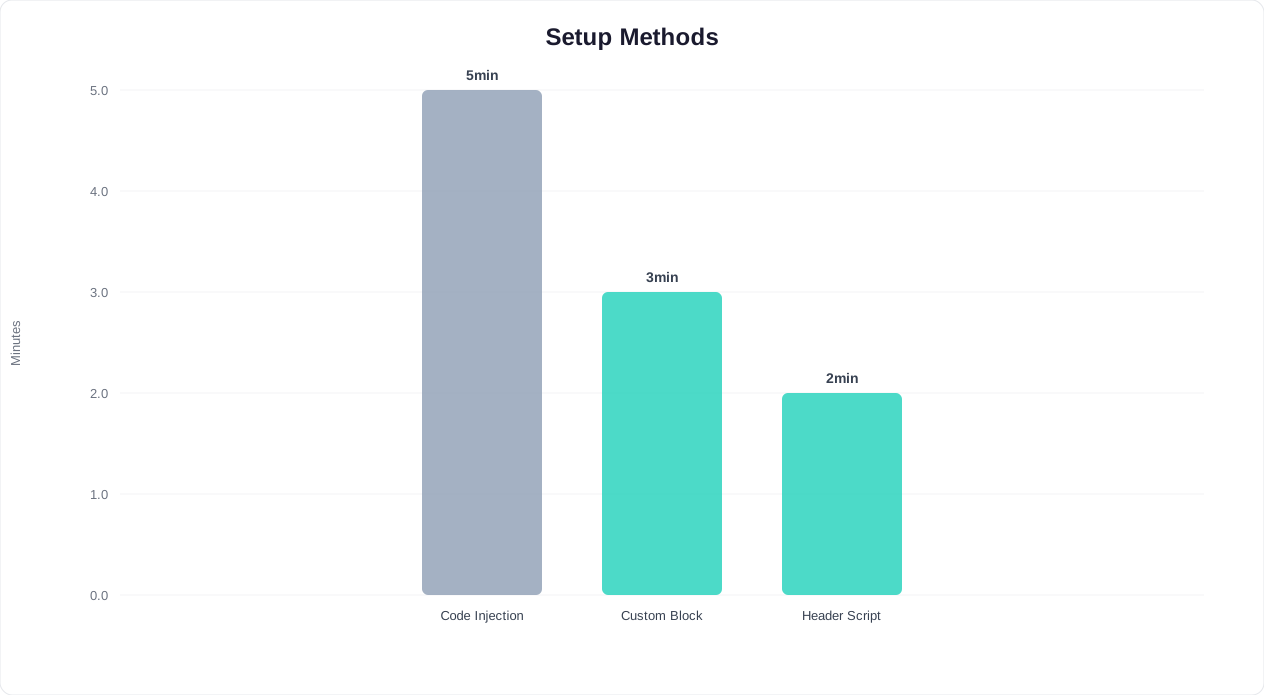
| Method | Where It Appears | Squarespace Plan Required | Setup Time | Best For |
|---|---|---|---|---|
| Code Injection (Site-Wide) | Every page on your site | Business or higher | 2 minutes | Most users — chatbot on all pages |
| Custom Code Block | Specific page only | Business or higher | 3 minutes | Landing pages, pricing pages, contact pages |
| Header/Footer Code Injection | Every page (via header) | Business or higher | 2 minutes | Alternative to site-wide injection |
✅ Zero Code Required
All three methods use simple copy-paste. No coding, no developer needed — just paste one line of JavaScript and click Save.
Important note on Squarespace plans: Code injection features are available on the Business plan and above (Business, Basic Commerce, Advanced Commerce). If you are on the Personal plan, you will need to upgrade to Business ($33/month) to add a chatbot. This is a Squarespace limitation, not a chatbot platform limitation.
Which Method Should You Choose?
For most businesses, Method 1 (Code Injection) is the best choice. It places your chatbot on every page of your site with a single paste, and it loads in the footer so it does not slow down your page. Use Method 2 (Custom Code Block) only if you want the chatbot on specific pages — for example, a dedicated support page or a high-converting landing page. Method 3 is functionally identical to Method 1 but uses a different Squarespace settings path. Choose whichever you find more intuitive.
Method 1: Site-Wide Code Injection (Recommended — 2 Minutes)
This is the fastest and most common method. It places your chatbot widget on every page of your Squarespace site automatically.
Step 1: Get Your Chatbot Embed Code
First, you need your chatbot's embed snippet. If you are using Conferbot, here is how to get it:
- Log in to your Conferbot dashboard
- Select the chatbot you want to deploy (or create one from a template)
- Click "Deploy" in the top navigation
- Select "Website Embed"
- Copy the embed code snippet — it looks like this:
<script src="https://app.conferbot.com/widget/YOUR_BOT_ID" async></script>
Step 2: Open Squarespace Code Injection
- Log in to your Squarespace account
- Go to Settings → Advanced → Code Injection
- You will see two fields: Header and Footer
Step 3: Paste and Save
- Paste your chatbot embed code into the Footer field (footer is recommended because it loads after your page content, keeping your site fast)
- Click Save
That's it. Your chatbot widget will now appear on every page of your Squarespace site as a floating chat bubble in the bottom-right corner. Visitors can click it to start a conversation immediately.
Why Footer Instead of Header?
Placing the script in the footer ensures your page content loads first, then the chatbot loads in the background. This prevents any impact on your page load speed and Core Web Vitals scores — important for both user experience and SEO. The chatbot typically loads within 1-2 seconds after the page, which is imperceptible to visitors.
Method 2: Custom Code Block (Page-Specific — 3 Minutes)
Use this method when you want the chatbot to appear only on specific pages — like your pricing page, contact page, or a high-traffic landing page.
Step 1: Get Your Embed Code
Same as Method 1 — copy your chatbot embed snippet from your Conferbot dashboard.
Step 2: Add a Code Block to Your Page
- Open the Squarespace page editor for the page where you want the chatbot
- Click the "+" (Add Block) button
- Scroll down to "Code" under the "More" section and click it
- A code block will appear on your page
Step 3: Paste and Configure
- Click the code block to edit it
- Paste your chatbot embed code
- Important: Make sure the "Display Source" toggle is turned OFF — otherwise visitors will see the raw code instead of the chatbot
- Click outside the block to save, then click Save on the page
When to Use Page-Specific Placement
Page-specific chatbot placement makes sense in several scenarios:
- Pricing page: Visitors on your pricing page are in decision mode. A chatbot that answers pricing questions and offers a discount or free trial can convert 20-30% more visitors.
- Contact page: Replace or supplement your contact form with a chatbot that responds instantly instead of making visitors wait for an email reply.
- Product pages (e-commerce): An e-commerce chatbot on product pages can answer sizing questions, compare products, and reduce cart abandonment.
- Landing pages: High-traffic landing pages from ad campaigns benefit from immediate engagement. A chatbot on a PPC landing page can improve conversion rates by 15-25%.
Complete Step-by-Step: Add Conferbot to Squarespace (With Screenshots Guide)
Here is the complete walkthrough for setting up a Conferbot chatbot on your Squarespace site, from account creation to live deployment.
Step 1: Create Your Conferbot Account (1 minute)
- Visit conferbot.com and click "Get Started Free"
- Sign up with your email or Google account
- You will land on your dashboard — no credit card required to start
Step 2: Create or Choose a Chatbot (2 minutes)
You have two options:
- Start from a template: Browse the template gallery and pick one that matches your use case — lead generation, customer support, appointment booking, e-commerce, FAQ, or any of 50+ industry-specific templates. Click "Use Template" and it is ready to customize.
- Build from scratch: Use the drag-and-drop builder to create a custom conversation flow. Add questions, buttons, conditional logic, and AI-powered responses without writing any code.
Step 3: Customize Your Bot (2-5 minutes)
Key customizations to make before deploying:
- Brand colors: Match your chatbot's color scheme to your Squarespace site's design. Set primary color, background, font, and button styles in the appearance settings.
- Welcome message: Write a greeting that matches your brand voice. Example: "Hi there! I'm here to help you find the perfect plan. What brings you to [Your Business] today?"
- Avatar and name: Upload your logo or a friendly avatar. Name your bot something memorable (or keep it professional with your company name).
- Conversation flow: Set up the questions, responses, and actions your bot should handle. Common flows for Squarespace sites include: answering FAQs, capturing lead information, booking appointments, and providing product recommendations.
- Integrations: Connect your chatbot to your email marketing tool, CRM, or calendar via the integrations hub. This ensures leads captured by the chatbot flow into your existing workflow automatically.
Step 4: Get Your Embed Code (30 seconds)
- Click "Deploy" in the top nav of your chatbot editor
- Select "Website Embed"
- Copy the one-line script tag
Step 5: Paste into Squarespace (1 minute)
- Open your Squarespace dashboard
- Navigate to Settings → Advanced → Code Injection (7.0) or Website → Website Tools → Code Injection (7.1)
- Paste the script into the Footer field
- Click Save
Step 6: Verify It Works (30 seconds)
- Open your Squarespace site in a new incognito browser window
- You should see the chatbot bubble in the bottom-right corner
- Click it and test the conversation flow
- Check your Conferbot dashboard — you should see the test conversation appear in your analytics
⏱️ 5-Minute Setup
From zero to live chatbot in under 5 minutes — no coding, no developer, no technical skills required. Just copy, paste, and save.
Total time from zero to live chatbot: under 5 minutes.
Squarespace Chatbot Best Practices: Maximize Engagement and Conversions
Adding the chatbot is step one. Optimizing it for your Squarespace site is where the real value lives. Here are proven best practices from businesses running chatbots on Squarespace.
1. Match Your Squarespace Theme's Design Language
Squarespace sites are known for clean, beautiful design. A chatbot that clashes with your theme undermines trust. Ensure your chatbot's color palette, font style, and button shapes align with your Squarespace template. If your site uses a minimalist aesthetic with lots of white space, use a clean white chatbot with a single accent color. If your site is bold and colorful, match those brand colors in the widget.
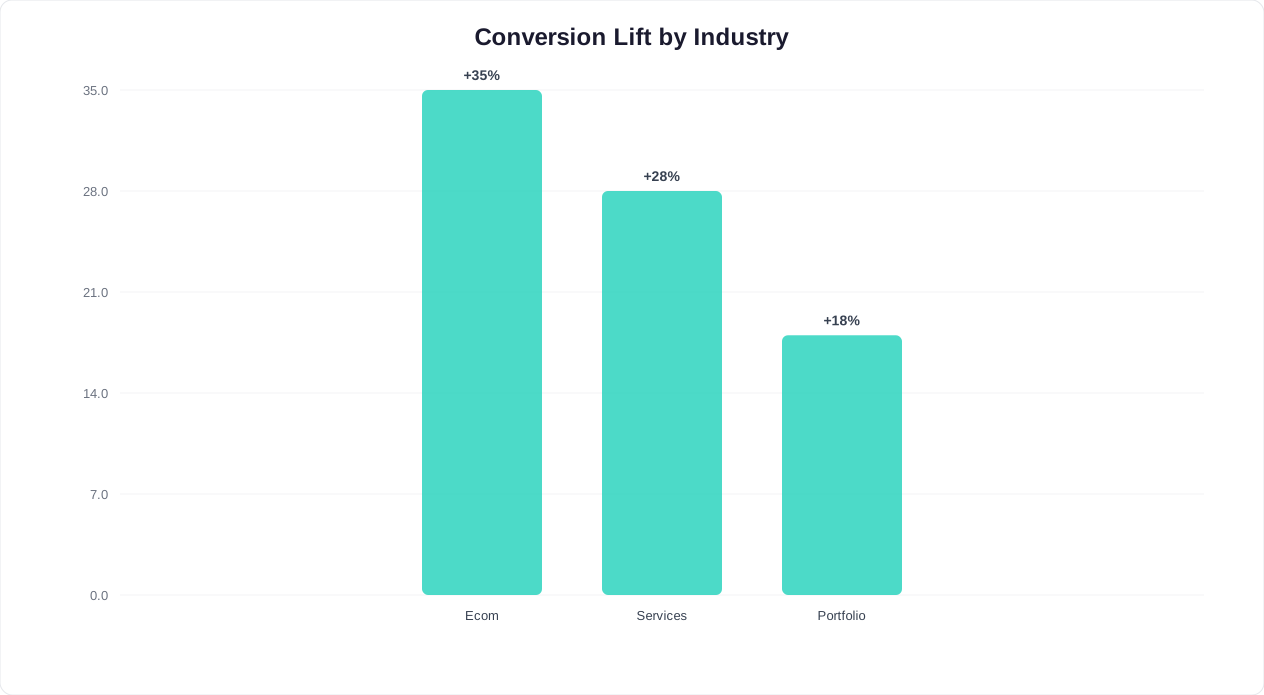
📈 Conversion Impact
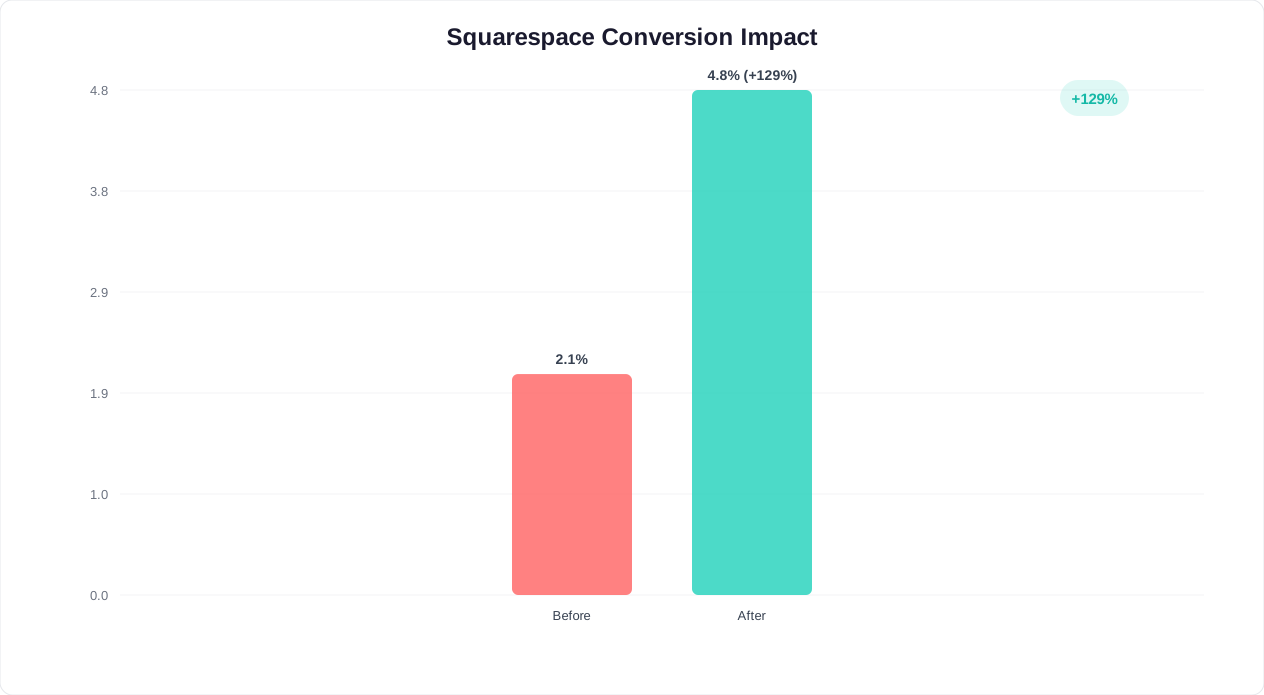
Squarespace sites see an 18-35% lift in lead conversion after adding a chatbot — with the highest gains on pricing pages and landing pages where visitors need instant answers.
2. Set Smart Trigger Rules
Do not show the chatbot popup on every page load — it annoys visitors. Instead, configure intelligent triggers:
- Time delay: Show the chatbot after 15-30 seconds on page (visitor has shown interest by staying)
- Scroll depth: Trigger when visitor scrolls 50% down the page (they are engaged with content)
- Exit intent: Show when the cursor moves toward the browser's close button (last chance to engage a leaving visitor)
- Page-specific: Auto-open on pricing and contact pages where visitors most need help
3. Write a Compelling Welcome Message
Your first message determines whether visitors engage. Avoid generic greetings like "How can I help you?" — they feel robotic. Instead, make your welcome message specific to what the visitor is likely looking for on that page:
- Homepage: "Welcome to [Business]! Looking for [main service] or have a question about pricing?"
- Pricing page: "Need help choosing the right plan? I can compare options based on your needs."
- Portfolio page: "Like what you see? I can check availability for your project dates."
- E-commerce: "Looking for something specific? I can help you find the right [product] in your size."
4. Keep Conversations Short and Action-Oriented
Squarespace visitors are typically decisive — they are browsing portfolios, comparing services, or ready to buy. Your chatbot should get to the point fast:
- Limit qualifying questions to 3-4 maximum
- Use button responses instead of open text where possible (faster, fewer errors)
- Always end with a clear call-to-action: book a call, get a quote, add to cart, or download a resource
5. Enable Mobile Optimization
Over 60% of Squarespace traffic comes from mobile devices. Make sure your chatbot:
- Does not cover critical content or navigation on mobile screens
- Uses a compact bubble that expands to full-width chat on mobile
- Has large, tappable buttons (minimum 44px touch targets)
- Loads fast on mobile connections (Conferbot's widget is under 50KB gzipped)
6. Integrate with Your Squarespace E-Commerce
If you run a Squarespace e-commerce store, connect your chatbot to enhance the shopping experience:
- Answer product questions (sizing, materials, shipping times)
- Recommend products based on visitor preferences
- Offer discount codes to hesitant buyers via lead capture
- Send abandoned cart reminders through WhatsApp or email
7. Track Performance with Analytics
Monitor your chatbot's impact on your Squarespace site using Conferbot's analytics dashboard:
- Engagement rate: What percentage of visitors interact with the chatbot?
- Conversation completion rate: Do visitors finish the chatbot flow or drop off?
- Lead capture rate: How many conversations result in a captured email or phone number?
- Top questions: What are visitors asking most? Use this to improve your Squarespace site's content and the chatbot's responses.
Frequently Asked Questions: Squarespace Chatbots
Does adding a chatbot slow down my Squarespace site?
No — when embedded in the footer (as recommended), the chatbot script loads asynchronously after your page content. Conferbot's widget is under 50KB gzipped and loads in 1-2 seconds. It has no measurable impact on page load times or Core Web Vitals scores. Google's PageSpeed Insights will not flag it.
Can I add a chatbot on the Squarespace Personal plan?
Unfortunately, no. Code injection is only available on Squarespace Business plan and above ($33/month). This is a Squarespace platform limitation. If you are on the Personal plan, you will need to upgrade to add any third-party chat widget, not just Conferbot.
Will the chatbot work with Squarespace 7.0 and 7.1?
Yes. Both Squarespace 7.0 and 7.1 support code injection. The only difference is the navigation path to the settings. In 7.0: Settings → Advanced → Code Injection. In 7.1: Website → Website Tools → Code Injection. The embed code itself is identical for both versions.
Can I show the chatbot only on certain pages?
Yes. Use Method 2 (Custom Code Block) to add the chatbot to specific pages only. Alternatively, if you use site-wide code injection, you can configure page-targeting rules in your Conferbot dashboard to show or hide the chatbot based on the URL path.
Does the chatbot work with Squarespace's built-in forms?
The chatbot operates independently of Squarespace's built-in forms. However, you can use them together — for example, keep your contact form for detailed inquiries while the chatbot handles quick questions and lead capture. Many businesses find that adding a chatbot reduces form submissions by 40-60% because visitors get instant answers instead of waiting for email replies.
Can the chatbot handle multiple languages on my Squarespace site?
Yes. Conferbot supports 70+ languages. You can configure the chatbot to detect the visitor's browser language and respond accordingly, or let visitors choose their preferred language at the start of the conversation. This is especially valuable for Squarespace sites serving international audiences.
How do I remove the chatbot from my Squarespace site?
Simply delete the embed code from your Squarespace Code Injection settings and save. The chatbot will disappear immediately. No residual code or files remain on your Squarespace site.
Can I use the chatbot with Squarespace Scheduling (Acuity)?
Yes. If you use Squarespace Scheduling (formerly Acuity Scheduling), you can connect it to your chatbot via the integrations hub. The chatbot can show available time slots, book appointments, and send confirmations — all within the chat conversation, without redirecting visitors to a separate scheduling page.
Was this article helpful?
About the Author

Conferbot Team specializes in conversational AI, chatbot strategy, and customer engagement automation. With deep expertise in building AI-powered chatbots, they help businesses deliver exceptional customer experiences across every channel.
View all articles