Why No-Shows Cost Service Businesses Thousands Per Year
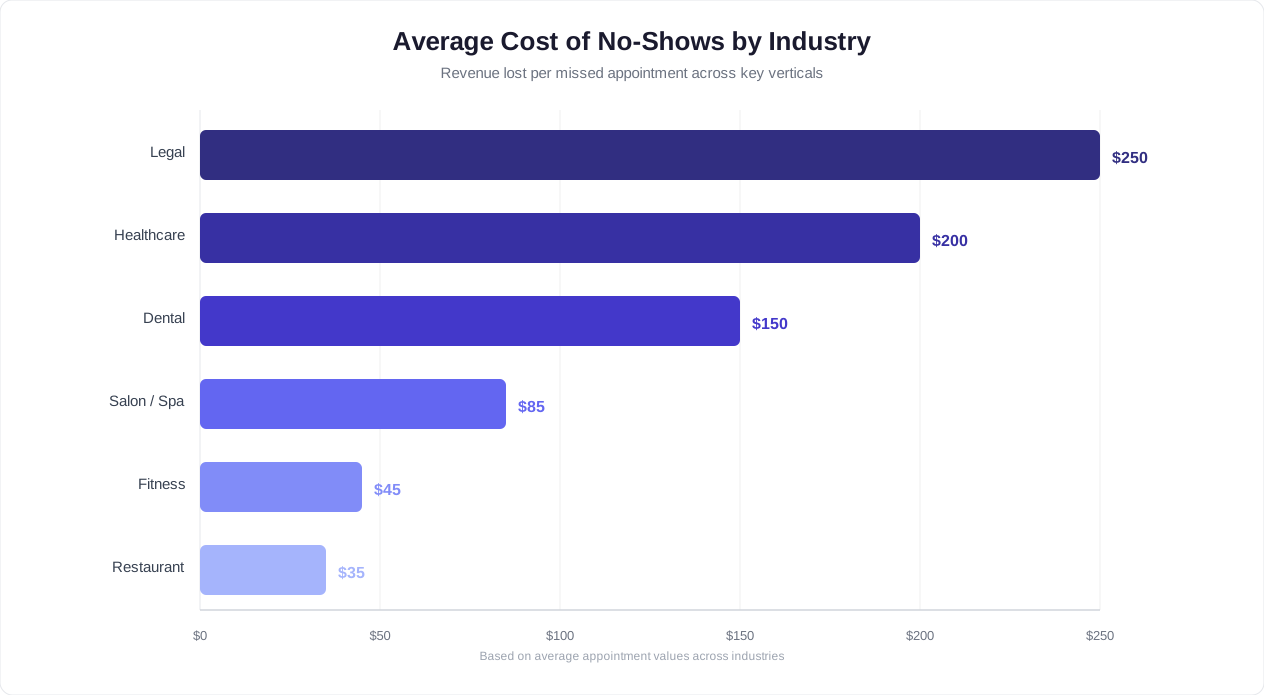
Every empty chair, unused exam room, and idle service bay represents money walking out the door. No-shows are not a minor inconvenience for appointment-based businesses -- they are a systemic financial drain that compounds week after week, month after month, until the cumulative losses reshape your bottom line entirely. According to research from the Healthcare Innovation Group, the U.S. healthcare system alone loses over $150 billion annually to missed appointments. And healthcare is just one vertical in a much larger problem.
The True Cost of a Single No-Show
Most business owners drastically underestimate what a no-show actually costs. The direct cost is the revenue from the missed appointment, but the indirect costs multiply the damage:
- Direct revenue loss: The fee for the service that was not delivered
- Staff idle time: Your team is paid whether or not the patient or client shows up
- Opportunity cost: Another customer who could have filled that slot was turned away or never offered the time
- Scheduling disruption: Gaps in the schedule reduce overall throughput for the entire day
- Administrative overhead: Staff time spent calling no-shows, rebooking, and managing waitlists manually
When you factor in all of these costs, a single no-show at a medical practice with a $200 average appointment value can cost $275-$350 in total economic impact. For a salon with a $90 average ticket, the true cost per no-show is closer to $120-$150.
No-Show Rates by Industry
The no-show epidemic affects every appointment-based industry, though rates vary significantly:
| Industry | Average No-Show Rate | Avg. Appointment Value | Annual Loss (100 appts/week) |
|---|---|---|---|
| Healthcare / Medical | 23-34% | $200 | $239,200 - $353,600 |
| Dental Practices | 15-25% | $175 | $136,500 - $227,500 |
| Salons and Spas | 20-30% | $90 | $93,600 - $140,400 |
| Professional Services | 15-22% | $300 | $234,000 - $343,200 |
| Fitness / Personal Training | 18-28% | $60 | $56,160 - $87,360 |
| Auto Services | 12-18% | $250 | $156,000 - $234,000 |
| Real Estate Showings | 25-35% | N/A (time cost) | 5-10 hrs/week lost |
Why Customers No-Show
Understanding the root causes of no-shows is essential before building a solution. Research from McKinsey and Company and multiple healthcare studies point to a consistent set of reasons:
- Forgetfulness (38%): The single largest driver. Life gets busy, and an appointment booked two weeks ago simply slips from memory.
- Scheduling conflicts (26%): Something else came up, but cancelling felt too inconvenient, so the customer just skipped it.
- Cancellation friction (18%): The customer wanted to cancel or reschedule but could not reach anyone by phone, did not want to wait on hold, or did not know the process.
- Transportation or logistics (10%): Could not get to the appointment due to car trouble, weather, childcare issues, or similar barriers.
- Anxiety or reluctance (8%): Particularly common in healthcare and dental, where fear of the procedure causes avoidance.
Notice that the top three reasons -- forgetfulness, scheduling conflicts, and cancellation friction -- account for 82% of all no-shows. Every single one of these is directly addressable with automated chatbot reminders that include one-tap rescheduling. This is precisely why businesses that automate appointment reminders with a chatbot see no-show reductions of 50.7% on average, according to a meta-analysis published in the Journal of Medical Internet Research. The automation attacks the root causes, not just the symptoms.
For a mid-sized dental practice doing 150 appointments per week with a 22% no-show rate, cutting that rate in half recovers approximately $150,000 in annual revenue -- without adding a single new patient to the schedule. The math is compelling enough that automated reminders should be considered essential infrastructure for any appointment-based business, not an optional upgrade. And with platforms like Conferbot's AI chatbot builder, you can deploy a full reminder system in a single afternoon.
How Chatbot Appointment Reminders Work (Step by Step)
A chatbot-powered appointment reminder system is not a simple "send a text before the appointment" tool. It is an intelligent, multi-stage workflow that monitors your calendar, engages customers at precisely the right moments, processes their responses, and takes autonomous action based on those responses -- all without any human intervention. Here is how the five-stage technical flow works from booking to post-appointment follow-up.
Step 1: Booking Capture and Data Sync
The reminder workflow begins the instant an appointment is booked. Whether the customer books through your website chatbot, WhatsApp, a phone call logged by staff, or a third-party booking tool, the chatbot system ingests the appointment data and creates a reminder schedule.
The data captured includes:
- Customer name and preferred contact channel (WhatsApp, SMS, email)
- Appointment date, time, and expected duration
- Service type and assigned staff member
- Location details (address, room number, virtual meeting link)
- Any pre-appointment instructions (fasting, documents to bring, forms to complete)
- The customer's timezone, which is critical for businesses serving customers across regions
This data is synchronized in real time with your calendar system via the integrations hub, so any changes made on either side -- by the customer through the chatbot or by staff through the calendar -- are reflected everywhere.
Step 2: Intelligent Reminder Scheduling
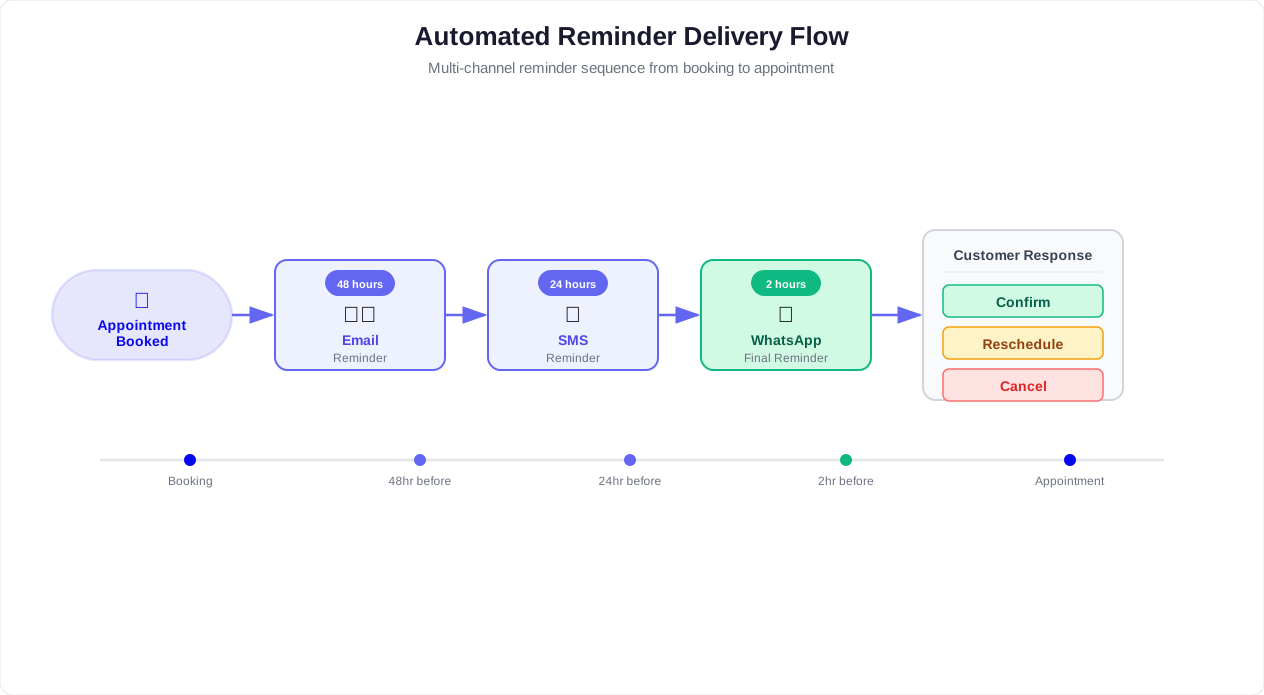
Based on the appointment type, lead time, and customer preferences, the system creates a personalized reminder sequence. A standard three-touch sequence looks like this:
- First reminder (72 hours before): Early confirmation request that gives the customer time to reschedule if needed
- Second reminder (24 hours before): Detailed reminder with location, preparation instructions, and confirm/reschedule buttons
- Third reminder (2 hours before): Final nudge with directions, parking information, or a virtual meeting link
The system is smart about timing. It will not send a reminder at 3 AM just because the appointment is exactly 24 hours away. Instead, it shifts the delivery window to a reasonable hour (typically 8 AM to 8 PM in the customer's local timezone) while maintaining the general cadence. This is managed automatically by the chatbot's scheduling engine.
Step 3: Multi-Channel Delivery
Each reminder is delivered through the customer's preferred channel. If the customer originally booked via WhatsApp, reminders go to WhatsApp. If they booked on your website, reminders can be sent via SMS, email, or WhatsApp based on the contact information collected during booking.
The message content is tailored to each channel:
| Channel | Format | Best For | Avg. Open Rate |
|---|---|---|---|
| Rich message with quick reply buttons | Highest engagement, instant responses | 98% | |
| SMS | Plain text with short link | Universal reach, no app required | 95% |
| HTML with calendar attachment | Detailed information, formal contexts | 22-30% | |
| Website Push | Browser notification with action URL | Customers who opted in on your site | 50-60% |
The most effective approach is a multi-channel cascade: send via the primary channel first, and if the customer does not open or respond within a set window (e.g., 2 hours), automatically follow up via a secondary channel. For example, send on WhatsApp first; if unread after 2 hours, send an SMS backup.
Step 4: Response Processing and Autonomous Action
This is where chatbot reminders fundamentally differ from one-way SMS blasts. When a customer responds to a reminder, the chatbot processes the response using natural language understanding and takes immediate action:
- "Confirm" / "Yes" / "See you then" -- The chatbot marks the appointment as confirmed in your system and sends a brief acknowledgment.
- "Reschedule" / "Can we move it?" / "Tuesday does not work" -- The chatbot immediately pulls up available alternative slots and guides the customer through rebooking (covered in detail in the rescheduling section below).
- "Cancel" / "I need to cancel" -- The chatbot processes the cancellation, enforces your cancellation policy (e.g., late cancellation fees), opens the slot, and triggers the waitlist notification flow.
- Questions: "Where do I park?" / "What should I bring?" -- The chatbot answers from its knowledge base, providing location-specific information, preparation instructions, or connecting the customer to live chat for complex queries.
Every response is logged and analyzed. Over time, the system identifies patterns -- which customers consistently confirm, which tend to reschedule, and which are high no-show risks -- enabling proactive intervention through chatbot analytics.
Step 5: Post-Appointment Follow-Up
The reminder system does not stop when the appointment occurs. After the appointment, the chatbot can automatically:
- Send a thank-you message with a satisfaction survey
- Request a Google or Yelp review (with a direct link)
- Offer rebooking for recurring appointments ("Would you like to schedule your next cleaning in 6 months?")
- Share relevant resources (post-procedure care instructions, exercise plans, product recommendations)
This post-appointment flow turns a one-time transaction into an ongoing relationship, increasing customer lifetime value and booking frequency. The entire five-step flow -- from booking capture through post-appointment follow-up -- runs autonomously 24 hours a day, 7 days a week, with zero manual effort from your team.
Related: AI Receptionist for Small Business: Website Chatbot, Voice Bot, or Both?
Reminder Timing That Actually Works: 72h, 24h, 2h
Sending reminders is necessary, but sending them at the right time is what separates a 20% no-show reduction from a 50%+ reduction. The timing of each reminder in the sequence serves a distinct psychological and logistical purpose, and getting it wrong can actually increase cancellations rather than decrease no-shows. Here is the evidence-based timing framework that delivers the strongest results.
The Three-Touch Reminder Sequence
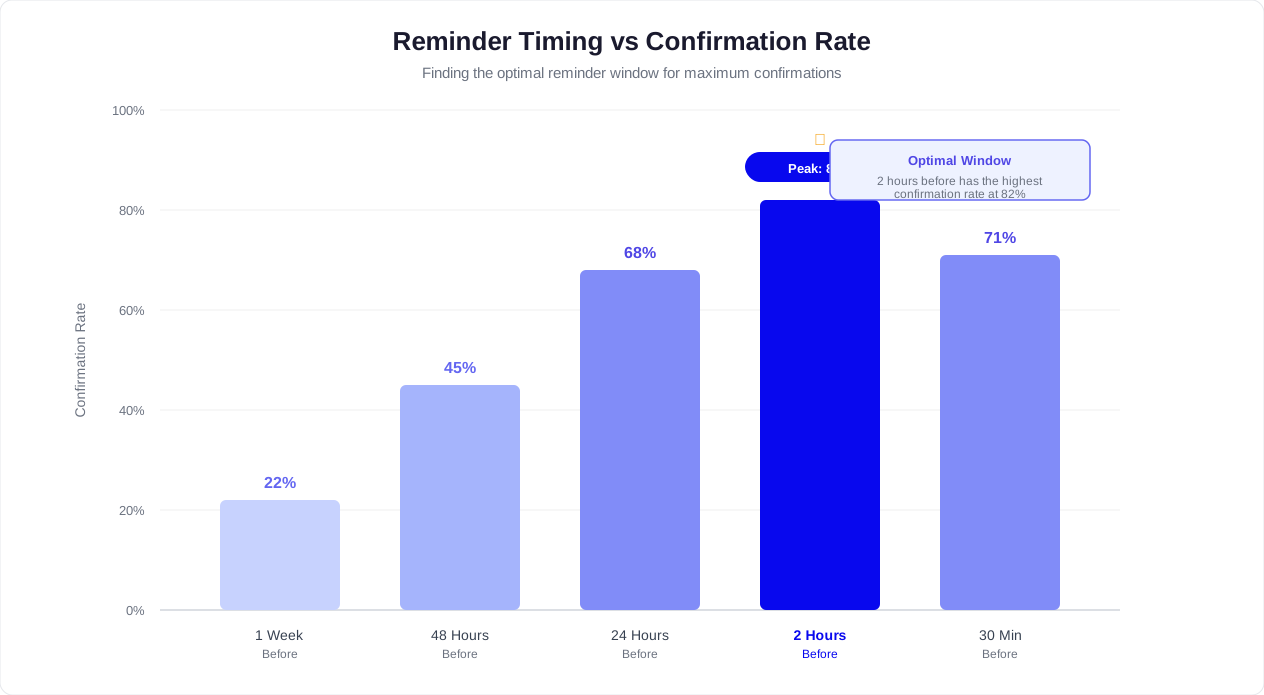
Research from appointment management platforms and behavioral studies consistently points to a three-touch sequence as the optimal balance between effectiveness and annoyance avoidance. Each touch has a specific purpose:
| Reminder | Timing | Purpose | Tone | Key Action |
|---|---|---|---|---|
| First Touch | 72 hours before | Early confirmation and rescheduling window | Casual, informational | Confirm or Reschedule buttons |
| Second Touch | 24 hours before | Preparation and logistics | Helpful, detailed | Directions, prep instructions, Confirm/Reschedule/Cancel |
| Third Touch | 2 hours before | Final nudge and wayfinding | Concise, action-oriented | Directions link, virtual meeting link, or parking info |
Why 72 Hours: The Rescheduling Window
The 72-hour reminder is the most strategically important touch in the sequence. Its primary purpose is not to remind -- it is to give the customer enough time to reschedule without creating a last-minute gap in your calendar. When a customer realizes three days before their appointment that the time no longer works, they have a reasonable window to pick a new slot. Your calendar still has enough lead time to fill the original slot from the waitlist or new bookings.
The 72-hour message should be brief and conversational:
"Hi [Name], just a quick heads-up: you have a [Service] appointment on [Day] at [Time] with [Provider]. Does this still work for you? Tap Confirm to keep it, or Reschedule if you need a different time."
Data shows that 65% of rescheduling requests come from this first touch -- which is exactly what you want. Early rescheduling is far better than a day-of no-show.
Why 24 Hours: Preparation and Commitment
The 24-hour reminder serves a dual purpose: providing logistical details that reduce friction and creating a psychological commitment point. By this stage, the customer has either already confirmed or is at least aware the appointment is tomorrow. The 24-hour message reinforces the commitment while making it as easy as possible to show up.
This message should include:
- Full appointment details (date, time, provider, location)
- Preparation instructions specific to the service ("Please arrive 10 minutes early with your insurance card" or "Come with clean, dry hair for best color results")
- A direct link to the location on Google Maps or a virtual meeting link
- A last-chance reschedule option (though you can indicate that same-day changes may be limited)
Studies from Gartner's customer experience research show that providing specific preparation details in the 24-hour reminder reduces day-of anxiety and increases show rates by 12-18% compared to generic "Don't forget your appointment" messages.
Why 2 Hours: The Final Nudge
The 2-hour reminder is short, sharp, and purely functional. By this point, the customer either intends to come or does not. The goal is to remove any last-minute logistical barriers and provide a gentle nudge that keeps the appointment top of mind during a busy day.
"Your [Service] appointment is in 2 hours at [Location]. Here are directions: [Map Link]. See you soon!"
For virtual appointments, this is where you include the meeting link with a one-tap join button. For in-person appointments, include parking information or building entry instructions. The 2-hour reminder typically recovers an additional 8-12% of potential no-shows who simply lost track of time.
Timing Adjustments by Appointment Type
Not all appointments are equal. The optimal reminder cadence shifts based on the lead time between booking and the appointment:
| Booking Lead Time | Recommended Sequence | Rationale |
|---|---|---|
| Same day (0-6 hours) | 1 reminder at 30 min before | Short window; single nudge is sufficient |
| 1-2 days | Confirmation at booking + 2 hours before | Not enough lead time for 72h touch |
| 3-7 days | 48h + 2h before | Standard short-lead sequence |
| 1-4 weeks | 72h + 24h + 2h before | Full three-touch sequence |
| 1-3 months | 2 weeks + 72h + 24h + 2h | Extended sequence for long-lead bookings |
| 3+ months | Monthly check-in + 72h + 24h + 2h | Periodic engagement to prevent drift |
Appointments booked far in advance are at the highest risk for no-shows because circumstances change over weeks and months. A quarterly dental cleaning booked in January for April needs periodic "still good?" check-ins to maintain engagement. Conferbot's calendar booking feature handles these variable sequences automatically based on the lead time at the point of booking.
Time-of-Day Best Practices
When you send matters almost as much as how far in advance you send. Key rules:
- Never send before 8 AM or after 8 PM in the customer's local timezone. Early morning or late night messages feel intrusive and generate complaints.
- Mid-morning (9-11 AM) is optimal for the 72-hour and 24-hour reminders. People are awake, at their devices, and in planning mode.
- Avoid lunch hours (12-1 PM) for the 24-hour reminder. Open rates drop during midday breaks.
- The 2-hour reminder is time-locked by definition, so send it exactly 2 hours before regardless of the hour (within the 8 AM - 8 PM window).
For businesses operating across timezones, this means your reminder system must be timezone-aware. A 9 AM delivery in New York should not blast a customer in Los Angeles at 6 AM. Conferbot handles timezone detection automatically based on the customer's location data.
What Happens When You Get Timing Wrong
Too many reminders, or reminders sent at bad times, create the opposite of the intended effect. Over-reminded customers may:
- Mute or block your messaging channel
- Cancel out of annoyance ("If they are going to message me five times, I will just cancel")
- Leave negative reviews about spam-like communication
The three-touch sequence at 72h/24h/2h has been refined across millions of appointments to hit the sweet spot: enough touches to prevent forgetfulness without crossing into annoyance. Stick to this framework as your starting point and adjust based on the data from your analytics dashboard.
Related: AI Chatbot for Coaches: Convert Website Visitors Into Discovery Calls and Course Sales
Enabling One-Tap Rescheduling Inside the Reminder
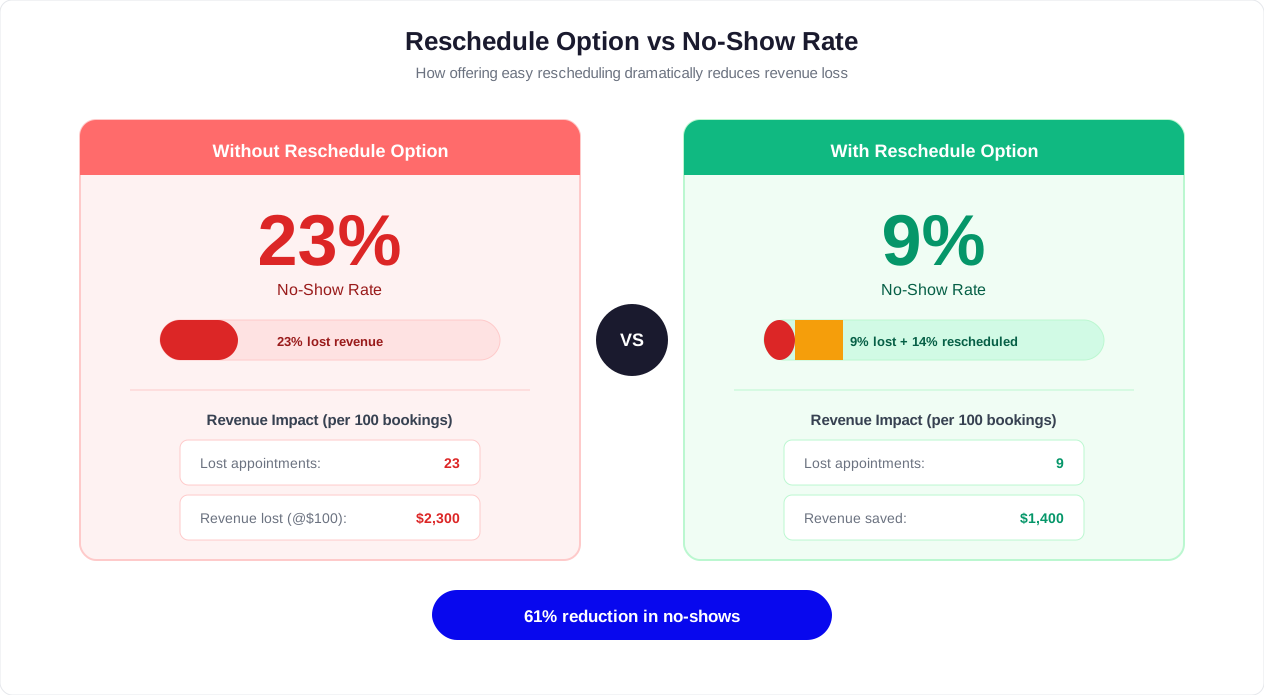
Here is a counterintuitive truth about no-shows: making it easier to cancel or reschedule actually reduces no-shows. It sounds backwards, but the data is unambiguous. When customers face a scheduling conflict and cannot easily change their appointment, they default to the path of least resistance -- which is simply not showing up. Remove the friction from rescheduling, and customers reschedule instead of ghosting. Your slot opens up for someone else, the customer rebooks for a time that works, and no revenue is permanently lost.
The Rescheduling Paradox
Many business owners resist including reschedule and cancel buttons in reminders because they fear it will encourage cancellations. The research says otherwise. A study from the American Journal of Managed Care found that practices offering easy digital rescheduling saw:
- 15% increase in reschedules (people who would have no-showed now reschedule instead)
- Only 3% increase in cancellations (minimal additional cancellations from people who would have shown up)
- Net no-show reduction of 12-15% from this single change alone
The math is clear: you convert far more no-shows into reschedules than you lose from new cancellations. The net effect is strongly positive.
Designing the One-Tap Reschedule Flow
The key word is "one-tap." Every additional step in the rescheduling process loses customers. The ideal flow on WhatsApp or your website chatbot looks like this:
- Customer taps "Reschedule" button on any reminder message
- Chatbot instantly shows 3-5 alternative slots: "Here are the next available times for [Service]: [Mon 10 AM] [Tue 2 PM] [Wed 11 AM] [Thu 4 PM] -- Tap one to rebook, or type a preferred day."
- Customer taps a slot (one tap)
- Chatbot confirms instantly: "Done! You are now booked for [New Date/Time]. I will send you a new reminder. Have a great day."
Total interaction: two taps and under 15 seconds. Compare this to the traditional rescheduling process: call the office (2-3 minutes on hold), explain the situation (1-2 minutes), wait while the receptionist checks availability (1-2 minutes), agree on a new time (1 minute), and hang up. The phone process takes 5-8 minutes and is only available during business hours. It is no wonder customers avoid it.
Smart Slot Suggestions
The alternative slots shown during rescheduling should not be random. The chatbot should use intelligent slot selection based on:
- Similar time of day: If the original appointment was at 2 PM, suggest afternoon slots first
- Same day of week: If the original was a Tuesday, suggest other Tuesdays first
- Same provider: If the customer selected a specific staff member, only show that provider's availability
- Proximity to original date: Show the nearest available slots first, not ones weeks away
- Customer history: If the customer has rescheduled before, suggest times that match their previous preferences
This intelligence is built into Conferbot's calendar booking integration, which analyzes the original appointment context to present the most relevant alternatives first.
Handling Edge Cases
A robust rescheduling flow must handle situations beyond the happy path:
- No availability in the same week: "The next available slot for [Service] with [Provider] is [Date]. Would you like to book it, or should I check other providers?"
- Rescheduling within your cancellation policy window: "Since your appointment is within 24 hours, our policy applies a $25 late-change fee. Would you like to proceed or keep the original time?"
- Multiple rescheduling attempts: If a customer reschedules repeatedly, the chatbot can gently flag this: "I see this appointment has been rescheduled twice. Would you like me to help find a time that works better for your regular schedule?"
- Service changes during rescheduling: "While we are rescheduling, would you like to keep the same service ([Original Service]) or change to something else?"
Rescheduling Metrics to Track
Once you enable one-tap rescheduling, track these metrics through your analytics dashboard to measure its impact:
| Metric | What It Tells You | Target |
|---|---|---|
| Reschedule rate from reminders | Percentage of reminded customers who reschedule | 8-15% |
| Reschedule-to-completion rate | Percentage of rescheduled appointments that are kept | Above 85% |
| No-show rate post-rescheduling | Whether rescheduled appointments still no-show | Below 8% |
| Average rescheduling lead time | How far in advance customers reschedule | 48+ hours ideal |
| Slot refill rate | Percentage of freed slots that get rebooked by others | Above 60% |
The combination of easy rescheduling and automated waitlist notification creates a virtuous cycle: the customer who needs to move their appointment frees up a slot that the waitlist system immediately fills. Both customers are happy, and no revenue is lost. This is the power of building rescheduling directly into the reminder flow rather than treating it as a separate process.
Related: How to Calculate Chatbot ROI: Formula, Benchmarks, and Free Calculator
Integrating Your Chatbot With Calendly, Google Calendar, and CRMs
An automated reminder chatbot is only as good as the data it can access. If the chatbot cannot read your real calendar in real time, it sends reminders for appointments that have been cancelled, misses new bookings, and shows availability that does not exist. Tight integration with your scheduling tools, CRM, and communication platforms is not optional -- it is the foundation that makes everything else work.
Google Calendar Integration
Google Calendar is the most common scheduling backend for small and mid-sized service businesses. Connecting your chatbot to Google Calendar enables:
- Real-time availability reads: The chatbot checks your calendar before showing any open slots, preventing double-bookings
- Automatic event creation: New bookings made through the chatbot appear on your Google Calendar instantly with all customer details in the event description
- Two-way sync: If you or your staff manually add, move, or cancel an appointment in Google Calendar, the chatbot's reminder schedule updates automatically
- Multi-calendar support: For businesses with multiple providers, each staff member's Google Calendar is read independently, enabling the chatbot to route bookings to the right person
Setting up Google Calendar integration in Conferbot takes under 10 minutes through the integrations hub. You authorize access, select which calendars to sync, set your business hours and buffer times, and the connection is live.
Calendly Integration
Many businesses already use Calendly as their scheduling tool and want to add chatbot reminders on top without replacing their existing workflow. The integration works by connecting your chatbot to Calendly's API, enabling:
- Event webhooks: When a customer books, reschedules, or cancels through Calendly, the chatbot is notified instantly and adjusts its reminder schedule accordingly
- Availability sync: The chatbot can display Calendly availability within the conversation, so customers never leave the chat to book
- Custom fields: Any additional information collected by the chatbot (special requests, preferences) is passed to Calendly and attached to the event
For businesses using Calendly's paid plans, the Calendly API supports robust webhook events that trigger chatbot reminder sequences without any manual intervention.
Microsoft Outlook / Office 365
Enterprise and professional service firms typically run on Microsoft's ecosystem. The integration pattern mirrors Google Calendar but uses Microsoft Graph API:
- Read/write access to Outlook calendars for availability and booking
- Support for shared calendars and room resources
- Teams meeting link generation for virtual appointments
- Integration with Microsoft Bookings for businesses already using that tool
CRM Integration: The Missing Layer
Calendar integration tells your chatbot when appointments are. CRM integration tells it who the customers are. Connecting your chatbot to your CRM (HubSpot, Salesforce, Zoho, or a custom database) unlocks powerful personalization:
- Personalized reminders: "Hi Sarah, looking forward to your quarterly review tomorrow. Last time we discussed expanding into the Northeast market -- feel free to bring any updated numbers."
- No-show risk scoring: Flag customers with a history of no-shows for extra reminder touches or deposit requirements
- Automated follow-up sequences: After a no-show, trigger a CRM workflow that sends a re-engagement campaign
- Lifetime value context: Prioritize reminder urgency and slot-filling efforts based on customer value
Integration Architecture
The technical architecture for a fully integrated reminder system looks like this:
| Component | Role | Tools |
|---|---|---|
| Calendar System | Source of truth for appointments and availability | Google Calendar, Outlook, Calendly, Acuity |
| Chatbot Platform | Reminder engine, conversation handler, response processor | Conferbot |
| CRM | Customer data, history, segmentation | HubSpot, Salesforce, Zoho |
| Messaging Channels | Delivery layer for reminders | WhatsApp, SMS (Twilio), Email |
| Payment Processor | Deposit collection, no-show fee processing | Stripe, PayPal, Square |
| Analytics | Performance tracking and optimization | Conferbot Analytics |
All of these integrations connect through Conferbot's integrations hub, which provides pre-built connectors for the most popular tools and a webhook/API framework for custom integrations.
Data Flow Example
To illustrate how all the pieces work together, here is the data flow for a single appointment lifecycle:
- Customer books via WhatsApp chatbot -- Chatbot writes event to Google Calendar, creates contact in CRM, schedules reminder sequence
- Staff adjusts appointment time in Google Calendar -- Webhook notifies chatbot, which updates the reminder schedule and sends the customer a change notification
- 72-hour reminder fires -- Chatbot pulls customer name from CRM, appointment details from Calendar, and sends a personalized WhatsApp message
- Customer taps Reschedule -- Chatbot reads availability from Calendar, presents options, customer selects new slot, chatbot updates Calendar and CRM
- Original slot opens -- Chatbot queries CRM for waitlisted customers, sends notifications, first responder books the slot
- Appointment occurs -- CRM is updated with visit record, post-appointment follow-up triggers
This entire lifecycle is automated end to end. The only human involvement is the actual service delivery. Everything else -- booking, reminding, rescheduling, waitlist management, and follow-up -- is handled by the chatbot and its integrations.
Related: Chatbot Analytics: 10 Metrics You Must Track to Prove ROI in 2026
Real Results: Before and After No-Show Rates
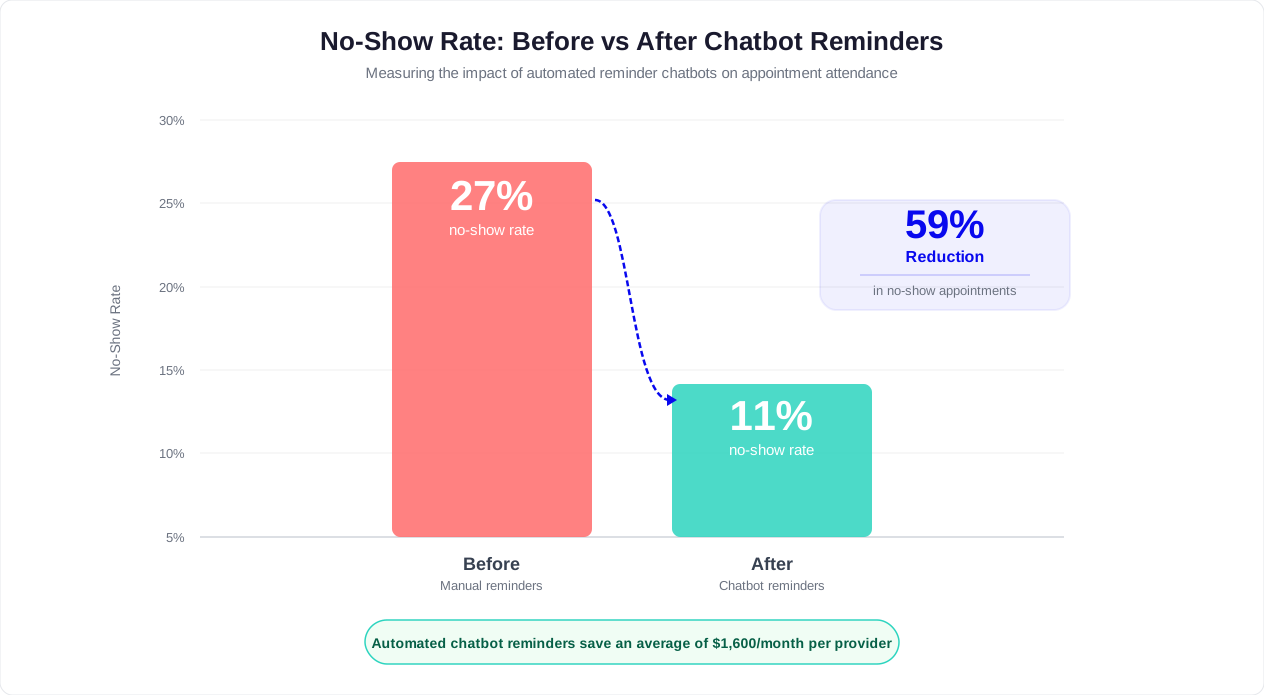
Theory and frameworks are valuable, but results are what matter. Across industries, businesses that deploy automated chatbot appointment reminders consistently see dramatic reductions in no-show rates. The average reduction is 50.7%, with some industries seeing even greater improvements. Here is what the before-and-after data looks like.
Industry Benchmark Data
The following table aggregates data from multiple sources including healthcare system reports, salon management platforms, and professional service firm case studies:
| Industry | No-Show Rate (No Reminders) | No-Show Rate (Manual Phone/Email) | No-Show Rate (Automated Chatbot) | Reduction vs. No Reminders |
|---|---|---|---|---|
| General Healthcare | 27% | 18% | 11% | 59% |
| Dental Practices | 23% | 15% | 9% | 61% |
| Mental Health / Therapy | 30% | 22% | 14% | 53% |
| Salons and Spas | 25% | 18% | 12% | 52% |
| Professional Services | 18% | 12% | 7% | 61% |
| Fitness / Training | 22% | 16% | 10% | 55% |
| Auto Services | 15% | 10% | 6% | 60% |
| Real Estate Showings | 30% | 20% | 13% | 57% |
Why Chatbot Reminders Outperform Manual and SMS-Only Approaches
The data consistently shows a gap between manual reminders and automated chatbot reminders. This gap exists because chatbots offer capabilities that manual or basic SMS systems cannot match:
- Consistency: Chatbots send every reminder on schedule, every time. Manual reminder calls depend on staff availability and are the first task dropped when the front desk gets busy.
- Multi-touch sequences: Chatbots execute the full 72h/24h/2h sequence automatically. Manual systems typically manage one reminder call at best.
- Two-way interaction: Chatbot reminders invite responses and handle rescheduling in real time. One-way SMS reminders provide no mechanism for the customer to act without calling in.
- Personalization at scale: Chatbots customize every message with the customer's name, service details, provider name, and preparation instructions. Manual calls often use generic scripts.
- Off-hours coverage: Chatbot reminders work at 7 AM on a Sunday for Monday morning appointments. Your staff does not.
Revenue Recovery Calculator
To quantify the impact for your specific business, use this formula:
Annual Revenue Recovered = (Weekly Appointments) x (Current No-Show Rate - Projected No-Show Rate) x (Average Appointment Value) x 52
Here are example calculations for common business profiles:
| Business Type | Weekly Appts | No-Show Before | No-Show After | Avg. Value | Annual Recovery |
|---|---|---|---|---|---|
| Solo dental practice | 80 | 22% | 10% | $185 | $92,352 |
| Hair salon (3 stylists) | 120 | 25% | 12% | $85 | $69,108 |
| Physical therapy clinic | 100 | 28% | 13% | $150 | $117,000 |
| Business consultant | 25 | 18% | 7% | $400 | $57,200 |
| Auto repair shop | 60 | 15% | 6% | $275 | $77,220 |
| Personal trainer | 40 | 22% | 10% | $75 | $18,720 |
Compare these recovery figures to the cost of running automated reminders -- typically $49-$149/month on a platform like Conferbot -- and the ROI becomes extraordinary. The dental practice in the example above sees a 51x to 157x return on its chatbot investment from no-show reduction alone, before counting any other benefits like reduced staff workload or after-hours booking capability.
The Compounding Effect Over Time
No-show reduction is not a one-time benefit. It compounds over time in several ways:
- Customer behavior change: Customers who get trained to confirm or reschedule through the chatbot develop better appointment habits over time. Repeat no-show rates decrease with each interaction.
- Reputation improvement: Lower no-show rates mean shorter wait times for new patients and clients, leading to better reviews and more referrals.
- Staff morale: Front desk staff spend less time chasing no-shows and rebooking, reducing burnout and improving the customer experience for everyone who does show up.
- Schedule optimization: With reliable show rates, you can reduce overbooking buffers, leading to a better experience for customers and more predictable days for providers.
Businesses that have been running automated chatbot reminders for 12+ months consistently report that their overall no-show rate continues to improve, stabilizing at approximately 60-65% below their pre-automation baseline. The chatbot does not just remind -- it fundamentally reshapes how your customers engage with appointments.
How to Set Up Automated Reminders in Conferbot
Setting up a complete automated appointment reminder system in Conferbot takes approximately 30-60 minutes for a standard configuration. This step-by-step tutorial walks you through the entire process, from connecting your calendar to sending your first automated reminder.
Prerequisites
Before starting, ensure you have:
- An active Conferbot account (the reminder features are available on all paid plans -- see pricing)
- Access to your calendar system (Google Calendar, Outlook, or Calendly)
- Your business hours, appointment types, and reminder preferences documented
- A WhatsApp Business account connected (optional but recommended for highest engagement)
Step 1: Connect Your Calendar
Navigate to the Integrations Hub in your Conferbot dashboard and select your calendar provider:
- Click "Add Integration" and select Google Calendar, Microsoft Outlook, or Calendly
- Authorize the connection by signing in to your calendar account
- Select which calendars to sync (e.g., "Dr. Smith Appointments" and "Dr. Jones Appointments")
- Set your business hours for each calendar -- the chatbot will only show and send reminders during these windows
- Configure buffer time between appointments (e.g., 15 minutes for cleanup/prep)
- Test the connection by creating a test event and verifying it appears in the Conferbot dashboard
The calendar sync is bidirectional and near-instantaneous. Events created, modified, or deleted on either side are reflected within 30-60 seconds.
Step 2: Define Your Appointment Types
In the Conferbot chatbot builder, create an appointment type for each service you offer:
- Name: The customer-facing service name ("Dental Cleaning", "Haircut and Style", "Initial Consultation")
- Duration: How long the appointment takes (30 min, 60 min, 90 min)
- Provider assignment: Which staff members offer this service
- Price: The appointment cost (used for revenue tracking and optional deposit collection)
- Preparation instructions: What the customer should know or bring (included in the 24-hour reminder)
- Location details: Address, room number, parking instructions, or virtual meeting settings
Step 3: Configure the Reminder Sequence
In the Reminder Settings panel, set up your multi-touch sequence. The recommended starting configuration:
| Reminder | Timing | Channel | Content |
|---|---|---|---|
| First Touch | 72 hours before | Primary (WhatsApp or SMS) | Friendly confirmation request with Confirm/Reschedule buttons |
| Second Touch | 24 hours before | Primary channel | Detailed reminder with prep instructions, directions, and all action buttons |
| Third Touch | 2 hours before | Primary channel | Short final nudge with location link or meeting URL |
| No-Show Follow-Up | 30 min after missed | Primary channel | "We missed you" message with easy rebooking option |
For each reminder, customize the message template using the template editor. Available merge fields include: {customer_name}, {service_name}, {appointment_date}, {appointment_time}, {provider_name}, {location}, {prep_instructions}, {directions_link}, and {meeting_link}.
Step 4: Enable One-Tap Rescheduling
In the Rescheduling Settings, configure:
- Enable rescheduling from reminders: Toggle on to include Reschedule buttons in all reminders
- Alternative slot display: Set how many alternative times to show (recommended: 4-5)
- Slot suggestion logic: Choose between "Nearest available," "Same time of day," or "Same day of week" as the primary sorting criterion
- Cancellation policy: Set your policy window (e.g., "Free rescheduling up to 24 hours before; $25 fee for changes within 24 hours")
- Maximum reschedules: Optionally limit how many times a single appointment can be rescheduled (recommended: 2-3)
Step 5: Set Up Delivery Channels
Connect the channels through which reminders will be delivered:
- WhatsApp: Connect your WhatsApp Business account and submit message templates for approval (typically approved within 24 hours)
- SMS: Configure your SMS provider (Twilio or built-in) with your business phone number
- Email: Set your from address and email template design
- Website push: Enable push notifications for customers who opt in through your site
Configure the channel fallback logic: if a WhatsApp message is not read within 2 hours, automatically resend via SMS.
Step 6: Test the Complete Flow
Before going live, test every path:
- Create a test appointment 4 days in advance and verify the reminder sequence fires correctly
- Respond to a test reminder with "Confirm" and verify the confirmation is logged
- Respond to a test reminder with "Reschedule" and verify alternative slots are presented correctly
- Respond to a test reminder with "Cancel" and verify the appointment is removed and the waitlist notification fires
- Create a same-day appointment and verify the abbreviated reminder sequence works
- Test the timezone handling by setting a test appointment in a different timezone
- Verify that manual calendar changes trigger chatbot notification updates
Step 7: Go Live and Monitor
Deploy the reminder system by toggling it to "Active" in your dashboard. For the first two weeks, monitor closely through the analytics dashboard:
- Check reminder delivery rates daily (should be above 95%)
- Monitor response rates to identify any message template issues
- Review rescheduling flows for any points where customers drop off
- Compare your no-show rate to your pre-automation baseline
Most businesses see measurable no-show reduction within the first week of deployment. Full impact is typically visible within 4-6 weeks as the system builds a history of customer interactions and response patterns.
Measuring Reminder Performance and Optimizing Over Time
Deploying automated reminders is not a set-and-forget operation. The businesses that achieve and maintain 50%+ no-show reduction are the ones that measure performance rigorously and optimize continuously. Here is the metrics framework and optimization playbook you need to get the most out of your reminder system.
The Core Metrics Dashboard
Track these metrics weekly through your Conferbot analytics dashboard to understand how your reminder system is performing:
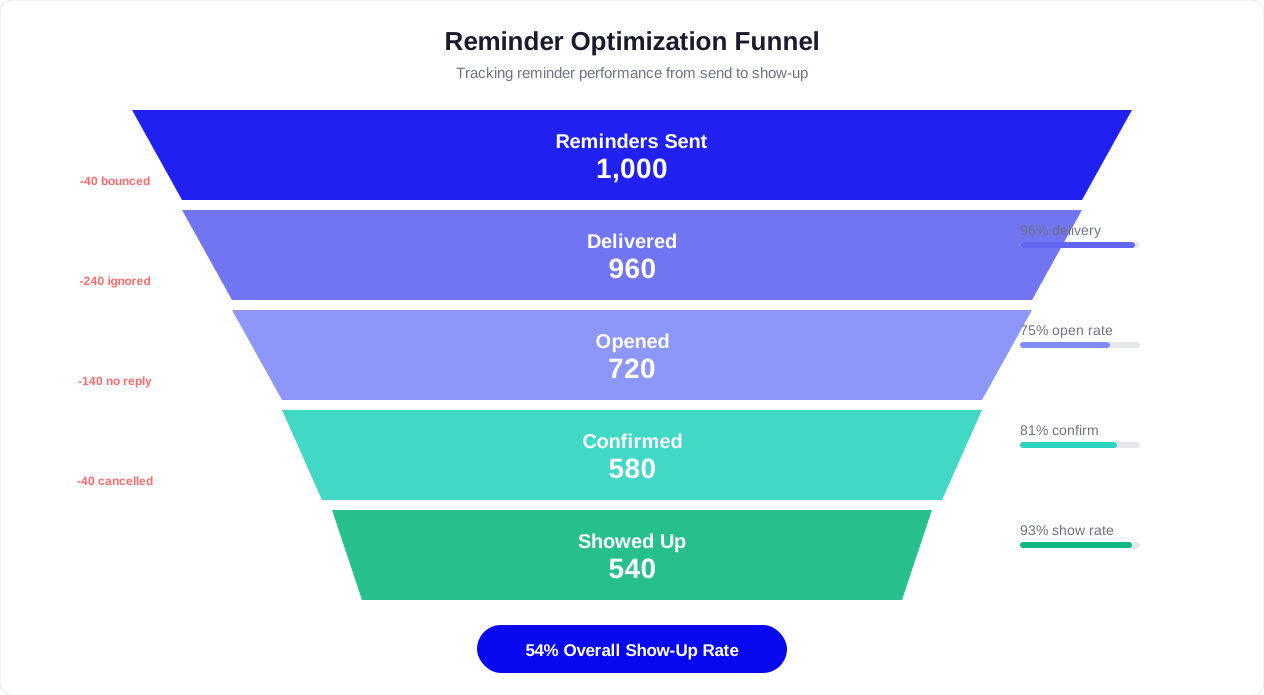
| Metric | Definition | Target | Why It Matters |
|---|---|---|---|
| Reminder Delivery Rate | % of scheduled reminders successfully delivered | Above 97% | Identifies technical delivery issues (wrong numbers, blocked contacts) |
| Reminder Open Rate | % of delivered reminders that are read/opened | WhatsApp: 95%+ / SMS: 90%+ / Email: 25%+ | Measures message visibility |
| Confirmation Rate | % of reminded customers who actively confirm | 55-70% | Shows customer engagement with the system |
| Reschedule Rate | % of reminded customers who reschedule | 8-15% | Healthy rescheduling converts potential no-shows to kept appointments |
| Cancellation Rate | % of reminded customers who cancel | 3-7% | Monitor for increases; some cancellation is healthy |
| No-Show Rate | % of appointments where customer does not appear | Below 12% | The ultimate outcome metric |
| Slot Refill Rate | % of cancelled/rescheduled slots filled from waitlist | Above 60% | Measures revenue recovery from cancellations |
| Revenue per Reminder | Revenue recovered divided by total reminders sent | Varies by business | ROI measure for the reminder system |
Segmenting Your Data
Aggregate metrics tell you the big picture, but optimization happens in the segments. Break your data down by:
- By reminder touch: Which touch (72h, 24h, 2h) drives the most confirmations? The most reschedules? If the 2-hour reminder is not moving the needle, consider adjusting its content or timing.
- By channel: Compare no-show rates for customers reminded via WhatsApp versus SMS versus email. The differences can be striking -- often 2-3x better performance on WhatsApp -- and justify channel migration efforts.
- By appointment type: Some services may have higher no-show rates than others. A free initial consultation will have much higher no-shows than a prepaid procedure. Adjust reminder intensity accordingly.
- By provider: If one provider consistently has higher no-shows than others, investigate whether the issue is reminder-related or service-related (long wait times, scheduling issues).
- By day of week: Monday and Friday appointments typically have higher no-show rates than mid-week. You may want an extra reminder touch for beginning and end-of-week bookings.
- By booking lead time: Appointments booked 3+ weeks in advance will have higher no-show rates than those booked 2-3 days ahead. Adjust the reminder sequence length accordingly.
A/B Testing Your Reminders
Once you have baseline data (typically after 4-6 weeks), begin testing variations to improve performance. Test one variable at a time:
- Message tone: Formal ("Your appointment is confirmed for...") vs. conversational ("Hey [Name], just a quick reminder about your..."). Conversational tone typically wins by 10-15% in response rate.
- Message length: Short (2-3 lines) vs. detailed (full information block). For the 72h touch, short wins. For the 24h touch, detailed wins.
- Button labels: "Confirm" vs. "I will be there" vs. "All good." Small wording changes can shift confirmation rates by 5-8%.
- Timing within the window: Send the 24h reminder at 9 AM vs. 11 AM vs. 6 PM the day before. Time-of-day testing can reveal when your specific audience is most responsive.
- Personalization depth: Basic (name only) vs. full (name, service, provider, last visit reference). Deeper personalization generally improves confirmation rates but requires CRM integration.
Identifying and Managing No-Show Risk
Over time, your data will reveal patterns that predict which appointments are at highest risk for no-shows. Build a risk scoring model based on:
- Past no-show history: Customers with 2+ previous no-shows are 4-5x more likely to no-show again
- Reminder non-response: Customers who do not respond to the 72h or 24h reminder are 3x more likely to no-show than those who confirm
- Booking lead time: Appointments booked 4+ weeks ahead carry roughly double the no-show risk of those booked within a week
- New vs. returning: First-time customers no-show at 2x the rate of returning customers
- Day and time: Certain slots (early morning, late afternoon, Monday, Friday) carry higher risk in most businesses
For high-risk appointments, consider these interventions:
- Extra reminder touch: Add a 4th reminder (e.g., 1 week before) for high-risk bookings
- Deposit requirement: Require a deposit for customers with a history of no-shows
- Shorter booking windows: Limit how far in advance high-risk customers can book
- Overbooking strategy: Selectively overbook high-risk time slots based on predicted no-show probability (use cautiously)
- Phone confirmation: Route the highest-risk appointments to a staff member for a personal confirmation call
Monthly Optimization Cycle
Implement a monthly review cycle to keep your reminder system performing at its best:
- Week 1: Pull the monthly dashboard report -- overall no-show rate, reminder response rates, reschedule and cancellation rates, slot refill rate, and revenue recovered
- Week 2: Analyze segments to identify underperforming areas (specific appointment types, channels, days, or providers)
- Week 3: Launch one A/B test targeting the biggest underperforming segment
- Week 4: Review test results, implement the winner, and document learnings
This continuous optimization cycle is what separates businesses that achieve a one-time improvement from those that sustain and compound their gains over time. The data is already being collected by your chatbot -- you just need to review it regularly and act on the insights.
Long-Term Benchmarks
Here is what a mature, optimized reminder system should look like after 6-12 months of operation:
| Metric | Month 1 | Month 3 | Month 6 | Month 12 |
|---|---|---|---|---|
| No-Show Rate | 15-18% | 11-14% | 8-11% | 6-9% |
| Confirmation Rate | 45-55% | 55-65% | 65-72% | 70-78% |
| Reschedule Rate | 5-8% | 8-12% | 10-15% | 12-16% |
| Slot Refill Rate | 40-50% | 55-65% | 65-75% | 70-80% |
| Revenue per Reminder | Baseline | +20-30% | +40-60% | +60-90% |
The improvement curve is steepest in the first three months and then continues at a more gradual pace. The initial deployment captures the low-hanging fruit (forgetful customers who just needed a nudge), while ongoing optimization addresses increasingly nuanced behavioral patterns.
The bottom line: automated appointment reminders are one of the highest-ROI investments any service business can make. The combination of consistent delivery, intelligent timing, one-tap rescheduling, and data-driven optimization creates a system that recovers tens or hundreds of thousands of dollars in annual revenue while requiring almost zero ongoing staff effort. Start with the Conferbot appointment reminder template to get your first reminders flowing today, and refine from there using the framework above.
Was this article helpful?
How to Automate Appointment Reminders With a Chatbot and Cut No-Shows by 50% FAQ
Everything you need to know about chatbots for how to automate appointment reminders with a chatbot and cut no-shows by 50%.
About the Author
Conferbot Team specializes in conversational AI, chatbot strategy, and customer engagement automation. With deep expertise in building AI-powered chatbots, they help businesses deliver exceptional customer experiences across every channel.
View all articles