Why Teams Migrate Chatbot Platforms (and Why They Delay Too Long)
Chatbot platform migration is one of those projects that every team knows they need to do but keeps postponing. The incumbent platform's pricing has crept up 40% over two years, the AI capabilities are a generation behind, or the vendor was acquired and the product roadmap has stalled -- but the migration sits on the backlog because the perceived risk (data loss, downtime, re-work) outweighs the perceived urgency. Then one day the contract renewal arrives with another 25% increase, and the migration suddenly becomes a priority.
The delay is costly. Research from Gartner's customer service technology research shows that organizations using outdated chatbot platforms spend 35-50% more per conversation than those on modern AI-native platforms, primarily because legacy platforms require more human escalation (lower deflection rates) and more manual maintenance (more labor hours per month). Every month you delay migration, you are overpaying for an inferior experience.
The good news: chatbot migration is a solved problem. With the right playbook, you can complete a full platform migration -- including conversation history, knowledge base, integrations, and redirects -- in 2-4 weeks with zero customer-facing downtime. This guide provides that playbook, step by step, with specific instructions for migrating from the most common platforms: Drift, Intercom, Zendesk Chat, Freshchat, and LiveChat.

The True Cost of Staying on a Legacy Platform
Beyond the direct pricing difference, legacy chatbot platforms impose hidden costs that compound over time. A study by Forrester Research on customer engagement technology found that organizations on legacy chat platforms spend an average of 12 additional labor hours per week on maintenance tasks that modern platforms automate: manually updating conversation flows, debugging integration failures, and compensating for poor AI accuracy with extra human agent staffing.
The opportunity cost is equally significant. While your team spends hours maintaining an outdated system, competitors are deploying agentic AI chatbots that autonomously handle multi-step workflows, implementing semantic caching that cuts API costs by 50%, and building monitoring dashboards that catch issues in real time. Every month on an outdated platform widens the capability gap.
Research from McKinsey projects that AI-native customer service tools will handle 65% of support interactions autonomously by late 2026. Organizations still running pre-LLM chatbot platforms will find their deflection rates stuck at 25-35% while modern platforms routinely achieve 60-75%. The performance gap alone justifies the migration effort.

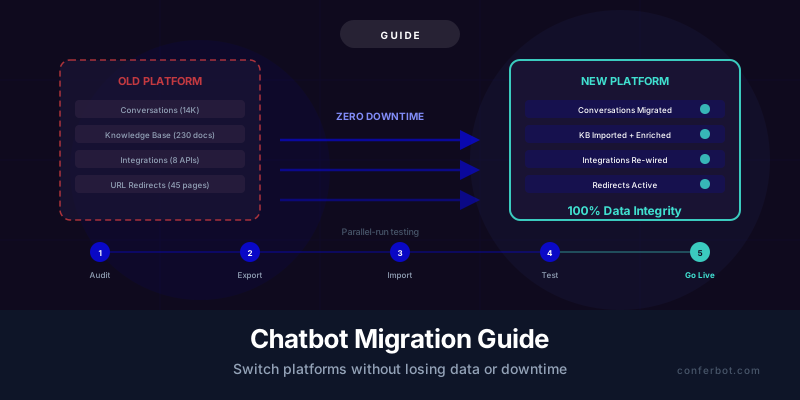
The migration process has five phases: Assessment and Planning (3-5 days), Data Export and Transformation (2-4 days), Import and Configuration (3-5 days), Parallel-Run Testing (5-7 days), and Cutover (1 day). Each phase is covered in detail in the following sections.
Common Migration Triggers
| Trigger | Description | Urgency |
|---|---|---|
| Pricing escalation | Per-seat or per-resolution pricing has become unsustainable at current volume | High (contract renewal driven) |
| AI capability gap | Platform lacks modern RAG, LLM integration, or agentic AI capabilities | Medium-High |
| Vendor acquisition/sunsetting | Platform was acquired and product roadmap has stalled or pivoted | High (timeline imposed) |
| Integration limitations | Cannot connect to your CRM, helpdesk, or e-commerce platform | Medium |
| Analytics/reporting gaps | Cannot get the performance metrics you need | Medium |
| Channel expansion | Need WhatsApp, Instagram, or multichannel deployment that the current platform does not support | Medium |
Regardless of your trigger, the migration process is the same. Let us begin with the assessment phase.
Phase 1: Assessment and Planning (Days 1-5)
The assessment phase creates a complete inventory of everything that needs to migrate and identifies risks before you commit to a timeline. Skipping this phase is the number one cause of migration delays and data loss. Spend the time here to save time (and stress) later.
Step 1: Inventory Your Current Setup
Create a migration inventory spreadsheet with the following tabs:
Tab 1: Conversation Data
- Total conversation count (all time)
- Date range of conversations
- Data format available for export (JSON, CSV, API)
- Fields available: timestamp, user ID, messages, metadata, tags, CSAT ratings
- Whether conversations include bot messages, human agent messages, or both
- Estimated export file size
Tab 2: Knowledge Base Content
- Total number of articles/documents/FAQ entries
- Content format (HTML, Markdown, plain text, PDFs)
- Category/folder structure
- Media assets (images, videos) referenced in content
- Last-updated dates (to identify stale content that can be pruned during migration)
- Custom metadata (tags, product associations)
Tab 3: Integrations
- List every third-party integration: CRM (HubSpot, Salesforce), helpdesk (Zendesk, Freshdesk), e-commerce (Shopify, WooCommerce), analytics (GA4, Segment), payment, calendar, etc.
- For each: integration type (native, webhook, API, Zapier), data flowing in each direction, and criticality (must-have vs. nice-to-have)
- API keys and webhook URLs that need to be recreated
Tab 4: Customizations
- Chat widget styling: colors, position, avatar, custom CSS
- Conversation flows: decision trees, conditional logic, custom forms
- Automation rules: triggers, routing rules, auto-tagging
- Custom attributes: user properties, custom fields
Tab 5: URLs and Redirects
- All URLs where the chatbot is embedded (list every page)
- Any chatbot-specific landing pages or links shared in emails/social
- Direct chat links used in marketing materials
Step 2: Evaluate the Target Platform
Before committing to a new platform, verify it can handle everything in your inventory. Key compatibility checks:
| Requirement | Check | Risk if Missing |
|---|---|---|
| Conversation import | Can the new platform import historical conversations? | Lose analytics continuity and training data |
| KB format support | Does it accept your content format? | Manual reformatting required |
| Integration parity | Does it support all your must-have integrations? | Loss of critical workflows |
| Widget customization | Can you match your current branding? | Visible change that confuses users |
| Multichannel support | Does it support all your current channels? | Channel gaps during migration |
Conferbot supports conversation import via CSV/JSON, knowledge base import from URLs, files, and structured data, native integrations with major CRMs and helpdesks, full widget customization, and deployment across web, WhatsApp, and other channels.
Step 3: Create the Migration Plan
Document a day-by-day plan with owners, dependencies, and rollback procedures. The plan should include a go/no-go checklist for the cutover day and a communication plan for informing your team and, if necessary, your customers. Share the plan with all stakeholders before proceeding.
Phase 2: Data Export and Transformation (Days 6-9)
This phase extracts your data from the old platform and prepares it for import into the new one. The key principle is: export everything, transform what is needed, and verify data integrity at every step.
Conversation History Export by Platform
From Drift: Use the Drift Conversations API (GET /conversations/list) to export conversations in paginated batches. Each conversation includes messages, visitor info, and metadata. Export as JSON. Rate limit: 10 requests per second. For large histories (100K+ conversations), use the bulk export feature in Drift's admin settings under Data Management. Conversations export with bot messages, human agent messages, and visitor messages in chronological order.
From Intercom: Use the Intercom Data Export feature (Settings > Data Management > Export your data). This generates a ZIP file containing conversations, users, companies, and articles in CSV format. Alternatively, use the Conversations API (GET /conversations) with pagination for programmatic export. Intercom exports include conversation parts (each message as a separate row), which need to be grouped by conversation_id during transformation.
From Zendesk Chat: Use the Chat API (GET /api/v2/chats) to export chat transcripts. Zendesk Chat exports include visitor info, agent info, and chat events. For Zendesk Support tickets that originated from chat, use the Support API (GET /api/v2/tickets) with the chat channel filter. Be aware that Zendesk has separate data stores for Chat and Support, so you may need two exports.
From Freshchat: Use the Conversations API (GET /v2/conversations) with message threading. Freshchat exports conversations with agent and bot messages distinguished by actor_type. Export includes custom properties and tags.
From LiveChat: Use the Archives API (GET /v3.5/chats) to export chat transcripts. LiveChat provides good export tooling in the admin panel under Archives > Export.
Knowledge Base Export
Knowledge base migration is often more critical than conversation history because it directly affects your new chatbot's performance from day one.
- Structured KB (articles, FAQs): Export as JSON or CSV with fields for title, content (HTML), category, tags, and last-updated date. Most platforms provide this via API or admin export.
- Unstructured KB (PDFs, docs): Download all files. Organize by category. Note which files are outdated (last updated 12+ months ago) for potential pruning.
- URL-based KB: If your knowledge base is a website (help center, docs site), list all URLs. Conferbot's importer can crawl and ingest entire help centers by URL.
Data Transformation
The export format from your old platform will rarely match the import format of your new platform exactly. Common transformations include:
| Transformation | When Needed | Tool |
|---|---|---|
| Flatten nested JSON | Intercom exports nested conversation parts | Python script, jq |
| Merge split records | Messages exported as separate rows need grouping by conversation | Python/pandas groupby |
| Normalize timestamps | Different platforms use different timestamp formats | Date parsing libraries |
| Strip HTML from content | KB articles with platform-specific HTML formatting | BeautifulSoup, regex |
| Map custom fields | Field names differ between platforms | Manual mapping + rename script |

Data Integrity Verification
After transformation, verify integrity before proceeding to import:
- Row count: Does the transformed data have the same number of conversations/articles as the source?
- Spot check: Manually review 20 random conversations and 10 random KB articles to verify content is intact
- Encoding: Check for character encoding issues (UTF-8 throughout)
- Completeness: Verify no fields were dropped during transformation (especially timestamps, tags, and metadata)
Document any data that could not be exported (some platforms restrict access to certain data types) and note it as a known gap in the migration plan.
Phase 3: Import and Configuration (Days 10-14)
With your data exported and transformed, this phase imports everything into the new platform and configures it to match (or improve upon) your previous setup.
Knowledge Base Import
Import your knowledge base first because it directly determines your chatbot's capability on the new platform. The sequence matters:
- Import content: Upload all KB articles, FAQs, and documents. Verify the import count matches your inventory.
- Organize structure: Recreate your category hierarchy. If your old structure was messy, this is the opportunity to reorganize.
- Verify retrieval: Test 30-50 common queries against the imported KB to verify the RAG pipeline retrieves relevant content. This is your quality gate for the KB import. If retrieval quality is poor, investigate chunking settings, embedding quality, and content formatting before proceeding.
- Prune stale content: Remove articles that are over 12 months old and no longer relevant. Stale content in the KB increases hallucination risk and degrades retrieval quality. Our guide on preventing hallucinations covers this in detail.
Conversation History Import
Historical conversations serve two purposes: analytics continuity (your dashboards show historical trends without a gap) and potential training data for the new chatbot's ML models. Import priorities:
- Must import: Last 90 days of conversations (most relevant for analytics and training)
- Should import: Last 12 months (provides seasonal trend visibility)
- Optional: Conversations older than 12 months (diminishing value, increasing storage cost)
If the new platform does not support direct conversation import, maintain the exported data in your own data warehouse so historical analytics remain accessible through your BI tools even if they are not visible in the chatbot platform's native dashboard.
Integration Re-Wiring
This is the most technically complex part of the migration. For each integration in your inventory:
| Integration Type | Migration Steps | Common Issues |
|---|---|---|
| CRM (HubSpot, Salesforce) | Install new platform's CRM connector, map contact fields, test lead/contact creation | Custom field mapping mismatches; duplicate contact creation during parallel run |
| Helpdesk (Zendesk, Freshdesk) | Configure ticket creation rules, map priority/tags, set up handoff routing | Ticket routing rules need recreation; SLA timers may differ |
| E-commerce (Shopify, WooCommerce) | Connect product catalog, configure order lookup, set up cart events | Product sync timing; webhook URL updates needed. See our Shopify chatbot guide for specifics. |
| Analytics (GA4, Segment) | Update tracking IDs, configure event mapping | Event naming may differ; ensure funnel tracking continuity |
| Webhooks | Update webhook URLs in all systems that send data to the chatbot | Missed webhooks during transition; payload format differences |
| Zapier/Make | Update triggers and actions in automations | Zap/scenario downtime during switch |
For each integration, create a test scenario and verify data flows correctly in both directions before proceeding to the parallel-run phase. Conferbot provides native integrations with major platforms including HubSpot, Salesforce, Zendesk, Shopify, and Slack, with pre-built field mappings that simplify the re-wiring process.
Widget Configuration
Configure the new chatbot widget to match your brand:
- Colors, fonts, and positioning (match your current widget to minimize user confusion)
- Avatar and bot name (keep the same name during migration to maintain brand recognition)
- Greeting message (use the same or improved greeting, informed by our conversation design guide)
- Trigger rules (which pages, what timing, what conditions)
- Mobile responsiveness (test on iOS and Android)
Phase 4: Parallel-Run Testing (Days 15-21)
The parallel run is the phase that makes zero-downtime migration possible. Instead of a hard cutover from old to new, you run both platforms simultaneously for 5-7 days, gradually shifting traffic from the old platform to the new one. This approach, borrowed from Martin Fowler's canary release pattern in software deployment, minimizes risk by allowing you to validate the new platform with real traffic before committing fully.
Setting Up the Parallel Run
There are three approaches to running chatbots in parallel, ordered by complexity and risk:
Approach 1: Percentage-Based Traffic Split (Recommended)
Route a percentage of visitors to the new chatbot widget and the remainder to the old one. Start with 10% on the new platform and increase daily:
| Day | New Platform | Old Platform | Go/No-Go Check |
|---|---|---|---|
| Day 1 | 10% | 90% | Error rate below 2%, no critical bugs |
| Day 2 | 25% | 75% | CSAT within 5% of baseline |
| Day 3 | 50% | 50% | Deflection rate within 10% of baseline |
| Day 5 | 75% | 25% | All KPIs within acceptable range |
| Day 7 | 100% | 0% | Full cutover |
This progressive rollout strategy is recommended by Google's SRE team for production deployments. Implement the split using your tag manager (Google Tag Manager, Segment) by conditionally loading one widget script or the other based on a random visitor assignment. Ensure the assignment is sticky (same visitor always sees the same platform during their session) using cookies or local storage.
Approach 2: Page-Based Split
Simpler but less controlled: deploy the new chatbot on specific pages (e.g., your pricing page, blog) while keeping the old chatbot on high-traffic pages (homepage, product pages). Expand to more pages over the testing period. This approach is easier to implement but gives you less comparable data because the query mix differs by page.
Approach 3: Time-Based Split
Run the new chatbot during off-peak hours and the old chatbot during peak hours. This minimizes risk during high-traffic periods but limits your testing volume during the parallel run.
What to Measure During the Parallel Run
Track these metrics on the new platform and compare against the old platform's baseline:
- CSAT: Must be within 5% of the old platform's rolling average. If CSAT on the new platform is 78% but the old platform averages 84%, investigate before expanding traffic.
- Deflection rate: Must be within 10% of baseline. A small drop is expected as the new platform's RAG pipeline needs tuning, but more than 10% indicates a knowledge base or configuration issue.
- Fallback rate: Must be below 15%. High fallback on the new platform usually means the KB import was incomplete or the retrieval settings need adjustment.
- Error rate: Must be below 2%. Technical errors (API failures, widget loading issues, integration errors) must be near zero before expanding traffic.
- Response time: Must be within 500ms of baseline. Slower responses degrade user experience and reduce engagement.
As outlined in our chatbot monitoring guide, use real-time dashboards to compare these metrics between the two platforms side by side during the parallel run.

Common Issues During Parallel Run
| Issue | Symptom | Fix |
|---|---|---|
| KB coverage gap | Higher fallback rate on new platform | Compare fallback topics between platforms; import missing content |
| Integration failure | CRM leads not syncing; tickets not creating | Check API credentials, webhook URLs, and field mappings |
| Widget conflicts | Both widgets appearing on the same page | Verify conditional loading logic; check for cached scripts |
| CSAT collection gap | No CSAT data on new platform | Verify post-conversation survey is enabled and triggering |
| Session confusion | User starts on old platform, sees new platform on next visit | Make visitor assignment sticky with persistent cookie (30-day expiry) |
Phase 5: Cutover Day Execution (Day 22)
Cutover day is when you switch 100% of traffic to the new platform and decommission the old one. If the parallel run went well, cutover should be anticlimactic -- which is exactly how you want it.
Pre-Cutover Checklist (Morning of Cutover Day)
| Check | Criteria | Owner |
|---|---|---|
| All KPIs within range during parallel run | CSAT within 5%, deflection within 10%, fallback below 15% | Chatbot manager |
| All integrations verified | CRM, helpdesk, e-commerce, analytics all flowing correctly | Integration lead |
| All pages updated | Widget script updated on every page from the URL inventory | Web developer |
| Redirect plan ready | All chatbot-specific URLs redirect to new equivalents | Web developer |
| Rollback plan documented | Can revert to old platform within 15 minutes if needed | Chatbot manager |
| Support team briefed | Agents know the new handoff process and dashboard | Support lead |
| Stakeholders notified | Leadership knows cutover is happening today | Project lead |
Cutover Steps
- Set traffic to 100% new platform (if not already at 100% from the parallel run ramp)
- Remove old widget script from all pages. Do not leave it as dead code -- remove it completely to avoid future conflicts.
- Activate URL redirects for any chatbot-specific deep links (e.g., direct chat URLs shared in emails or marketing materials)
- Monitor for 4 hours: Watch real-time dashboards for error spikes, CSAT drops, or integration failures
- Disable integrations on old platform to prevent duplicate data flows (e.g., both platforms creating CRM contacts from the same conversation)
- Announce completion to stakeholders and support team
Handling URL Redirects
If your old chatbot platform provided direct chat links (URLs that open a chat window directly), these links may be embedded in emails, help articles, social media bios, and marketing materials. Set up 301 redirects from old URLs to new equivalents:
- Old chat widget embed URLs -> New embed snippet (update the embed code on all pages)
- Old direct-chat links (e.g., intercom.help/yourcompany/chat) -> New chat page or a page with the new widget
- Old help center article URLs (if migrating help center too) -> New help center URLs
According to Google's search documentation on URL changes, 301 redirects are the correct method for permanent URL moves. Use your web server configuration (nginx, Apache) or CDN (Cloudflare, Vercel) to implement redirects. Test every redirect with a tool like httpstatus.io to verify they return 301 status codes and resolve to the correct destination.
Rollback Plan
Keep the old platform active (but receiving no traffic) for 14 days after cutover. This is your safety net. If a critical issue is discovered post-cutover:
- Re-deploy the old widget script on affected pages (have the old script saved and ready)
- Investigate and fix the issue on the new platform
- Re-cutover once the fix is verified
After 14 days with no rollback needed, decommission the old platform: cancel the subscription, archive the exported data, and close the project.
Platform-Specific Migration Guides: Drift, Intercom, Zendesk
Each platform has unique data structures, export capabilities, and gotchas. This section provides platform-specific guidance for the three most common migration sources.
Migrating from Drift
Drift was acquired by Salesloft in 2023, and the product has increasingly focused on sales engagement rather than customer support chatbot capabilities. Many Drift customers report stagnant AI features and rising per-seat costs.
Data export: Drift provides an API for conversation export (GET /conversations) and a bulk data export feature in admin settings. Conversations include playbook interactions (bot flows), human agent messages, and visitor messages. Export contacts separately via the Contacts API. Drift does not provide a native knowledge base export because its bot flows are configuration-based (not document-based).
Key migration consideration: Drift's "playbooks" (bot conversation flows) are proprietary and cannot be directly imported to other platforms. You will need to recreate your key flows in the new platform's flow builder. Document your top 5-10 playbooks before decommissioning Drift. Conferbot's visual flow builder supports similar branching logic with the added benefit of AI-powered responses at each node.
Integration tip: If you are using Drift's Salesforce or HubSpot integrations, check that contact creation rules, lead routing, and deal association logic are recreated in the new platform before cutting over. Drift's tight Salesforce integration often has custom field mappings that are easy to overlook.
Migrating from Intercom
Intercom is feature-rich but increasingly expensive, with per-seat pricing that scales poorly for growing support teams. The AI capabilities (Fin) are strong but come at a premium cost per resolution ($0.99 per AI resolution in some plans).
Data export: Use Settings > Data Management > Export your data for a full export (ZIP with CSVs). For programmatic access, use the Conversations API with pagination. Intercom's data model is complex: conversations contain "parts" (individual messages), each with a separate record. You will need to group parts by conversation_id during transformation. Articles can be exported via the Help Center API (GET /articles).
Key migration consideration: Intercom's "Custom Bots" and "Resolution Bot" logic are stored as proprietary workflows. Export the workflow descriptions manually (screenshots or documentation) because there is no machine-readable export for these. Intercom's user data model (Users, Leads, Companies) is unique; map these to your new platform's contact model carefully to avoid data loss.
Integration tip: Intercom's product tours, in-app messages, and help center may be intertwined with the chatbot. If you are only migrating the chatbot (not the entire Intercom product), ensure these features continue working independently. The Intercom JavaScript SDK must remain for any non-chatbot features you are keeping.
Migrating from Zendesk Chat
Zendesk's chatbot capabilities have evolved significantly with their AI agent features, but the platform's complexity and per-agent pricing pushes many teams to seek simpler, more affordable alternatives.
Data export: Zendesk Chat and Zendesk Support are separate data stores. Chat transcripts are exported via the Chat API; tickets via the Support API. The Zendesk Guide (help center) articles are exported via the Help Center API (GET /api/v2/help_center/articles). Zendesk provides generous API rate limits but throttles bulk operations.
Key migration consideration: Zendesk's Answer Bot relies on the Guide knowledge base. If you are migrating both the chatbot and the knowledge base, export all Guide articles, sections, and categories. If you are keeping Zendesk for ticketing but replacing only the chatbot, configure the new chatbot to create Zendesk tickets on handoff (Conferbot's Zendesk integration handles this natively).
Integration tip: Zendesk's trigger and automation system often routes chatbot conversations through complex workflows. Document all triggers that reference the Chat channel before migration, and recreate the critical ones in your new setup. Pay special attention to SLA policies that may be tied to the chat channel.

Post-Migration: Optimization Opportunities You Should Not Miss
Migration is not just a lateral move -- it is an opportunity to improve. The process of extracting, examining, and reimporting your chatbot's data and configuration exposes inefficiencies, gaps, and improvements that were invisible while you were on autopilot with the old platform. Here is what to optimize during and immediately after migration.
Knowledge Base Cleanup (During Import)
As you import your knowledge base into the new platform, take the opportunity to:
- Prune stale content: Delete articles last updated more than 12 months ago that are no longer relevant. Stale content degrades RAG retrieval quality and increases hallucination risk.
- Merge duplicate content: Old knowledge bases often have multiple articles covering the same topic with slightly different information. Consolidate into a single authoritative source.
- Fill coverage gaps: Review your fallback logs from the old platform. The top 20 fallback topics are content that should exist but does not. Create it now.
- Improve content quality: Rewrite vague articles with specific, complete answers. Replace marketing language with clear factual statements that the AI can retrieve and quote accurately.
Conversation Flow Redesign
Do not simply recreate your old flows in the new platform. Evaluate each flow against current best practices outlined in Nielsen Norman Group's chatbot UX research:
- Are there flows that had low completion rates? Redesign or eliminate them.
- Can any multi-step flows be replaced with AI-powered freeform conversation? Modern RAG chatbots often outperform rigid decision trees for information retrieval.
- Are your greeting messages and CTAs optimized? Use migration as a trigger to A/B test new greetings.
Monitoring Setup from Day One
The new platform launch is the ideal time to implement proper performance monitoring. Set up your dashboard and alerts before going live, not after. This gives you a baseline from day one and ensures any post-migration issues are caught immediately.
Cost Optimization
Modern AI chatbot platforms like Conferbot often provide better pricing models than the per-seat or per-resolution pricing of legacy platforms. But you can further optimize costs by:
- Implementing semantic caching to reduce LLM API costs by 40-60%
- Setting up rate limiting to prevent abuse and runaway costs
- Choosing the right model tier for each query type (use cheaper models for simple FAQs)
The 30-60-90 Day Post-Migration Plan
| Timeframe | Focus | Key Actions |
|---|---|---|
| Days 1-30 | Stability and parity | Monitor all KPIs daily, fix any regressions, close remaining KB gaps, verify all integrations |
| Days 31-60 | Optimization | Tune RAG settings based on performance data, implement caching, redesign underperforming flows |
| Days 61-90 | Expansion | Enable new channels, add new use cases, implement advanced features the old platform could not support |
By day 90, your new chatbot should be performing measurably better than the old one -- not just matching it but exceeding it. The combination of cleaner data, modern AI capabilities, and the optimization work done during migration typically produces a 15-25% improvement in deflection rate and a 10-15% improvement in CSAT within the first quarter.
Complete Migration Checklist
Use this checklist as your single source of truth throughout the migration process. Print it, share it with your team, and check off each item as it is completed.
Phase 1: Assessment (Days 1-5)
- Inventory all conversation data (count, date range, export format)
- Inventory all knowledge base content (count, format, categories)
- Inventory all integrations (name, type, data flow, criticality)
- Inventory all widget customizations (styling, triggers, flows)
- Inventory all chatbot-related URLs (embed pages, direct links)
- Evaluate target platform compatibility for all inventory items
- Create day-by-day migration plan with owners and rollback procedures
- Get stakeholder sign-off on migration plan and timeline
Phase 2: Export and Transform (Days 6-9)
- Export conversation history from old platform
- Export knowledge base content from old platform
- Export user/contact data from old platform
- Transform data to new platform's import format
- Verify data integrity: row counts match, spot checks pass, encoding correct
- Archive raw export files in secure storage (backup)
Phase 3: Import and Configure (Days 10-14)
- Import knowledge base to new platform
- Test 50 common queries against imported KB (retrieval quality gate)
- Import conversation history (last 90 days minimum)
- Configure all integrations (CRM, helpdesk, e-commerce, analytics)
- Test each integration with a real test scenario
- Configure widget styling, greeting, triggers, and mobile responsiveness
- Recreate critical conversation flows
- Set up analytics dashboard and alert thresholds
Phase 4: Parallel Run (Days 15-21)
- Deploy new widget at 10% traffic, monitor for 24 hours
- Increase to 25%, verify CSAT within 5% of baseline
- Increase to 50%, verify deflection within 10% of baseline
- Increase to 75%, verify all integrations flowing correctly
- Document and fix any issues discovered during parallel run
- Prepare cutover day checklist
Phase 5: Cutover (Day 22)
- Go/no-go decision: all KPIs within range, all integrations verified
- Switch to 100% new platform
- Remove old widget script from all pages
- Activate URL redirects for all old chatbot links
- Monitor real-time dashboard for 4 hours post-cutover
- Disable integrations on old platform
- Notify stakeholders of successful migration
Post-Migration (Days 23-30)
- Daily KPI monitoring for 7 days
- Close remaining knowledge base gaps (top 10 fallback topics)
- Verify all redirects are working (test every URL from inventory)
- Decommission old platform after 14-day safety window
- Prepare post-migration report for stakeholders
- Celebrate -- you migrated without data loss or downtime
Ready to migrate to a modern AI chatbot platform? Conferbot provides migration assistance including KB import tools, conversation history import, and native integrations with your existing stack. Explore the platform features or review pricing plans to start your migration planning.
Was this article helpful?
Chatbot Migration Guide FAQ
Everything you need to know about chatbots for chatbot migration guide.
About the Author

Conferbot Team specializes in conversational AI, chatbot strategy, and customer engagement automation. With deep expertise in building AI-powered chatbots, they help businesses deliver exceptional customer experiences across every channel.
View all articles