Why Vue.js Needs a Different Chatbot Integration Strategy Than React
Vue.js powers over 1.5 million production websites in 2026, according to W3Techs usage data, yet nearly every chatbot vendor publishes integration guides exclusively for React. This leaves Vue developers translating React patterns into Vue idioms -- often poorly. Vue's reactivity system, Composition API, and Teleport feature demand a fundamentally different integration approach than React's hooks and portals.
The consequences of getting it wrong are not trivial. A chatbot widget that fights Vue's reactivity system instead of leveraging it will cause memory leaks, missed state updates, and janky UI behavior that degrades the user experience. We have reviewed hundreds of Vue chatbot integrations across Conferbot deployments, and the most common failures all trace back to the same root cause: treating the chatbot as an external script bolted onto the page instead of a first-class Vue citizen.

This guide fixes that. You will learn how to wrap a chatbot widget in a proper Vue 3 composable, use Teleport for flexible portal rendering, manage chat state reactively with ref and reactive, integrate with Pinia for cross-component state sharing, and optimize loading for Core Web Vitals. Every pattern uses the Composition API exclusively -- no Options API fallbacks.
Whether you are building a customer support chatbot, a lead qualification bot, or an internal knowledge assistant, these Vue-specific patterns ensure your chatbot integration is maintainable, performant, and reactive from day one.
The techniques apply to any chatbot widget (Conferbot, Intercom, Drift, custom-built), but we will use Conferbot's embed script for concrete examples since it exposes a clean JavaScript API that maps naturally to Vue's reactivity model. The principles, however, are universal.
Before we write a single line of code, let us understand the three integration approaches available to Vue developers and when each one makes sense.
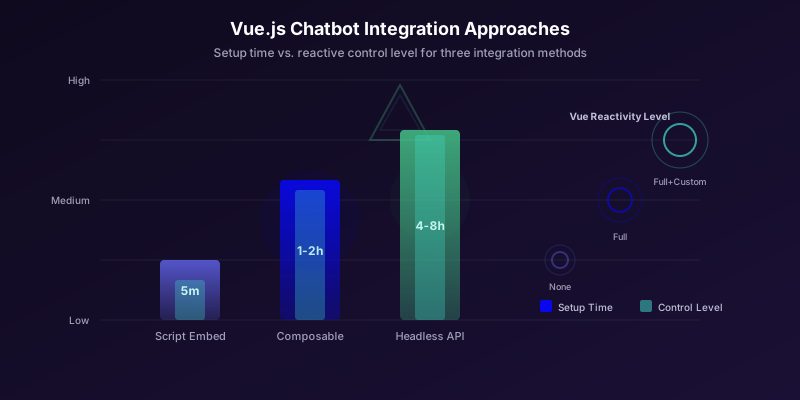
Three Integration Approaches: Script Embed, Composable Wrapper, and Headless API
Every Vue chatbot integration falls into one of three categories. The right choice depends on how much control you need over the chatbot's behavior, styling, and state within your Vue application.
Approach 1: Script Tag Embed (5 Minutes, Minimal Control)
The fastest path to a working chatbot. You load the widget script in your Vue app's index.html or via a component lifecycle hook. The widget manages its own DOM, styling, and state -- completely independent of Vue's reactivity system.
<!-- index.html -->
<script src="https://widget.conferbot.com/embed.js"
  data-bot-id="YOUR_BOT_ID" async></script>
Or via a Vue component:
// ChatbotEmbed.vue
<script setup>
import { onMounted, onUnmounted } from 'vue'

let scriptEl = null

onMounted(() => {
  scriptEl = document.createElement('script')
  scriptEl.src = 'https://widget.conferbot.com/embed.js'
  scriptEl.setAttribute('data-bot-id', 'YOUR_BOT_ID')
  scriptEl.async = true
  document.body.appendChild(scriptEl)
})

onUnmounted(() => {
  if (scriptEl) document.body.removeChild(scriptEl)
})
</script>

<template>
  <!-- Widget renders itself in the DOM -->
</template>
When to use: You need a chatbot on your site immediately, do not need to pass Vue state to the chatbot, and do not need programmatic control over the widget. Suitable for marketing sites, landing pages, and simple brochure-style Vue apps.
Limitations: No reactive binding to Vue state. Cannot open/close the chat programmatically from Vue components. Cannot pass authenticated user data cleanly. No TypeScript type safety for widget interactions. Essentially the same as embedding in plain HTML.
Approach 2: Composable Wrapper (1-2 Hours, Full Reactive Control)
This is the recommended approach for production Vue applications. You create a useChat composable that wraps the chatbot widget's JavaScript API, exposing reactive state and methods that integrate natively with Vue's reactivity system.
// composables/useChat.ts
import { ref, readonly, onMounted, onUnmounted } from 'vue'

export function useChat(botId: string) {
  const isOpen = ref(false)
  const unreadCount = ref(0)
  const isReady = ref(false)
  let widget: any = null

  function open() {
    widget?.open()
    isOpen.value = true
  }

  function close() {
    widget?.close()
    isOpen.value = false
  }

  function sendMessage(text: string) {
    widget?.sendMessage(text)
  }

  onMounted(async () => {
    const mod = await import('https://widget.conferbot.com/sdk.js')
    widget = mod.init({ botId })
    widget.on('ready', () => { isReady.value = true })
    widget.on('open', () => { isOpen.value = true })
    widget.on('close', () => { isOpen.value = false })
    widget.on('unread', (count: number) => {
      unreadCount.value = count
    })
  })

  onUnmounted(() => { widget?.destroy() })

  return {
    isOpen: readonly(isOpen),
    unreadCount: readonly(unreadCount),
    isReady: readonly(isReady),
    open,
    close,
    sendMessage
  }
}
Now any Vue component can reactively bind to chat state:
<script setup>
import { useChat } from '@/composables/useChat'

const { isOpen, unreadCount, open } = useChat('YOUR_BOT_ID')
</script>

<template>
  <button @click="open">
    Chat with us
    <span v-if="unreadCount > 0" class="badge">
      {{ unreadCount }}
    </span>
  </button>
</template>
When to use: You need to control the chatbot from multiple Vue components, pass authenticated user data, track chat state reactively (open/closed, unread count), or integrate chat events with your application logic. This is the sweet spot for most production applications.
Approach 3: Headless API (4-8 Hours, Complete UI Ownership)
For teams with strict design system requirements, the headless approach uses the chatbot platform's API for conversation AI while rendering a completely custom Vue UI. You own every pixel of the chat interface.
This approach is detailed in our React chatbot component guide and the architectural principles transfer directly to Vue. The key difference is using Vue's reactive and computed instead of React's useState and useMemo.
When to use: Your design system absolutely cannot accommodate a third-party widget's appearance, you need pixel-perfect control over every chat element, or you are building a chat-first application where the conversation UI is a core product feature rather than a support add-on.
| Approach | Setup Time | Vue Reactivity | UI Control | Maintenance |
|---|---|---|---|---|
| Script Embed | 5 minutes | None | Minimal (CSS only) | Zero |
| Composable Wrapper | 1-2 hours | Full | Programmatic + CSS | Low |
| Headless API | 4-8 hours | Full | Complete | Medium |
For the rest of this guide, we focus on Approach 2 -- the composable wrapper -- as it delivers the best balance of control, development speed, and long-term maintainability for Vue applications. We will build on the basic composable shown above, adding Pinia integration, Teleport rendering, TypeScript types, and performance optimizations.
Building the Production-Ready useChat Composable
The basic composable from the previous section works, but production applications need more: TypeScript type safety, error handling, reconnection logic, user identity management, and event bus integration. Let us build the complete version step by step.
TypeScript Interface Definitions
Start by defining the types that will keep your chatbot integration type-safe across your entire Vue application. According to the Vue.js TypeScript documentation, typing composable return values is critical for IDE support and refactoring safety.
// types/chat.ts
export interface ChatUser {
  id: string
  name?: string
  email?: string
  plan?: string
  metadata?: Record<string, string | number | boolean>
}

export interface ChatMessage {
  id: string
  text: string
  sender: 'user' | 'bot'
  timestamp: number
  metadata?: Record<string, unknown>
}

export interface ChatConfig {
  botId: string
  user?: ChatUser
  theme?: {
    primaryColor?: string
    position?: 'bottom-right' | 'bottom-left'
    zIndex?: number
  }
  lazy?: boolean
  locale?: string
}

export interface ChatState {
  isOpen: boolean
  isReady: boolean
  isLoading: boolean
  unreadCount: number
  messages: ChatMessage[]
  error: string | null
}

export interface UseChatReturn {
  state: Readonly<ChatState>
  open: () => void
  close: () => void
  toggle: () => void
  sendMessage: (text: string) => void
  setUser: (user: ChatUser) => void
  destroy: () => void
}
The Complete Composable
Now build the full composable with error handling, lazy initialization, and reactive state management:
// composables/useChat.ts
import { reactive, readonly, toRefs, onMounted,
  onUnmounted, watch } from 'vue'
import type {
  ChatConfig, ChatState, ChatUser, UseChatReturn
} from '@/types/chat'

let widgetInstance: any = null
let initPromise: Promise<any> | null = null

function loadWidget(botId: string): Promise<any> {
  if (initPromise) return initPromise
  initPromise = new Promise((resolve, reject) => {
    const script = document.createElement('script')
    script.src = 'https://widget.conferbot.com/sdk.js'
    script.async = true
    script.onload = () => {
      const w = (window as any).__conferbot
      if (w) {
        widgetInstance = w.init({ botId })
        resolve(widgetInstance)
      } else {
        reject(new Error('Widget SDK failed to initialize'))
      }
    }
    script.onerror = () =>
      reject(new Error('Failed to load chatbot SDK'))
    document.head.appendChild(script)
  })
  return initPromise
}

export function useChat(config: ChatConfig): UseChatReturn {
  const state = reactive<ChatState>({
    isOpen: false,
    isReady: false,
    isLoading: false,
    unreadCount: 0,
    messages: [],
    error: null
  })

  async function init() {
    if (state.isReady) return
    state.isLoading = true
    state.error = null
    try {
      const widget = await loadWidget(config.botId)
      widget.on('ready', () => {
        state.isReady = true
        state.isLoading = false
      })
      widget.on('open', () => { state.isOpen = true })
      widget.on('close', () => {
        state.isOpen = false
      })
      widget.on('unread', (n: number) => {
        state.unreadCount = n
      })
      widget.on('message', (msg: any) => {
        state.messages.push(msg)
      })
      if (config.user) widget.setUser(config.user)
      if (config.theme) widget.setTheme(config.theme)
    } catch (err) {
      state.error = (err as Error).message
      state.isLoading = false
    }
  }

  function open() { widgetInstance?.open() }
  function close() { widgetInstance?.close() }
  function toggle() {
    state.isOpen ? close() : open()
  }
  function sendMessage(text: string) {
    widgetInstance?.sendMessage(text)
  }
  function setUser(user: ChatUser) {
    widgetInstance?.setUser(user)
  }
  function destroy() {
    widgetInstance?.destroy()
    widgetInstance = null
    initPromise = null
  }

  onMounted(() => {
    if (!config.lazy) init()
  })

  onUnmounted(() => {
    // Only destroy if this is the last consumer
    // In practice, use provide/inject for shared state
  })

  return {
    state: readonly(state) as Readonly<ChatState>,
    open, close, toggle,
    sendMessage, setUser, destroy
  }
}
Key Design Decisions Explained
Singleton widget instance: The widget SDK should only be loaded once, even if multiple components use the useChat composable. The module-level widgetInstance and initPromise variables ensure this. This mirrors how modern chatbot technology stacks handle client-side SDK initialization.
Reactive state with reactive: We use reactive instead of individual refs because the chat state is a cohesive object. This also simplifies passing state to child components and Pinia stores. According to the Vue reactivity fundamentals documentation, reactive is preferred when grouping related state properties.
Readonly return: The state is returned as readonly to prevent external components from mutating it directly. All mutations flow through the composable's methods, maintaining a single source of truth -- a pattern that scales well as your application grows.
Lazy initialization: The lazy config option lets you defer widget loading until the user actually interacts with the chat. This is critical for Core Web Vitals optimization, as loading a chatbot widget on page load adds 50-150ms to Largest Contentful Paint. We cover this in detail in the performance optimization section.
Using Vue Teleport for Flexible Portal Rendering
Vue's Teleport component solves a problem that trips up many chatbot integrations: where in the DOM should the chat widget render? Chatbot widgets typically need to render at the document body level (to avoid z-index stacking context issues and CSS containment), but in Vue, your component tree lives inside a mounted app element. Teleport bridges this gap elegantly.
The Problem: Z-Index and Stacking Context
If your chatbot widget renders inside a Vue component that has overflow: hidden, transform, or position: relative on a parent element, the widget will be clipped or layered incorrectly. This is the number one visual bug in chatbot integrations across all frameworks. The MDN stacking context documentation explains why this happens at the CSS level.
The solution in Vue 3 is Teleport, which renders a component's template into a different DOM node while keeping it in Vue's component tree for reactivity and lifecycle management.
Basic Teleport Pattern for Chat Widgets
<!-- ChatWidget.vue -->
<script setup>
import { useChat } from '@/composables/useChat'

const { state, open, close, toggle } = useChat({
  botId: 'YOUR_BOT_ID',
  lazy: true
})
</script>

<template>
  <!-- Trigger button stays in component tree -->
  <button @click="toggle" class="chat-trigger">
    <span v-if="state.unreadCount" class="badge">
      {{ state.unreadCount }}
    </span>
    Chat with us
  </button>

  <!-- Chat panel teleports to body -->
  <Teleport to="body">
    <Transition name="slide-up">
      <div v-if="state.isOpen" class="chat-panel">
        <div class="chat-header">
          <h3>Support Chat</h3>
          <button @click="close">Close</button>
        </div>
        <div id="conferbot-mount" class="chat-body">
          <!-- Widget mounts here -->
        </div>
      </div>
    </Transition>
  </Teleport>
</template>

<style scoped>
.chat-panel {
  position: fixed;
  bottom: 20px;
  right: 20px;
  width: 380px;
  height: 560px;
  z-index: 99999;
  border-radius: 16px;
  overflow: hidden;
  box-shadow: 0 20px 60px rgba(0,0,0,0.3);
}

.slide-up-enter-active,
.slide-up-leave-active {
  transition: all 0.3s cubic-bezier(0.4, 0, 0.2, 1);
}
.slide-up-enter-from,
.slide-up-leave-to {
  opacity: 0;
  transform: translateY(20px) scale(0.95);
}
</style>
Dynamic Teleport Targets
Teleport's to prop is reactive, which means you can change where the chat widget renders based on application state. This is powerful for layouts that change between mobile and desktop, or when the chat needs to render inline on certain pages but as a floating widget on others.
<script setup>
import { computed } from 'vue'
import { useRoute } from 'vue-router'

const route = useRoute()

const teleportTarget = computed(() => {
  // Render inline on the support page
  if (route.path === '/support') return '#support-chat-container'
  // Render as floating widget everywhere else
  return 'body'
})
</script>

<template>
  <Teleport :to="teleportTarget">
    <ChatPanel />
  </Teleport>
</template>
Teleport with Suspense for Async Loading
When lazy-loading the chatbot widget, combine Teleport with Suspense to show a loading state while the SDK initializes:
<template>
  <Teleport to="body">
    <div v-if="state.isOpen" class="chat-panel">
      <Suspense>
        <template #default>
          <ChatMessages />
        </template>
        <template #fallback>
          <div class="loading-state">
            <div class="skeleton-message" />
            <div class="skeleton-message short" />
            <div class="skeleton-message" />
          </div>
        </template>
      </Suspense>
    </div>
  </Teleport>
</template>
Teleport is one of Vue 3's most underutilized features for third-party widget integration. It gives you the DOM positioning flexibility of raw JavaScript DOM manipulation with the full power of Vue's reactivity, transitions, and component lifecycle. For chatbot widgets specifically, it eliminates the entire class of z-index and overflow bugs that plague other integration methods.
If your chatbot uses the headless API approach described in our React chatbot component guide, Teleport is even more valuable because you control the entire chat UI and can render it anywhere in the DOM tree without breaking Vue's reactivity chain.
Pinia Store Integration: Cross-Component Chat State
While the useChat composable works perfectly for single-component usage, production applications often need chat state accessible across many components: a header showing unread count, a sidebar with recent messages, a settings page controlling chat preferences, and the chat widget itself. This is where Pinia -- Vue's official state management library -- becomes essential.
The Chat Store
// stores/chat.ts
import { defineStore } from 'pinia'
import { ref, computed } from 'vue'
import type { ChatUser, ChatMessage } from '@/types/chat'

export const useChatStore = defineStore('chat', () => {
  // State
  const isOpen = ref(false)
  const isReady = ref(false)
  const isLoading = ref(false)
  const unreadCount = ref(0)
  const messages = ref<ChatMessage[]>([])
  const error = ref<string | null>(null)
  const currentUser = ref<ChatUser | null>(null)
  const preferences = ref({
    soundEnabled: true,
    position: 'bottom-right' as const,
    locale: 'en'
  })

  // Getters
  const hasUnread = computed(() => unreadCount.value > 0)
  const lastMessage = computed(() =>
    messages.value[messages.value.length - 1] ?? null
  )
  const botMessages = computed(() =>
    messages.value.filter(m => m.sender === 'bot')
  )
  const userMessages = computed(() =>
    messages.value.filter(m => m.sender === 'user')
  )
  const conversationLength = computed(() =>
    messages.value.length
  )

  // Widget reference (not reactive, internal only)
  let widget: any = null
  let initPromise: Promise<void> | null = null

  // Actions
  async function initialize(botId: string) {
    if (initPromise) return initPromise
    isLoading.value = true
    error.value = null

    initPromise = new Promise(async (resolve, reject) => {
      try {
        const script = document.createElement('script')
        script.src = 'https://widget.conferbot.com/sdk.js'
        script.async = true
        await new Promise<void>((res, rej) => {
          script.onload = () => res()
          script.onerror = () =>
            rej(new Error('SDK load failed'))
          document.head.appendChild(script)
        })

        widget = (window as any).__conferbot.init({
          botId
        })
        bindWidgetEvents()
        if (currentUser.value) {
          widget.setUser(currentUser.value)
        }
        isReady.value = true
        isLoading.value = false
        resolve()
      } catch (err) {
        error.value = (err as Error).message
        isLoading.value = false
        reject(err)
      }
    })
    return initPromise
  }

  function bindWidgetEvents() {
    if (!widget) return
    widget.on('open', () => { isOpen.value = true })
    widget.on('close', () => { isOpen.value = false })
    widget.on('unread', (n: number) => {
      unreadCount.value = n
    })
    widget.on('message', (msg: ChatMessage) => {
      messages.value.push(msg)
    })
  }

  function open() {
    if (!isReady.value) {
      initialize('YOUR_BOT_ID').then(() =>
        widget?.open()
      )
    } else {
      widget?.open()
    }
  }

  function close() { widget?.close() }
  function toggle() { isOpen.value ? close() : open() }
  function sendMessage(text: string) {
    widget?.sendMessage(text)
  }

  function setUser(user: ChatUser) {
    currentUser.value = user
    widget?.setUser(user)
  }

  function clearMessages() { messages.value = [] }

  function destroy() {
    widget?.destroy()
    widget = null
    initPromise = null
    isReady.value = false
    isOpen.value = false
    messages.value = []
    unreadCount.value = 0
  }

  return {
    // State
    isOpen, isReady, isLoading,
    unreadCount, messages, error,
    currentUser, preferences,
    // Getters
    hasUnread, lastMessage, botMessages,
    userMessages, conversationLength,
    // Actions
    initialize, open, close, toggle,
    sendMessage, setUser, clearMessages, destroy
  }
})
Using the Store Across Components
With the Pinia store, any component in your application can access and react to chat state without prop drilling or event buses:
<!-- HeaderNav.vue -->
<script setup>
import { useChatStore } from '@/stores/chat'

const chat = useChatStore()
</script>

<template>
  <nav class="header-nav">
    <!-- other nav items -->
    <button @click="chat.toggle" class="chat-btn">
      Support
      <span v-if="chat.hasUnread" class="pulse-dot" />
    </button>
  </nav>
</template>

<!-- DashboardSidebar.vue -->
<script setup>
import { useChatStore } from '@/stores/chat'

const chat = useChatStore()
</script>

<template>
  <aside>
    <div v-if="chat.lastMessage" class="recent-msg">
      <p>{{ chat.lastMessage.text }}</p>
      <small>{{ chat.lastMessage.sender }}</small>
    </div>
  </aside>
</template>
The Pinia store approach is particularly powerful for chatbot analytics. You can watch store state changes and send events to your analytics pipeline without touching the chat widget itself:
// plugins/chatAnalytics.ts
import { watch } from 'vue'
import { useChatStore } from '@/stores/chat'

export function setupChatAnalytics() {
  const chat = useChatStore()

  watch(() => chat.isOpen, (open) => {
    analytics.track(open ? 'chat_opened' : 'chat_closed')
  })

  watch(() => chat.conversationLength, (len, prev) => {
    if (len > prev) {
      analytics.track('chat_message_sent', {
        messageCount: len,
        sender: chat.lastMessage?.sender
      })
    }
  })
}
Pinia's plugin system also lets you add persistence, so chat preferences survive page refreshes. Combined with the Conferbot analytics dashboard, you get both server-side and client-side conversation tracking without custom infrastructure.
Route-Conditional Loading with Vue Router
Not every page in your application needs a chatbot. Product pages and pricing pages benefit from proactive chat. Admin dashboards and settings pages do not. Loading the chatbot widget on pages where it adds no value wastes bandwidth, increases JavaScript parse time, and can distract users from focused tasks.
Vue Router's navigation guards and route meta fields make conditional loading straightforward.
Route Meta Configuration
// router/index.ts
import { createRouter, createWebHistory } from 'vue-router'

const routes = [
  {
    path: '/',
    component: () => import('@/pages/Home.vue'),
    meta: { chatbot: true }
  },
  {
    path: '/pricing',
    component: () => import('@/pages/Pricing.vue'),
    meta: { chatbot: true, chatGreeting: 'Need help choosing a plan?' }
  },
  {
    path: '/dashboard',
    component: () => import('@/pages/Dashboard.vue'),
    meta: { chatbot: false }
  },
  {
    path: '/checkout',
    component: () => import('@/pages/Checkout.vue'),
    meta: { chatbot: true, chatGreeting: 'Questions about your order?' }
  },
  {
    path: '/admin/:pathMatch(.*)*',
    component: () => import('@/pages/Admin.vue'),
    meta: { chatbot: false }
  }
]

export default createRouter({
  history: createWebHistory(),
  routes
})
Reactive Chat Visibility Component
<!-- ChatController.vue -->
<script setup>
import { watch, computed } from 'vue'
import { useRoute } from 'vue-router'
import { useChatStore } from '@/stores/chat'

const route = useRoute()
const chat = useChatStore()

const shouldShowChat = computed(() =>
  route.meta.chatbot !== false
)

const greeting = computed(() =>
  (route.meta.chatGreeting as string) ?? 'How can we help?'
)

// Initialize widget on first eligible page
watch(shouldShowChat, (show) => {
  if (show && !chat.isReady) {
    chat.initialize('YOUR_BOT_ID')
  }
}, { immediate: true })

// Close chat on navigation to non-chat pages
watch(shouldShowChat, (show) => {
  if (!show && chat.isOpen) {
    chat.close()
  }
})
</script>

<template>
  <Teleport to="body">
    <div v-if="shouldShowChat && chat.isReady"
      id="chat-widget-container">
      <!-- Widget renders here -->
    </div>
  </Teleport>
</template>
Place ChatController in your root App.vue layout, and the chatbot will automatically show or hide based on the current route's meta configuration. This pattern works seamlessly with conversation design strategies that tailor greetings and flows to specific page contexts.
Page-Specific Chat Context
Go further by passing page-specific context to the chatbot when the route changes. This lets the AI provide contextually relevant responses based on what page the user is viewing:
// In ChatController.vue setup
watch(() => route.fullPath, (path) => {
  if (!chat.isReady) return
  chat.sendMetadata({
    currentPage: path,
    pageTitle: document.title,
    referrer: document.referrer,
    greeting: greeting.value
  })
})
This means when a visitor opens the chat on your /pricing page, the chatbot knows they are looking at pricing and can proactively offer plan comparisons. On the /checkout page, it can offer to answer order questions. This contextual awareness is what separates high-converting chatbots from generic ones, and it is a core feature of Conferbot's intelligent routing.

Performance Optimization: Lazy Loading and Core Web Vitals
A chatbot widget adds JavaScript, CSS, and network requests to your page. Without optimization, this can degrade Core Web Vitals -- particularly Largest Contentful Paint (LCP) and Interaction to Next Paint (INP). Google uses these metrics for search ranking, so performance is not just a UX concern; it is an SEO concern. See our chatbot page speed and SEO guide for the full impact analysis.
The Performance Cost of Chatbot Widgets
A typical chatbot widget loads 80-200KB of JavaScript (gzipped) plus 10-30KB of CSS. On a 4G mobile connection, this adds 200-500ms to page load. The impact on Core Web Vitals:
| Metric | Without Chatbot | Chatbot on Page Load | Chatbot Lazy-Loaded |
|---|---|---|---|
| LCP | 1.8s | 2.3s (+500ms) | 1.8s (no impact) |
| INP | 85ms | 120ms (+35ms) | 85ms (no impact) |
| CLS | 0.02 | 0.05 (+0.03) | 0.02 (no impact) |
| Total Blocking Time | 150ms | 280ms (+130ms) | 150ms (no impact) |
The difference between eager and lazy loading is significant. Lazy loading eliminates all performance impact during initial page load.
Lazy Loading Strategy for Vue
The most effective lazy loading strategy defers the chatbot SDK until one of three events occurs: (1) the user scrolls past the fold, (2) the user shows interaction intent (mouse movement toward the chat area), or (3) the page has been idle for a specified duration.
// composables/useLazyChat.ts
import { onMounted, onUnmounted, ref } from 'vue'
import { useChatStore } from '@/stores/chat'

export function useLazyChat(
  botId: string,
  delay = 3000
) {
  const chat = useChatStore()
  const hasInitialized = ref(false)

  function initOnce() {
    if (hasInitialized.value) return
    hasInitialized.value = true
    chat.initialize(botId)
  }

  let idleTimer: ReturnType<typeof setTimeout>
  let observer: IntersectionObserver | null = null

  onMounted(() => {
    // Strategy 1: Idle timeout
    idleTimer = setTimeout(initOnce, delay)

    // Strategy 2: User interaction
    const events = ['mousemove', 'touchstart', 'scroll',
      'keydown']
    function onInteraction() {
      initOnce()
      events.forEach(e =>
        document.removeEventListener(e, onInteraction)
      )
    }
    events.forEach(e =>
      document.addEventListener(e, onInteraction,
        { once: true, passive: true })
    )

    // Strategy 3: requestIdleCallback
    if ('requestIdleCallback' in window) {
      (window as any).requestIdleCallback(initOnce,
        { timeout: delay })
    }
  })

  onUnmounted(() => {
    clearTimeout(idleTimer)
    observer?.disconnect()
  })

  return { hasInitialized }
}
Preconnect and DNS Prefetch
Even with lazy loading, you can speed up the eventual widget load by adding preconnect hints to your HTML <head>. This resolves DNS and establishes TLS connections before the user triggers the chatbot, saving 100-300ms when the widget actually loads:
<!-- In index.html or nuxt.config head -->
<link rel="preconnect"
  href="https://widget.conferbot.com" crossorigin />
<link rel="dns-prefetch"
  href="https://widget.conferbot.com" />
Bundle Size Audit
If you are using the headless API approach with a custom chat UI, audit your chat-related dependencies. Common size traps include:
- Markdown rendering:
marked(38KB) vsmarkdown-it(85KB). For chat messages,markedis sufficient. - Date formatting:
date-fns/formatDistanceToNow(2KB) vs importing all ofdate-fns(75KB). Use tree-shaking. - Emoji rendering: Native emojis (0KB) vs emoji-mart (300KB). Use native unless you need a picker.
- Animation: CSS transitions (0KB) vs Framer Motion (50KB). For chat open/close animations, CSS is sufficient in Vue thanks to the built-in
<Transition>component.
Every kilobyte matters for mobile users. According to Google's performance budget guidelines, third-party widgets should add no more than 100KB to your page's JavaScript budget. Most Conferbot embed scripts come in under 45KB gzipped, well within this budget.
Testing and Debugging Vue Chatbot Integrations
Testing chatbot integrations in Vue requires a different approach than testing regular components. The widget is a third-party dependency that loads asynchronously, interacts with external APIs, and manages its own DOM subtree. Here is how to test each layer effectively.
Unit Testing the Composable
Test the useChat composable in isolation by mocking the widget SDK. Using Vitest (the recommended test runner for Vue 3 projects):
// composables/__tests__/useChat.test.ts
import { describe, it, expect, vi, beforeEach } from 'vitest'
import { mount } from '@vue/test-utils'
import { defineComponent, nextTick } from 'vue'
import { useChat } from '../useChat'

const mockWidget = {
  open: vi.fn(),
  close: vi.fn(),
  sendMessage: vi.fn(),
  setUser: vi.fn(),
  destroy: vi.fn(),
  on: vi.fn(),
}

vi.stubGlobal('__conferbot', {
  init: () => mockWidget
})

function withSetup(composable: () => any) {
  let result: any
  const Comp = defineComponent({
    setup() {
      result = composable()
      return {}
    },
    template: '<div />'
  })
  const wrapper = mount(Comp)
  return { result, wrapper }
}

describe('useChat', () => {
  beforeEach(() => vi.clearAllMocks())

  it('initializes with closed state', () => {
    const { result } = withSetup(() =>
      useChat({ botId: 'test', lazy: true })
    )
    expect(result.state.isOpen).toBe(false)
    expect(result.state.isReady).toBe(false)
  })

  it('calls widget.open on open()', async () => {
    const { result } = withSetup(() =>
      useChat({ botId: 'test', lazy: false })
    )
    await nextTick()
    result.open()
    expect(mockWidget.open).toHaveBeenCalled()
  })

  it('passes user data to widget', async () => {
    const user = {
      id: '123', name: 'Jane', email: '[email protected]'
    }
    const { result } = withSetup(() =>
      useChat({ botId: 'test', user })
    )
    await nextTick()
    expect(mockWidget.setUser)
      .toHaveBeenCalledWith(user)
  })
})
Component Testing with Teleport
Vue Test Utils provides a getComponent helper and Teleport stubs for testing components that use Teleport:
import { mount } from '@vue/test-utils'
import ChatWidget from '@/components/ChatWidget.vue'
import { createTestingPinia } from '@pinia/testing'

it('teleports chat panel to body', () => {
  const wrapper = mount(ChatWidget, {
    global: {
      plugins: [createTestingPinia()],
      stubs: {
        Teleport: true // Renders inline for testing
      }
    }
  })
  expect(wrapper.find('.chat-panel').exists()).toBe(true)
})
Integration Testing with Playwright
For end-to-end testing of the actual chatbot widget, use Playwright to verify the widget loads, responds to interactions, and handles edge cases:
// e2e/chatbot.spec.ts
import { test, expect } from '@playwright/test'

test('chatbot opens and sends message', async ({
  page
}) => {
  await page.goto('/')
  // Wait for widget to be ready
  await page.waitForSelector('[data-testid="chat-trigger"]')
  await page.click('[data-testid="chat-trigger"]')
  // Verify chat panel is visible
  const panel = page.locator('.chat-panel')
  await expect(panel).toBeVisible()
  // Type and send message
  await page.fill('.chat-input', 'Hello')
  await page.click('.chat-send-btn')
  // Wait for bot response
  await page.waitForSelector('.bot-message')
  const response = page.locator('.bot-message').last()
  await expect(response).not.toBeEmpty()
})

test('chatbot hides on admin routes', async ({
  page
}) => {
  await page.goto('/admin/settings')
  const trigger = page.locator(
    '[data-testid="chat-trigger"]'
  )
  await expect(trigger).not.toBeVisible()
})
Debugging Common Issues
Based on our support data from thousands of Vue chatbot integrations, these are the top five issues and their fixes:
| Issue | Symptom | Root Cause | Fix |
|---|---|---|---|
| Widget not appearing | No chat button rendered | Script loaded but Vue component unmounted before ready event | Use Pinia store for persistent state; initialize in App.vue |
| Duplicate widgets | Two chat buttons visible | Hot Module Replacement re-runs onMounted without cleanup | Add singleton guard; clean up in onUnmounted |
| State out of sync | Unread badge shows 0 when messages exist | Widget events not bound to reactive refs | Verify widget.on callbacks update reactive state |
| Z-index conflict | Chat panel behind modal or dropdown | Stacking context from parent CSS transforms | Use Teleport to body; set z-index above 99999 |
| Memory leak | Growing memory on route changes | Widget not destroyed on component unmount | Call widget.destroy() in onUnmounted or store action |
For deeper troubleshooting, the Conferbot dashboard provides a real-time connection log showing every widget initialization, event, and error -- invaluable when debugging integration issues in staging environments.
Building a Reusable Vue Chatbot Plugin
If your team builds multiple Vue applications or maintains a component library, packaging the chatbot integration as a Vue plugin ensures consistent configuration and eliminates boilerplate across projects.
The Plugin Structure
// plugins/conferbot/index.ts
import type { App, Plugin } from 'vue'
import type { ChatConfig } from '@/types/chat'
import { useChatStore } from './store'
import ChatWidget from './ChatWidget.vue'
import ChatTrigger from './ChatTrigger.vue'

export interface ConferbotPluginOptions {
  botId: string
  autoInit?: boolean
  defaultTheme?: ChatConfig['theme']
  routeMeta?: string // meta key for route control
}

export const ConferbotPlugin: Plugin = {
  install(
    app: App,
    options: ConferbotPluginOptions
  ) {
    // Register global components
    app.component('ChatWidget', ChatWidget)
    app.component('ChatTrigger', ChatTrigger)

    // Provide config to all descendants
    app.provide('conferbot-config', options)

    // Auto-initialize if requested
    if (options.autoInit) {
      app.mixin({
        mounted() {
          if (this.$root === this) {
            const store = useChatStore()
            store.initialize(options.botId)
          }
        }
      })
    }
  }
}

export { useChatStore }
export type { ChatConfig, ChatUser, ChatMessage }
  from '@/types/chat'
Using the Plugin
// main.ts
import { createApp } from 'vue'
import { createPinia } from 'pinia'
import { ConferbotPlugin } from '@/plugins/conferbot'
import App from './App.vue'

const app = createApp(App)
app.use(createPinia())
app.use(ConferbotPlugin, {
  botId: import.meta.env.VITE_CONFERBOT_BOT_ID,
  autoInit: false, // lazy by default
  defaultTheme: {
    primaryColor: '#4F46E5',
    position: 'bottom-right'
  },
  routeMeta: 'chatbot'
})
app.mount('#app')
With the plugin installed, any component in your application can use <ChatWidget /> and <ChatTrigger /> without importing them, and the Pinia store is pre-configured with your bot ID and theme.
Nuxt 3 Module Adaptation
For Nuxt 3 applications, wrap the plugin as a Nuxt module for automatic registration and server-side safety:
// modules/conferbot.ts
import {
  defineNuxtModule, addPlugin, createResolver
} from '@nuxt/kit'

export default defineNuxtModule({
  meta: {
    name: 'conferbot',
    configKey: 'conferbot'
  },
  defaults: {
    botId: '',
    lazy: true
  },
  setup(options, nuxt) {
    const { resolve } = createResolver(import.meta.url)

    // Only run on client side
    addPlugin({
      src: resolve('./plugin.client.ts'),
      mode: 'client'
    })

    // Add preconnect hint
    nuxt.options.app.head.link = [
      ...(nuxt.options.app.head.link || []),
      {
        rel: 'preconnect',
        href: 'https://widget.conferbot.com',
        crossorigin: ''
      }
    ]
  }
})
The Nuxt module ensures the chatbot SDK never runs during server-side rendering (which would cause errors since there is no DOM), automatically adds preconnect hints, and integrates with Nuxt's plugin system for clean lifecycle management.
Environment-Specific Configuration
Use different bot IDs for different environments to avoid polluting production analytics with test data. This is a best practice highlighted in our chatbot analytics guide:
// .env.development
VITE_CONFERBOT_BOT_ID=dev_bot_abc123

// .env.staging
VITE_CONFERBOT_BOT_ID=staging_bot_def456

// .env.production
VITE_CONFERBOT_BOT_ID=prod_bot_ghi789
This plugin pattern means your chatbot integration is a single app.use() call away in any Vue project your team maintains. Combined with the Pinia store, Teleport rendering, and lazy loading patterns from earlier sections, you have a production-grade chatbot integration that is maintainable, testable, and performant.
For teams evaluating whether to build this infrastructure or use a managed platform, our build vs buy analysis (written for React but applicable to Vue) breaks down the total cost of ownership. The patterns in this guide reduce the "build" cost significantly, but a managed platform like Conferbot still eliminates 90% of the infrastructure work while giving you the composable and Pinia integration patterns to maintain full Vue-native control.
Production Deployment Checklist for Vue Chatbot Integration
Before shipping your Vue chatbot integration to production, walk through this comprehensive checklist. Each item addresses a real failure mode we have observed in production deployments across hundreds of Vue applications.
Pre-Deployment Checklist
| Category | Check | Why It Matters |
|---|---|---|
| Performance | Widget loads lazily (not blocking initial render) | Prevents LCP regression of 200-500ms |
| Performance | Preconnect hints added for widget domain | Saves 100-300ms on first interaction |
| Performance | Widget script has async attribute | Prevents render-blocking on slow connections |
| Reactivity | Chat state flows through Pinia store (not local refs) | Prevents state desync across components |
| Reactivity | Widget events bound to reactive state in store actions | Ensures UI updates when chat state changes |
| Rendering | Chat panel uses Teleport to body | Prevents z-index and overflow clipping issues |
| Rendering | Z-index set above 99999 on chat panel | Ensures chat appears above all page content |
| Routing | Chat hidden on admin and internal routes | Prevents confusion and unnecessary resource usage |
| Routing | Chat context updates on route change | Enables page-specific greetings and flows |
| Auth | User identity passed to widget after login | Enables personalized chat and CRM sync |
| Auth | Widget user cleared on logout | Prevents session bleed between users |
| Cleanup | Widget destroyed on app unmount | Prevents memory leaks in SPA navigation |
| Cleanup | Event listeners removed in onUnmounted | Prevents duplicate event handlers on HMR |
| Testing | Composable unit tests pass | Catches regressions in chat state logic |
| Testing | E2E test confirms widget loads and responds | Catches integration failures before users do |
| Security | Bot ID stored in environment variable (not hardcoded) | Prevents bot ID exposure in version control |
| Security | CSP headers allow widget script domain | Prevents Content Security Policy blocking |
| SEO | Chat widget does not inject content into page HTML | Prevents crawling issues and CLS penalties |
| Accessibility | Chat trigger button has aria-label | Required for screen reader users |
| Accessibility | Chat panel has focus trap when open | Keyboard users can navigate within chat |
Content Security Policy Configuration
If your Vue application uses CSP headers (and it should), add the chatbot widget domain to your policy:
# In your server configuration or meta tag
Content-Security-Policy:
  script-src 'self' https://widget.conferbot.com;
  connect-src 'self' https://api.conferbot.com
    wss://ws.conferbot.com;
  frame-src 'self' https://widget.conferbot.com;
  img-src 'self' https://cdn.conferbot.com data:;
Post-Deployment Monitoring
After deployment, monitor these metrics for the first 48 hours:
- Widget load success rate: Should be above 99.5%. Check for CSP blocks, ad blocker interference, and network errors.
- Core Web Vitals: Compare LCP, INP, and CLS before and after deployment using Google's Web Vitals library. Any regression larger than 100ms LCP or 0.05 CLS warrants investigation.
- Chat engagement rate: The percentage of visitors who interact with the chatbot. Industry benchmarks from the chatbot analytics guide suggest 2-5% is healthy for a proactive widget.
- Error rate: Monitor your error tracking (Sentry, Datadog) for new errors related to the chatbot integration. Common first-week issues include CSP violations and race conditions during widget initialization.
With this checklist complete, your Vue chatbot integration is production-ready. The combination of the useChat composable, Pinia store, Teleport rendering, route-conditional loading, and lazy initialization gives you a chatbot that is fully integrated into Vue's reactive ecosystem while maintaining the performance standards your users and search engines expect.
For ongoing optimization, revisit the chatbot A/B testing guide to continuously improve your chatbot's conversation flows, and the conversation design masterclass to refine your bot's messaging strategy.
Was this article helpful?
How to Embed a Chatbot in a Vue.js App FAQ
Everything you need to know about chatbots for how to embed a chatbot in a vue.js app.
About the Author

Conferbot Team specializes in conversational AI, chatbot strategy, and customer engagement automation. With deep expertise in building AI-powered chatbots, they help businesses deliver exceptional customer experiences across every channel.
View all articles