Why Every Website Needs a Chatbot Widget in 2026
Your website is often the first point of contact between your business and potential customers. Yet most websites operate like digital brochures — they present information and hope visitors find what they need. A chatbot widget transforms your website from a passive information display into an active, conversational sales and support channel.
The impact of website chatbot widgets is well-documented:
- 45% of visitors engage with a proactively triggered chatbot widget (Drift, 2025)
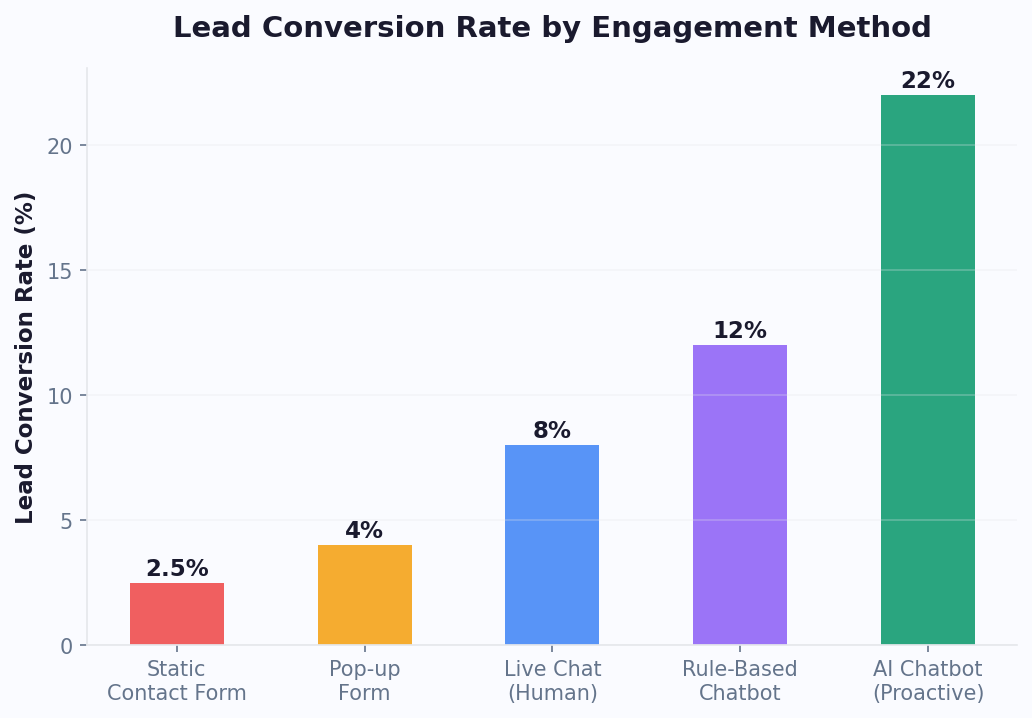
- Websites with chatbots see 35-45% more lead captures compared to contact forms alone
- 3x faster response times than email or contact form submissions
- 73% of consumers prefer live chat or chatbot for quick queries over phone or email (Zendesk, 2025)
- Chatbot-engaged visitors have a 2.8x higher conversion rate than non-engaged visitors
A website chatbot widget serves multiple roles simultaneously. For new visitors, it's a guide that helps them find the right product or service. For returning visitors, it's a support agent that resolves issues instantly. For high-intent visitors on pricing or demo pages, it's a sales assistant that qualifies leads and books meetings.
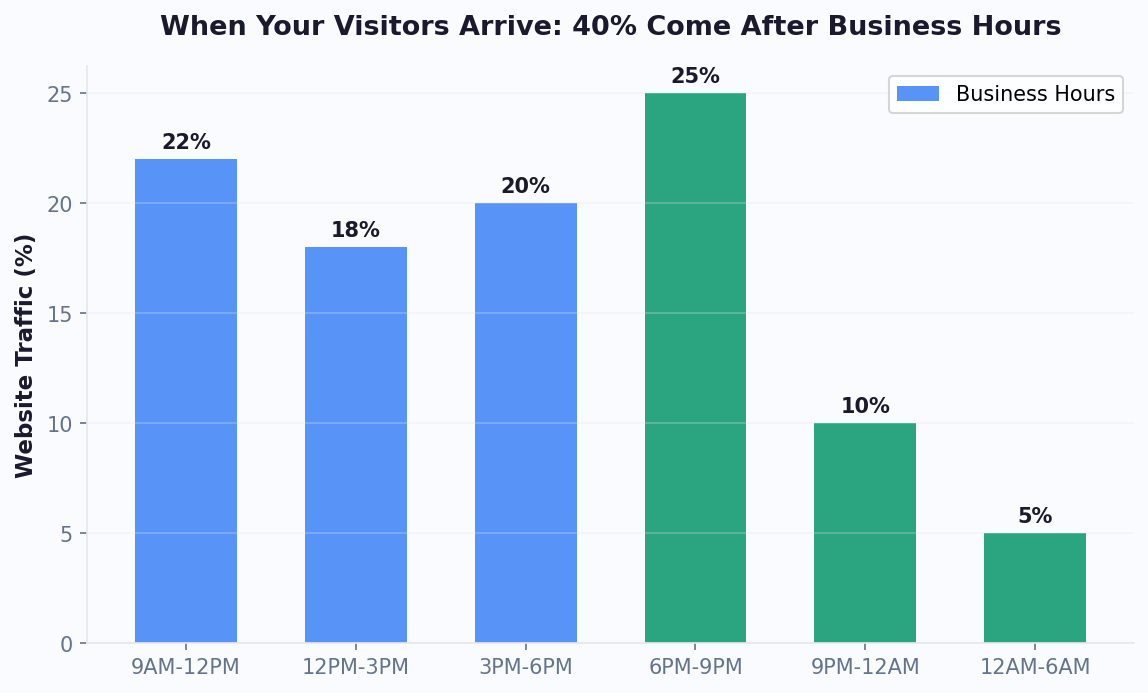
The economics are straightforward. A single chatbot widget costs a fraction of a live agent team yet handles unlimited concurrent conversations 24/7. It captures leads at 2 AM, answers questions during holidays, and ensures no website visitor leaves without getting help.
| Channel | Avg First Response | Lead Capture Rate | Availability |
|---|---|---|---|
| Contact Form | 12-24 hours | 2-5% | 24/7 (delayed response) |
| 4-8 hours | 3-7% | Business hours | |
| Phone | 2-5 minutes (with hold) | 10-15% | Business hours |
| Live Chat (human) | 1-3 minutes | 15-25% | Business hours |
| Chatbot Widget | Under 3 seconds | 25-45% | 24/7/365 |
In 2026, a website without a chatbot widget is leaving leads, sales, and customer satisfaction on the table.
Installing Your Chatbot Widget: Step-by-Step Guide
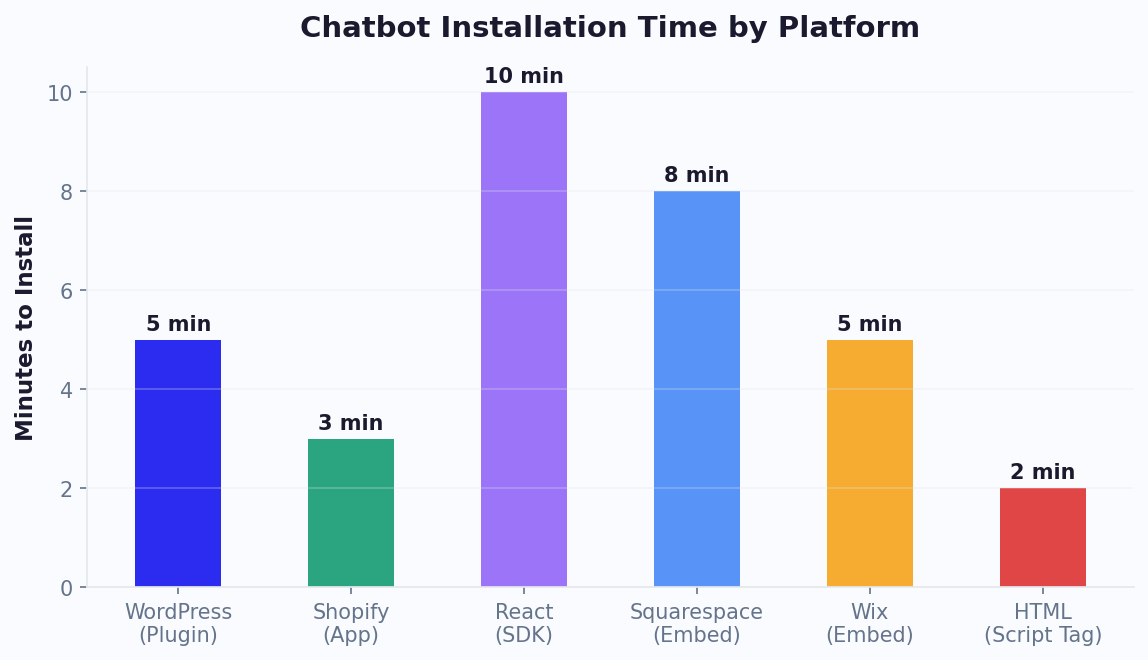
Adding a chatbot widget to your website takes just minutes with Conferbot's AI chatbot builder. Here's how to do it on any website platform.
Step 1: Create Your Chatbot
- Sign up at Conferbot.com and log into your dashboard
- Click "Create New Bot" and select "Website Widget" as the channel
- Choose a template (Lead Generation, Customer Support, or Ecommerce) or start from scratch
- Use the visual flow builder to design your conversation paths
Step 2: Customize the Widget Appearance
Match the widget to your brand identity — or use white-label branding for a fully custom look:
- Colors: Primary color, background, text color, button color
- Position: Bottom-right (default), bottom-left, or custom positioning
- Size: Compact, standard, or large
- Avatar: Upload a custom bot avatar or use your company logo
- Greeting: Configure the bubble message that appears before the user opens the widget
- Launcher: Choose between a standard chat icon, a custom image, or a text button
Step 3: Get Your Embed Code
Navigate to Deploy > Website Widget in your dashboard. You'll see a snippet like this:
<script src="https://cdn.conferbot.com/widget/YOUR_BOT_ID.js" async></script>
Step 4: Install on Your Website
Installation varies by platform, but the process is always simple:
| Platform | Where to Paste | Time Required |
|---|---|---|
| WordPress | Appearance > Theme Editor > footer.php (before </body>) | 2 minutes |
| Shopify | Online Store > Themes > Edit Code > theme.liquid | 2 minutes |
| Wix | Settings > Tracking & Analytics > Custom Code | 3 minutes |
| Squarespace | Settings > Advanced > Code Injection > Footer | 2 minutes |
| Next.js / React | Add script tag to _document.js or layout component | 5 minutes |
| Custom HTML | Paste before </body> in your HTML template | 1 minute |
Step 5: Configure Page-Specific Behavior
Set different chatbot behaviors for different pages:
- Homepage: Welcome greeting + product/service overview
- Pricing Page: Lead qualification + demo booking
- Product Pages: Product Q&A + upsell/cross-sell recommendations
- Blog: Content recommendations + newsletter signup
- Help Center: Support FAQ + ticket creation
Step 6: Test and Go Live
Preview the widget on your site, test every conversation flow, verify that it works on mobile and desktop, and confirm that page-specific triggers fire correctly. Once satisfied, your chatbot widget is live and engaging visitors immediately.
Lead Generation Strategies With Website Chatbots
A website chatbot widget is one of the most effective lead generation tools available. Unlike static forms, chatbots engage visitors in conversation, building rapport while collecting contact information naturally.
Proactive Engagement Triggers
Don't wait for visitors to click the widget. Use smart triggers to start conversations:
- Time-Based: Open the widget after 30 seconds on a high-intent page (pricing, demo, product)
- Scroll-Based: Trigger when the visitor scrolls past 50% of the page (showing engagement)
- Exit-Intent: Detect when the cursor moves toward the browser's close/back button and present a retention offer
- Page-Specific: Different messages for different pages: "Need help choosing a plan?" on pricing, "Have questions about this product?" on product pages
- Returning Visitor: Recognize returning visitors and reference their previous interactions
Conversational Lead Capture
Replace your lead forms with conversational flows that feel natural:
- Open with Value: "I can help you find the right solution. What are you looking for?" (not "Fill out this form")
- Qualify First: Ask about needs, budget, and timeline using quick reply buttons
- Capture Contact After Value: Only ask for email/phone after you've demonstrated the bot can help: "I've got a perfect recommendation. Want me to send the details to your email?"
- Minimize Fields: Name + email is enough initially. Sales can collect more during follow-up.
Lead Scoring Framework
| Signal | Score | Action |
|---|---|---|
| Visited pricing page | +20 | Show pricing comparison |
| Viewed 3+ product pages | +15 | Offer product demo |
| Provided email | +25 | Add to CRM |
| Asked about implementation | +30 | Route to sales team |
| Mentioned competitor name | +20 | Show comparison content |
| Score 60+ | Hot Lead | Instant sales notification |
Meeting Booking Integration
For high-scoring leads, embed calendar booking directly in the chatbot:
- Display available time slots from Calendly, Google Calendar, or HubSpot
- Confirm the booking within the chat flow
- Send a calendar invite automatically
- Notify the assigned sales rep with the lead's conversation history
After-Hours Lead Capture
Your chatbot works when your team doesn't. Configure after-hours flows that:
- Acknowledge that the team is offline but the bot can help
- Qualify the lead and collect contact information
- Set expectations: "Our team will reach out within 2 business hours"
- Send the lead data to your CRM with priority tagging for morning follow-up
Businesses using chatbot widgets for lead generation report 3-5x more qualified leads per month compared to static contact forms alone. The conversational approach reduces friction, builds trust, and captures intent at the moment it's highest. Visit our pricing page to find the right plan for your lead generation needs.
Customer Support and FAQ Automation
A chatbot widget that handles customer support transforms your website from a place where customers go to find help into a place where help finds them. Here's how to build an effective support widget.
Knowledge Base Integration
Your chatbot widget should be connected to your knowledge base, documentation, and FAQ content:
- Article Matching: When a customer types a question, the bot searches your knowledge base and returns the most relevant article or answer
- Category Navigation: Offer browsable categories for customers who prefer to explore: Billing, Technical, Account, Shipping, Returns
- Smart Suggestions: Based on the page the visitor is on, proactively suggest relevant help articles
- Rich Responses: Return answers with images, videos, and step-by-step instructions — not just text links
Support Ticket Creation
For issues the bot can't resolve, create a seamless ticket flow:
- Bot acknowledges it can't answer the question
- Collects necessary information: name, email, issue description, screenshots
- Creates a ticket in your help desk (Zendesk, Freshdesk, Intercom, etc.)
- Provides the ticket number and expected response time
- Sends a follow-up notification when the ticket is updated
Live Chat Handoff
When a customer needs real-time human support, the widget transitions seamlessly to live chat:
- Bot collects context and preliminary information before handoff
- Agent sees the full conversation history — no repetition needed
- Queue position and estimated wait time displayed to the customer
- If no agents are available, the bot offers to create a ticket or schedule a callback
Proactive Support
Don't wait for problems. Use the chatbot to prevent them:
| Trigger | Proactive Message |
|---|---|
| Visitor on checkout page for 2+ minutes | "Need help completing your order? I can walk you through it." |
| Visitor on error/404 page | "Looks like you hit a dead end. Let me help you find what you need." |
| Visitor viewing help docs for 3+ minutes | "Still stuck? I can help troubleshoot or connect you with support." |
| Known bug affecting users | "We're aware of [issue] and working on a fix. Here's a workaround." |
Self-Service Metrics
Measure how effectively your chatbot deflects support tickets:
- Deflection Rate: Percentage of visitors who find answers through the bot without contacting support (target: 60-80%)
- First Contact Resolution: Percentage of bot conversations that resolve the issue completely (target: 50-70%)
- Escalation Rate: Percentage of conversations that require human intervention (target: under 30%)
- CSAT: Customer satisfaction rating for bot interactions (target: 4.0+ out of 5)
A well-optimized support widget handles 70-85% of incoming queries automatically, reducing your support team's ticket volume and response time while improving the customer experience for everyone.
Widget Customization: Design, Branding, and UX
A chatbot widget should feel like a natural extension of your website, not a third-party add-on. Here's how to customize every aspect of the widget experience.
Visual Design
Match your brand identity perfectly:
- Primary Color: Use your brand's primary color for the widget header, buttons, and user message bubbles
- Font: Match your website's font family for a cohesive look
- Border Radius: Square corners for corporate brands, rounded for friendly/casual brands
- Shadow: Subtle drop shadow that matches your site's design language
- Dark Mode: Support dark mode if your website offers it
Widget Positioning and Behavior
| Option | Best For | Considerations |
|---|---|---|
| Bottom-right (default) | Most websites | Follows user expectation; doesn't conflict with most layouts |
| Bottom-left | RTL languages, unique layouts | Less conventional; may conflict with navigation elements |
| Full page | Dedicated support pages | Maximum engagement; not suitable for all pages |
| Embedded inline | Landing pages, specific sections | Higher engagement on the specific page |
| Slide-in panel | Content-heavy pages | Provides more space than a traditional widget |
Mobile Optimization
Over 60% of web traffic is mobile. Optimize your widget for small screens:
- Full-screen mode on mobile devices for easier interaction
- Touch-optimized buttons with sufficient spacing (minimum 44px tap targets)
- Keyboard-aware positioning that adjusts when the mobile keyboard opens
- Compressed media to minimize mobile data usage
- Quick-reply buttons instead of free-text input wherever possible
Greeting Bubble Design
The greeting bubble (the message displayed before a visitor opens the widget) is your first impression:
- Keep it under 80 characters
- Ask a question or offer help: "Have a question? I'm here to help!"
- Personalize based on page: "Comparing plans? I can help you choose."
- Show the bubble after a 5-10 second delay to avoid overwhelming immediate visitors
- Auto-dismiss the bubble after 30 seconds if the visitor doesn't engage
Accessibility (WCAG Compliance)
Ensure your chatbot widget is accessible to all users:
- Keyboard navigation support (Tab, Enter, Escape)
- ARIA labels on all interactive elements
- Sufficient color contrast (4.5:1 ratio for normal text)
- Screen reader compatible message structure
- Ability to resize text without breaking the layout
A well-customized widget blends into your website while being instantly recognizable as a help tool. Users should never wonder what the widget is or how to use it — it should feel as natural as clicking a navigation link.
Conversion Rate Optimization With Chatbot Widgets
Your chatbot widget is more than a support tool — it's a conversion engine. Here's how to optimize it for maximum business impact.
Page-Specific Conversion Flows
Design unique chatbot behaviors for each key page on your website:
| Page Type | Chatbot Goal | Key Flow |
|---|---|---|
| Homepage | Segment and route visitors | "What brought you here today?" with quick replies |
| Product Page | Answer questions, overcome objections | Product FAQ + comparison + "Add to Cart" CTA |
| Pricing Page | Qualify leads, book demos | Needs assessment + plan recommendation + booking |
| Checkout Page | Reduce cart abandonment | Shipping FAQ + coupon offer + support |
| Blog | Content engagement + email capture | Related content suggestions + newsletter signup |
| Landing Page | Maximize form submissions | Conversational form + social proof |
A/B Testing Your Chatbot
Systematically optimize every element:
- Greeting Message: Test different opening lines, questions vs. statements, and personality tones
- Trigger Timing: Test 10s vs. 30s vs. 60s delay before proactive engagement
- Flow Length: Test 3-question vs. 5-question qualification flows
- CTA Placement: Test when to present the conversion action (early vs. late in the flow)
- Social Proof: Test including vs. excluding testimonials and trust badges in bot messages
Cart Abandonment Recovery
For ecommerce sites, deploy an exit-intent chatbot on the checkout page:
- Detect exit intent (mouse moving toward close button)
- Open the widget: "Before you go — is something holding you back?"
- Offer help with common checkout concerns:
- "Do you offer free shipping?" → Shipping policy + free shipping threshold
- "Is my payment secure?" → Security assurance + trust badges
- "Can I get a discount?" → Limited-time coupon code
- "I need to think about it" → Email reminder opt-in with saved cart link
Social Proof Integration
Build trust directly in the chatbot conversation:
- Display recent purchase activity: "15 people bought this in the last 24 hours"
- Share relevant customer testimonials based on the product being discussed
- Show ratings and review counts
- Mention notable clients or case study results
Measuring Conversion Impact
Track the chatbot widget's contribution to your bottom line:
- Assisted Conversions: Visitors who interacted with the chatbot before converting
- Direct Conversions: Conversions that happened within the chatbot flow (form submissions, demo bookings)
- Revenue Per Conversation: Total chatbot-attributed revenue divided by total conversations
- Lift Analysis: Compare conversion rates for chatbot-engaged vs. non-engaged visitors
Most businesses see a 20-40% lift in conversion rates on pages where the chatbot is active and well-optimized. The key is continuous testing and refinement based on real performance data.
Combining Chatbot Automation With Live Chat
The most effective website chat experience blends chatbot automation with live chat capabilities. This hybrid approach ensures every visitor gets instant help while complex issues receive human attention.
The Hybrid Model
Design your widget to operate in three modes:
- Bot Mode (default): Chatbot handles all interactions using automated flows and NLP
- Handoff Mode: Bot transfers the conversation to a live agent with full context
- Collaborative Mode: Bot and agent work together — bot provides suggested responses, agent reviews and sends
When to Hand Off to a Human
| Scenario | Detection Method | Action |
|---|---|---|
| Complex technical issue | Multiple fallback triggers | Route to technical support |
| High-value lead | Lead score threshold | Route to sales rep |
| Frustrated customer | Sentiment analysis | Priority agent queue |
| Explicit request | "Talk to a human" keyword | Immediate handoff |
| Payment disputes | Topic detection | Route to billing team |
| Legal/compliance | Topic detection | Route to legal team |
Agent Experience
Give your live chat agents everything they need:
- Conversation History: Full bot conversation visible to the agent
- Visitor Data: Pages viewed, time on site, location, device, returning vs. new
- CRM Context: If the visitor is a known contact, show their account information
- Suggested Responses: AI-powered response suggestions based on the conversation context
- Internal Notes: Agents can add notes visible to other agents but not the visitor
After-Hours and Overflow Management
Configure intelligent routing for when agents are unavailable:
- After Hours: Bot takes over completely, collecting leads and creating tickets for morning follow-up
- Queue Overflow: When all agents are busy, the bot handles the conversation and offers a callback option
- Agent Specialization: Route conversations to specific agents based on topic expertise, language, or VIP status
Measuring the Hybrid Model
- Bot-to-Human Ratio: What percentage of conversations require human intervention? (target: 70-80% bot-handled)
- Handoff Quality: Are agents receiving conversations with sufficient context? (measure agent satisfaction)
- Queue Time Impact: Has the chatbot reduced average queue wait time for live chat? (target: 50%+ reduction)
- Combined CSAT: Customer satisfaction across both bot and human interactions
The hybrid model delivers the best of both worlds: the speed and scalability of automation combined with the empathy and judgment of human agents. This is the model that 87% of top-performing customer experience teams use in 2026.
Website Widget Benchmarks by Industry (2026 Data)
Widget performance varies significantly by industry, traffic type, and visitor intent. Understanding industry-specific benchmarks helps you set realistic goals and identify optimization opportunities. The following data comes from aggregated chatbot deployments across thousands of websites, corroborated by G2's live chat software benchmarks and HubSpot's 2025 conversion data.
Engagement Rates by Industry
| Industry | Widget Open Rate | Conversation Start Rate | Lead Capture Rate | Avg Messages/Session |
|---|---|---|---|---|
| SaaS / Technology | 8-12% | 5-8% | 18-28% | 6.2 |
| E-commerce | 6-10% | 4-7% | 12-20% | 4.8 |
| Real Estate | 12-18% | 8-12% | 25-38% | 7.5 |
| Healthcare | 10-15% | 7-10% | 20-32% | 5.4 |
| Financial Services | 7-11% | 4-7% | 15-25% | 5.8 |
| Education | 9-14% | 6-9% | 22-35% | 6.0 |
| Professional Services | 11-16% | 7-11% | 20-30% | 6.8 |
| Travel / Hospitality | 8-13% | 5-8% | 14-22% | 5.2 |
Key Insight: Page-Level Performance
Industry averages mask the most important variable: page type. According to Statista's digital engagement data, pricing pages consistently produce 3-4x higher engagement rates than blog pages across all industries. The optimal strategy is page-weighted deployment: trigger the widget proactively on high-intent pages (pricing, product, contact) while keeping it passive on informational pages (blog, about). For guidance on trigger optimization, see our best practices guide.
Mobile vs Desktop Performance Gap
Mobile visitors engage 22% less frequently with chatbot widgets but convert at the same rate once engaged. The gap is primarily a UX issue — widgets that overlap critical page elements on mobile screens suppress engagement. Ensure your widget does not cover CTA buttons, navigation menus, or form fields on small screens. Mobile-first design patterns are covered in the chatbot UI design guide.
Real estate and professional services show the highest engagement rates because visitors on these sites typically have high intent and specific questions that a chatbot can answer immediately (pricing, availability, qualifications). E-commerce has lower conversation rates but higher volume, making even small percentage improvements highly valuable in absolute revenue terms. For a deep dive on measuring these metrics, read our analytics metrics guide, and to understand the revenue impact, explore the ROI calculator guide.
Widget Performance: Analytics, Speed, and SEO
A chatbot widget must perform flawlessly — both in terms of user experience metrics and technical performance. Here's how to ensure your widget delivers on both fronts.
Performance Optimization
Your chatbot widget should never slow down your website:
- Async Loading: Always load the widget script with the
asyncordeferattribute so it doesn't block page rendering - Bundle Size: Conferbot's widget script is under 50KB gzipped, well within acceptable limits
- Lazy Loading: The full widget UI loads only when the visitor opens it, minimizing initial page weight
- CDN Delivery: Widget assets served from a global CDN — or your own custom domain — for sub-100ms load times worldwide
- Core Web Vitals: Monitor LCP, FID, and CLS to ensure the widget doesn't negatively impact your Google Core Web Vitals scores
SEO Considerations
Chatbot widgets and SEO can coexist harmoniously:
- Render Method: Widget content is rendered client-side via JavaScript, so it doesn't affect server-rendered page content or indexing
- Schema Markup: Add FAQPage schema to pages where the chatbot answers common questions, using the same content
- Page Speed: Async loading ensures the widget has zero impact on page speed scores
- Mobile Usability: Full-screen mobile widget meets Google's mobile usability standards
Analytics Dashboard
Track comprehensive widget performance metrics:
| Metric Category | Key Metrics |
|---|---|
| Engagement | Widget open rate, conversation start rate, messages per session |
| Conversion | Lead capture rate, demo bookings, purchases attributed |
| Support | Resolution rate, escalation rate, CSAT score |
| Technical | Load time, error rate, uptime |
| Behavioral | Popular questions, drop-off points, peak hours |
UTM and Attribution Tracking
Track exactly how the chatbot contributes to your marketing funnel:
- Add UTM parameters to all links shared by the chatbot
- Use unique coupon codes per chatbot campaign
- Track assisted conversions in Google Analytics
- Set up goal completions for chatbot-specific actions (lead captured, demo booked, purchase made)
Integration With Analytics Tools
Connect your chatbot widget to your existing analytics stack:
- Google Analytics 4: Send chatbot events (open, message sent, lead captured) as GA4 events
- Google Tag Manager: Fire tags based on chatbot interactions
- Segment: Route chatbot data to any destination via Segment
- Mixpanel / Amplitude: Track chatbot interactions alongside product usage data
Use Conferbot's built-in analytics for chatbot-specific metrics and your website analytics for attribution and funnel analysis. Together, they provide a complete picture of your widget's business impact.
Benchmarking Your Widget Against Industry Standards
To determine whether your chatbot widget is performing well, compare against these 2026 industry benchmarks: average engagement rate across all industries sits at 35-45% of unique visitors who interact with the widget, while top-performing widgets in e-commerce and SaaS reach 55-65%. Lead capture rates should target 15-25% of engaged conversations converting to a captured email or phone number. First-response satisfaction (measured by thumbs-up/down on bot answers) should exceed 78% — anything below indicates knowledge gaps in your content. Session duration for support-oriented widgets averages 3.5 minutes, while lead-generation widgets average 2.1 minutes. If your metrics fall significantly below these benchmarks, audit your welcome message copy, trigger timing, and knowledge base completeness before making structural changes. For a deeper understanding of how widget performance translates to revenue, review our chatbot ROI calculator guide, and for multi-channel deployment strategies that amplify your website widget results, see our guide on omnichannel customer service strategy. Additionally, segment your analytics by traffic source — visitors arriving from paid ads typically exhibit higher engagement rates and faster conversion times than organic traffic, which means your ad landing pages deserve more aggressive proactive trigger settings than your blog or informational pages. This segmented approach ensures every marketing dollar translates into maximum chatbot-driven conversions. Additionally, tracking bounce rate reduction on pages where the widget is active provides a clear signal of engagement lift — top-performing implementations report 12-18% lower bounce rates on widget-enabled pages compared to identical pages without proactive chat triggers.
Was this article helpful?
Website Chatbot Widget FAQ
Everything you need to know about chatbots for website chatbot widget.
About the Author

Conferbot Team specializes in conversational AI, chatbot strategy, and customer engagement automation. With deep expertise in building AI-powered chatbots, they help businesses deliver exceptional customer experiences across every channel.
View all articles