
مايكروسوفت تيمز منشئ روبوت الدردشة
انشر الروبوتات الذكية في بيئة مايكروسوفت تيمز الخاصة بك. مثالي للموارد البشرية ودعم تكنولوجيا المعلومات والاتصالات الداخلية للمؤسسات. يدعم Outgoing Webhooks للإعداد السريع.
To build a مايكروسوفت تيمز chatbot with Conferbot, sign up free, design your flow in the no-code visual builder, connect your مايكروسوفت تيمز account, and publish — typically live in a few minutes with no coding. The free plan needs no credit card, and the same bot can also run on your website and other messaging channels.
تيمز ميزات روبوت الدردشة
كل ما تحتاجه لبناء محادثات آلية قوية
تكامل Outgoing Webhook (إعداد سريع)
يعمل في قنوات ودردشات تيمز
ردود نصية وبطاقات
أمان المؤسسة
لا حاجة لاشتراك Azure لـwebhooks
انتقال سلس إلى المحادثة البشرية
دعم متعدد المستأجرين
مصادقة SSO (Bot Framework)
ماذا يمكنك بناء؟
ابدأ في 10 خطوات بسيطة
اتبع هذا الدليل لربط روبوت الدردشة الخاص بك على تيمز
افتح مايكروسوفت تيمز وانتقل إلى فريقك
انقر على إعدادات الفريق (⋯) ← إدارة الفريق
انتقل إلى علامة التبويب التطبيقات ← إنشاء outgoing webhook
أدخل اسماً ووصفاً لروبوتك
انسخ عنوان URL للاستدعاء من Conferbot (القنوات ← تيمز)
الصق عنوان URL للاستدعاء في تيمز
انقر على إنشاء - سيوفر تيمز رمز أمان
انسخ رمز الأمان
في Conferbot، الصق رمز الأمان وأكمل الإعداد
قم بـ@إشارة روبوتك في تيمز لاختباره!
Introduction
Microsoft Teams is where modern enterprises work. With over 320 million monthly active users across organizations of every size, Teams has become the central nervous system of corporate communication - hosting meetings, managing projects, sharing documents, and connecting distributed teams across the globe.
But with that centrality comes a flood of repetitive internal requests. IT helpdesks drown in password resets and VPN troubleshooting. HR teams answer the same PTO and benefits questions hundreds of times. New employees struggle to find onboarding resources scattered across SharePoint, Confluence, and email threads. And in every case, the first instinct is to ask in a Teams channel - creating noise that buries important conversations.
A Microsoft Teams chatbot solves this by providing instant, automated answers within the platform employees already use. There is no new app to install, no new interface to learn. Employees @mention the bot in a channel or send it a direct message, and they get the answer in seconds. Conferbot makes this possible without any coding - build your bot with our visual flow builder, connect to Teams via Outgoing Webhook, and your enterprise chatbot is live.
This guide covers everything from Teams-specific capabilities and setup instructions to enterprise use cases and deployment best practices. Whether you are automating IT support for 50 people or deploying an organization-wide knowledge assistant for 50,000, this is your roadmap for 2026.
New to chatbot building? Read our complete guide to building a chatbot without coding. Evaluating Teams vs Slack for internal bots? See our Slack chatbot guide for a detailed comparison. Browse our template library for enterprise-ready IT helpdesk, HR FAQ, and onboarding templates.
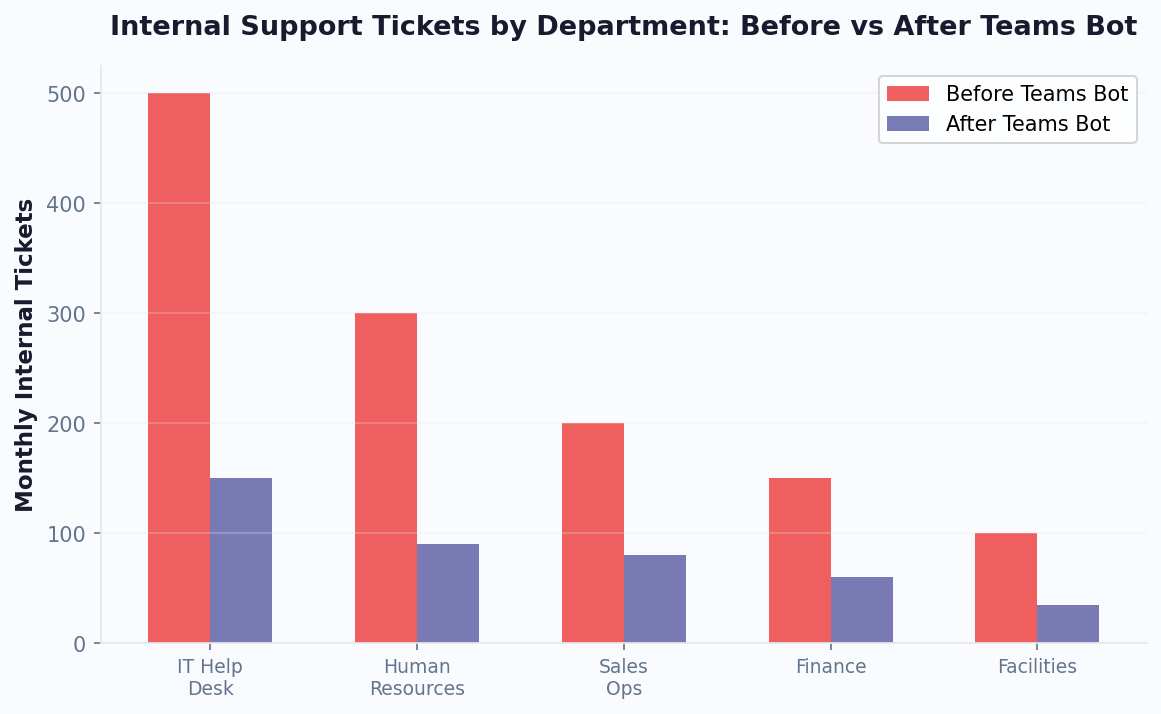
Teams Bot Capabilities
Microsoft Teams supports multiple bot integration patterns. Conferbot uses the Outgoing Webhook approach for the fastest, simplest deployment - no Azure subscription or Bot Framework registration required.
Outgoing Webhook Integration
- Channel Mentions - Users @mention the bot in any channel where it is configured. The bot receives the message and responds in the channel thread
- Automatic Threading - Responses are posted as thread replies, keeping channels organized and preventing bot responses from cluttering the main conversation
- Team-Level Scope - The webhook is configured per Team, giving you control over which Teams have access to the bot
- Security Token Verification - Teams provides a security token (HMAC) that Conferbot verifies on every request, ensuring only legitimate Teams messages are processed
Response Formats
- Text Messages - Standard text responses with Markdown formatting support (bold, italic, links, lists, code blocks)
- Card Responses - Structured card messages with titles, text, and actions. Cards make information scannable and professional
- Adaptive Cards - Richly formatted interactive cards with buttons, inputs, and layouts (available through Bot Framework integration for advanced deployments)
Enterprise Features
- No Azure Required - Outgoing Webhooks work without an Azure subscription, Azure Bot Service, or Bot Framework registration. This dramatically simplifies IT approval and deployment
- Microsoft 365 Security - All communication stays within the Microsoft 365 security perimeter. Data is transmitted over HTTPS with HMAC authentication
- Compliance - Messages are subject to the organization's existing Microsoft 365 compliance and retention policies
For organizations that need deeper integration (proactive messaging, 1:1 DMs, Adaptive Cards), Conferbot also supports the full Bot Framework approach. But for most internal automation needs, the Outgoing Webhook provides the perfect balance of simplicity and capability.
Azure AD Integration and SSO
For organizations using the Bot Framework approach, Conferbot supports Azure Active Directory (Azure AD) integration for Single Sign-On (SSO). This means employees authenticate automatically using their existing Microsoft 365 credentials -- no separate login required. Azure AD integration also enables the bot to identify the user's department, role, and manager, allowing personalized responses based on organizational context. For example, an HR bot can provide department-specific benefits information, or an IT bot can show software access relevant to the user's role. This enterprise-grade identity integration ensures the bot respects organizational boundaries and data access policies.
Teams App Store Submission
For organizations that want to distribute their bot more formally, Microsoft Teams supports publishing custom apps to your organization's internal app store or even the public Teams App Store. Publishing to the internal store requires admin approval and makes the bot discoverable by all employees through the Teams app gallery. The process involves packaging your bot as a Teams app (manifest file, icons, and description), submitting through the Teams Admin Center, and receiving approval from your IT admin. Conferbot provides guidance on the submission process, and our Bot Framework integration generates the required manifest files. For most internal use cases, the Outgoing Webhook approach is simpler and does not require app store submission.
Enterprise Compliance Features
Microsoft Teams is built for enterprise compliance, and your chatbot inherits these protections. All bot messages are subject to your organization's Microsoft 365 compliance policies, including data loss prevention (DLP), information barriers, eDiscovery, and retention policies. This means bot conversations can be audited, retained, or deleted according to your organization's compliance requirements -- critical for regulated industries like finance, healthcare, and government. Conferbot's Teams integration is designed to work within these compliance frameworks without requiring additional configuration. For organizations subject to HIPAA, SOC 2, or GDPR requirements, the combination of Microsoft's compliance infrastructure and Conferbot's data handling practices provides a solid foundation for compliant chatbot deployment.
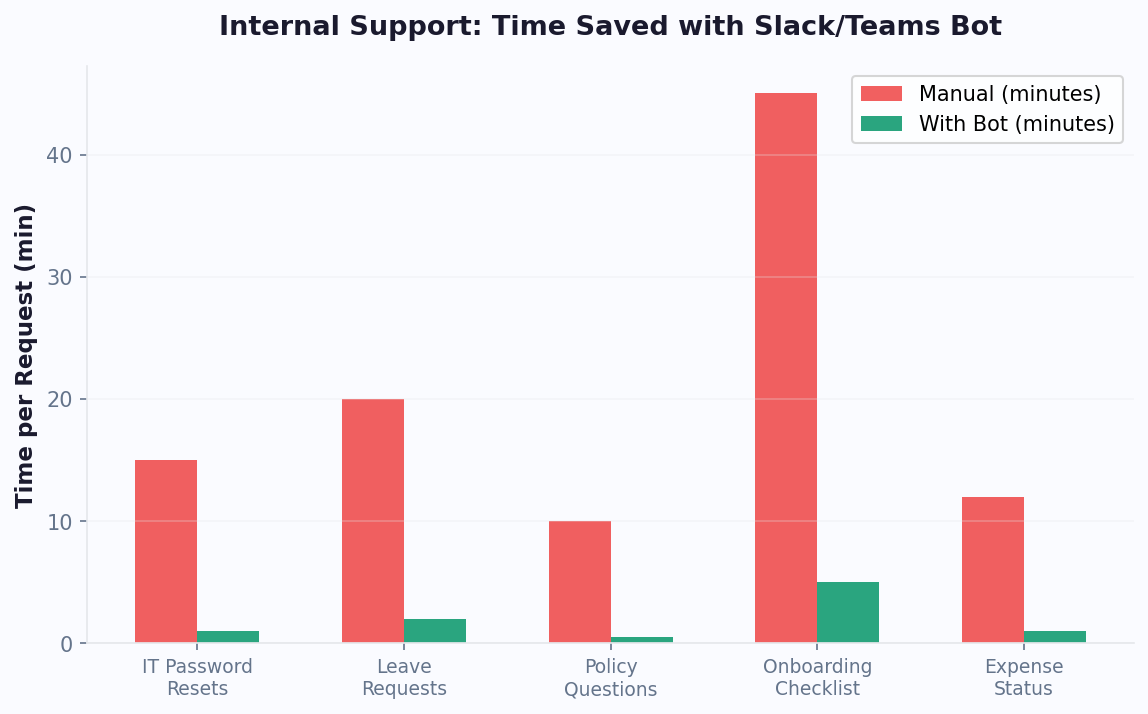
Step-by-Step Teams Bot Setup
Setting up a Microsoft Teams chatbot with Conferbot's Outgoing Webhook approach is the fastest enterprise bot deployment available - no Azure, no app registration, no IT procurement process.
Prerequisites
- A Microsoft Teams account with Team owner or admin permissions
- A Conferbot account (Business plan recommended for enterprise features)
Step 1: Build Your Chatbot
Create your chatbot in the Conferbot visual builder. For Teams, start with a FAQ template and populate it with your most common internal questions - IT support, HR policies, company procedures, tool documentation. Add AI-powered responses to handle the long tail of questions your structured flows do not cover.
Step 2: Get the Callback URL from Conferbot
- In Conferbot, navigate to Channels → Microsoft Teams
- Select the chatbot you built
- Copy the Callback URL provided by Conferbot
Step 3: Create the Outgoing Webhook in Teams
- Open Microsoft Teams and navigate to the Team where you want the bot
- Click the three-dot menu (...)> next to the Team name
- Select Manage team
- Go to the Apps tab
- Click "Create an outgoing webhook" (bottom-right)
- Enter a name for your bot (this is what users will @mention)
- Paste the Callback URL from Conferbot
- Add a description and upload a profile picture (optional)
- Click Create
Step 4: Save the Security Token
- Teams generates a Security Token - copy it immediately (it is shown only once)
- Return to Conferbot's Teams channel settings
- Paste the Security Token and click Save
Step 5: Test Your Bot
- Go to any channel in the Team
- Type @YourBotName followed by a question
- The bot should respond in the thread within seconds
Total setup time: 5-10 minutes. No IT tickets, no Azure provisioning, no app store submissions.
Key Teams Bot Features with Conferbot
Conferbot transforms Microsoft Teams from a communication tool into an intelligent self-service platform for your organization.
AI-Powered Knowledge Base
Connect your company's documentation, policies, and procedures to OpenAI-powered responses. Employees ask questions in natural language and receive accurate, contextual answers drawn from your knowledge base. This turns your Teams bot into an always-available subject matter expert.
Zero IT Overhead
The Outgoing Webhook approach requires no Azure subscription, no Bot Framework registration, no app publishing, and no IT department involvement beyond Team owner access. This means you can deploy an enterprise chatbot in minutes, not weeks. Perfect for departments that need automation without the overhead of a formal IT project.
Thread-Based Organization
Every bot response is posted as a thread reply, keeping channels clean and organized. Team members can see the question and answer in context without scrolling past bot messages in the main channel feed.
Secure by Design
All communication is verified with HMAC tokens, ensuring only authenticated Teams messages reach your bot. Data stays within the Microsoft 365 security boundary. No employee data is stored beyond what is needed for the conversation.
Human Escalation
When the bot cannot answer a question or the employee needs human help, Conferbot's live chat routes the conversation to the right team - IT, HR, facilities, or any department you configure. The support agent sees the full conversation history for context.
Cross-Channel Deployment
The same chatbot logic you build for Teams can be deployed on your company website, Slack, or other channels through Conferbot's omnichannel platform. Build once, serve employees wherever they work.
AI Knowledge Base for Enterprise
Connect your company's SharePoint sites, Confluence pages, internal wikis, and documentation to Conferbot's AI knowledge base. The bot ingests your existing content and uses AI to answer employee questions accurately. Instead of building individual flows for every possible question, upload your documents and the AI generates contextual answers automatically. This is especially powerful for large organizations with extensive documentation scattered across multiple systems -- the bot becomes a single search interface that surfaces the right answer regardless of where the source document lives.
Calendar and Scheduling Integration
Integrate calendar booking into your Teams bot for common scheduling tasks. Employees can book meeting rooms, schedule one-on-ones with HR, reserve training sessions, and sign up for company events -- all through a conversational interface in Teams. The bot syncs with Outlook Calendar to check availability and prevent double bookings. This is particularly useful for facilities teams managing room bookings and HR teams scheduling interviews and performance reviews.
Teams Bot + Power Platform Integration
The true enterprise power of a Microsoft Teams chatbot emerges when you connect it to the Power Platform ecosystem - Power Automate, Power Apps, Dataverse, and AI Builder. This combination transforms your bot from a simple FAQ responder into an intelligent workflow orchestrator that can trigger automations, access enterprise data, and execute multi-step business processes - all from a single @mention in a Teams channel.
Power Automate Integration
Power Automate (formerly Microsoft Flow) provides over 1,000 pre-built connectors to enterprise systems. When your Conferbot Teams chatbot detects specific intents, it can trigger Power Automate flows to execute complex automations. For a comprehensive overview of available connectors and flow templates, see the official Power Automate documentation.
- IT Ticket Escalation - Bot detects a high-severity issue, triggers a Power Automate flow that creates a ServiceNow or Jira ticket, assigns it to the on-call engineer, and posts a confirmation in the Teams channel
- Employee Onboarding Automation - New hire interacts with the bot, triggering flows that provision Active Directory accounts, assign Microsoft 365 licenses, create mailboxes, add to Teams groups, and send welcome emails - all automated
- Expense Report Processing - Employee submits an expense through the bot, Power Automate routes it to the appropriate manager for approval, logs it in Dataverse, and notifies the employee of the outcome
- Leave Request Workflows - Bot collects PTO request details, Power Automate checks available balance, routes for manager approval, updates the HR system, and blocks calendar dates
Power Apps Integration
Power Apps lets you build custom front-end interfaces that embed directly in Teams. Your Conferbot chatbot can launch Power Apps for scenarios that require more complex data entry than a simple chat message - such as multi-field forms, file uploads, or data tables. The chatbot serves as the conversational entry point, and Power Apps handles the structured data collection. This hybrid approach gives employees the speed of chat for simple requests and the precision of forms for complex ones.
Dataverse as the Data Layer
Microsoft Dataverse (formerly Common Data Service) provides the unified data layer for the Power Platform. Your chatbot can read and write data to Dataverse tables, enabling scenarios like employee directory lookups, asset inventory queries, project status updates, and knowledge management. Dataverse's row-level security ensures the bot only returns data the requesting employee is authorized to see - critical for maintaining data governance in enterprise environments.
AI Builder for Intelligent Processing
AI Builder adds pre-trained and custom machine learning models to your bot workflows. Practical applications include document processing (extracting data from receipts, invoices, and forms that employees submit through the bot), sentiment analysis on employee feedback collected through surveys, and text classification for automatically routing support requests to the correct department based on message content.

Real-World Power Platform Scenarios
| Scenario | Teams Bot Role | Power Platform Component | Time Saved |
|---|---|---|---|
| IT Ticket Creation | Collects issue details via chat | Power Automate → ServiceNow | 15 min → 2 min |
| New Hire Setup | Triggers onboarding flow | Power Automate → Azure AD + Exchange | 4 hours → 10 min |
| Expense Approval | Collects receipt and amount | Power Automate → Dataverse → Manager | 3 days → 4 hours |
| Meeting Room Booking | Conversational date/time picker | Power Automate → Outlook Calendar | 5 min → 30 sec |
| Policy Lookup | Natural language query | Dataverse → SharePoint Search | 10 min → instant |
The key advantage of the Conferbot + Power Platform approach over building a Power Virtual Agents bot is flexibility. Conferbot's visual builder provides more sophisticated conversation design, omnichannel deployment beyond just Teams, and a richer analytics dashboard. Power Automate handles the backend automation, giving you the best of both worlds. For organizations already invested in the Microsoft 365 ecosystem, this integration path delivers the highest ROI with the lowest complexity.
Microsoft Copilot vs Custom Teams Bot
With the launch of Microsoft 365 Copilot and Copilot Studio, enterprise buyers face a new question: should you use Microsoft's built-in AI, build a custom bot with Copilot Studio, or deploy a third-party solution like Conferbot? The answer depends on your use case, budget, and customization needs. Understanding each platform's strengths is critical for making the right investment in 2026.
Microsoft 365 Copilot
Microsoft 365 Copilot is a general-purpose AI assistant embedded across Teams, Word, Excel, PowerPoint, and Outlook. It excels at summarizing meetings, drafting emails, analyzing spreadsheets, and answering questions about data stored in Microsoft 365. However, Copilot has significant limitations for structured automation:
- No custom conversation flows - You cannot design specific dialog trees, decision logic, or guided workflows. Copilot responds to natural language queries but does not follow structured paths
- Limited to Microsoft 365 data - Copilot can only access data within your Microsoft 365 tenant. It cannot connect to external systems like ServiceNow, Salesforce, or custom databases without additional development
- No human escalation - There is no built-in mechanism to hand off a conversation to a live agent when Copilot cannot answer
- Pricing at $30/user/month - For an organization of 1,000 employees, that is $360,000/year, making it a significant investment even for large enterprises
Copilot Studio (formerly Power Virtual Agents)
Copilot Studio is Microsoft's low-code bot builder that integrates with Teams, Power Platform, and Azure AI services. It offers more customization than base Copilot but comes with its own trade-offs. For detailed capabilities, see the Copilot Studio documentation.
- Low-code visual builder - Design conversation topics with a graphical editor, similar to Conferbot but with tighter Microsoft integration
- Power Platform native - Seamless connectivity to Power Automate, Dataverse, and AI Builder
- Requires Azure and licensing - Copilot Studio requires a separate license starting at approximately $200/month, plus Azure costs for AI services
- Teams and web only - Limited to Microsoft channels; no native deployment to WhatsApp, Slack, or other platforms
Azure Bot Framework SDK
The Bot Framework SDK is Microsoft's developer-focused toolkit for building fully custom Teams bots with code. It offers maximum control but requires significant development resources and ongoing maintenance. Teams developers should consult the Teams Bot Framework developer documentation for technical specifications.
Conferbot: The No-Code, No-Azure Alternative
Conferbot occupies a unique position in the Teams bot ecosystem - enterprise-grade automation without the Azure dependency, licensing complexity, or development overhead. Here is how it compares:
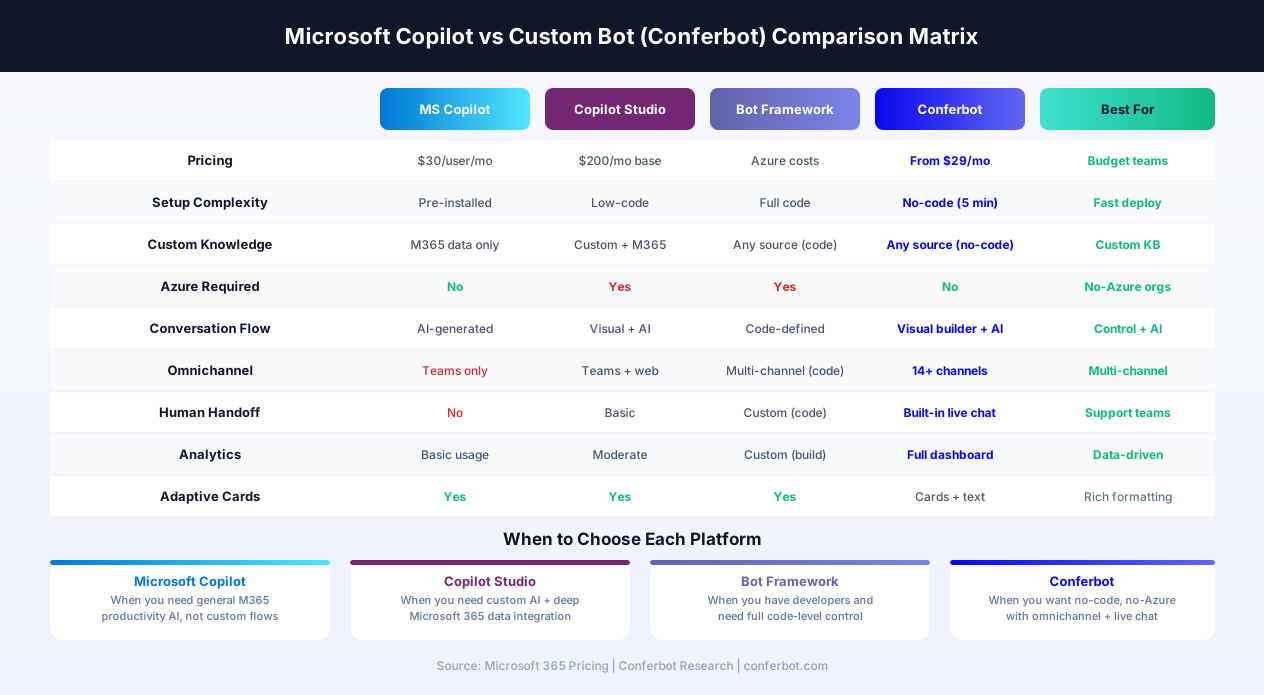
When to Choose Each Platform
- Choose Microsoft 365 Copilot when you need general productivity AI across Office apps and are willing to invest $30/user/month. Best for knowledge workers who spend most of their time in Word, Excel, and Outlook
- Choose Copilot Studio when you need tight integration with Power Platform and Dataverse, and your IT team can manage Azure licensing and administration. Best for organizations with dedicated Power Platform teams
- Choose Bot Framework SDK when you have a development team and need custom integrations that go beyond what any no-code platform can offer. Best for organizations building complex, multi-system bots
- Choose Conferbot when you need fast deployment (minutes, not weeks), no Azure costs, omnichannel reach beyond Teams, built-in live chat escalation, and a pricing model that scales with usage rather than per-user. Best for organizations that want enterprise results without enterprise complexity
Hybrid Approach: Conferbot + Copilot
Many organizations find the optimal strategy is a hybrid: use Microsoft 365 Copilot for general productivity (meeting summaries, email drafting, document analysis) and Conferbot for structured internal automation (IT helpdesk, HR FAQ, onboarding, knowledge management). The two systems complement each other - Copilot handles unstructured, ad-hoc tasks while Conferbot handles repeatable, high-volume workflows with consistent, auditable responses. This approach maximizes ROI by applying each tool where it delivers the most value.
Enterprise Teams Bot Deployment Guide
Deploying a chatbot across a 500-person department is fundamentally different from setting up a bot in a single Teams channel. Enterprise deployment requires careful planning around governance, security, rollout strategy, and change management. This guide covers the end-to-end process for large-scale Teams bot deployment in 2026.
Phase 1: Planning and Approval (Weeks 1-2)
Enterprise bot deployments start with stakeholder alignment and IT governance approval. Key steps include:
- Define scope and success metrics - Which departments will use the bot? What is the target ticket deflection rate? How will ROI be measured? Document these before any technical work begins
- Security review - Work with your IT security team to review Conferbot's data handling practices, encryption standards, and compliance certifications. For organizations in regulated industries, this may require a formal vendor security assessment
- Data Loss Prevention (DLP) assessment - Ensure the bot will not inadvertently share sensitive information. Configure DLP policies in Microsoft 365 to apply to bot conversations the same way they apply to human messages
- Azure AD configuration - If using the Bot Framework approach with SSO, configure the Azure AD app registration, consent permissions, and conditional access policies. For detailed guidance, see Microsoft's bot authentication documentation
Phase 2: Build and Configure (Week 3)
With approval secured, the technical build phase is typically fast with Conferbot's no-code approach:
- Build the chatbot - Use Conferbot's visual builder to create conversation flows for your target use cases. Start with the department's top 20-30 most common questions
- Populate the knowledge base - Upload documentation, policies, and FAQs to the AI knowledge base. Connect SharePoint document libraries if applicable
- Configure the webhook - Create the Outgoing Webhook in your pilot Team, connect the security token, and verify the integration
- Set up Azure AD SSO (if using Bot Framework) - Configure the app registration with the minimum required permissions: User.Read for profile access, and additional scopes only as needed for your specific use case
- Define conditional access policies - Ensure the bot can only be accessed from compliant devices and authorized networks, matching your organization's existing conditional access rules
Phase 3: Pilot Deployment (Weeks 4-5)
Deploy to a focused pilot group before wider rollout. Best practices for pilot deployment include:
- Select 50-100 pilot users across different roles (requesters who ask questions and subject matter experts who can evaluate answer quality)
- Deploy to a dedicated pilot Team with clear instructions and a feedback channel
- Monitor analytics daily - Track resolution rates, escalation rates, and common unanswered questions using Conferbot analytics
- Iterate on the knowledge base - Add answers for questions the bot could not resolve during pilot
- Validate security controls - Confirm DLP policies apply correctly, audit logs capture bot interactions, and the bot does not surface unauthorized information
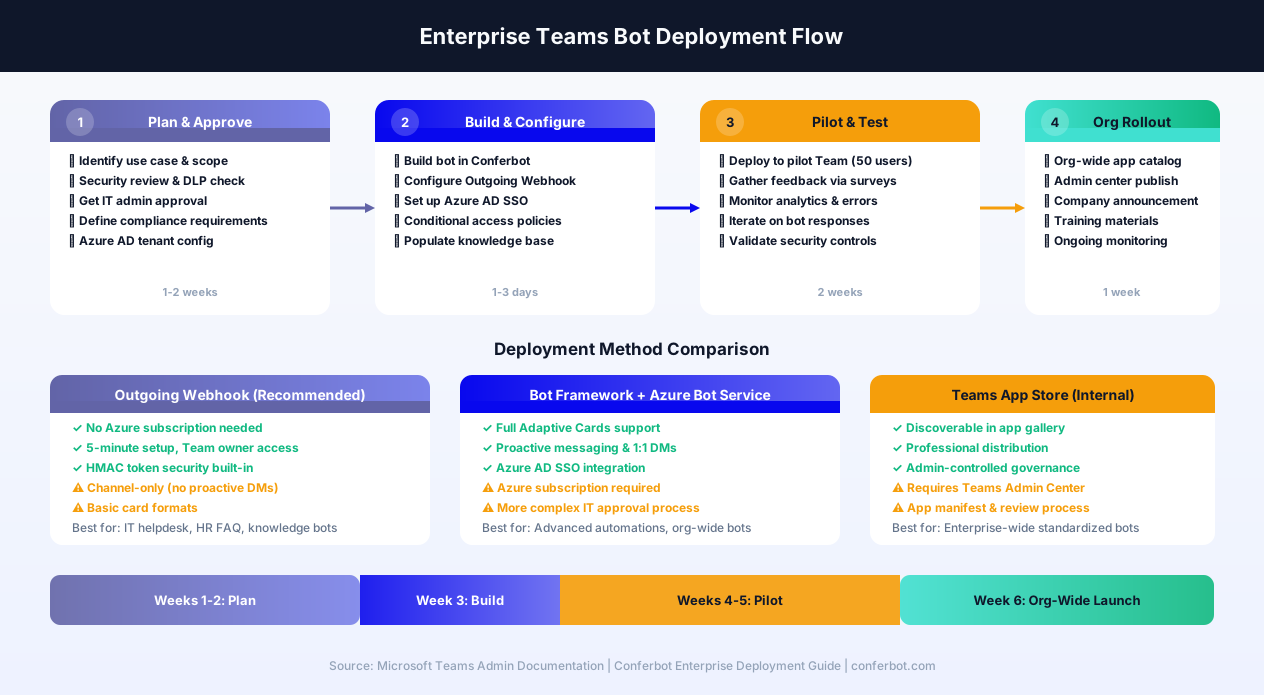
Phase 4: Organization-Wide Rollout (Week 6)
After a successful pilot, expand deployment across the organization:
- Teams Admin Center - For Bot Framework deployments, publish the bot app through the Teams Admin Center to make it available in the organization's internal app catalog. This allows employees to discover and install the bot from the Apps section in Teams
- Org-wide app policy - Configure Teams app permission policies to control which departments can access the bot. You can pin the bot to the app bar for high-priority departments (like IT helpdesk) while making it optional for others
- Sideloading for Outgoing Webhooks - For the simpler webhook approach, create the Outgoing Webhook in each Team that needs bot access. This can be delegated to Team owners with a step-by-step guide
- Change management - Send a company-wide announcement with a clear description of what the bot does, how to use it, and expected response quality. Include a 30-second video tutorial if possible
Governance and Ongoing Management
Post-deployment governance ensures the bot remains accurate, secure, and valuable over time:
- Assign a bot owner - A named individual (typically in IT or HR) responsible for weekly knowledge base updates, monthly performance reviews, and escalation handling
- Monthly analytics reviews - Track ticket deflection rates, employee satisfaction scores, most-asked questions, and unanswered question trends
- Quarterly content audits - Review all bot responses for accuracy, especially after policy changes, tool migrations, or organizational restructuring
- Compliance auditing - Use Microsoft 365's eDiscovery and audit log features to review bot conversations as part of your regular compliance program
Teams Adaptive Cards & Interactive Messages
Adaptive Cards are the most powerful message format available in Microsoft Teams - richly structured, interactive JSON-based cards that can include text, images, buttons, input fields, and custom layouts. For developers building advanced Teams bots, Adaptive Cards transform the bot from a text-only assistant into an interactive application within the chat. This section is particularly relevant for teams evaluating the Bot Framework integration path.
What Are Adaptive Cards?
Adaptive Cards are an open card exchange format developed by Microsoft that renders natively across Teams, Outlook, Windows, and other Microsoft products. Unlike simple text messages, Adaptive Cards can include structured layouts, input fields, action buttons, and dynamic data - making them ideal for scenarios that require more than a simple Q&A response. For the complete schema reference and interactive designer, visit the Adaptive Cards official documentation.
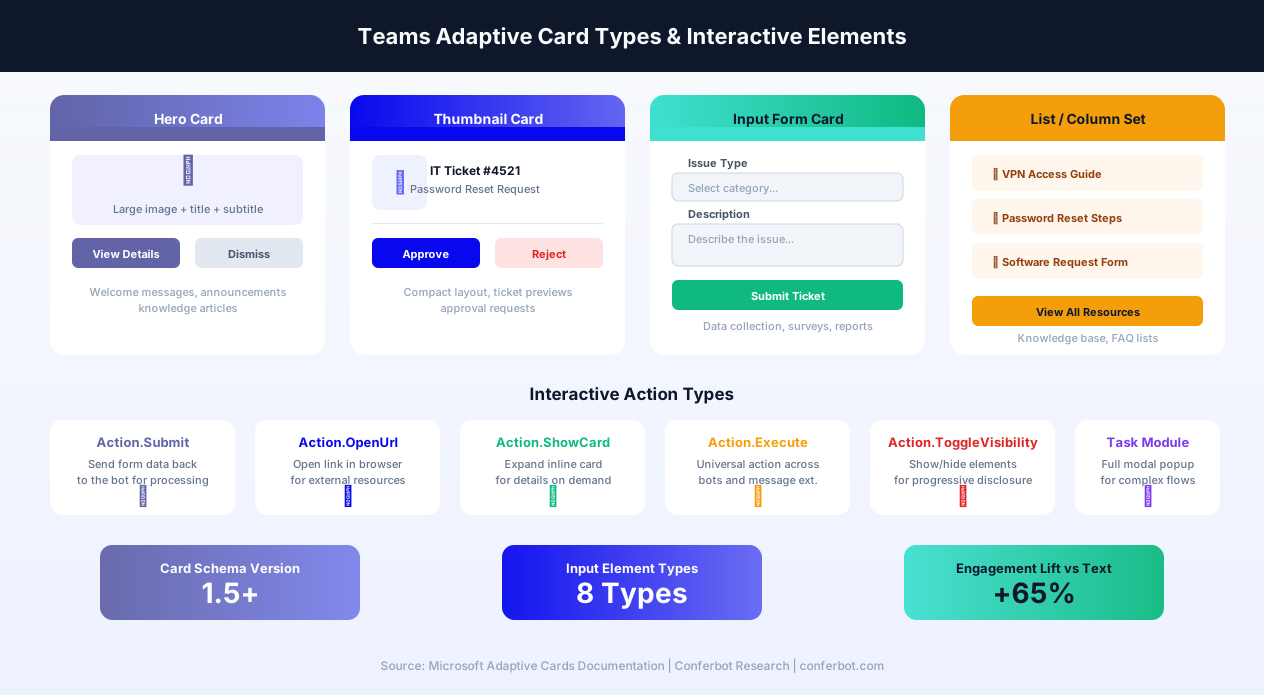
Card Types for Teams Bots
- Hero Card - Large image with title, subtitle, and action buttons. Perfect for welcome messages, article previews, and knowledge base results. The hero image grabs attention and the buttons provide clear next steps
- Thumbnail Card - Compact layout with a small image alongside text and buttons. Ideal for search results, ticket summaries, and directory listings where you need to show multiple items without overwhelming the channel
- Adaptive Card with Inputs - Full form experience within the chat: text fields, dropdowns, date pickers, toggle switches, and number inputs. Employees fill out the form inline and submit - the data goes directly to your bot for processing. Use cases include IT ticket creation forms, leave request submissions, and employee feedback surveys
- Column Set / List Card - Multi-column layouts for displaying structured data like comparison tables, status dashboards, and multi-item lists. Each column can contain text, images, and action buttons independently
Interactive Action Types
Adaptive Cards support several action types that make bot conversations interactive rather than passive:
- Action.Submit - Sends form data (input field values) back to the bot for processing. This is the workhorse action for data collection flows
- Action.OpenUrl - Opens a URL in the browser. Use for linking to external resources, documentation, or web applications
- Action.ShowCard - Expands an inline sub-card within the current card, enabling progressive disclosure. The user sees a summary first and can expand for details without leaving the conversation
- Action.Execute - The universal action model that works across bots and messaging extensions. Supports automatic card refresh and sequential workflow chains
- Action.ToggleVisibility - Shows or hides elements within the card, enabling accordion-style FAQ cards where users expand only the sections they need
Task Modules (Modal Dialogs)
For interactions that need more screen real estate than an inline card, Teams supports Task Modules - modal popup windows triggered from Adaptive Card buttons. Task Modules can render custom HTML/JavaScript or Adaptive Cards in a full-screen dialog, making them ideal for complex forms, multi-step wizards, and data-heavy interfaces. For example, an IT bot can show a simple Adaptive Card for basic troubleshooting but launch a Task Module when the employee needs to fill out a detailed hardware request form with specifications, justifications, and approvals.
Conferbot's Approach to Rich Messages
Conferbot supports Adaptive Cards through the Bot Framework integration path. For organizations using the simpler Outgoing Webhook approach, Conferbot renders structured responses using Teams' built-in card formats - title, text, and action buttons. This gives you professional-looking, structured responses without the complexity of full Adaptive Card development. For organizations that need the full Adaptive Cards experience (input forms, progressive disclosure, Task Modules), Conferbot's Bot Framework integration provides the complete card SDK with visual configuration. You design the card logic in Conferbot's visual builder and the system generates the Adaptive Card JSON automatically.
Adaptive Cards Performance Impact
Organizations that upgrade from plain text responses to Adaptive Cards in their Teams bots consistently report improved engagement metrics. Cards with action buttons tend to see higher interaction rates compared to text-only responses, because employees can tap a button instead of typing a follow-up question. Input Form Cards reduce the average number of message exchanges per resolution by collecting all required information in a single structured submission. These improvements translate directly to faster resolution times and higher employee satisfaction with the bot experience.
Enterprise Use Cases for Teams Chatbots
Teams chatbots are most effective when they automate high-volume, repetitive internal requests. Here are the use cases that deliver the highest ROI.
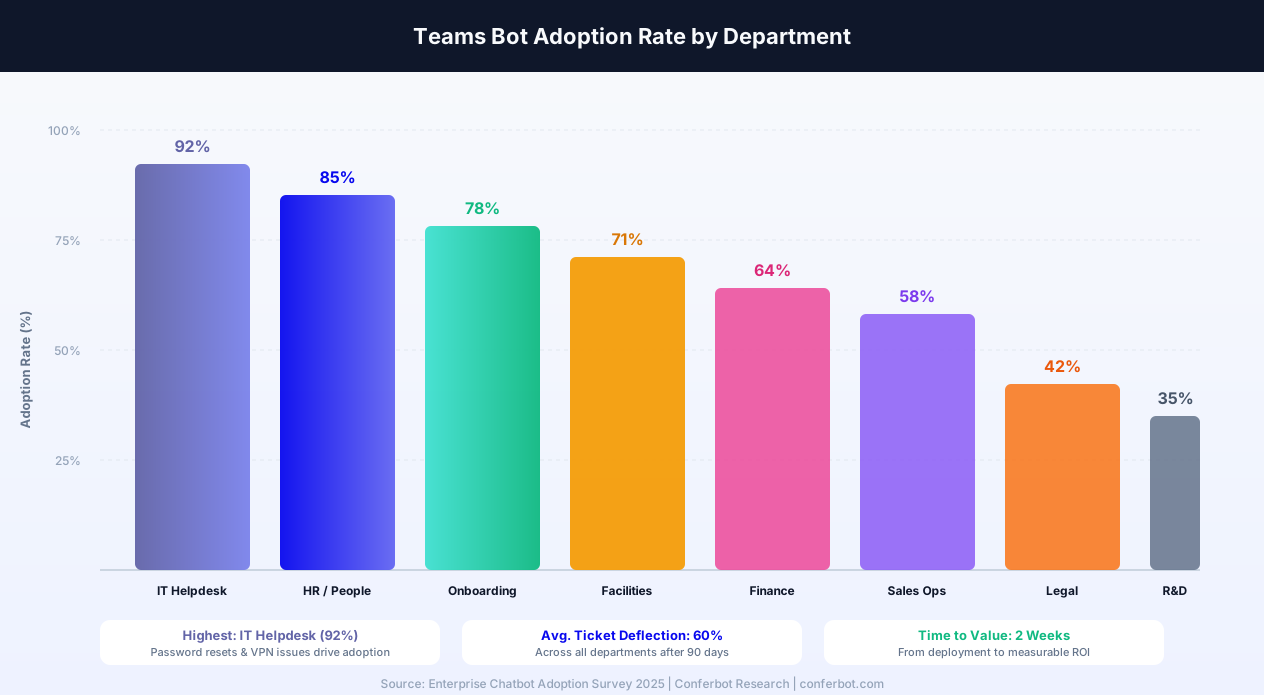
IT Helpdesk Automation
Password resets, VPN troubleshooting, software installation guides, printer setup, email configuration, account access requests, and hardware ordering. IT helpdesks report that 40-60% of tickets are repetitive questions that a chatbot can answer instantly. By deflecting these tickets, IT teams save thousands of hours annually and reduce average resolution time from hours to seconds.
HR and People Operations
PTO balance inquiries, benefits explanations, expense policy clarification, performance review timelines, holiday schedules, and new hire onboarding checklists. HR chatbots in Teams reduce the volume of "quick questions" that pull HR staff away from strategic work. Employees get answers instantly instead of waiting for HR office hours.
Employee Onboarding
Guide new hires through their first days and weeks with interactive onboarding flows. Deliver day-by-day checklists, introduce key contacts, explain tools and systems, share policy documents, and answer common new employee questions. Companies using chatbot-driven onboarding often report faster time-to-productivity for new hires.
Facilities and Operations
Room booking information, office amenity questions, parking policies, catering requests, maintenance request submission, and building access procedures. Facilities teams handle a high volume of simple questions that a bot resolves instantly.
Sales and Revenue Operations
CRM data lookups, pricing information, proposal template locations, deal stage definitions, commission calculations, and competitive intelligence access. Sales teams use Teams heavily, and a bot that provides instant data eliminates context-switching to other tools.
Knowledge Management
Surface answers from scattered documentation across SharePoint, Confluence, Google Drive, and Notion. The bot becomes a single point of access for institutional knowledge, meaningfully reducing the time employees spend searching for information.
Teams vs Other Enterprise Chat Platforms
For internal enterprise automation, Teams competes primarily with Slack. Here is a detailed comparison for chatbot deployment.
| Feature | Microsoft Teams | Slack | Discord | Google Chat |
|---|---|---|---|---|
| Monthly Active Users | 320M+ | 32M+ daily | 150M+ | Included in Workspace |
| Primary Use | Enterprise workplace | Business teams | Communities | Google Workspace teams |
| Bot Setup Speed | 5-10 min (Outgoing Webhook) | 10-15 min (Slack App) | 5-10 min | Moderate |
| Azure Required | No (webhooks) | N/A | N/A | N/A |
| Rich Message Formats | Cards, Adaptive Cards | Block Kit | Embeds, 25 buttons | Cards |
| Threading | Automatic | Optional | Threads | Threaded replies |
| SSO Integration | Azure AD (native) | SAML SSO | No enterprise SSO | Google Workspace |
| Compliance | Microsoft 365 compliance | Enterprise Grid | Limited | Google Workspace |
| File Sharing | SharePoint + OneDrive | Built-in + integrations | Built-in | Google Drive |
| Market Position | Enterprise leader | SMB + tech companies | Communities, gaming | Google Workspace users |
When to choose Teams: If your organization uses Microsoft 365, Teams is the natural choice for internal chatbot deployment. The Outgoing Webhook approach removes the Azure overhead that traditionally made Teams bots complex. For organizations using both Slack and Teams, Conferbot's omnichannel platform lets you deploy the same bot on both platforms simultaneously. For external customer engagement, consider adding WhatsApp or website widget channels.
Teams Bot Compliance & Security
For enterprises in regulated industries - financial services, healthcare, government, and education - chatbot compliance is not optional. A Teams bot must meet the same security and compliance standards as any other enterprise application processing employee data. This section covers the compliance landscape for Teams bot deployments in 2026.
Microsoft 365 Compliance Integration
Your Conferbot Teams bot automatically inherits many of your organization's Microsoft 365 compliance controls:
- Data Loss Prevention (DLP) - Microsoft 365 DLP policies apply to bot messages the same way they apply to human messages. If your DLP rules prevent sharing of credit card numbers, social security numbers, or other sensitive patterns, those rules apply to bot responses as well. Configure DLP policies in the Microsoft Purview Compliance Center to cover Teams messages, including bot interactions
- eDiscovery - Bot conversations in Teams are captured in the compliance content search and eDiscovery workflows. Legal teams can search, hold, and export bot conversations as part of litigation hold or regulatory investigations
- Retention Policies - Configure retention policies in Microsoft Purview to automatically retain or delete bot messages based on your organization's data lifecycle requirements. This is critical for financial services firms subject to SEC Rule 17a-4 or similar regulations
- Information Barriers - If your organization uses information barriers (common in financial services to prevent conflicts of interest), these barriers apply to bot interactions as well. The bot will not deliver information across barrier boundaries
- Audit Logs - All bot interactions are captured in the Microsoft 365 unified audit log. Administrators can track who interacted with the bot, what questions were asked, and what responses were delivered - providing a complete audit trail
Tenant Isolation and Data Residency
Microsoft Teams enforces strict tenant isolation - your organization's data never crosses tenant boundaries. Bot messages are processed within your organization's data residency region (US, EU, Asia-Pacific, etc.), ensuring compliance with data sovereignty requirements like GDPR, CCPA, and regional privacy laws. Conferbot processes webhook data through secure HTTPS endpoints with HMAC verification, and does not store Microsoft 365 tenant data beyond the minimum required for conversation context.
GCC and GCC-High Support
For US government agencies and contractors, Microsoft Teams offers Government Community Cloud (GCC) and GCC-High environments with enhanced security controls, FedRAMP authorization, and ITAR compliance. Conferbot's Outgoing Webhook integration works with GCC environments because it uses standard HTTPS endpoints rather than requiring Azure Bot Service registration, which has different availability across GCC tiers. Organizations in GCC-High environments should contact Conferbot for specific deployment guidance, as webhook connectivity requirements differ from commercial Teams.
Conditional Access Policies
Azure AD conditional access policies add an additional layer of security to bot interactions. You can configure policies that require:
- Compliant device - Bot interactions only processed from devices that meet your Intune compliance policies (corporate-managed, encrypted, up-to-date)
- Trusted network - Bot access restricted to corporate network or VPN, preventing use from personal devices on public networks
- Multi-factor authentication - For sensitive bot actions (like approving expenses or accessing confidential data), require MFA step-up authentication
- Session controls - Limit bot session duration and enforce re-authentication for extended interactions
Security Best Practices for Teams Bots
- Principle of least privilege - Grant the bot only the minimum permissions required. For Outgoing Webhooks, this is automatically enforced (the bot can only respond to messages, not proactively access data). For Bot Framework bots, carefully scope Azure AD app permissions
- Regular security reviews - Include the bot in your quarterly security review process. Check that the webhook URL has not changed, the HMAC token is still valid, and the bot is not exposing unintended information
- Sensitive data handling - Configure the bot to never include personally identifiable information (PII), financial data, or security credentials in channel responses. Redirect sensitive queries to private channels or secure systems
- Incident response plan - Document procedures for disabling the bot quickly if a security incident occurs. For Outgoing Webhooks, removing the webhook instantly stops all bot communication
Conferbot vs Power Virtual Agents vs Custom Bot Framework
Enterprise teams evaluating Microsoft Teams chatbot solutions have three primary approaches: Conferbot's no-code platform, Microsoft's Copilot Studio (formerly Power Virtual Agents), and custom development with the Bot Framework SDK. Each serves different organizational profiles, and the wrong choice can waste months and budget. This head-to-head comparison helps you choose the right path for your team.
Conferbot for Teams
Conferbot is purpose-built for organizations that need enterprise chatbot automation without Azure dependencies, development resources, or extended deployment timelines. Key advantages include:
- No Azure subscription required - Deploy using Outgoing Webhooks with zero Azure costs. This removes the #1 barrier to Teams bot adoption in organizations where Azure provisioning takes weeks
- 5-minute deployment - From account creation to live bot in a Teams channel. No app registration, no manifest files, no admin center approval for basic deployments
- Omnichannel by default - The same bot works on Teams, Slack, website, WhatsApp, and 10+ other channels. No other Teams bot solution offers this breadth
- Built-in live chat - Native human handoff to support agents with full conversation history. Neither Copilot nor base Bot Framework includes this
- AI knowledge base - Upload documents and the AI handles answers automatically. No training data pipelines or AI model configuration
- Flat pricing - Predictable monthly cost based on usage, not per-user licensing. Dramatically more cost-effective for large organizations
Copilot Studio (Power Virtual Agents)
Best for organizations deeply embedded in the Microsoft Power Platform ecosystem who need tight integration with Dataverse, Power Automate, and Azure AI services:
- Native Power Platform integration - Seamless connections to Dataverse, Power Automate, and Power Apps without additional middleware
- Generative AI (Azure OpenAI) - Built-in generative answers from Azure OpenAI Service, with enterprise data grounding from SharePoint and Dataverse
- Microsoft admin governance - Managed through the Power Platform admin center with environment-level controls, DLP policies, and usage analytics
- Limitations - $200+/month licensing, Azure subscription required for advanced AI features, limited to Teams and web channels, no native human handoff, less flexible conversation design than Conferbot
Custom Bot Framework SDK
Best for organizations with dedicated development teams who need complete control over every aspect of the bot:
- Full code control - C# or Node.js SDK with complete access to the Teams API surface area. Every interaction pattern, every data integration, every edge case can be handled with custom code
- Maximum flexibility - Connect to any system, any API, any database. No platform limitations on what the bot can do
- Limitations - Requires 2-6 months of development time, ongoing maintenance by developers, Azure Bot Service hosting costs ($500-2,000+/month), and significant testing overhead. No visual builder - everything is code
Decision Framework
| Decision Factor | Choose Conferbot | Choose Copilot Studio | Choose Bot Framework |
|---|---|---|---|
| Timeline | Need a bot this week | 2-4 week project OK | 3-6 month project OK |
| Budget | Under $500/month | $200-1,000/month | $2,000+/month (dev + hosting) |
| Technical Skills | No developers needed | Power Platform skills | C# or Node.js developers |
| Azure Dependency | Zero Azure required | Azure required | Azure required |
| Channels | 14+ channels | Teams + web | Multi-channel (custom) |
| Human Handoff | Built-in | Limited | Custom build |
| Best For | Fast-moving teams, multi-channel | Power Platform orgs | Complex, custom requirements |
For most enterprise Teams bot deployments in 2026, Conferbot provides the fastest path to value with the lowest total cost of ownership. Organizations that need deep Power Platform data integration should evaluate Copilot Studio as a complement. The Bot Framework SDK remains the right choice for highly custom, developer-led projects with unique technical requirements. Compare Conferbot pricing against your estimated Copilot Studio or Bot Framework costs to see the difference.
Teams Chatbot Best Practices
Enterprise environments have unique requirements around security, adoption, and governance. These best practices ensure your Teams chatbot succeeds in a corporate setting.
1. Start with One High-Impact Use Case
Do not try to automate everything at once. Pick the department that handles the most repetitive questions - typically IT helpdesk or HR - and build a focused bot that handles their top 20 questions excellently. Success breeds adoption, and you can expand the bot's capabilities over time.
2. Make the Bot Discoverable
Employees will not use a bot they do not know exists. Announce the bot in company-wide channels, include it in onboarding materials, pin a "How to use the bot" message in relevant channels, and have managers encourage adoption. The first week after launch determines long-term adoption rates.
3. Keep Responses Concise and Actionable
Enterprise users want quick answers, not lengthy explanations. Lead with the answer, then provide supporting details. Include links to full documentation for users who need more depth. Format responses with bullet points and clear headings for scannability.
4. Update Knowledge Weekly
Company policies, tools, and processes change constantly. Assign someone to update the bot's knowledge base weekly. Use analytics to identify questions the bot cannot answer and add those to the knowledge base. A bot with stale information is worse than no bot at all.
5. Provide Clear Escalation Paths
Every bot response should include a way to reach a human when needed. Configure live chat handoff for complex issues, and clearly label the option. Employees need confidence that the bot will not be a dead end for urgent requests.
6. Respect Enterprise Security
Never have the bot share sensitive information like individual salary data, confidential project details, or security credentials in public channels. Design flows that redirect sensitive topics to DMs or direct the employee to the appropriate secure system.
7. Measure and Report ROI
Track ticket deflection rates, time saved per resolved query, employee satisfaction scores, and adoption rates. Present these metrics to stakeholders quarterly to justify continued investment and expansion. Use Conferbot analytics alongside your existing ITSM reporting.
Getting Started with Your Teams Chatbot
Deploying a Microsoft Teams chatbot has never been simpler. Here is your path from zero to a live enterprise bot.
Quick Start Checklist
- Identify your use case - IT helpdesk, HR FAQ, onboarding, or knowledge management
- Gather your content - Collect the top 20-30 questions and answers from your target department
- Build in Conferbot - Use the visual builder with a FAQ template as your starting point
- Add AI capabilities - Enable OpenAI integration for questions beyond your structured flows
- Create the Outgoing Webhook in your Microsoft Teams team settings
- Connect by pasting the Callback URL and Security Token
- Test with your team before a wider rollout
- Launch with an announcement and monitor via analytics
Enterprise Deployment Tips
- Pilot first - Deploy to a single team or department for 2 weeks before organization-wide rollout
- Assign a bot owner - Someone responsible for content updates, monitoring performance, and expanding capabilities
- Integrate with ITSM - Connect escalations to your existing ticketing system (ServiceNow, Jira Service Desk, Zendesk) for seamless handoff
- Multi-Team deployment - Create the webhook in each Team that needs the bot, all pointing to the same Conferbot chatbot
Microsoft Teams chatbots deliver immediate, measurable ROI by automating the repetitive internal requests that consume thousands of employee hours annually. With Conferbot's no-code approach and Azure-free webhook setup, you can have a live bot in under 10 minutes. View enterprise pricing and start building your Teams chatbot in 2026.
Why Conferbot for Microsoft Teams
- No Azure required - Outgoing Webhook setup means no Azure subscription, no Bot Framework complexity
- No code required - Build enterprise bots with our visual AI chatbot builder
- AI knowledge base - Train the bot on company documentation for accurate answers
- Enterprise compliance - Works within Microsoft 365 compliance, DLP, and retention policies
- Azure AD SSO - Authenticate employees automatically with existing Microsoft credentials
- Calendar booking - Schedule rooms, meetings, and events via calendar integration
- Rich integrations - Connect ServiceNow, Jira, Salesforce, and more via integrations hub
- Omnichannel - Same bot works on Teams, Slack, website, and customer channels
- Real-time analytics - Track ticket deflection and ROI with built-in analytics
See how Conferbot compares to other chatbot platforms for enterprise Teams automation.
How Conferbot Compares for تيمز
Most platforms charge per message, per seat, or limit channels by tier. Here's how Conferbot is different.
| Feature | Conferbot | Typical Competitor |
|---|---|---|
| Channels included | 8 (all plans) | 3-6 (varies by tier) |
| Pricing model | Flat rate from $19/mo | Per-seat or per-message |
| AI chatbot builder | Yes (plain English) | No or limited |
| Native mobile SDKs | 4 (Android, iOS, Flutter, RN) | None (WebView only) |
| Knowledge base AI | Included | Add-on ($30-99/mo) |
| Live chat handoff | Included | Higher tiers only |
| Calendar booking | Built-in | Third-party required |
| Setup time | Under 10 minutes | Hours to days |
تيمز FAQ
Everything you need to know about chatbots for تيمز.
Continue Exploring
Explore features, connect third-party tools, and browse ready-made templates.
Deep-dive pillar guides, real use cases, and the chatbot & AI glossary.