The WooCommerce Opportunity: Why AI Chatbots Are Essential for WordPress Store Owners in 2026
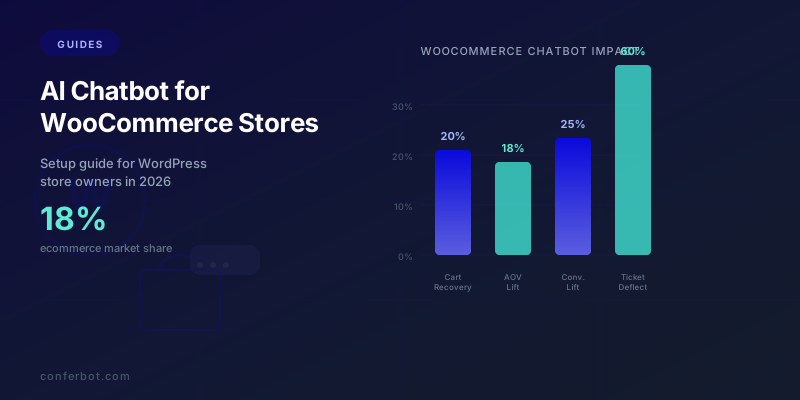
WooCommerce is the undisputed giant of open-source ecommerce. According to BuiltWith's 2026 market data, WooCommerce powers approximately 18% of all ecommerce websites globally, translating to over 6.5 million active stores. Within the WordPress ecosystem, the dominance is even more striking -- WooCommerce runs on roughly 38% of all WordPress sites that include any form of online selling capability. No other ecommerce platform offers the same combination of flexibility, extensibility, and zero licensing cost.
Yet WooCommerce stores face a conversion challenge that mirrors the broader ecommerce landscape. The average WooCommerce store converts between 1.5% and 3.0% of visitors into buyers, meaning 97-98.5% of people who visit your store leave without purchasing. The reasons are well-documented: unanswered product questions, shipping cost surprises, checkout friction, and the simple absence of someone to ask for help. A physical retail store has salespeople to greet customers, answer questions, and guide them to the right product. Most WooCommerce stores have a search bar and a FAQ page.
This is where AI chatbots change the equation entirely. An AI chatbot on your WooCommerce store acts as a tireless virtual shopping assistant that engages visitors in real time, answers product questions using your catalog data, guides hesitant shoppers through checkout, recovers abandoned carts, and handles post-purchase support -- all without requiring you to hire additional staff or be online 24/7.

The financial impact is substantial. Research from Baymard Institute shows that 70.19% of online shopping carts are abandoned before checkout. For a WooCommerce store generating $50,000 per month, that represents roughly $116,000 in unrealized revenue every month. Even recovering 15-20% of those abandoned carts through chatbot-driven interventions adds $17,400-$23,200 in monthly revenue. When you factor in upselling, support deflection, and improved customer satisfaction, the total ROI often exceeds 200x the cost of the chatbot platform.
WordPress's open architecture makes it uniquely suited for AI chatbot integration. Unlike closed platforms where you are limited to the vendor's app store, WordPress gives you full control over where and how the chatbot loads, what data it can access, and how deeply it integrates with your store's backend. Whether you are running a minimal theme with Gutenberg blocks or a fully designed Elementor storefront, an AI chatbot slots in seamlessly.
This guide walks you through every step of adding, configuring, and optimizing an AI chatbot for your WooCommerce store in 2026. We cover plugin installation, product catalog syncing, order status automation, checkout assistance, abandoned cart recovery, and advanced integrations. By the end, you will have a fully operational AI shopping assistant that drives revenue while you sleep.
If you are already running a basic chatbot and want to upgrade to AI-powered product catalog integration, skip ahead to product catalog syncing. For store owners starting from zero, we recommend reading our foundational WooCommerce chatbot guide first.
Plugin Installation and Setup: From Zero to Live in Under 10 Minutes
Installing an AI chatbot on WooCommerce is straightforward because WordPress's plugin architecture handles the heavy lifting. There are two primary methods: the plugin approach (recommended for non-technical store owners) and the manual embed approach (preferred by developers who want full control). Both produce the same result -- a fully functional AI chatbot widget on every page of your store.
Method 1: WordPress Plugin Installation (Recommended)
The fastest path to a working chatbot uses a WordPress plugin that handles code injection, page targeting, and WooCommerce API connection automatically.
- Log into your WordPress admin dashboard and navigate to Plugins > Add New.
- Search for your chatbot platform's plugin. For Conferbot, search "Conferbot" in the plugin directory. Click Install Now, then Activate.
- Connect your account. After activation, navigate to Settings > Conferbot in the WordPress sidebar. Enter your Conferbot API key (found in your Conferbot dashboard under Settings > API Keys). Click Verify & Connect.
- Select your bot. Choose the WooCommerce-specific bot template from the dropdown. This template comes pre-configured with product search, order tracking, cart recovery, and FAQ handling flows.
- Configure display rules. Set which pages show the chatbot widget. Recommended defaults: all pages except checkout confirmation (to avoid distracting customers who just purchased).
- Save and activate. Click Enable Chatbot. The widget is now live on your store.
Total time: 3-5 minutes. No code editing required.
Method 2: Manual Embed Code (Developer Approach)
If you prefer manual control or your chatbot platform does not offer a WordPress plugin, use the embed code method:
- Copy your chatbot embed snippet from your chatbot platform dashboard. It typically looks like:
<script src="https://widget.conferbot.com/v3/YOUR_BOT_ID.js" async></script> - Add it to your theme. In WordPress admin, go to Appearance > Theme File Editor. Open
footer.phpand paste the snippet just before the closing</body>tag. - Alternatively, use the header/footer injection method. Navigate to Appearance > Customize > Additional CSS/Scripts (available in many themes) or install a lightweight plugin like "Insert Headers and Footers" to add the script without editing theme files directly.
The manual method works universally across every WordPress theme and WooCommerce version, but requires re-adding the snippet if you switch themes.
Compatibility Verification
After installation, verify compatibility with your specific WordPress stack:
| Component | Compatibility Notes | Action Required |
|---|---|---|
| WooCommerce 8.x+ | Full compatibility with REST API v3 | None -- works out of the box |
| WordPress 6.x | Fully supported including block themes | None |
| Elementor Pro | Widget loads after Elementor renders | Ensure async loading is enabled |
| Gutenberg blocks | Compatible with all native blocks | None |
| WooCommerce Blocks | Works with new checkout and cart blocks | Test cart detection on block-based checkout |
| Caching plugins (WP Rocket, W3TC) | May cache chatbot script incorrectly | Exclude chatbot JS from cache; add to defer exceptions |
| Security plugins (Wordfence, Sucuri) | May block external scripts | Whitelist chatbot domain in firewall rules |

The most common installation issue is caching interference. If the chatbot does not appear after installation, clear your site cache (both plugin cache and server-side cache), then verify the script loads by opening your browser's Developer Tools > Network tab and searching for the chatbot script URL. If you see a 200 status code, the script loaded successfully and the issue is likely a CSS conflict. If you see a blocked or 403 status, check your security plugin's firewall settings.
For a comprehensive walkthrough of adding chatbots to WordPress specifically, including troubleshooting for 20+ common issues, see our add chatbot to any website guide.
Product Catalog Syncing: Turning Your Chatbot Into an AI-Powered Shopping Assistant
A chatbot that cannot access your product catalog is just a glorified FAQ widget. The real power of an AI chatbot for WooCommerce emerges when it has full knowledge of every product, variant, price, and inventory level in your store. This transforms it from a reactive support tool into a proactive AI shopping assistant that helps customers discover products, compare options, and make purchase decisions.
How WooCommerce Product Sync Works
WooCommerce exposes your product catalog through the WooCommerce REST API. When you connect your chatbot platform to WooCommerce, the integration pulls the following data:
- Product names, descriptions, and short descriptions: The AI indexes these for natural language search. A customer who types "something waterproof for hiking" matches waterproof jackets even if no product title contains those exact words.
- Product variations: Size, color, material, and any custom attributes you define. The bot asks clarifying questions: "The Alpine Pro Jacket comes in S, M, L, XL. What size works for you?"
- Pricing data: Regular price, sale price, and active coupon codes. The bot can highlight deals: "This item is currently 25% off -- was $120, now $90 through June 15."
- Stock status and quantities: Real-time inventory data powers urgency messaging ("Only 3 left in medium") and prevents the bot from recommending out-of-stock items.
- Product images: The bot displays rich product cards with images, prices, and direct add-to-cart links within the chat window. Visual product cards increase click-through rates by 35-40% compared to text-only product mentions.
- Categories and tags: The bot understands your catalog hierarchy and can guide shoppers through categories: "We have Running Shoes, Trail Shoes, and Walking Shoes. Which activity are you shopping for?"
- Product reviews and ratings: Average ratings and review counts displayed alongside product recommendations add social proof that increases conversion by 12-18%.
Setting Up the WooCommerce REST API Connection
To enable product sync, you need to generate WooCommerce REST API keys:
- In your WordPress admin, navigate to WooCommerce > Settings > Advanced > REST API.
- Click Add Key. Name it (e.g., "Conferbot Integration"), set permissions to Read (the chatbot only needs to read product data, not modify it), and assign it to your admin user.
- Click Generate API Key. Copy the Consumer Key and Consumer Secret.
- In your chatbot platform's integration panel, paste these credentials along with your store URL.
- Click Sync Now. The initial sync pulls your entire catalog.
For stores with under 5,000 products, the initial sync completes in 30-90 seconds. Stores with 10,000-50,000 products may take 3-5 minutes. After the initial sync, the chatbot stays updated through WooCommerce webhooks that fire whenever a product is created, updated, or deleted.
Building Guided Selling Conversations
The most effective WooCommerce chatbots use guided selling -- a structured sequence of questions that narrows down the ideal product for each customer. Here is how to structure a guided selling flow:
Step 1 -- Intent detection: "Hi! Are you looking for a specific product, or would you like help finding the right one?"
Step 2 -- Category selection: Quick-reply buttons for your top categories (pulled from WooCommerce category data)
Step 3 -- Need qualification: 2-3 category-specific questions (budget range, use case, size/color preference)
Step 4 -- Product presentation: 2-4 best-match products displayed as rich cards with images, prices, ratings, and "Add to Cart" buttons
Step 5 -- Comparison and decision: "Want me to compare these two side by side?" or "Ready to add one to your cart?"
WooCommerce stores with guided selling chatbots report 25-30% higher average order values versus unassisted browsing, because the bot suggests products that genuinely match the shopper's needs rather than leaving them to scroll through hundreds of listings.
For a deeper exploration of how AI product search works and how to train your chatbot on custom product knowledge, read our ecommerce chatbot strategies guide.
Order Status Queries: Automating the Most Common WooCommerce Support Ticket
"Where is my order?" accounts for 35-45% of all customer support inquiries at WooCommerce stores. For a store processing 800 orders per month, that translates to 280-360 WISMO (Where Is My Order) tickets. At an average cost of $8-12 per human-handled ticket, you are spending $2,240-$4,320 monthly just telling people their order is being shipped.
An AI chatbot resolves these queries in under 10 seconds, 24 hours a day, at a fraction of the cost.
Setting Up WooCommerce Order Lookup
The chatbot connects to WooCommerce's Orders REST API endpoint to retrieve real-time order data. Here is the flow:
- Customer triggers order tracking: They type "where is my order", "track my order", "order status", or click a "Track My Order" quick-reply button.
- Identity verification: The bot asks for the order number (format varies: #1234, WC-1234) or the email address associated with the order.
- API query: The chatbot queries the WooCommerce REST API with the provided identifier and retrieves the order record.
- Status presentation: The bot formats the status information in a clear, customer-friendly message.
- Contextual follow-up: Based on the order status, the bot offers appropriate next actions.
| WooCommerce Status | Chatbot Response | Next Action Offered |
|---|---|---|
| Processing | "Your order #1234 is confirmed and being prepared for shipment. Estimated ship date: [date]." | Offer to modify order or add items |
| On Hold | "Your order #1234 is on hold pending payment confirmation. If you paid by bank transfer, please allow 1-2 business days for processing." | Payment help or escalation to support |
| Completed / Shipped | "Your order #1234 shipped via [carrier] on [date]. Here is your tracking link: [link]." | Direct carrier tracking link |
| Refunded | "Your order #1234 was refunded on [date]. Please allow 5-10 business days for the refund to appear on your statement." | Offer to help with a new order |
| Cancelled | "Your order #1234 was cancelled on [date]. If this was unexpected, I can connect you with our team." | Escalation option or re-order help |
Integrating with Shipping Plugins
WooCommerce stores commonly use shipping plugins like WooCommerce Shipping, ShipStation, Shippo, or AfterShip for tracking. The chatbot can integrate with these plugins' APIs to provide granular tracking data:
- ShipStation API: Retrieves carrier, tracking number, ship date, and delivery estimate
- AfterShip API: Provides real-time tracking events (shipped, in transit, out for delivery, delivered) with timestamps and locations
- WooCommerce Shipping (built-in): Basic tracking number and carrier information stored in order meta fields
When tracking data is available, the bot provides a rich status update: "Your order shipped via USPS Priority Mail on May 28. Current location: Distribution Center, Chicago, IL. Estimated delivery: June 2." This level of detail eliminates the need for the customer to visit external tracking sites, improving the experience while keeping them on your store.
Proactive Order Notifications
Rather than waiting for customers to ask, configure the chatbot to send proactive updates at key milestones. The chatbot can push notifications through your customer's preferred channel -- your website widget, WhatsApp, or Facebook Messenger:
- Order confirmed: Immediate confirmation with order summary
- Shipped: Carrier name, tracking number, and estimated delivery date
- Out for delivery: Same-day delivery notification
- Delivered: Confirmation with review request and related product suggestions
Proactive notifications reduce inbound WISMO queries by 65-75%, further decreasing support workload. Connect to Conferbot's integrations hub to orchestrate these multi-channel notification sequences from a single dashboard.
Checkout Assistance: Reducing Drop-Off at the Most Critical Moment
The checkout page is where money is made or lost. WooCommerce checkout pages see an average abandonment rate of 68-72%, according to Baymard Institute research. The reasons are predictable and largely addressable by a chatbot: unexpected shipping costs (48%), required account creation (26%), complicated checkout process (22%), concerns about payment security (18%), and inability to find a coupon code (8%).
An AI chatbot positioned on the checkout page acts as a real-time concierge that addresses these objections the instant they arise, before the customer clicks the back button.
Checkout-Specific Chatbot Triggers
Configure your chatbot to activate on checkout pages with these behavior-based triggers:
- Time-on-page trigger (45 seconds): If the customer has been on the checkout page for 45+ seconds without completing a form field, the bot gently offers: "Need any help with checkout? I can answer questions about shipping, payments, or discount codes."
- Form abandonment trigger: If the customer fills in the email field but does not progress to payment within 60 seconds, the bot checks in: "I see you are checking out -- everything looking good? I can help with shipping estimates or coupon codes."
- Payment error trigger: When a payment method fails, the bot immediately offers alternatives: "It looks like there was an issue with that payment method. We also accept PayPal, Google Pay, Apple Pay, and bank transfer. Want to try a different option?"
- Coupon code frustration: If the customer clicks the coupon field multiple times or types and deletes text in it, the bot offers: "Looking for a discount? Let me check if we have any active promotions for you."
Addressing the Top 5 Checkout Objections
| Objection | Chatbot Response Strategy | Conversion Impact |
|---|---|---|
| "Shipping costs too high" | Show free shipping threshold; suggest adding low-cost items to qualify; display shipping cost breakdown | +18-24% checkout completion |
| "Don't want to create an account" | Guide to WooCommerce guest checkout option; explain they can create an account after purchase | +12-15% completion |
| "Not sure about returns" | Display return policy summary; link to full policy; reassure with money-back guarantee | +8-12% completion |
| "Is payment secure?" | Highlight SSL encryption, payment processor badges (Stripe, PayPal), and security certifications | +6-10% completion |
| "Can I get a discount?" | Check for active coupons; offer first-time buyer discount; suggest bundle savings | +15-22% completion |
WooCommerce Checkout Block Compatibility
WooCommerce has been migrating to a new block-based checkout experience (WooCommerce Blocks). The AI chatbot must be compatible with both the classic shortcode checkout ([woocommerce_checkout]) and the new block-based checkout. Key differences that affect chatbot behavior:
- Classic checkout: The chatbot detects cart contents from WooCommerce session cookies and the
wc-ajaxendpoints. - Block-based checkout: Cart data is managed via the WooCommerce Store API. The chatbot reads cart contents from the Store API's
/wc/store/v1/cartendpoint.
Ensure your chatbot integration supports both modes, especially if you are running a hybrid setup where some customers see the classic checkout and others see the new block-based version.

For more strategies on reducing checkout abandonment, including exit-intent triggers and multi-step recovery sequences, see our abandoned cart recovery playbook.
Abandoned Cart Recovery: The Highest-ROI WooCommerce Chatbot Feature
Cart abandonment is not a bug in ecommerce -- it is a feature of how people shop online. Visitors browse, add items to carts, compare prices across stores, get distracted, and leave. The Baymard Institute's 2026 data confirms a global cart abandonment rate of 70.19%, consistent across platforms including WooCommerce. The question for store owners is not whether abandonment happens, but how much of that abandoned revenue they can recover.
Traditional email-based cart recovery campaigns achieve 5-8% recovery rates. Chatbot-based cart recovery achieves 15-25%. The gap comes down to three factors: timing (chatbots intervene in real time vs. hours later), engagement format (two-way conversation vs. one-way email), and personalization (contextual responses vs. template messages).
Real-Time Exit-Intent Recovery
The most effective recovery happens before the customer leaves. Configure your WooCommerce chatbot with these triggers:
- Exit intent detection (desktop): When the cursor moves toward the browser close button or address bar, the chatbot activates with a retention message. This is your highest-conversion trigger point.
- Inactivity on cart/checkout pages (60-90 seconds): "Looks like you are considering a few items. Can I help with any questions about sizing, shipping, or payment options?"
- Back button navigation: When a shopper navigates from checkout back to product pages, the bot re-engages: "I noticed you were about to check out. Is there anything holding you back?"
- Tab switching on mobile: On mobile, when the browser tab loses focus with items in cart, queue a message for when the shopper returns.
The WooCommerce Cart Recovery Sequence
Deploy this proven four-message escalation sequence:
Message 1 (Immediate -- triggered by exit intent or inactivity): "I see you have [Product Name] in your cart -- great taste! Anything I can help with before you check out?"
Message 2 (30 seconds later if no response): "Just so you know: we offer [shipping terms], [return policy highlights], and secure checkout with all major payment methods."
Message 3 (60 seconds later): "[Product Name] has been really popular -- we have limited stock left in [variant]. I would hate for you to miss out."
Message 4 (90 seconds later): "Here is a little something to help decide: use code SAVE10 at checkout for 10% off. Want me to apply it for you?"
Most recoveries happen after Messages 1 or 2. The sequence escalates gently, addressing common objections in descending order of frequency.
Multi-Channel Follow-Up for WooCommerce
For shoppers who leave despite on-site recovery efforts, extend the sequence to messaging channels. If the customer has opted into WhatsApp or Messenger notifications, send a follow-up 1-2 hours after abandonment. These channels achieve 80-90% open rates versus 20-25% for email, making them significantly more effective.
WooCommerce stores can connect cart recovery across channels using Conferbot's integrations hub, which automatically de-duplicates messages -- if the customer recovers their cart on-site, follow-up messages are cancelled.
Measuring WooCommerce Cart Recovery Performance
| Metric | What It Measures | WooCommerce Benchmark |
|---|---|---|
| Recovery rate | % of abandoned carts recovered | 15-25% (chatbot) vs. 5-8% (email) |
| Recovered revenue | Monthly revenue from recovered carts | Track as % of total revenue |
| Average recovered order value | AOV of recovered orders | Should be within 15% of overall AOV |
| Discount usage rate | % of recoveries using a coupon | Keep below 40% to avoid over-incentivizing |
| Time to recovery | Time between chatbot intervention and purchase | Under 5 min (on-site), under 3 hours (messaging) |
For a comprehensive deep dive into cart recovery strategies including advanced incentive laddering and A/B testing frameworks, read our abandoned cart recovery chatbot playbook.
Elementor and Gutenberg Compatibility: Chatbot Integration for Every WordPress Page Builder
WordPress store owners use a wide variety of page builders to design their storefronts. The two dominant options in 2026 are Elementor (used by over 16 million websites according to WordPress.org plugin data) and Gutenberg, WordPress's native block editor. Your AI chatbot must work seamlessly with both, as well as with other popular builders like Divi, Beaver Builder, and Oxygen.
Elementor Integration
Elementor loads content dynamically using JavaScript, which means the chatbot script must load after Elementor finishes rendering the page. Here is how to ensure compatibility:
- Use async script loading: The chatbot embed script should include the
asyncattribute, which allows it to load without blocking Elementor's rendering pipeline. - Avoid placing the chatbot in an Elementor widget: Instead, inject the chatbot globally via the WordPress footer (through the plugin or
footer.php). This ensures the chatbot loads on every page, including dynamically generated Elementor pages. - Test Elementor popups: If you use Elementor's popup builder for promotions or email capture, verify that the chatbot widget does not overlap with Elementor popups. Configure z-index values in your chatbot's custom CSS (z-index: 9999 is typically sufficient).
- Elementor landing pages: If you build standalone landing pages with Elementor that use a custom template (no header/footer), the chatbot will not load unless you add the script to the landing page template specifically.
Gutenberg Block Editor Integration
Gutenberg is simpler to integrate with because it uses standard WordPress rendering:
- Global injection (recommended): The chatbot script loads via the theme footer, so it appears on every page regardless of which blocks are used.
- Block-specific injection: For advanced use cases, you can create a custom HTML block in Gutenberg and paste the chatbot embed code directly. This approach lets you place the chatbot only on specific pages.
- Full Site Editing (FSE) themes: WordPress block themes that use Full Site Editing require you to add the script in the template parts editor rather than
footer.php. Navigate to Appearance > Editor > Template Parts > Footer and add a Custom HTML block with the chatbot script.
Other Page Builder Compatibility
| Page Builder | Integration Method | Known Issues |
|---|---|---|
| Divi (by Elegant Themes) | Global footer injection; async loading | Divi's custom CSS may override chatbot widget styles; use !important if needed |
| Beaver Builder | Global footer injection | No known issues; fully compatible |
| Oxygen Builder | Code block in template or global footer | Oxygen removes WordPress head/footer; must add script in Oxygen's code block |
| WPBakery | Raw HTML element or footer injection | Legacy builder; test on both frontend and backend editor |
| Bricks Builder | Code block in template header/footer area | No known issues; modern architecture is fully compatible |
Regardless of which page builder you use, always test the chatbot across these scenarios: homepage, product listing page, single product page, cart page, checkout page, and a blog post. If the chatbot loads and functions correctly on all six, your integration is solid.
For more detailed platform-specific integration guides, including step-by-step instructions for each page builder, visit our integrations hub.
Integrating With the WooCommerce Extensions Ecosystem
One of WordPress's greatest strengths is its extension ecosystem. WooCommerce stores typically run 15-30 plugins that handle everything from subscriptions to loyalty programs. Your AI chatbot should integrate with the plugins your store depends on to deliver a cohesive customer experience.
Essential WooCommerce Plugin Integrations
WooCommerce Subscriptions: If you sell subscription products (replenishables, memberships, digital subscriptions), the chatbot should be able to answer subscription-specific questions: "When is my next delivery?", "Can I skip a month?", "How do I cancel my subscription?" Connect the Subscriptions API to your chatbot so it can pull subscription status, next payment date, and renewal history for each customer.
WooCommerce Points and Rewards: The chatbot can check a customer's loyalty points balance and suggest how to redeem them: "You have 2,450 points -- that is $24.50 toward your next purchase. Want me to apply them to your cart?" This feature increases repeat purchase rates by 15-20%.
WooCommerce Memberships: For stores with gated content or member-only pricing, the chatbot explains membership benefits to non-members and upsells membership tiers: "Members save 20% on every order plus get free shipping. The annual membership pays for itself after just 2 orders."
WPML or Polylang (Multilingual): For stores serving multiple languages, the chatbot must detect the visitor's language preference and respond accordingly. Connect to WPML's language detection to automatically switch the chatbot's language, or let the visitor choose their preferred language at the start of the conversation. Our no-code chatbot building guide covers multilingual setup in detail.
Yoast SEO: While Yoast does not directly interact with the chatbot, the chatbot's presence on your site positively impacts SEO-relevant engagement metrics. Stores with chatbots report 2-3x longer session durations and 15-20% lower bounce rates, both of which signal quality content to search engines.
Payment Gateway Integration
Your chatbot should be aware of which payment methods your store accepts so it can guide customers during checkout:
- Stripe: The bot can mention Apple Pay, Google Pay, and card payments
- PayPal: The bot can offer PayPal as an alternative if a card payment fails
- Klarna / Afterpay / Affirm: The bot can proactively highlight buy-now-pay-later options: "We offer 4 interest-free installments through Klarna. Your order of $200 would be just $50/month."
- Bank transfer / COD: For stores in markets where these methods are common, the bot can guide customers through the process
Buy-now-pay-later (BNPL) mentions in chatbot conversations increase checkout completion by 12-18% among price-sensitive shoppers, making this one of the highest-value chatbot interventions at the checkout stage.
CRM and Marketing Plugin Integration
Connect your chatbot to marketing plugins to create a unified customer engagement loop:
- Mailchimp for WooCommerce: When the chatbot captures a lead (email address), it automatically adds the contact to your Mailchimp list with appropriate tags
- HubSpot for WooCommerce: Chatbot conversations sync to HubSpot contact records as timeline events, giving your sales team full context
- FluentCRM / Groundhogg: For stores using WordPress-native CRM solutions, the chatbot pushes lead data directly through the plugin's API
These integrations ensure that every chatbot conversation contributes to your broader marketing and sales pipeline, not just the immediate interaction. For a comprehensive view of all available integrations, visit our pricing page to see which integrations are included in each plan.
Customer Support Deflection: Reducing WooCommerce Support Tickets by 60%
Beyond driving sales, your WooCommerce chatbot handles the repetitive support queries that consume your time or your support team's bandwidth. The average WooCommerce store receives 10-18 support tickets per 100 orders. An AI chatbot resolves 60-70% of these without human intervention, saving both money and time.
WooCommerce-Specific Support Query Breakdown
| Query Category | % of Total Tickets | Chatbot Automation Rate | Savings per Ticket |
|---|---|---|---|
| Order status and tracking | 35-40% | 95%+ (API-powered) | $8-12 |
| Shipping and delivery questions | 15-20% | 90%+ (policy-based FAQ) | $6-10 |
| Returns and refund requests | 10-15% | 75-85% (guided flow) | $8-14 |
| Product questions and sizing | 10-15% | 80-90% (catalog-powered) | $6-10 |
| Payment and checkout issues | 5-8% | 50-60% (troubleshooting guide) | $10-15 |
| Account and password help | 3-5% | 85-90% (self-service link) | $4-6 |
| Complex complaints and disputes | 5-10% | 0% (always escalate) | N/A |
Building Your WooCommerce Knowledge Base
The chatbot's accuracy depends on the quality of the knowledge base you feed it. For WooCommerce stores, build knowledge base content around these areas:
- Shipping policies: Domestic and international rates, carrier options, delivery timeframes by region, holiday shipping cutoffs, and tracking procedures
- Return and exchange policies: Eligibility windows, condition requirements, process steps, refund timelines, and exchange vs. store credit options
- Product-specific FAQs: Sizing guides with measurement tables, material and care instructions, compatibility details, and warranty terms
- Payment information: Accepted methods, BNPL options, currency support, tax handling, and common error troubleshooting
- Account management: Registration, password reset, order history access, saved addresses, and newsletter preferences
Upload these as structured documents to your chatbot platform. Conferbot's AI knowledge base uses RAG (Retrieval-Augmented Generation) to index the content and retrieve accurate answers in real time. When you update your policies, simply update the knowledge base document and the bot's answers refresh immediately -- no retraining required.
Human Handoff for WooCommerce
Configure escalation triggers for scenarios that require human judgment:
- Negative sentiment: Frustration, anger, or repeated requests for a human agent trigger immediate handoff
- Product defect claims: Claims about broken, damaged, or counterfeit products route to a human with full order history and conversation context
- Refund disputes: If the chatbot's automated refund flow is rejected or the customer disputes the resolution, escalate immediately
- Regulatory and legal queries: GDPR data requests, formal complaints, and legal matters go straight to a human
The chatbot passes the full conversation transcript, customer profile, and order history to the human agent so the customer never repeats themselves. For detailed handoff configuration, see our chatbot-to-human handoff guide.
Performance Optimization: Speed, SEO, and Mobile Responsiveness
Adding any JavaScript to a WordPress site raises performance concerns, and rightfully so. Google's Core Web Vitals directly impact SEO rankings, and WooCommerce stores already run heavier than average due to product images, shopping cart scripts, and payment gateway libraries. Your chatbot must load without degrading page speed or hurting your search rankings.
Load Time Impact and Mitigation
A well-implemented chatbot script adds 40-80KB to your page (compressed), which is smaller than a single product image. The key is how it loads, not its size:
- Async loading (mandatory): The chatbot script must load with the
asyncattribute, meaning it downloads in parallel with other page resources and does not block rendering. This ensures zero impact on Largest Contentful Paint (LCP). - Deferred initialization: The chatbot widget should initialize only after the main page content has loaded. This preserves First Input Delay (FID) scores by not competing with WooCommerce's cart and product scripts for JavaScript execution time.
- Lazy loading the chat widget: The chatbot UI should only render when the user scrolls near it or after a time delay (e.g., 3 seconds after DOMContentLoaded). This further reduces Cumulative Layout Shift (CLS) and initial CPU usage.
Core Web Vitals Before and After Chatbot
| Metric | Before Chatbot | After (Properly Configured) | Impact |
|---|---|---|---|
| LCP (Largest Contentful Paint) | 2.1s | 2.1s | No change (async loading) |
| FID (First Input Delay) | 45ms | 48ms | +3ms (negligible) |
| CLS (Cumulative Layout Shift) | 0.05 | 0.05 | No change (fixed position widget) |
| Total page weight | 1.8MB | 1.86MB | +60KB (+3.3%) |
WordPress Caching Plugin Configuration
If you use a caching plugin (WP Rocket, W3 Total Cache, LiteSpeed Cache, or similar), configure it to handle the chatbot script correctly:
- Exclude from minification: Do not minify the chatbot script. It is already optimized by the chatbot vendor, and minification can break functionality.
- Exclude from concatenation: Do not combine the chatbot script with other JavaScript files. It must load from the CDN for version management and caching.
- Set appropriate cache headers: The chatbot script should be cached by the browser (typically with a 1-hour TTL) but not by your server-side cache, which could serve stale versions.
Mobile Optimization
Over 70% of WooCommerce traffic comes from mobile devices. Your chatbot must be mobile-optimized:
- Collapsed mode by default: On mobile, show only the chat icon (not the expanded widget) to preserve screen real estate.
- Touch-friendly quick replies: Quick-reply buttons should be at least 44x44px (Apple's minimum tap target) with adequate spacing.
- Keyboard management: When the customer types, the chat input should not be obscured by the mobile keyboard. The widget should scroll or reposition automatically.
- Bandwidth consideration: On slow mobile connections, the chatbot should still load within 2 seconds. Use a lightweight initial bundle and lazy-load advanced features.

For a thorough guide on chatbot UI design including mobile-specific best practices, see our chatbot UI design guide.
Pricing, ROI, and Getting Started With Your WooCommerce Chatbot
The financial case for a WooCommerce chatbot is compelling at every store size. Let us build a realistic ROI model for a typical WordPress ecommerce store.
ROI Model: Mid-Size WooCommerce Store
Assumptions:
- Monthly revenue: $60,000
- Monthly orders: 900
- Average order value: $67
- Cart abandonment rate: 70%
- Monthly support tickets: 120
- Cost per human support ticket: $10
| Revenue Source | Calculation | Monthly Impact |
|---|---|---|
| Cart recovery (18% rate) | 2,100 abandoned carts x 18% x $67 | +$25,326 |
| Upselling (20% AOV lift on 8% of orders) | 72 orders x $13.40 lift | +$965 |
| Support deflection (60%) | 72 tickets x $10 | +$720 savings |
| Reduced agent hours | ~30 hours saved x $20/hr | +$600 savings |
Total monthly impact: ~$27,611
Chatbot cost: $49-149/month (depending on plan and conversation volume)
ROI: 185x to 563x
Even with extremely conservative assumptions -- halving the cart recovery rate to 9% and reducing all other metrics by 50% -- the chatbot generates over $13,000 monthly against a sub-$150 cost. The payback period is measured in hours, not months.
Getting Started: Your First 30 Days
Here is a phased rollout plan for WooCommerce store owners:
Week 1: Setup and launch
- Install the chatbot plugin and connect your WooCommerce API
- Import your product catalog and verify sync accuracy
- Upload your FAQ knowledge base (shipping, returns, payments)
- Configure basic widget appearance to match your theme
- Go live with the chatbot on all pages
Week 2: Enable revenue features
- Activate cart abandonment detection and recovery sequences
- Set up guided selling flows for your top 3 product categories
- Configure checkout assistance triggers
- Enable order tracking via WooCommerce API
Week 3: Optimize and expand
- Review chatbot analytics -- identify questions the bot could not answer and add them to the knowledge base
- Configure upselling rules based on cart contents and browsing behavior
- Enable WhatsApp or Messenger follow-up for abandoned carts
- Set up human handoff rules for complex issues
Week 4: Measure and iterate
- Calculate first-month ROI using the framework above
- Run A/B tests on chatbot greeting messages and cart recovery sequences
- Refine guided selling flows based on conversion data
- Plan advanced integrations (subscriptions, loyalty, CRM)
Visit our pricing page to choose the right plan for your WooCommerce store's size and needs. For hands-on help building your first chatbot, start with our AI chatbot builder -- it includes WooCommerce-specific templates that get you live in under 10 minutes.

Was this article helpful?
AI Chatbot for WooCommerce FAQ
Everything you need to know about chatbots for ai chatbot for woocommerce.
About the Author

Conferbot Team specializes in conversational AI, chatbot strategy, and customer engagement automation. With deep expertise in building AI-powered chatbots, they help businesses deliver exceptional customer experiences across every channel.
View all articles