Why Webflow Chatbots Are Different
Webflow sites are usually more design-sensitive than template-based websites. Agencies, SaaS teams, consultants, and high-end service businesses choose Webflow because they care about brand, layout, animation, and conversion paths. That means a Webflow chatbot has to do more than appear on the page. It has to feel intentional.
The right AI chatbot for Webflow should respect the site's design system, load without layout shifts, support page-specific messaging, and capture leads without interrupting the main conversion path. It should also work for the common Webflow stack: marketing pages, CMS collections, resource hubs, landing pages, pricing pages, and high-intent contact pages.
Conferbot fits this model because the chatbot is added through a lightweight embed and managed outside Webflow. Your design team keeps control of the site, while marketing and support teams can update flows in the no-code chatbot builder without republishing Webflow every time. For teams new to the platform, Webflow University offers comprehensive tutorials on custom code, interactions, and CMS features that influence where and how a chatbot widget should be placed.
The Three Ways to Add a Chatbot to Webflow
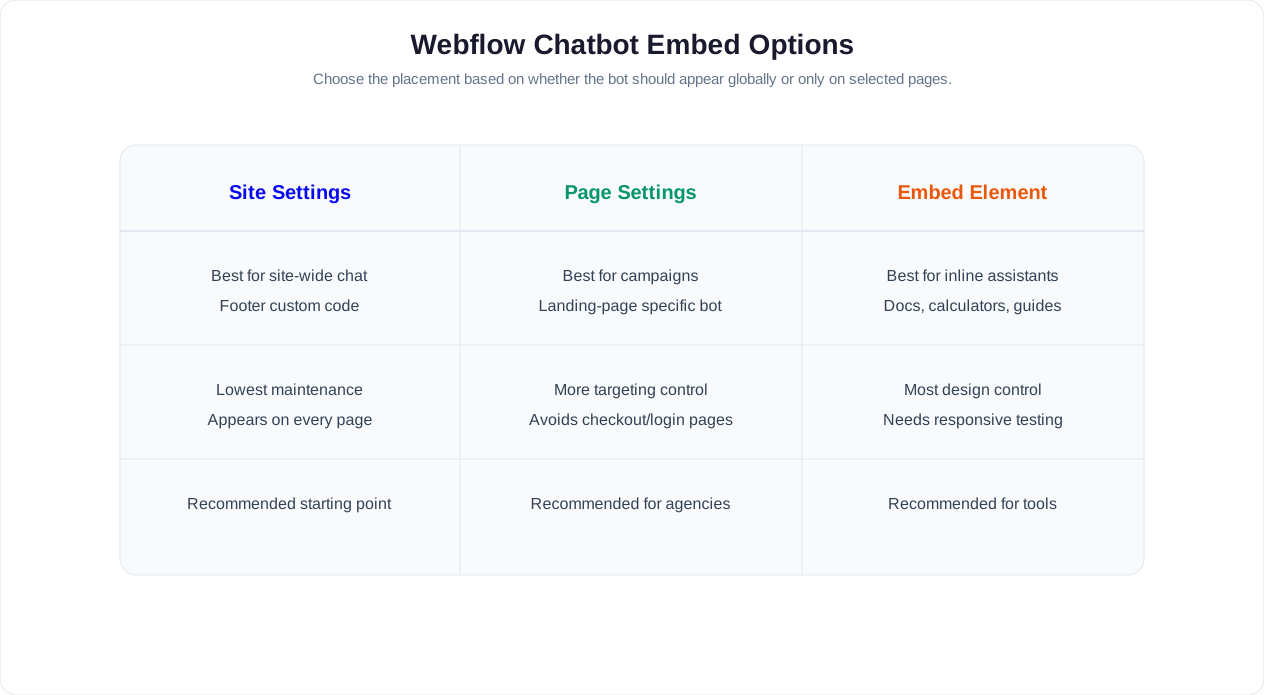
There are three practical ways to add an AI chatbot to Webflow. Choose based on how broadly the bot should appear and how much design control you need.
| Method | Best For | Tradeoff |
|---|---|---|
| Site-wide custom code | Global website chatbot | Fastest, but appears broadly unless controlled by rules |
| Page-level custom code | Campaign pages, pricing pages, high-intent pages | More control, more maintenance |
| Embed element | Inline assistants inside tools, docs, or gated resources | Most flexible, needs responsive QA |
Most teams should start with site-wide custom code and then use targeting rules to hide or customize the widget on specific pages. For example, show a sales bot on pricing pages, a support bot on help pages, and a content-recommendation bot inside a resource hub.
If you are new to website embeds, the broader website chatbot installation guide covers the general pattern. This article focuses on the Webflow-specific decisions that affect design, conversion, and maintainability. The Webflow Developer Documentation is also useful for understanding how custom code interacts with Webflow's rendering and hosting pipeline.
Related: How to Add an AI Chatbot to Wix in 5 Minutes: No-Code Setup and Lead Capture Guide
Step-by-Step: Add Conferbot to Webflow
- Create the bot: Use a template or build a custom flow in Conferbot.
- Set the primary job: Lead capture, demo booking, support deflection, product education, or content recommendations.
- Style the widget: Match brand colors, launcher position, bot name, avatar, and tone.
- Copy the website embed: Use the Web chat channel script.
- Add it in Webflow: Put the script in site-wide custom code for global use, or page-level custom code for targeted deployment.
- Publish to staging or production: Webflow changes do not affect the live site until published.
- Test all breakpoints: Desktop, tablet, mobile landscape, and mobile portrait.
- Review first conversations: Improve the greeting, buttons, and handoff rules after real visitor data arrives.
For official Conferbot platform setup steps, use the Webflow installation guide. For strategic chatbot design, pair this with chatbot UI design best practices.
Related: How to Add a Chatbot to Squarespace in 5 Minutes (No Code Required)
Designer-Friendly Styling Rules
A chatbot should support the Webflow layout, not compete with it. Follow these styling rules before publishing:
- Match the brand accent, not every brand color: Use one clear primary color for the launcher and buttons.
- Respect spacing: Avoid covering sticky navigation, cookie banners, checkout buttons, or bottom mobile CTAs.
- Keep the launcher predictable: Bottom-right is familiar for most users, but bottom-left can work if the site already uses a right-side sticky CTA.
- Write concise bot copy: Beautiful layouts lose polish when chat messages become dense paragraphs.
- Use buttons for first choices: Buttons reduce typing friction and preserve the designed flow.
- Test dark sections: If your site uses dark backgrounds, make sure the launcher remains visible without feeling harsh.
Webflow teams often over-customize the surface and under-design the conversation. The conversation is the product experience. Use the same level of care for the welcome message, first three options, and fallback response that you would use for a hero section.
Related: Best AI Chatbot for WooCommerce in 2026: Product Questions, Order Lookup, and Cart Recovery
Webflow Chatbot Use Cases by Site Type
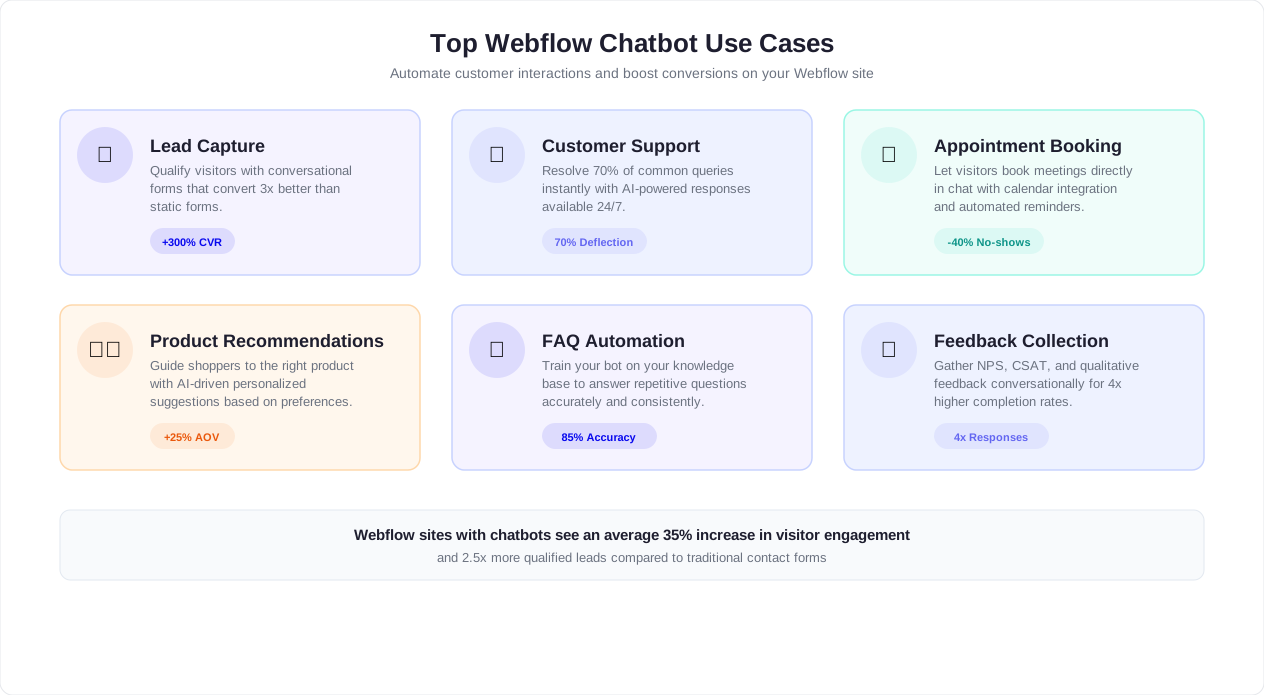
Webflow attracts a specific kind of builder: design-conscious teams who want full control over layout, animation, and brand expression. That means the chatbot must serve the site's specific purpose, not just sit in a corner. Below is a detailed breakdown of how five common Webflow site types should deploy chatbots for maximum impact.
Agency Sites
Digital agencies, branding studios, and creative firms use Webflow to showcase work and attract clients. The chatbot's primary job is lead qualification: turning "I like your work" into a structured project inquiry with budget, timeline, scope, and contact details.
Recommended flow:
- Bot: Interested in working together? I can help match you with the right service. (Buttons: Web design, Branding, Marketing, Development, Not sure)
- Visitor selects a service
- Bot: What is your approximate budget range? (Buttons: Under $5K, $5K-$15K, $15K-$50K, $50K+)
- Bot: When do you need the project completed? (Buttons: ASAP, 1-3 months, 3-6 months, Just exploring)
- Bot: Great. I will connect you with the right team member. What is the best email to reach you?
- Bot books a discovery call or sends the qualified lead to the CRM
Key advantage: Agencies often receive dozens of contact form submissions that turn out to be unqualified. The chatbot filters out tire-kickers before they reach the calendar, so the sales team spends time only on real opportunities.
SaaS Marketing Sites
SaaS companies use Webflow for marketing sites, landing pages, and product education. The chatbot bridges the gap between content consumption and trial signup or demo booking.
Recommended flow: Start with a role-based question: What best describes your role? (Marketing, Sales, Engineering, Founder, Other). Then ask about company size and the problem they are trying to solve. Based on answers, route to a self-serve trial, a product demo, or relevant documentation.
| Visitor Segment | Chatbot Path | Conversion Action |
|---|---|---|
| Small team exploring | Product overview, feature highlights, pricing comparison | Free trial signup |
| Mid-market evaluating | Use case match, competitor comparison, ROI framing | Demo booking |
| Enterprise researching | Security docs, compliance questions, integration check | Sales handoff with context |
| Developer evaluating | API docs, technical specs, sandbox access | Developer trial or docs link |
For SaaS sites, pair the chatbot with AI chatbot lead generation principles: qualify based on fit, not just interest, and route high-intent visitors to sales faster than a form can.
Portfolio Sites
Photographers, illustrators, architects, and freelancers use Webflow to display work. The chatbot should handle the two most common visitor intents: inquiring about availability and understanding pricing.
Recommended flow: Start with What brings you here today? (Buttons: Hire me for a project, Ask about pricing, Learn about my process, Just browsing). Route project inquiries to a short intake: project type, timeline, budget, and contact info. Route pricing questions to a helpful range or a link to the pricing page with a follow-up offer to discuss specifics.
Portfolio-specific tip: Add a "View relevant work" button that links to filtered portfolio pages based on the visitor's project type. A wedding photographer chatbot that shows wedding galleries to a wedding inquiry converts better than one that shows the full portfolio.
Membership and Community Sites
Webflow membership sites for courses, communities, paid content, and coaching programs need chatbots that handle pre-purchase questions and reduce churn among existing members.
Pre-purchase flow: Answer questions about what is included, who the program is for, expected outcomes, pricing, and refund policy. End with enrollment or a trial offer.
Member support flow: Help existing members with login issues, content navigation, billing questions, and community access. Route complex issues to live chat with member context attached.
Example: A Webflow course site sells a $500 design program. The chatbot answers common objections (Is this for beginners? How long do I have access? Can I get a refund?), shows relevant testimonials, and offers a payment plan option. This removes hesitation without requiring the visitor to email support and wait for a reply.
Ecommerce (Webflow + Stripe)
Webflow ecommerce sites, often paired with Stripe or third-party checkout tools, sell physical products, digital goods, or services. The chatbot fills the gap between browsing and buying by answering product questions, shipping policies, and return concerns.
Recommended flow: Product finder that asks what the shopper needs, followed by shipping and return FAQ triggers, and a checkout assistance prompt for visitors who add items to cart but hesitate.
| Shopper Question | Chatbot Response | Business Outcome |
|---|---|---|
| What is your shipping policy? | Show shipping zones, costs, and delivery estimates | Removes checkout hesitation |
| Can I return this? | Explain return window and process | Builds purchase confidence |
| Which product is right for me? | Launch guided product finder flow | Increases conversion and reduces returns |
| Do you offer bulk pricing? | Qualify the inquiry and route to sales | Captures B2B opportunity |
For all five site types, the principle is the same: the chatbot should feel like a natural extension of the page, not an interruption. Match the tone, match the intent, and give value before asking for anything in return.
Related: Chatbot Lead Qualification: Score, Route, and Convert Leads Automatically
Webflow CMS Use Cases
Webflow CMS sites are ideal for chatbot-assisted navigation because content libraries can become large quickly. A chatbot can help visitors find the right case study, article, guide, location page, or service page without forcing them through filters.
Resource Hub Assistant
Ask visitors what they want to solve, then recommend relevant guides. For example: "Are you trying to reduce support tickets, capture more leads, or add WhatsApp automation?" Then link to resources like reduce support tickets with chatbots or WhatsApp chatbot setup.
Case Study Router
Ask for industry and company size, then route visitors to the most relevant proof point. This is useful for agencies and B2B SaaS teams with many CMS-driven case studies.
Location or Service Finder
For multi-location businesses, the chatbot can ask for city, service type, and urgency, then send visitors to the right page or capture a lead directly.
Pricing Page Assistant
On pricing pages, the chatbot should answer plan questions, explain limits, and offer to book a call. Link to the pricing page and use analytics to see which objections appear most often.
Advanced Webflow Chatbot Techniques
Once the basic chatbot is live and generating conversations, these advanced techniques will help you extract more value from the Webflow platform's unique capabilities. Webflow's CMS, interactions system, and Logic feature create opportunities that simpler website builders cannot match.
Using Webflow CMS Collections to Power Chatbot Responses
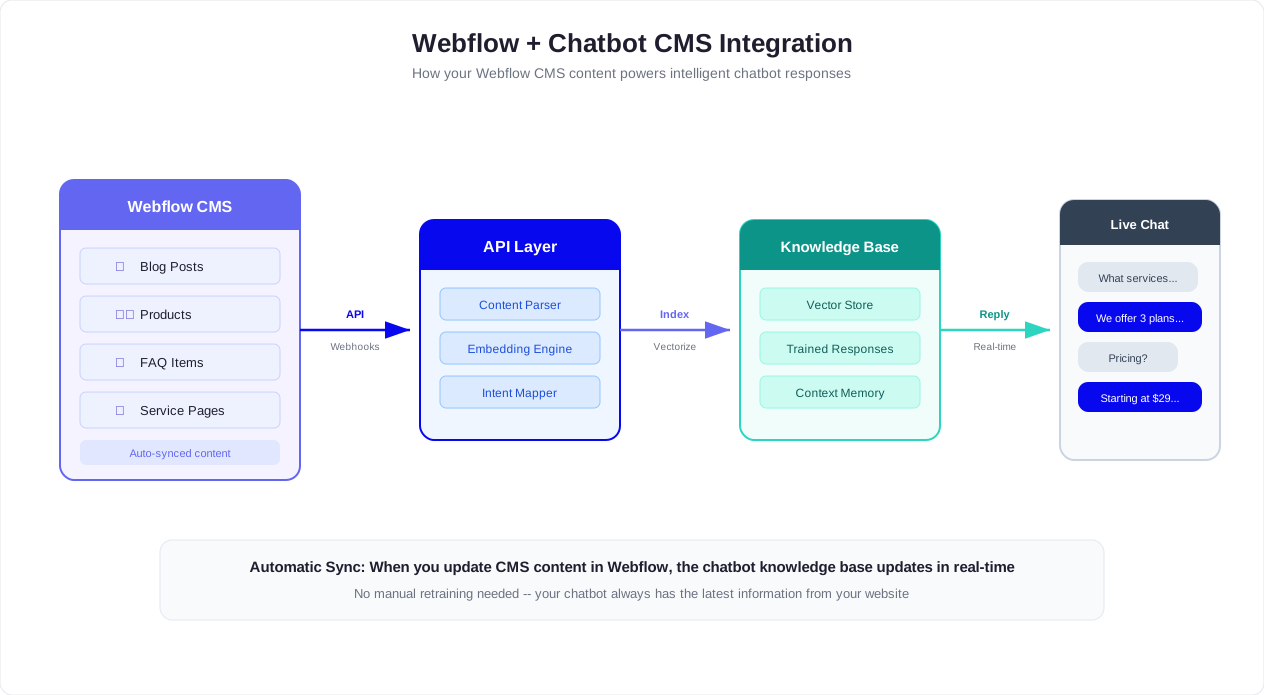
Webflow CMS collections store structured content: blog posts, case studies, team members, services, locations, product catalogs, and more. You can use this structured data to make your chatbot smarter without manually updating bot responses every time you publish new content.
How it works:
- Export your CMS collection data (services, case studies, locations) as structured content for the chatbot's AI knowledge base.
- When a visitor asks about a service, the chatbot references the CMS content to provide accurate, up-to-date answers.
- When you add a new case study or service page in Webflow CMS, update the knowledge base to keep the chatbot current.
- Use CMS categories and tags to help the chatbot route visitors: "Which industry are you in?" maps to your CMS industry tag, and the bot recommends the matching case studies.
Example: A consulting firm has 40 case studies in Webflow CMS, tagged by industry (healthcare, fintech, retail, SaaS). The chatbot asks the visitor's industry, then surfaces the three most relevant case studies with titles, summaries, and links. The visitor gets instant social proof instead of scrolling through an unfiltered list.
Custom Interactions and Chatbot Triggers
Webflow's interactions system controls animations, scroll effects, hover states, and visibility changes. You can combine these interactions with chatbot triggers to create contextual engagement moments.
Trigger ideas:
- Scroll depth trigger: When a visitor scrolls past 60% of a long-form landing page, trigger the chatbot with a contextual message: "Have questions about what you just read? I can help clarify pricing, features, or next steps."
- Section visibility trigger: When the pricing section enters the viewport, update the chatbot greeting to address pricing objections.
- Exit intent on high-value pages: When a visitor moves toward leaving the pricing or demo page, the chatbot opens with a last-chance qualification prompt.
- Post-form submission: After a visitor submits a Webflow form, trigger the chatbot to offer additional resources or book a follow-up call.
The key is restraint. Do not trigger the chatbot on every scroll event. Reserve triggers for high-intent pages where the interruption adds value rather than annoyance.
Webflow Logic and Chatbot Webhooks
Webflow Logic is Webflow's native automation layer. It can send webhooks, post form data to external services, and trigger workflows when CMS items are published. Combined with a chatbot platform, Logic creates powerful automation chains.
Practical combinations:
- Form to chatbot follow-up: A visitor submits a Webflow form. Logic sends a webhook to your chatbot platform, which triggers a WhatsApp or email follow-up with personalized questions based on the form data.
- CMS publish to knowledge update: When a new help article is published in Webflow CMS, Logic notifies the chatbot system to refresh its knowledge base.
- Lead scoring pipeline: The chatbot qualifies a lead and sends data to a webhook. Logic routes the lead to different CRM lists or Slack channels based on score.
- Appointment confirmation: The chatbot books a call. Logic sends a calendar invite and a reminder sequence through your email tool.
This turns Webflow from a publishing platform into a conversion engine where the website, chatbot, and backend tools work as a connected system. Use the integrations hub to connect these pieces without custom code.
A/B Testing Chatbot Placement and Messaging
Do not assume you know where the chatbot performs best. Test it.
What to A/B test on Webflow sites:
| Variable | Version A | Version B | What It Reveals |
|---|---|---|---|
| Placement | Bottom-right floating widget | Inline embed in pricing section | Which position generates more qualified conversations |
| Greeting | Question-based: "What are you looking for?" | Offer-based: "Get a free audit in 2 minutes" | Which framing drives higher engagement |
| Trigger timing | Immediate on page load | After 15 seconds or 40% scroll | Whether delay improves or hurts start rate |
| Button count | 3 primary options | 5 options including support | Whether more choices help or overwhelm |
| Contact timing | Ask for email after 2 exchanges | Ask for email after 4 exchanges | Optimal point for lead capture |
Run each test for at least 200 conversations per variation before drawing conclusions. Use chatbot analytics to compare completion rate, lead quality, and conversion rate between versions. A 10-20% improvement in completion rate can mean a meaningful increase in monthly leads for a busy Webflow site.
Webflow Chatbot vs Webflow Logic
Webflow Logic and a chatbot platform serve different purposes, but they overlap in ways that confuse teams deciding what to build where. This comparison clarifies when Logic is enough and when a chatbot adds value that Logic cannot provide alone.
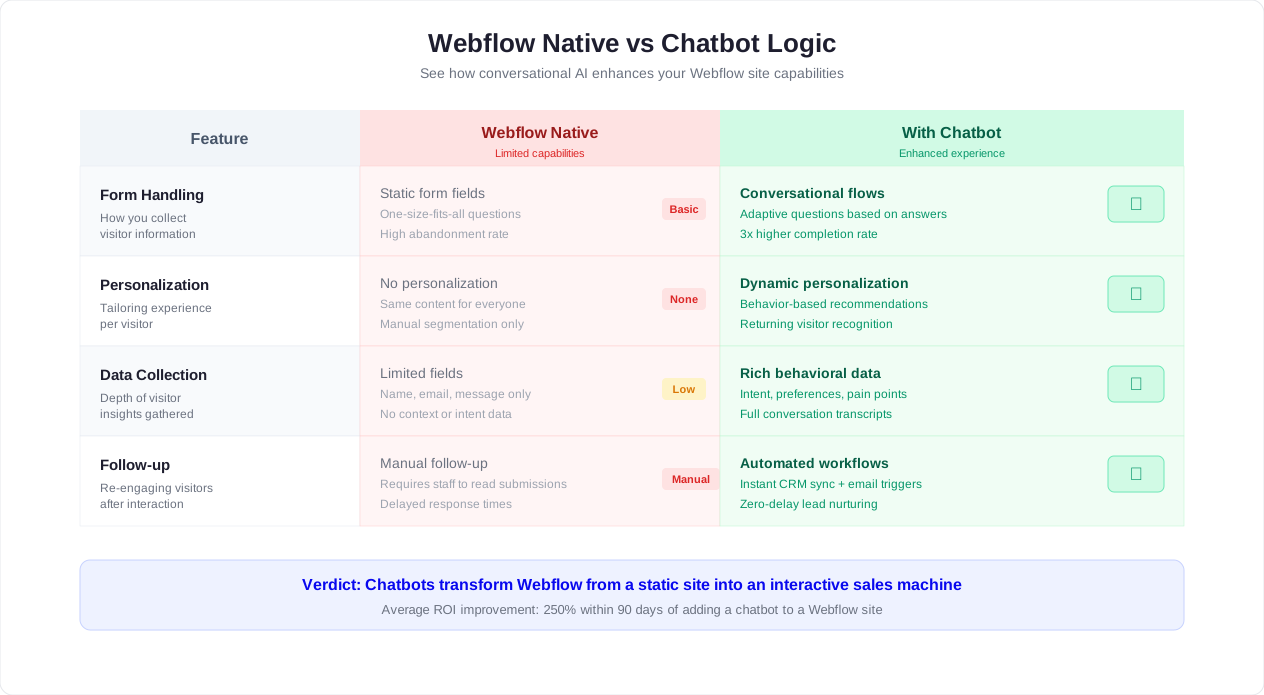
| Capability | Webflow Logic | Dedicated Chatbot (Conferbot) |
|---|---|---|
| Form submission handling | Yes, triggers workflows on form submit | Yes, plus conversational qualification before submission |
| Conditional routing | Basic, based on form field values | Advanced, based on multi-step conversation, visitor behavior, and page context |
| Real-time visitor interaction | No, Logic runs in the background | Yes, live conversation with instant responses |
| AI-powered answers | No | Yes, trained on knowledge base, FAQs, and custom content |
| Lead qualification | Post-submission only | Pre-submission, during the conversation, with scoring and routing |
| 24/7 availability | Workflows run on events, not on visitor questions | Always available for visitor questions and guidance |
| Webhook support | Yes, sends data to external services | Yes, receives and sends webhooks for automation |
| CRM integration | Through webhooks and Zapier | Native integrations plus webhooks and Zapier |
| Omnichannel | Website only | Website + WhatsApp + Messenger + Instagram + Telegram |
| Visitor engagement | None, invisible to visitors | Proactive greetings, guided flows, and contextual prompts |
| Analytics | Flow execution logs | Conversation metrics, conversion tracking, lead quality scoring |
| Calendar booking | Not built-in | Integrated calendar booking within conversation |
| Human handoff | Not applicable | Live chat handoff with full conversation context |
| Cost | Included with Webflow plan (limited executions) | Separate platform cost, scales with usage |
When Webflow Logic Is Enough
Logic works well for backend automation that does not require visitor interaction. Use it for:
- Sending form submissions to Google Sheets or a CRM
- Notifying a Slack channel when a new form is submitted
- Triggering an email sequence after a download request
- Updating external systems when CMS content is published
When You Need a Chatbot
Add a chatbot when any of these are true:
- You want to qualify visitors before they fill out a form, not after
- Visitors have questions that a static page does not answer well enough
- You need 24/7 availability for lead capture or support
- Your conversion rate on high-intent pages is below expectations
- You want to engage visitors on WhatsApp, Messenger, or other channels
- You need analytics on visitor intent, objections, and drop-off points
Best Practice: Use Both Together
The strongest Webflow setups use both. The chatbot handles the visitor-facing conversation: qualifying, answering questions, collecting data, and booking calls. Webflow Logic handles the backend: routing the captured data to CRMs, triggering email sequences, notifying teams, and updating internal systems. The chatbot is the front door. Logic is the back office. Together, they create an automated conversion pipeline that works without manual intervention.
Lead Capture Flows That Work on Webflow Sites
Many Webflow sites are built for high-consideration conversion: book a demo, request a quote, apply, schedule a consultation, or download a resource. A chatbot improves those funnels when it qualifies visitors before asking for contact details.
A strong Webflow lead capture flow follows this structure:
- Intent: What are you trying to do?
- Fit: Which option best describes your company, project, or problem?
- Urgency: When do you need help?
- Recommendation: Show the relevant next step.
- Conversion: Book, submit, download, or request a callback.
For B2B sites, connect the chatbot to AI chatbot lead generation principles: qualify quickly, route based on fit, and send the data to the CRM. For service businesses, combine qualification with calendar booking so the visitor can schedule before leaving the page.
Measuring Chatbot ROI on Webflow Sites
A chatbot is not a cost center. It is a conversion tool. But proving ROI requires measuring the right things and comparing them against the baseline. Here is a practical framework for Webflow site owners who need to justify the investment or optimize an existing chatbot.
The Four ROI Metrics That Matter
| Metric | What It Measures | How to Track It | Benchmark |
|---|---|---|---|
| Conversion rate lift | Increase in leads or sales from pages with chatbot vs without | Compare page conversion rates before and after chatbot deployment | 15-35% lift is common for well-targeted chatbots |
| Lead quality score | Whether chatbot-captured leads are more qualified than form leads | Track close rate and deal size for chatbot leads vs form leads | Chatbot leads often close 20-40% faster due to pre-qualification |
| Response time reduction | How much faster visitors get answers compared to email or forms | Compare time-to-first-response for chatbot vs traditional channels | Chatbot: seconds. Email: 4-24 hours. The gap is the value. |
| Cost per lead comparison | Chatbot cost vs cost of generating the same leads through ads or manual outreach | Divide monthly chatbot cost by number of qualified leads captured | Chatbot CPL is typically 50-80% lower than paid ad CPL |
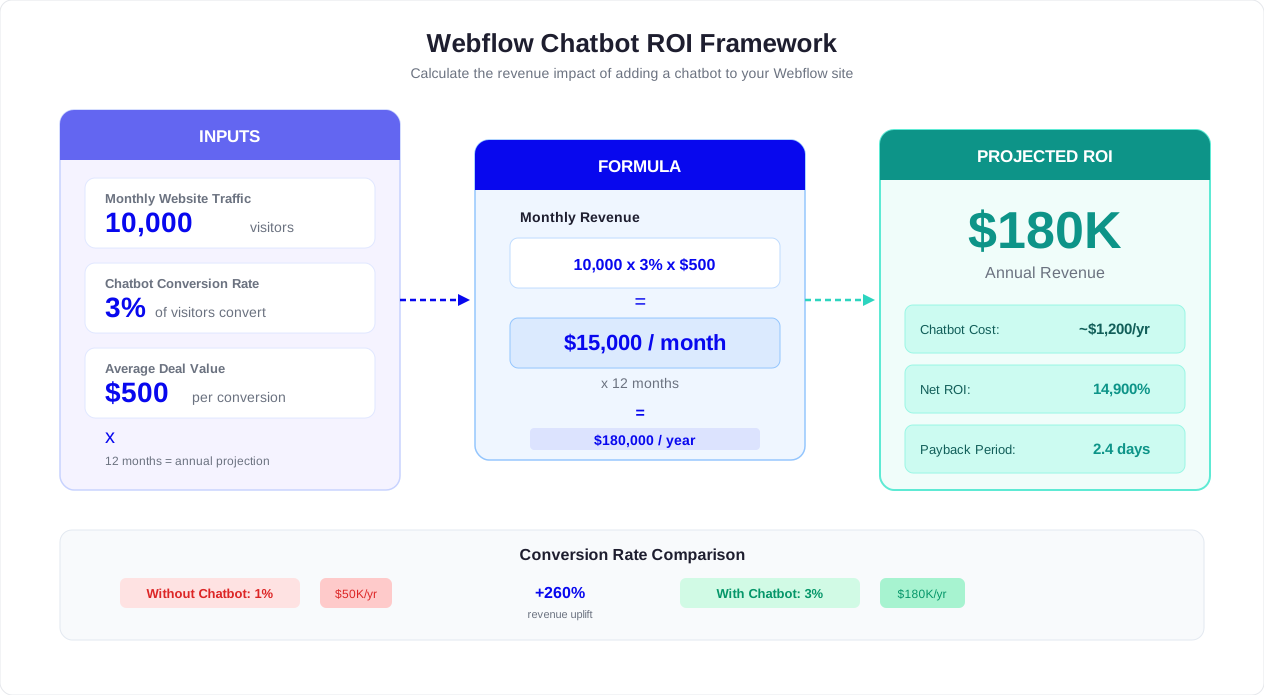
Sample ROI Calculation
Consider a Webflow agency site with the following baseline numbers:
| Input | Before Chatbot | After Chatbot |
|---|---|---|
| Monthly site visitors | 8,000 | 8,000 |
| Contact form conversion rate | 2.0% | 2.0% (form still active) |
| Chatbot conversation start rate | N/A | 4.5% of visitors |
| Chatbot lead capture rate | N/A | 35% of conversations |
| New leads from chatbot per month | 0 | 126 |
| Leads from form per month | 160 | 160 |
| Total qualified leads per month | 160 | 286 |
| Average deal value | $8,000 | $8,000 |
| Lead-to-close rate | 12% | 14% (chatbot leads are pre-qualified) |
| Monthly revenue from leads | $153,600 | $320,320 |
| Monthly chatbot cost | $0 | $49-$199 |
In this scenario, the chatbot generates 126 additional leads per month at a fraction of what paid ads would cost. Even if only a small percentage convert, the revenue impact far exceeds the chatbot platform cost. Use the chatbot ROI calculator to model your own numbers.
Tracking Setup for Accurate ROI
To measure ROI properly, you need attribution. Here is how to set it up:
- Tag chatbot leads: When the chatbot sends a lead to your CRM, include a source tag (e.g., "chatbot-pricing-page" or "chatbot-homepage") so you can compare with other channels.
- Track page-level performance: Use chatbot analytics to see which pages generate the most conversations, completions, and leads.
- Monitor close rates: Compare the close rate and deal size of chatbot-sourced leads vs form leads, referral leads, and paid leads.
- Calculate time savings: If the chatbot deflects support questions or qualifies leads that previously required a sales call, measure the time saved per week.
- Review monthly: ROI improves over time as you optimize greetings, flows, and targeting based on data. The first month establishes a baseline. Months two and three show the real trajectory.
When ROI Is Not Immediate
Some Webflow sites will not see dramatic ROI in the first week. That is normal. The chatbot needs real conversation data to improve. If the first 100 conversations show low engagement, the problem is usually the greeting, the placement, or the first set of buttons, not the concept. Review the data, adjust, and re-test. Most teams see meaningful improvement within 2-4 weeks of active optimization.
Performance, Accessibility, and QA
Because Webflow sites often use animations and custom interactions, test the chatbot with the same rigor you apply to the rest of the site.
- Check Core Web Vitals: The widget should not create layout shift or block the main page interaction. Use Google PageSpeed Insights and Google's Core Web Vitals documentation to measure the impact of the chatbot script on LCP, CLS, and INP scores.
- Test Webflow interactions: Make sure the chat launcher does not conflict with scroll animations, sticky sections, or overlays.
- Validate mobile tap targets: The launcher and buttons should be easy to tap without blocking page CTAs.
- Use accessible copy: Buttons should say "Book a demo" or "Get pricing help," not vague labels like "Start."
- Confirm keyboard behavior: Visitors should be able to open, close, and navigate the chat without getting trapped.
- Test fallback paths: If the bot cannot answer, it should offer live chat, email, or a clear next step.
Do not treat launch day as the finish line. The first week of real traffic is where you discover the questions your page did not answer clearly enough.
What to Measure After Launch
The right Webflow chatbot metrics depend on the page type. A homepage bot should increase qualified starts. A pricing page bot should reduce unanswered pricing objections. A resource hub bot should improve content discovery. A support page bot should reduce repetitive tickets.
| Metric | What It Reveals | How to Improve It |
|---|---|---|
| Conversation start rate | Whether the greeting is relevant | Rewrite greeting by page intent |
| Completion rate | Whether the flow is too long | Remove low-value questions |
| Qualified lead rate | Whether the bot attracts the right visitors | Add better first-choice buttons |
| Handoff rate | Where automation is not enough | Improve knowledge base or routing |
| Booked-call rate | Whether the flow drives revenue | Move calendar earlier in high-intent flows |
Use Conferbot analytics to review these patterns. The best Webflow chatbot is not the most complex one. It is the one that quietly removes friction from the pages already bringing in qualified traffic.
Webflow Chatbot Launch Checklist
- The chatbot goal is defined for each page type.
- The greeting is specific to page intent.
- The widget does not overlap sticky navigation, cookie banners, or mobile CTAs.
- The color and tone match the design system.
- Lead fields are minimal and justified.
- Human handoff is available for complex questions.
- CRM, email, or Slack notifications are connected.
- Desktop, tablet, and mobile breakpoints are tested.
- Fallback responses are helpful and specific.
- Analytics are reviewed after the first 100 conversations.
If you run a Webflow agency, turn this checklist into a standard client handoff item. Chatbot performance becomes easier to maintain when setup, testing, and analytics are part of the launch process. For agencies managing multiple client sites, G2's chatbot platform rankings can help you evaluate which tools scale across your portfolio.
Was this article helpful?
How to Add an AI Chatbot to Webflow FAQ
Everything you need to know about chatbots for how to add an ai chatbot to webflow.
About the Author

Conferbot Team specializes in conversational AI, chatbot strategy, and customer engagement automation. With deep expertise in building AI-powered chatbots, they help businesses deliver exceptional customer experiences across every channel.
View all articles