
Install Conferbot on WordPress
Follow this step-by-step guide to add a powerful AI chatbot to your WordPress website in minutes.
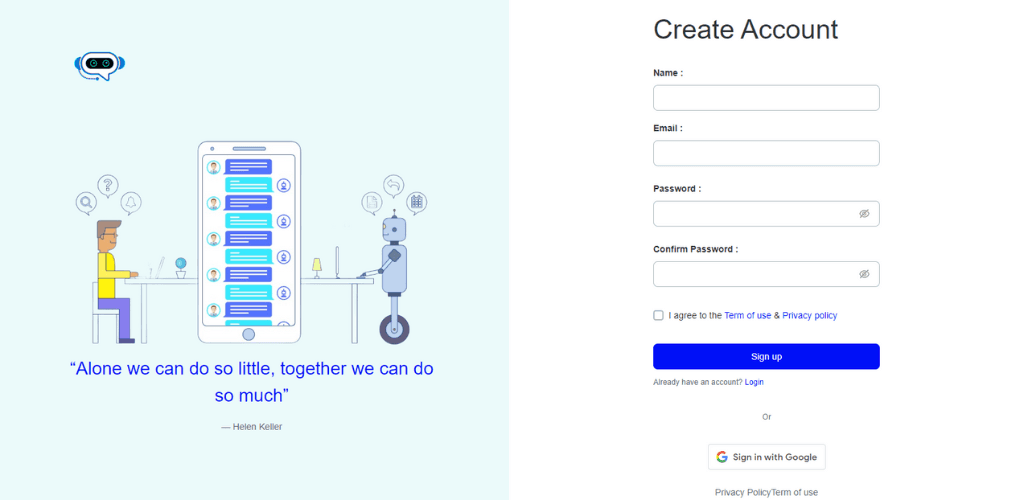
Create your Conferbot account
Sign up for a free Conferbot account if you haven't already.Create account
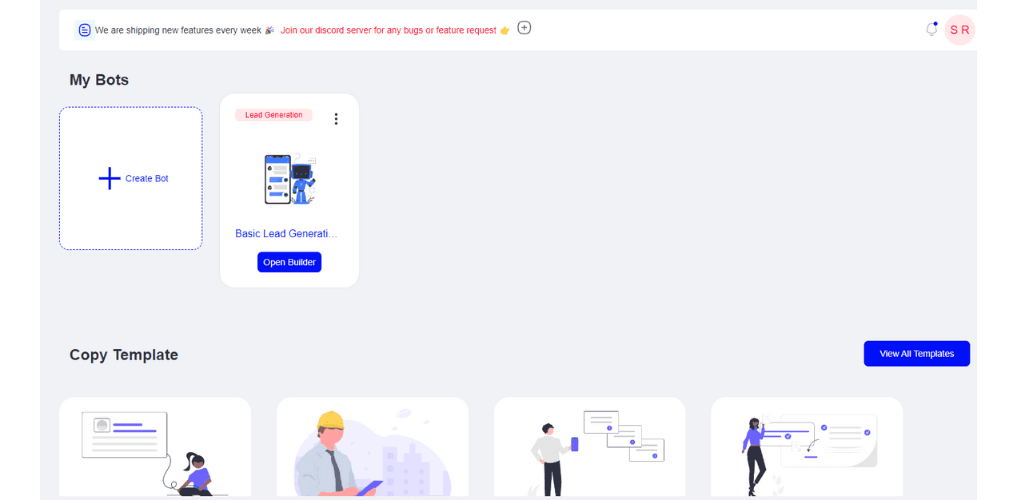
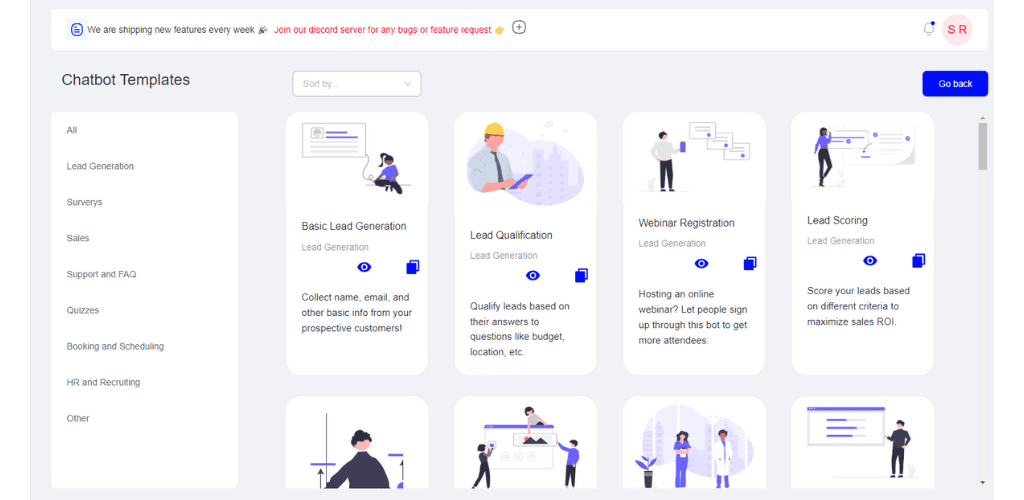
Build your chatbot
Choose from 100+ templates or build from scratch using our drag-and-drop builder.
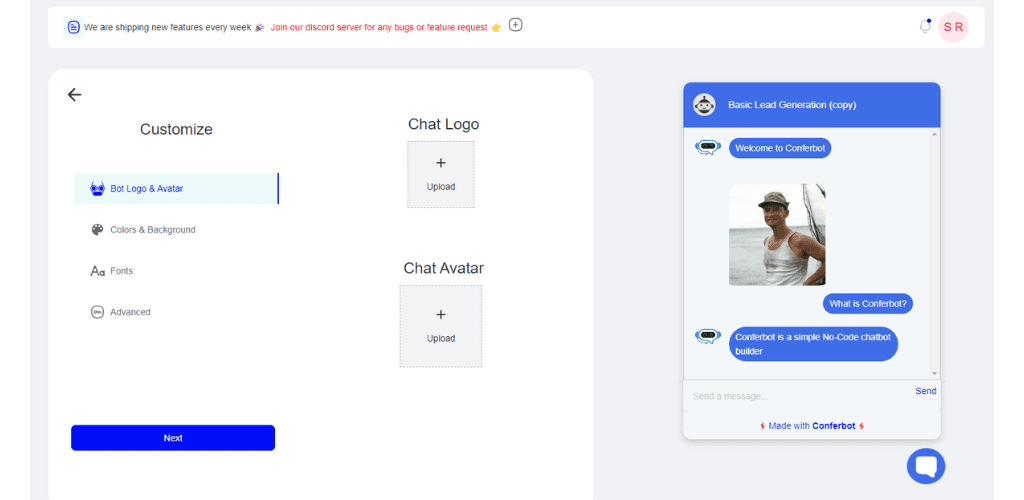
Customize your bot
Modify the conversation flow to match your business needs. Add your brand colors and personalize messages.
Configure widget settings
Go to Deploy > Widget and customize how your chatbot appears on your WordPress site.
Generate the embed code
Click 'Generate Code' to get your unique embed snippet.
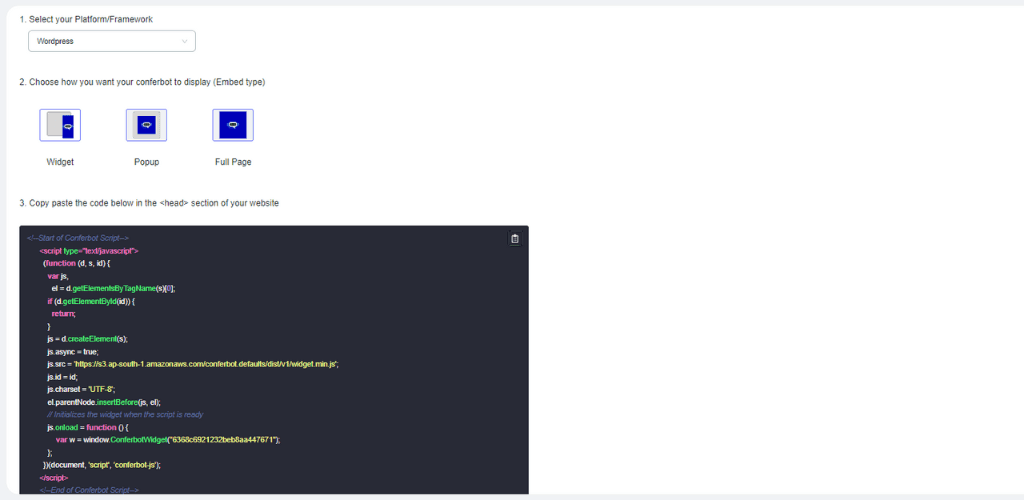
Replace YOUR_BOT_ID with your actual bot ID from the dashboard
Add to WordPress
Install the code on your WordPress site using one of these methods:
Go to your WordPress admin dashboard and navigate to Plugins > Add New
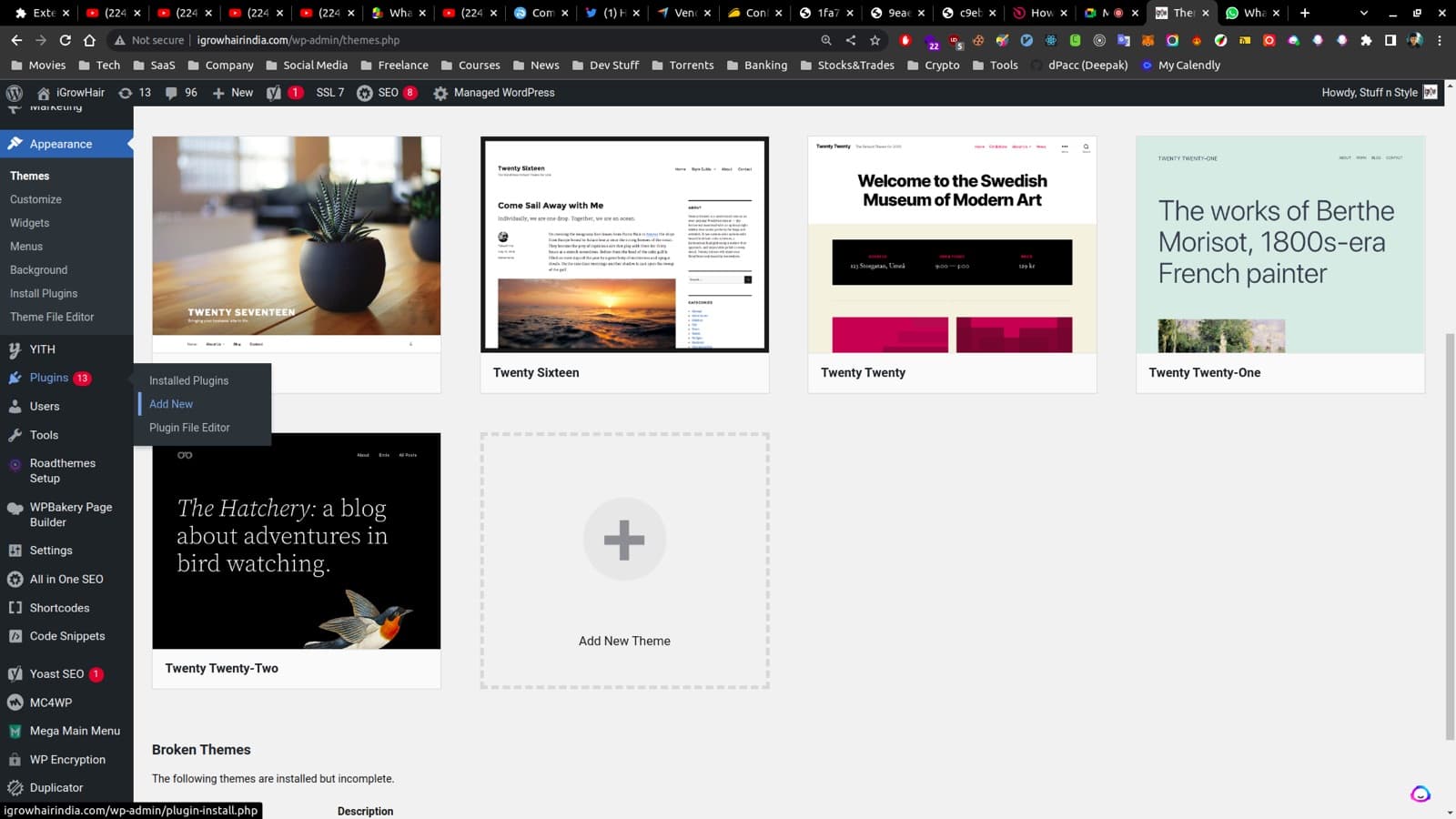
Search for 'Insert Headers and Footers' plugin and install it
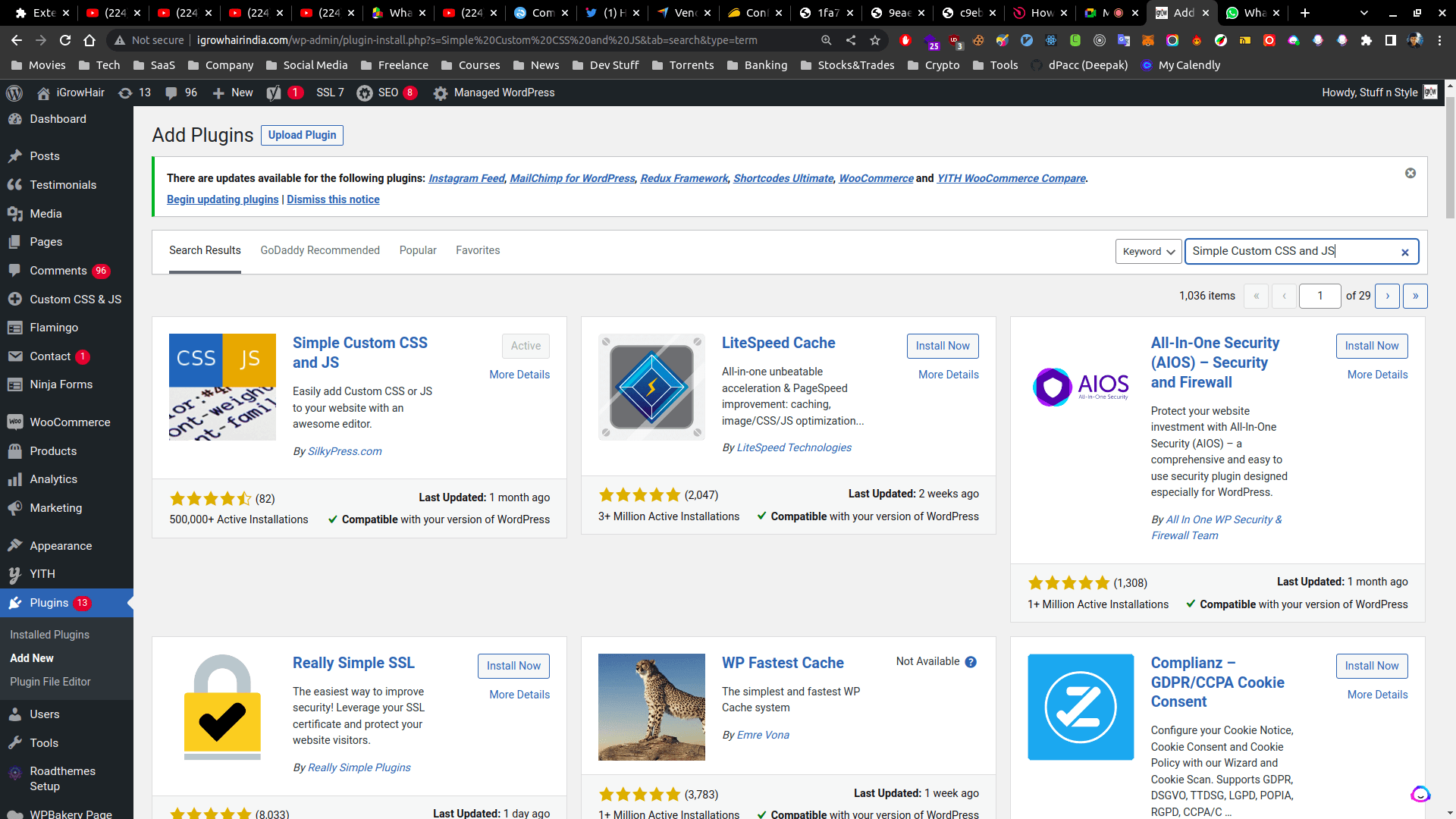
Activate the plugin and go to Settings > Insert Headers and Footers
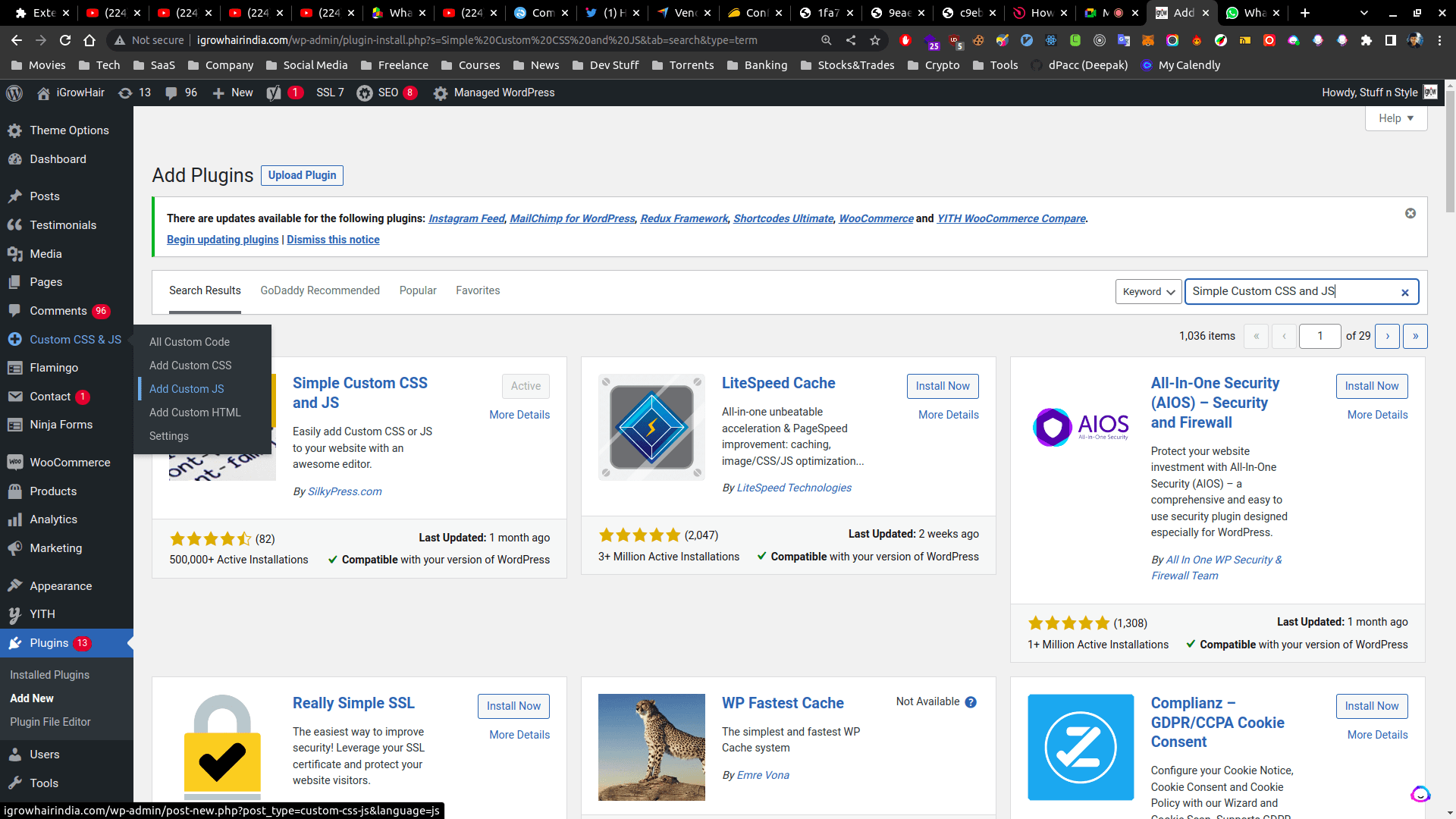
Paste your Conferbot code in the 'Scripts in Footer' section and save
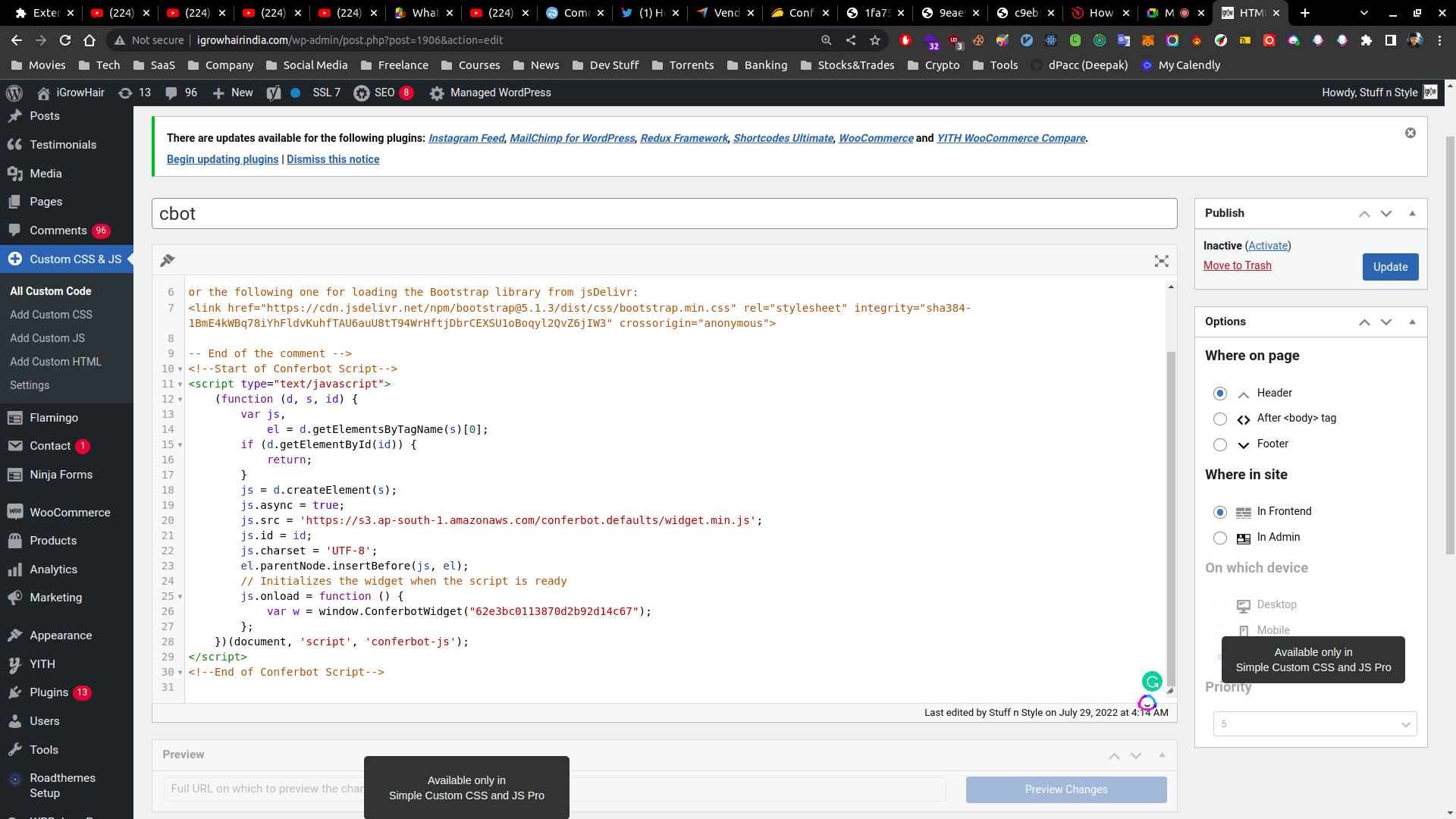
You're all set!
Refresh your WordPress site and your chatbot should now be live. Start engaging with your visitors!
Other Platform Guides
Looking for a different platform? Check out our other installation guides.
Need Help with WordPress Installation?
Our support team can help you get your chatbot running on WordPress in no time.
Continue Exploring
Explore features, connect third-party tools, and browse ready-made templates.
Deep-dive pillar guides, real use cases, and the chatbot & AI glossary.
One Chatbot,
Every Channel
Your chatbot works seamlessly across WhatsApp, Messenger, Slack, and 6 more platforms. Build once, deploy everywhere.
View All Channels