
Support Ticket System: Track, Assign, and Resolve Every Issue
Built-in chatbot ticket system. Track, prioritize, assign, and resolve every customer issue with automated workflows, SLA tracking, and CSAT surveys.
No credit card required
Track Every Customer Issue
Never lose a customer request again. Built-in ticketing that converts chatbot conversations into trackable, assignable support tickets.
Priority & Status Tracking
Classify tickets by priority (Low, Medium, High, Urgent) with color-coded labels. Track status from open to resolved with custom workflow stages.
Smart Agent Assignment
Assign tickets manually or let round-robin auto-distribute workload evenly. Route by skill, department, or availability for optimal resolution times.
Escalation & SLA Rules
Set time-based escalation rules to prevent tickets from falling through the cracks. Automated alerts and reassignment when SLA targets are at risk.
Why Ticketing Matters
The difference between good and great support is accountability. Every issue tracked, every resolution measured.
Zero Lost Tickets
Every conversation that needs follow-up becomes a tracked ticket. Nothing slips through the cracks.
Faster Resolution
Smart routing sends tickets to the right agent immediately. Priority ensures urgent issues are handled first.
Team Accountability
Clear ownership for every ticket. See who's handling what, response times, and resolution rates.
Customer Satisfaction
Automated CSAT surveys after resolution measure happiness. Use feedback to improve processes.
Data-Driven Insights
Track volume trends, common issues, resolution times, and team performance with reports.
SLA Compliance
Set response and resolution targets per priority. Auto-escalation ensures commitments are met.
How It Works
From conversation to resolution in three simple steps.
Ticket Created Automatically
When a chatbot conversation needs human follow-up, a ticket is created automatically with full conversation context and customer details.
Assigned & Prioritized
Tickets are auto-assigned to agents via round-robin or manual selection. Priority is set based on rules or agent judgment.
Resolved & Measured
Agents resolve tickets with internal notes and customer responses. CSAT survey is sent automatically, and metrics are tracked.
Tickets for Every Department
From customer support to IT helpdesk - a ticket system that fits any workflow.
Customer Support
Track and resolve inquiries, complaints, and requests with full conversation history
IT Helpdesk
Manage internal IT requests, hardware issues, and access requests with SLA tracking
Bug Tracking
Log, prioritize, and track software bugs from user reports to resolution
Sales Inquiries
Convert chatbot leads into tracked sales tickets assigned to reps
HR Requests
Handle employee requests for leave, benefits, and onboarding with confidential tracking
Facility Management
Track maintenance requests, office supplies, and equipment issues
Ready to Track Every Issue?
Never lose a customer request again with built-in ticketing. Start free, no credit card required.
What Is Chatbot Ticketing and Why Every Support Team Needs It
Chatbot ticketing is the integration of automated conversation handling with structured support ticket management. When a chatbot encounters a query it cannot resolve -- whether due to complexity, missing information, or the need for human judgment -- it creates a formal support ticket that enters your team's workflow with full conversation context attached. This hybrid approach combines the speed and scalability of chatbot automation with the expertise and empathy of human agents, ensuring no customer query falls through the cracks.
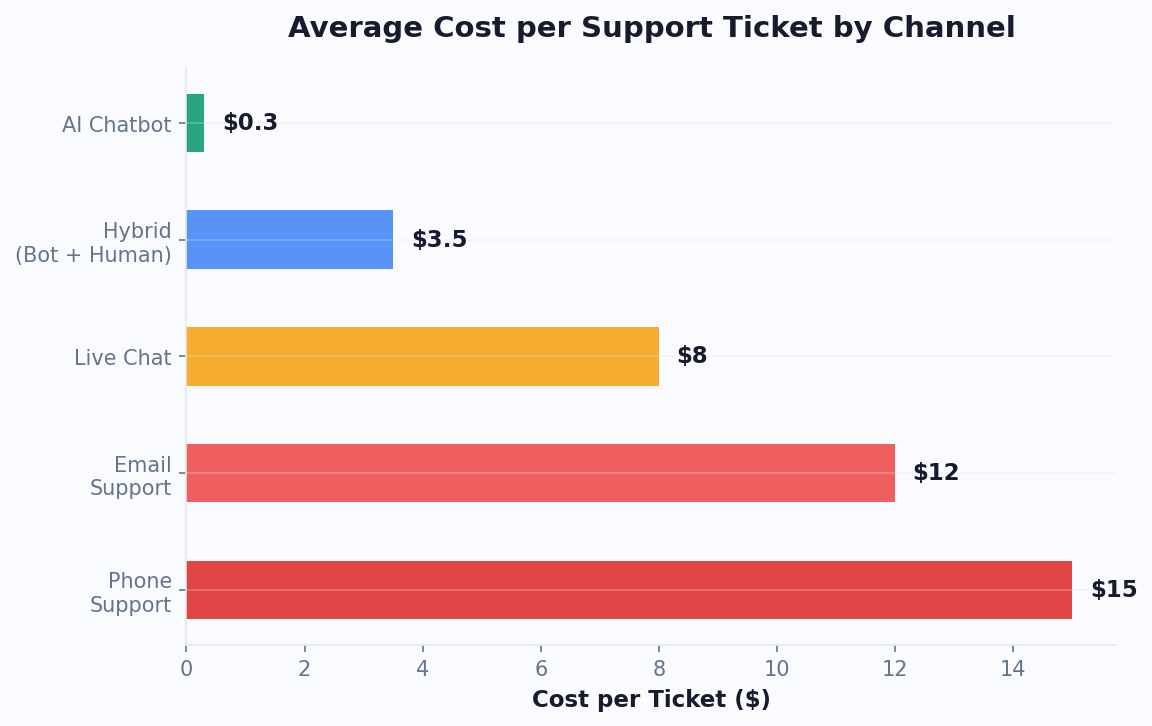
The business case for chatbot ticketing is compelling. HDI research shows the average cost of a human-handled support ticket is $22, while a chatbot-resolved interaction costs under $1. But the real value is not just cost reduction -- it is service quality improvement. Without a ticketing system, chatbot escalations often mean telling customers "please email us" or "call this number," forcing them to start over on a different channel. With integrated ticketing, the transition is invisible: the customer continues in the same conversation, an agent picks up with full context, and resolution happens faster because no information is lost.
According to Zendesk's 2024 CX Trends Report, 72% of customers expect a response within one hour, yet the median first-response time across industries is still 12 hours. Chatbot ticketing bridges this gap by providing instant acknowledgment (the bot responds immediately), collecting all necessary information upfront (reducing back-and-forth), and routing the structured ticket to the right agent (eliminating triage delays). Teams using this approach tend to achieve much faster first-response times and higher first-contact resolution than teams without integrated ticketing.
Conferbot's built-in ticket system was designed specifically for this chatbot-first workflow. Unlike traditional help desks that were built for email and retrofitted for chat, our system natively understands conversation context, NLP-classified intents, extracted entities, and sentiment scores -- using all of this data to create richer, more actionable tickets for your agents.
The Ticket Lifecycle: From Creation to Resolution
Understanding the complete ticket lifecycle helps you optimize each stage for speed and quality. In a chatbot-powered support system, tickets pass through seven distinct stages, each with opportunities for automation that traditional help desks miss.
Stage 1: Conversation and Attempted Resolution
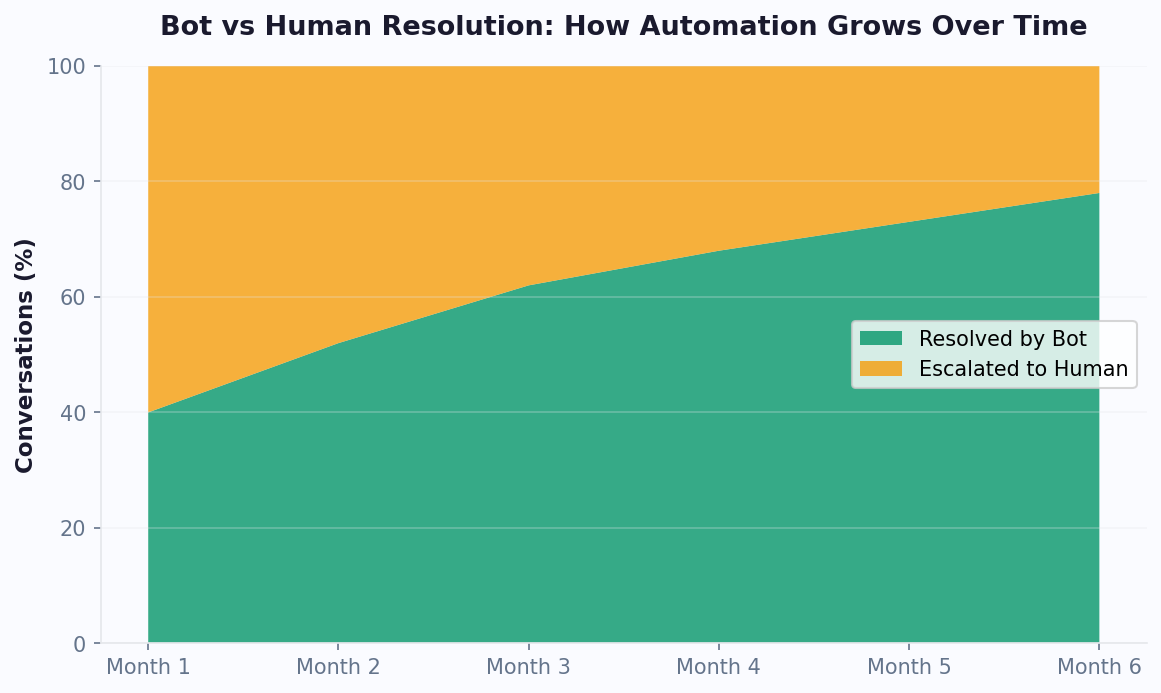
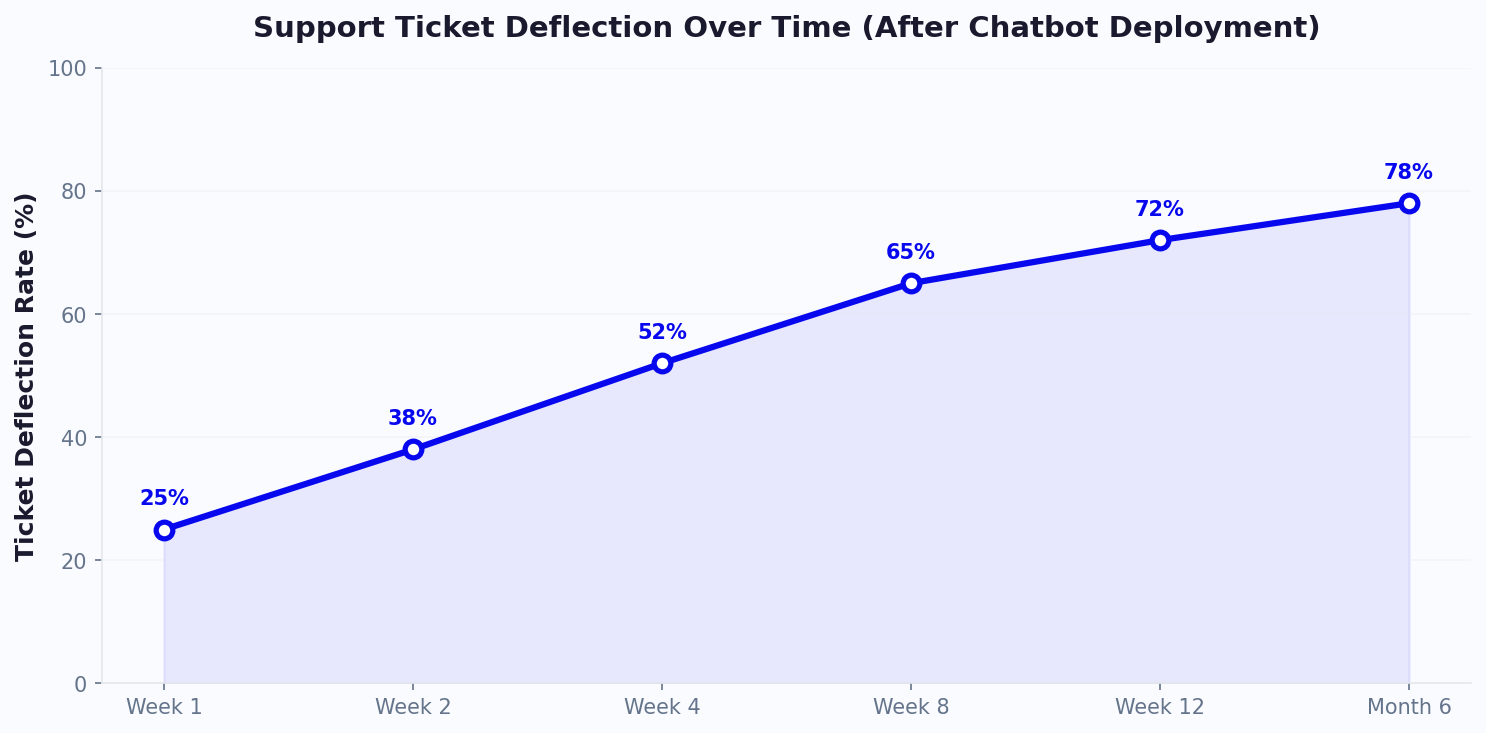
Before a ticket exists, the chatbot attempts to resolve the query using your knowledge base, AI engine, and rule-based flows. This deflection stage resolves 40-60% of queries without any ticket creation, saving significant agent time.
Stage 2: Escalation Trigger
When the chatbot cannot resolve a query (confidence below threshold, customer requests human, complex multi-step issue), the escalation flow begins. The bot collects any remaining required information -- contact details, issue specifics, preferred resolution -- before creating the ticket.
Stage 3: Ticket Creation
The system creates a structured ticket containing: customer contact info, conversation transcript, NLP-classified category, extracted entities (order numbers, account IDs), sentiment score, and suggested priority level. All of this context eliminates the "please describe your issue" step that frustrates customers on traditional systems.
Stage 4: Routing and Assignment
Based on ticket attributes (category, priority, language, customer tier), the routing engine assigns the ticket to the optimal available agent. Smart routing substantially reduces misassignment compared with manual triage.
Stage 5: Agent Resolution
The agent receives the ticket with full context and works toward resolution. Internal notes, collaboration with other agents, and status updates happen within the ticket thread. The customer can check status at any time through the chatbot.
Stage 6: Resolution and Confirmation
When resolved, the agent marks the ticket complete. The chatbot sends a resolution notification to the customer with a summary of what was done and offers to reopen if the issue persists.
Stage 7: Feedback and Learning
Post-resolution, the chatbot sends a satisfaction survey. The resolution data feeds back into the knowledge base -- if this issue type can be automated next time, it is flagged for content creation. This feedback loop continuously reduces ticket volume over time. See how this lifecycle integrates with broader support strategy in our customer support chatbot guide.
Auto-Categorization: AI-Powered Ticket Classification
Manual ticket categorization is one of the biggest time sinks in support operations. Agents spend an average of 45 seconds per ticket selecting categories, subcategories, and tags -- time that adds up to hours daily across a team. Worse, manual categorization is inconsistent: the same issue might be tagged differently by different agents, making reporting unreliable and routing rules ineffective. AI-powered auto-categorization eliminates both problems by classifying tickets instantly and consistently based on conversation content.
Conferbot's auto-categorization leverages the same NLP engine used for intent recognition to classify tickets into your defined category hierarchy. The system analyzes the full conversation transcript -- not just the first message -- to determine the most accurate category. This is significantly more accurate than single-message classification because customer issues often become clearer as the conversation progresses.
How Auto-Categorization Works
- Primary category -- the broad issue type (billing, technical, account, shipping, product question)
- Subcategory -- the specific issue (refund request, login failure, address change, delivery tracking)
- Tags -- additional attributes extracted from conversation (product name, plan tier, urgency indicators)
- Priority -- calculated from sentiment, customer tier, issue severity, and SLA requirements
- Confidence score -- how certain the system is about its classification (used for QA and routing)
Accuracy and Improvement
Auto-categorization achieves 92% accuracy out of the box when trained on your existing ticket history. For edge cases where confidence is below 80%, the system can either assign the most likely category with a review flag, or leave categorization for the agent with a suggested category. As agents confirm or correct categories, the model improves continuously. After 30 days of agent feedback, accuracy typically reaches 96%+.
The downstream impact of accurate categorization is substantial. Routing rules depend on categories to function correctly, reporting depends on consistent categorization for meaningful trends, and automation rules use categories to trigger workflows. Poor categorization cascades into poor performance across the entire support operation. Our integrations hub syncs ticket categories with your external help desk for unified reporting.
Priority Assignment and SLA Policies
Not all tickets are equally urgent, and treating them as such leads to either over-investment in low-priority issues or dangerous neglect of critical ones. Priority assignment determines the order in which tickets are addressed and the SLA commitments that apply. Automated priority calculation removes subjectivity and ensures consistent treatment across all agents and shifts.
| Priority | Criteria | First Response SLA | Resolution SLA | Escalation Path |
|---|---|---|---|---|
| Critical (P1) | Service outage, security breach, revenue-blocking | 15 minutes | 2 hours | Direct to senior + manager alert |
| High (P2) | Feature broken, VIP customer, negative sentiment | 1 hour | 4 hours | Senior agent queue |
| Medium (P3) | Standard issue, normal customer, neutral tone | 4 hours | 24 hours | Standard queue |
| Low (P4) | Feature request, feedback, non-urgent question | 8 hours | 48 hours | Low-priority queue |
Automated Priority Calculation
Conferbot calculates priority automatically using a weighted scoring model that considers multiple signals:
- Customer tier (30% weight) -- enterprise and VIP customers receive higher baseline priority via CRM integration data
- Sentiment score (25% weight) -- angry or frustrated customers are prioritized to prevent churn
- Issue severity (25% weight) -- categorization determines whether the issue is blocking or inconvenient
- Business impact (20% weight) -- revenue-related issues (billing, payments, orders) score higher than informational queries
The priority score maps to P1-P4 levels, which trigger the corresponding SLA policy. SLA timers start when the ticket is created and pause during customer-wait periods (when the agent has responded and is waiting for customer reply). Automated escalation fires at 75% and 90% of the SLA window to prevent breaches. Teams using automated priority tend to achieve substantially higher SLA adherence than those relying on manual prioritization.
Bot-to-Ticket Escalation: Designing Seamless Handoffs
The moment a chatbot escalates to a human agent is the most critical point in the customer journey. Done poorly, it destroys the goodwill built during the automated interaction and signals to the customer that the bot was useless. Done well, it feels like a natural progression where the customer is being connected to a specialist who already knows their situation. The difference comes down to three factors: context transfer, expectation setting, and transition speed.
Context Transfer: Everything the Agent Needs
When Conferbot creates a ticket from a chatbot escalation, the following data is automatically included:
- Complete conversation transcript with timestamps
- NLP-classified intent and confidence score
- All extracted entities (names, dates, order numbers, account IDs)
- Customer sentiment score and trend during conversation
- Steps the bot already attempted (knowledge base articles shown, actions taken)
- Customer contact information collected during chat
- CRM data if integrated (customer tier, past purchases, open tickets)
This comprehensive context means the agent never asks "Can you describe your issue?" -- they already know the issue and can jump directly to resolution. This context substantially reduces average handle time compared to tickets created from scratch.
Expectation Setting: Keep the Customer Informed
Before creating the ticket, the chatbot should set clear expectations: "I am connecting you with a specialist who can help with this. Based on current queue times, you should hear back within [X minutes/hours]." If live transfer is available, offer it. If not, explain the follow-up process clearly. Uncertainty breeds frustration -- explicit timelines keep CSAT high even when wait times are not instant.
Transition Speed: Minimize the Gap
For live transfer scenarios, the target is under 60 seconds from escalation decision to agent connection. For ticket-based escalation (where a live agent is not immediately available), the target is under 5 minutes for the first agent response. Conferbot's smart routing achieves these targets by pre-qualifying available agents while the bot is still collecting final details, so the agent is ready the instant the ticket is created.
For teams designing their first escalation flows, our chatbot building guide includes step-by-step escalation configuration walkthroughs with screenshots.
Agent Workflow: Resolving Tickets Efficiently
The agent's experience matters as much as the customer's. A ticket system that is cumbersome to use -- requiring multiple clicks, switching between tabs, or manually updating fields -- slows resolution and frustrates agents. Conferbot's agent interface is designed for speed: everything agents need is in a single view, actions are one-click, and common operations are automated.
The Agent Dashboard
When an agent receives a ticket, their view includes: the full conversation transcript (scrollable), customer profile sidebar (contact info, tier, history), suggested response templates based on the ticket category, internal notes from previous interactions, and one-click action buttons for common operations (resolve, transfer, escalate, schedule follow-up). The interface is keyboard-navigable for power users -- experienced agents handle conversations without touching the mouse.
Collaboration Features
- Internal notes -- agents add private notes visible only to the team, useful for documenting research or noting special circumstances
- @mentions -- tag specific team members to request input without transferring the ticket
- Side conversations -- open a parallel thread with another team (engineering, billing) while keeping the customer conversation active
- Shared inbox view -- team leads see all tickets across the team with filtering by status, priority, category, and assignee
Resolution Actions
When resolving a ticket, agents can: send a resolution summary to the customer, schedule a follow-up check-in, add the resolution to the knowledge base for future chatbot deflection, link related tickets, and trigger automated post-resolution workflows (survey send, CRM update, notification to account manager). Each action is optional and one-click, keeping the resolution process fast.
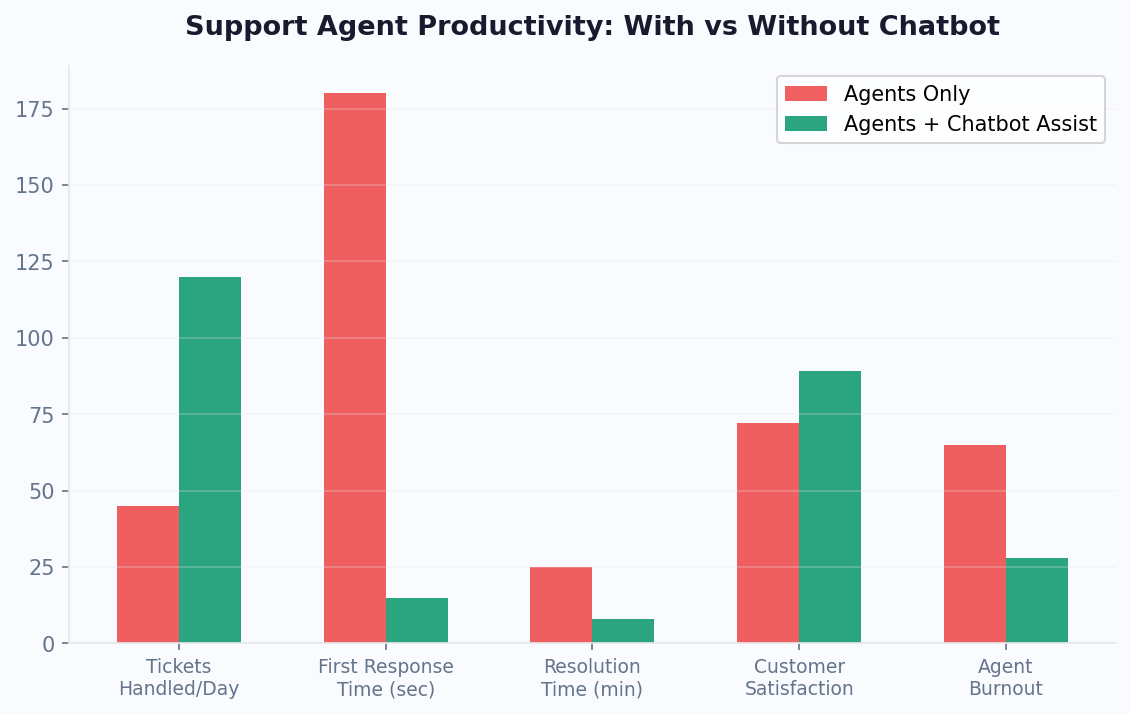
Agent workflow efficiency directly impacts cost per ticket. Agents who resolve 8 conversations per hour versus 5 are 60% more productive -- and the difference usually comes from tool design, not agent effort. Conferbot's interface is designed to keep average handle times well below typical industry levels for comparable issue complexity. Connect your agent workflow to external tools via our integrations hub for unified operations.
Key Ticketing Metrics: What to Measure and Why
Effective ticket system management requires tracking the right metrics at the right frequency. Too few metrics leave you blind to problems; too many create dashboard overload where nothing gets attention. Based on best practices from high-performing support operations, these are the essential metrics every team should monitor.
Volume Metrics (Monitor Daily)
- Tickets created -- total new tickets per day/week. Sudden spikes indicate product issues or chatbot gaps.
- Deflection rate -- percentage of conversations resolved by chatbot without ticket creation. Target: 50%+ at maturity.
- Backlog size -- total open tickets. Growing backlog means you are underwater; shrinking means you are ahead.
- Channel distribution -- where tickets originate (web chat, WhatsApp, Messenger, email). Helps allocate resources.
Speed Metrics (Monitor Daily)
- First response time -- time from ticket creation to first agent response. Target: under 2 hours.
- Average handle time -- total active time per ticket. Industry benchmark: 6-8 minutes for chat.
- Resolution time -- total elapsed time from creation to resolution. Target varies by priority.
Quality Metrics (Monitor Weekly)
- First-contact resolution (FCR) -- resolved without follow-up. Target: 80%+.
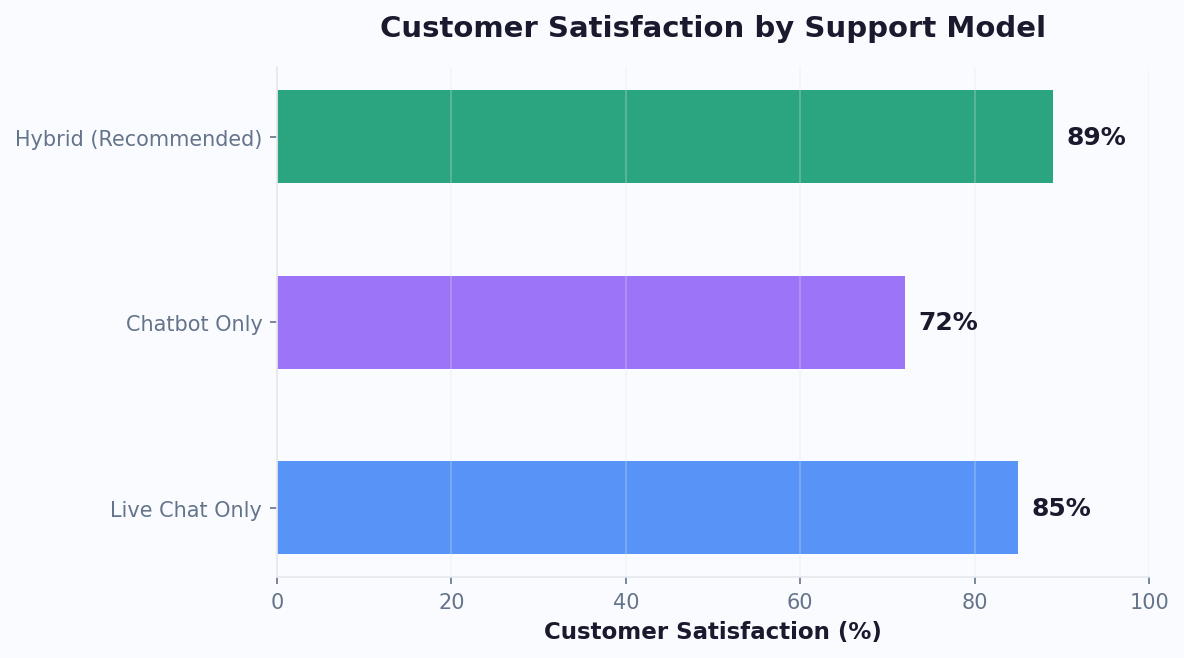
- CSAT score -- post-resolution satisfaction. Target: 85%+.
- Reopen rate -- tickets marked resolved that get reopened. Target: under 5%.
- SLA adherence -- percentage of tickets resolved within SLA. Target: 95%+.
Efficiency Metrics (Monitor Monthly)
- Cost per ticket -- total support cost divided by tickets resolved. Benchmark: $8-15 with chatbot assistance.
- Agent utilization -- percentage of available time spent in active conversation. Target: 70-80%.
- Transfer rate -- tickets requiring reassignment. High rates indicate routing problems.
Conferbot's analytics dashboard tracks all these metrics automatically with configurable alerting thresholds. Set up weekly email reports for executives and real-time Slack alerts for operational leaders. Calculate your specific cost-per-ticket targets with our ROI calculator.
Help Desk Integration: Connecting with Zendesk, Freshdesk, and More
Many teams already use a help desk platform for ticket management. Rather than replacing your existing system, Conferbot's ticket integration connects seamlessly with Zendesk, Freshdesk, Intercom, Help Scout, and any platform with a REST API. This means you get the benefits of chatbot-powered ticket creation and context capture while agents continue working in their familiar environment.
Integration Modes
Choose the integration depth that matches your workflow:
- Ticket push (most common) -- chatbot creates tickets in your external help desk with full conversation context. Agents work exclusively in the external system.
- Bidirectional sync -- tickets created by the chatbot appear in both Conferbot and your external help desk. Status changes sync in both directions. Useful when some agents work in Conferbot and others in the external system.
- External system as primary -- Conferbot's ticket system is disabled; all escalations push directly to your help desk. Best for teams deeply invested in existing help desk workflows.
What Gets Synced
Regardless of mode, the following data flows from chatbot to help desk:
- Full conversation transcript (formatted for the target platform)
- Customer contact information (mapped to help desk contact fields)
- Category and priority (mapped to help desk categories/tags)
- Custom fields (any chatbot-collected data mapped to custom ticket fields)
- Attachments (files shared during chat conversation)
Platform-Specific Notes
Zendesk: Native integration supports ticket creation, status sync, and agent reply push-back to chatbot. Triggers and automations in Zendesk continue to work on bot-created tickets. Freshdesk: Supports ticket creation with custom fields, agent groups mapping, and SLA policy assignment. Intercom: Conversations flow as Intercom conversations with full context in the conversation notes. Works with Intercom's inbox and assignment rules natively.
For teams evaluating whether to use Conferbot's built-in ticket system or integrate with an external platform, our comparison page breaks down capabilities side by side. Most growing teams start with Conferbot's built-in system and add external integration later as their tech stack matures.
Setup Guide: Launch Your Ticket System in 20 Minutes
Getting a chatbot-powered ticket system running does not require weeks of configuration. Conferbot's guided setup wizard walks you through the essential configuration in about 20 minutes, and you can refine settings over time as you learn from real ticket data. Here is the step-by-step process.
Step 1: Define Categories (5 minutes)
Create your ticket category structure. Start simple -- 5-8 top-level categories covering your most common issue types. You can add subcategories later as volume reveals patterns. Common starting categories: Billing, Technical Issue, Account Management, Product Question, Feature Request, Shipping/Delivery, and General Inquiry.
Step 2: Set SLA Policies (3 minutes)
Define response and resolution time targets for each priority level. Use the table in our Priority section above as a starting point. Configure business hours so SLAs only count during your support hours. Set escalation actions for each SLA threshold (75%, 90%, breached).
Step 3: Configure Routing Rules (5 minutes)
Set up basic assignment rules. At minimum, configure: which team receives tickets in each category, maximum concurrent tickets per agent, and a fallback rule for uncategorized tickets. The team management page covers advanced routing in detail.
Step 4: Design the Escalation Flow (5 minutes)
In your chatbot flow, add escalation nodes at appropriate points. Configure: the confidence threshold below which the bot escalates, what information the bot collects before creating the ticket (minimum: email and issue description), and the customer-facing message explaining the handoff. Use our support templates for pre-designed escalation flows.
Step 5: Test End-to-End (2 minutes)
Run a test conversation that triggers escalation. Verify: the ticket appears in the correct queue with full context, SLA timer starts, and the assigned agent receives notification. Check that the customer sees appropriate handoff messaging.
What to Optimize After Launch
During your first two weeks, monitor: which categories get the most tickets (indicates chatbot knowledge gaps to fill), average handle time per category (identifies training needs), and deflection rate trend (measures chatbot improvement). Feed learnings back into both your chatbot knowledge base and ticket system configuration.
Ready to start? View pricing plans with ticketing included, or calculate expected savings with our chatbot ROI calculator. For a broader view of support automation strategy, read our customer support chatbot guide.
Continue Exploring
Explore features, connect third-party tools, and browse ready-made templates.
Deep-dive pillar guides, real use cases, and the chatbot & AI glossary.