Why Squarespace Sites Convert Better With a Chatbot
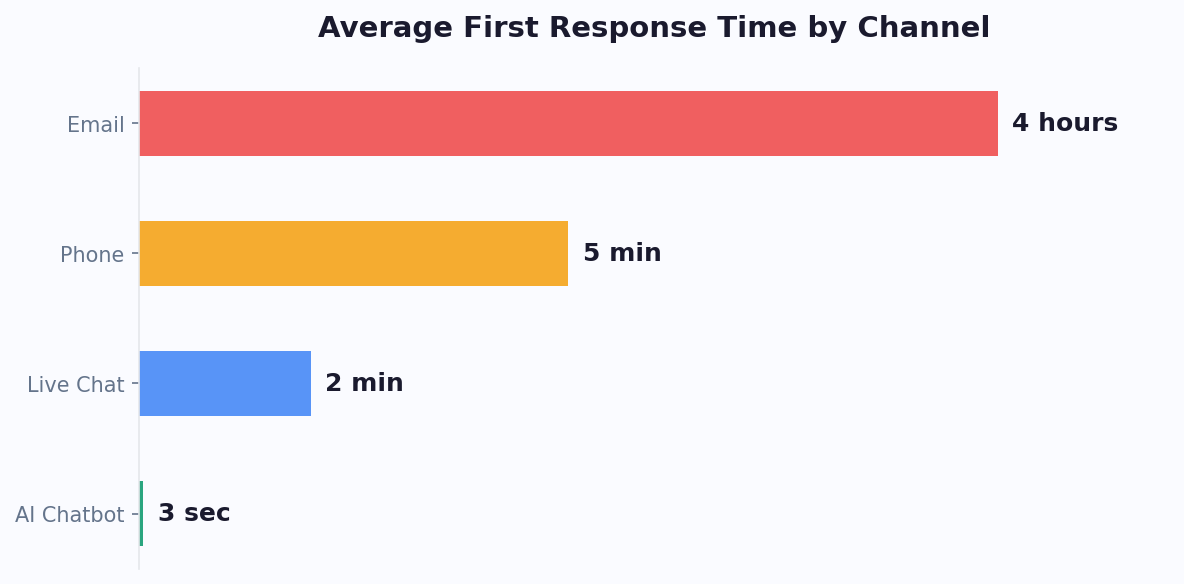
According to Statista's website builder market data, Squarespace powers 4.5 million+ websites in 2026 — from one-person service businesses to boutique e-commerce stores. What they all have in common: beautiful design, and limited built-in tools for real-time customer engagement. The platform's default contact form routes inquiries to email, where the average reply time is 17 hours. For a prospect deciding between three providers, that is three prospects lost.
A chatbot fills the gap Squarespace leaves wide open. Visitors can ask questions, book appointments, qualify themselves as leads, and get answers in real time without your team manually triaging form submissions. Research from HubSpot's State of AI report confirms that websites with live chat or chatbot widgets see significantly higher engagement. The numbers back it up: Squarespace sites that deploy a chatbot see conversion rate lifts of 18-35% within the first 60 days, driven primarily by visitors who would have bounced off the contact form.
What a Squarespace Chatbot Actually Solves
- After-hours inquiries. A therapist's Squarespace site gets half its form submissions between 8 PM and 11 PM. Without a chatbot, every one of those is a cold email by the next morning.
- Pricing questions. Service businesses hate putting prices on their website, but visitors hate not seeing them. A chatbot can ask qualifying questions first and surface a range conditionally.
- Booking and consultations. Squarespace Scheduling exists but is clunky to embed on every page. A chatbot can handle "book a free consultation" as a natural conversation.
- E-commerce support. Shipping questions, size guides, return policies — the top 5 pre-purchase questions that cause cart abandonment on Squarespace Commerce stores.
The Good News: Squarespace Makes It Easy
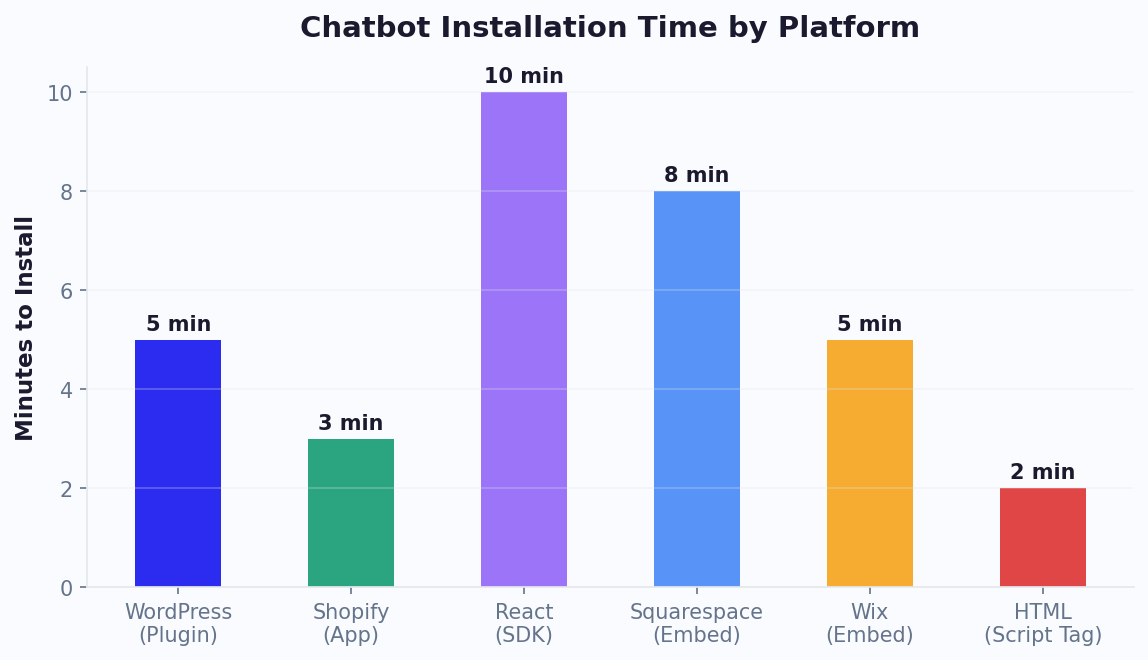
Squarespace supports custom code injection on all plans above the Personal tier, which means adding a chatbot is literally a copy-paste operation — no plugins to install, no theme files to edit, no developer required. The whole process takes under 5 minutes.
Choosing the Right Chatbot Platform for Squarespace
Squarespace does not have an official app store like WordPress or Shopify, which means the chatbot platform you choose matters. You want a platform that (a) provides a clean JavaScript embed snippet, (b) loads asynchronously so it does not slow down your site, and (c) offers a permanent free tier so you can start without committing.
What to Look For
- Single-line script tag. The install should be one line of JavaScript you paste into Squarespace's code injection field. Anything more complex means you will fight it every time you update your site.
- Asynchronous loading. The chatbot script should load after your main content renders. If it blocks the page, your Core Web Vitals and Google rankings suffer.
- Free tier that is actually usable. Look for at least 300 free conversations per month and no mandatory "powered by" branding in the customer-facing widget (or a cheap option to remove it).
- Multi-channel ready. Even if you start on Squarespace only, pick a platform that also supports WhatsApp, Messenger, and Instagram DMs so you can extend without migrating.
- Visual flow builder. You will be editing and adding flows constantly — drag-and-drop beats typing YAML.
Free vs Paid Platforms (2026)
| Platform | Free Plan | Squarespace Install | Best For |
|---|---|---|---|
| Conferbot | 500 chats/mo, unlimited bots | Single script tag | Most small businesses and multi-channel plans |
| Tidio | 50 chats/mo | Single script tag | Very small pilot projects |
| Tawk.to | Unlimited (human agents only) | Single script tag | Live chat without automation |
| Intercom | 14-day trial | Single script tag | Funded startups with budget |
| Landbot | 100 chats/mo | Single script tag | Conversational landing pages |
For most Squarespace users, a platform with a real free tier and clean install (like Conferbot) is the right starting point. You can always upgrade when you outgrow it.
Step-by-Step: Install Your Chatbot on Squarespace
Here is the exact sequence. Budget 5 minutes for the install, 30 more for the initial flow setup.
Step 1: Create and Configure Your Bot (2 Minutes)
Sign up for your chosen chatbot platform. In the dashboard, create a new bot and select Website widget as the primary channel. Customize the appearance: set your brand color, upload your logo, write a welcome message. Pick a launcher style (round chat bubble in the bottom-right is the 2026 default and converts best on mobile).
Step 2: Copy the Embed Script (30 Seconds)
Every chatbot platform generates a one-line JavaScript snippet that looks similar to this:
<script async src="https://cdn.yourchatbot.com/widget.js" data-bot-id="xxxxxxxxxx"></script>Copy this exactly. The async attribute is the critical piece — it tells the browser to load the script in the background without blocking your page.
Step 3: Paste Into Squarespace Code Injection (1 Minute)
In your Squarespace admin, navigate to Settings → Advanced → Code Injection. You will see two fields: HEADER and FOOTER. Paste your embed script into the FOOTER field, not the HEADER. Footer injection keeps the script non-blocking, which is what Google's PageSpeed wants.
Click Save. Give it 10-20 seconds to propagate.
Step 4: Verify the Install (1 Minute)
Open your Squarespace site in an incognito window. You should see the chat bubble appear in the bottom-right corner within a few seconds of the page loading. Click it — the welcome message should display. If it does not appear:
- Check that you pasted the code into FOOTER, not HEADER.
- Confirm you are on a paid Squarespace plan (Personal plans do not allow code injection).
- Clear your browser cache and try again.
- Check the browser console (F12) for script errors.
Step 5: Build Your First Flow (30 Minutes)
A minimum viable Squarespace chatbot has four flows:
- Welcome + menu. Greet visitors with 3-4 button options.
- FAQ branches. One branch per top question (hours, location, pricing, services).
- Booking/consultation. Capture name and email, then hand off to calendar booking.
- Fallback and human handoff. For anything the bot cannot handle, collect details and notify you by email or Slack.
Test each path in the bot's preview mode before going live. Once happy, flip the bot to production and it is immediately serving your real Squarespace visitors.
Page-Specific Flows: Different Behavior on Different Pages
One of the biggest opportunities most Squarespace chatbot installs miss: triggering different flows on different pages. A visitor on your pricing page has different needs than someone browsing your portfolio or reading a blog post. Matching the flow to the page context is the single highest-leverage optimization you can make after the install.
How to Set Up Page Targeting
Most chatbot platforms let you define flow triggers based on URL patterns. On Squarespace, your URLs follow predictable paths: /pricing, /services, /about, /shop/PRODUCT, /blog/POST. Configure your bot's settings so that:
- Home page (/): Generic welcome menu with all options.
- Pricing page (/pricing): "Looking for a custom quote? Answer 3 quick questions." This turns your pricing page into a lead magnet.
- Services/consulting page: "Want to book a free 15-minute discovery call?" Direct to calendar.
- Product pages (/shop/*): "Questions about [PRODUCT]? Ask me anything — I know your sizing, shipping, and return policy."
- Blog posts (/blog/*): A soft nudge after 30 seconds on the page: "Enjoying the article? Want a related guide sent to your inbox?" — lead magnet for your newsletter.
- Contact page (/contact): Skip the long form entirely — "Tell me what you need in a sentence and I will route it to the right person."
Trigger Timing Matters
Do not open the chat bubble immediately. Visitors find it intrusive. The 2026 best practice is to show the launcher immediately but only auto-open the welcome message after one of these triggers:
- 30 seconds of page time.
- 50% scroll depth.
- Exit intent (cursor moving toward the close tab).
- A second page view in the same session.
Time-based triggers work best for blog pages. Scroll triggers work best for long services pages. Exit intent works best for pricing and checkout pages. Test all three on your highest-traffic page and keep what converts.
Mobile vs Desktop Behavior
60-70% of Squarespace traffic in 2026 is mobile. Your chatbot settings should differentiate:
- Mobile: Launcher only, no auto-open (screen real estate is precious). Consider a floating button rather than an opened widget.
- Desktop: Auto-open after one of the triggers above is fine.
Squarespace's responsive design will handle the visual side, but the chatbot's trigger rules are set in the chatbot platform dashboard, not in Squarespace.
For Squarespace Commerce: Cart Recovery and Product Q&A
If you run a Squarespace Commerce store, the chatbot becomes a sales machine, not just a support tool. The two highest-value flows are cart recovery and product question handling.
Cart Recovery on Squarespace Commerce
Squarespace's built-in abandoned cart recovery is email-only and triggers 24 hours after abandonment. By then, 80% of carts are permanently lost. A chatbot intervenes in real time.
Configure an exit-intent trigger on the cart and checkout pages: "Wait! Can I help answer any questions before you go? I can check shipping time to your address or apply a first-purchase discount." Shoppers who receive this intervention complete checkout at 3-5x the rate of those who abandon to email-only recovery.
Follow up with a second touchpoint if you have their email: a WhatsApp or Messenger message sent via your chatbot platform's outbound API, reminding them of the specific items they left behind. Multi-channel recovery outperforms email-only by 5-7x on Squarespace Commerce stores.
Product Question Handling
Pre-purchase questions are the #1 friction point in small e-commerce. Buyers want to know: "Will this fit me?" "Is this in stock?" "When will it ship?" "Can I return it?" Your chatbot should handle all four without a human ever being involved:
- Size and fit: Ask for height/weight or existing size, return a recommendation based on your size chart.
- Stock: Integrate with Squarespace Commerce's inventory API (or manually sync weekly) so the bot knows what is in stock.
- Shipping: Ask for the destination and return carrier estimates.
- Returns: Walk through your policy in 2-3 sentences with a link to the full policy page.
Upselling and Cross-Selling
After a successful order, the bot can follow up 3 days later: "Hope your [PRODUCT] is treating you well. Did you know we also have [COMPLEMENTARY PRODUCT] — customers usually pick it up together." This single message typically adds 5-10% to order values over a 90-day window.
Connect your Squarespace Commerce order data to your chatbot via webhook so every order automatically triggers the right follow-up sequence. No manual lists, no spreadsheets.
Squarespace-Specific Use Cases: Portfolio Sites, Service Businesses & Online Stores
Squarespace attracts three distinct audiences — creative professionals with portfolio sites, service businesses with booking needs, and small online stores. Each requires a fundamentally different chatbot strategy. Here is how to configure your bot for maximum impact based on your Squarespace site type.
Portfolio Sites: Photographers, Designers, Freelancers
Portfolio visitors are evaluating your work and deciding whether to reach out. The chatbot's job is to lower the barrier from "I'll email them later" (which they never do) to "Let me ask a quick question right now." Key flows for portfolio sites:
- "What's your availability?" — Connect the bot to your calendar so it can answer in real time: "I have openings in May and early June for wedding photography. Want to grab a 15-minute discovery call?"
- "How much do you charge?" — Instead of a flat answer (which often scares people), ask 2-3 qualifying questions first: "What type of project? What's your timeline? What's your approximate budget range?" Then provide a tailored estimate or book a consultation.
- "Can you do [specific thing]?" — Train the knowledge base on your services, past project types, and FAQs. The bot answers instantly without you checking email at midnight.
Portfolio sites using chatbots report 40-55% more inquiry conversions compared to contact-form-only sites because the chat interaction happens while the visitor is emotionally engaged with the portfolio work.
Service Businesses: Therapists, Consultants, Coaches, Agencies
Service businesses live and die by booked consultations. The chatbot replaces the "fill out a form and wait" experience with an instant conversation that qualifies and books in one flow:
| Service Type | Chatbot Qualifying Questions | Booking Outcome | Conversion Lift vs Form |
|---|---|---|---|
| Therapist / Counselor | Issue type, insurance, preferred schedule | Book intake session directly | +35-50% |
| Business Consultant | Company size, challenge area, budget range | Book discovery call | +30-45% |
| Life / Executive Coach | Goals, coaching experience, availability | Book free intro session | +25-40% |
| Marketing Agency | Industry, monthly budget, primary channel | Book strategy call with right specialist | +40-55% |
The key insight: service business visitors need reassurance before booking. A chatbot that answers "Do you take BlueCross insurance?" or "Have you worked with SaaS companies before?" eliminates the hesitation that kills form submissions. Connect to live chat as a fallback for high-value prospects who need a human touch.
Online Stores: Squarespace Commerce
Beyond the cart recovery and product Q&A covered earlier, Squarespace Commerce stores benefit from these specialized chatbot flows:
- Gift finder: "Shopping for someone? Tell me about them and I'll suggest the perfect gift." This guided experience increases conversions by 20-30% during holiday seasons.
- Restock notification: "This item is sold out, but I can notify you on WhatsApp or email the moment it's back." Captures demand that would otherwise bounce permanently.
- Wholesale inquiry routing: For stores that also sell wholesale, the bot qualifies wholesale inquiries (minimum order quantity, business type, location) and routes to your wholesale team.
- Post-purchase experience: After checkout, the bot follows up with shipping updates, care instructions, and cross-sell recommendations through Messenger or WhatsApp.
Configuring One Bot for Multiple Use Cases
Many Squarespace sites combine these types — a photographer who also sells prints, or a consultant who sells online courses. Use page-specific triggers (covered in the section above) to route visitors into the right flow based on which page they are browsing. The bot shows portfolio-inquiry flows on /work, booking flows on /services, and shopping assistance on /shop. One chatbot, multiple personalities, zero confusion for the visitor.
Industry-Specific Squarespace Chatbot Templates
If you are not sure where to start, use a pre-built template from the template gallery matched to your Squarespace site type. Templates for photographers include portfolio inquiry and wedding consultation flows. Templates for coaches include goal-assessment quizzes and session booking. Templates for e-commerce include product finder, cart recovery, and shipping FAQ. Each template is fully customizable — start with the structure and adapt the messaging to your brand voice. Businesses that start with a template and iterate report reaching peak conversion rates 40% faster than those building from scratch, because the core flow logic has already been validated across thousands of Squarespace sites.
Track which flows convert best through analytics and double down on what works for your unique site. If your site relies heavily on lead generation, explore our lead generation chatbot strategies for proven conversion flows.
Performance Pitfalls: Don't Slow Down Your Squarespace Site
Squarespace sites are generally fast, but a badly configured chatbot can tank your PageSpeed score and your Google rankings. Here are the four most common pitfalls and exactly how to avoid them.
Pitfall #1: Synchronous Script Loading
Some older chatbot platforms still ship scripts without the async or defer attribute. This blocks your page from rendering while the chatbot downloads, adding 500-1500 ms to your First Contentful Paint. Always confirm your embed snippet uses async. If your platform does not offer it, pick a different platform.
Pitfall #2: Loading Before the Page Content
Even an async script loaded in the <head> can slow your site because the browser has to negotiate a TCP connection to the chatbot CDN. Squarespace's code injection supports both header and footer — always use footer for chatbot scripts. This ensures your content renders first and the bot loads afterward.
Pitfall #3: Heavy Initial Bundle
Some platforms ship a 500KB+ JavaScript bundle that includes their entire widget framework on the first page load. Look for platforms that use lazy-loaded chunks — only the launcher icon (a few KB) loads initially, and the full widget only downloads when the user clicks. This keeps your Core Web Vitals green.
Pitfall #4: Multiple Conflicting Scripts
Running multiple chat widgets, analytics scripts, and marketing pixels simultaneously causes layout shifts and blocks main thread. If you already have Tawk.to, Intercom, and a legacy Squarespace form plugin on your site, remove the ones you do not need before adding a new chatbot. Less is faster.
How to Verify Performance
After installing your chatbot, run your homepage through Google PageSpeed Insights and WebPageTest.org. Compare before-and-after scores. A properly configured chatbot should add less than 50ms to your Largest Contentful Paint and less than 0.01 to your Cumulative Layout Shift. If your scores drop more than that, something is misconfigured — usually the async attribute is missing or the script is loading in the header.
Test on a Real 4G Mobile Connection
Desktop PageSpeed scores are misleading. 60%+ of Squarespace visitors are on mobile, often on imperfect connections. Use PageSpeed's Mobile tab or Chrome DevTools' throttled "Slow 4G" profile to test what your actual visitors experience. A chatbot that is fast on your Wi-Fi may still be clunky in a coffee shop — optimize for the mobile experience first.
Once your chatbot is installed, performant, and targeted to the right pages, monitor it weekly through the platform's built-in analytics. Track engagement rate, resolution rate, and the conversion uplift on your most important pages. For guidance on which metrics to track, see our chatbot analytics metrics guide. A well-run Squarespace chatbot typically pays for itself in its first month and continues compounding value for years. If you are comparing chatbot platforms, our no-code chatbot builders comparison covers the options in depth.
Squarespace Chatbot ROI: Real Numbers From Real Businesses
The ROI question is the one every Squarespace site owner asks before installing a chatbot. Here are real performance benchmarks from Squarespace sites across different business types, with concrete numbers you can use to project your own returns.
ROI Benchmarks by Business Type
| Business Type | Monthly Traffic | Chatbot Cost | Monthly Value Generated | ROI |
|---|---|---|---|---|
| Therapist / Counselor | 2,000 visitors | $49/month | $2,400 (8 extra bookings x $300) | 4,800% |
| Photography Studio | 3,500 visitors | $49/month | $4,500 (3 extra bookings x $1,500) | 9,000% |
| E-commerce (jewelry) | 5,000 visitors | $99/month | $3,200 (40 extra orders x $80 AOV) | 3,100% |
| Marketing Agency | 4,000 visitors | $99/month | $12,000 (2 extra clients x $6,000) | 12,000% |
| Fitness Coach | 1,500 visitors | $49/month | $1,800 (6 extra clients x $300) | 3,500% |
The pattern is clear: even at modest traffic volumes, a chatbot generates returns that dwarf its cost. The highest ROI comes from high-ticket service businesses (agencies, photographers, consultants) where a single additional client pays for years of chatbot subscription.
How to Calculate Your Projected ROI
Use this formula to estimate your Squarespace chatbot ROI before investing:
- Monthly visitors: Check Squarespace Analytics for your unique monthly visitors
- Chat engagement rate: Expect 3-8% of visitors to engage with the chatbot (industry average)
- Lead conversion rate: Of chatbot engagements, 15-25% will become qualified leads
- Close rate: Apply your existing lead-to-customer close rate
- Customer value: Multiply by your average customer value
Example calculation: 3,000 monthly visitors x 5% chat engagement = 150 conversations x 20% lead rate = 30 leads x 30% close rate = 9 new customers x $500 avg value = $4,500/month from a $49/month investment.
Time-to-Value Expectations
Based on data from Squarespace sites deploying chatbots, here is what to expect at each milestone:
- Week 1: First chatbot conversations, initial data on visitor questions and engagement patterns
- Week 2-3: First leads or bookings attributed to the chatbot after flow optimization
- Month 1: Meaningful conversion lift visible in Squarespace Analytics (compare to previous month)
- Month 2-3: Optimization based on data produces peak performance — most sites see full ROI within 45-60 days
- Month 3+: Compound returns as the chatbot handles more scenarios and builds a larger knowledge base
According to Forrester's research on customer experience automation, businesses that implement conversational interfaces see an average 15-25% lift in conversion rates within the first quarter. For Squarespace sites specifically, the lift tends to be on the higher end because these sites typically lack any real-time engagement tool before chatbot deployment, making the baseline improvement more dramatic. For a deeper dive into calculating returns, our chatbot ROI calculator guide provides a comprehensive framework applicable to any platform.
Optimization Roadmap for Squarespace Chatbot Users
After the initial deployment proves ROI, follow this quarterly optimization cadence to maximize returns. In Q1, focus on refining your top five FAQ responses based on actual conversation data — most Squarespace sites discover that their initial FAQ assumptions do not match what visitors actually ask. In Q2, add a second channel: deploy the same bot on WhatsApp and link it from your Squarespace footer, enabling mobile-first visitors to continue conversations beyond your site. In Q3, implement exit-intent flows on your highest-traffic pages and A/B test two different welcome messages. By Q4, integrate your chatbot data with your email marketing platform to create automated nurture sequences triggered by chatbot interactions — visitors who asked about pricing but did not book receive a follow-up series with social proof and limited-time offers. This structured approach ensures your chatbot investment compounds rather than plateaus, turning a simple Squarespace add-on into a full customer acquisition engine. This compounding optimization approach is what separates businesses that see 5x ROI from those that plateau at 2x — treat your chatbot as a living system that improves every quarter. For similar step-by-step guidance on other platforms, see our advanced Squarespace chatbot configuration guide.
Was this article helpful?
How to Add an AI Chatbot to Your Squarespace Site in 5 Minutes (2026) FAQ
Everything you need to know about chatbots for how to add an ai chatbot to your squarespace site in 5 minutes (2026).
About the Author

Conferbot Team specializes in conversational AI, chatbot strategy, and customer engagement automation. With deep expertise in building AI-powered chatbots, they help businesses deliver exceptional customer experiences across every channel.
View all articles