
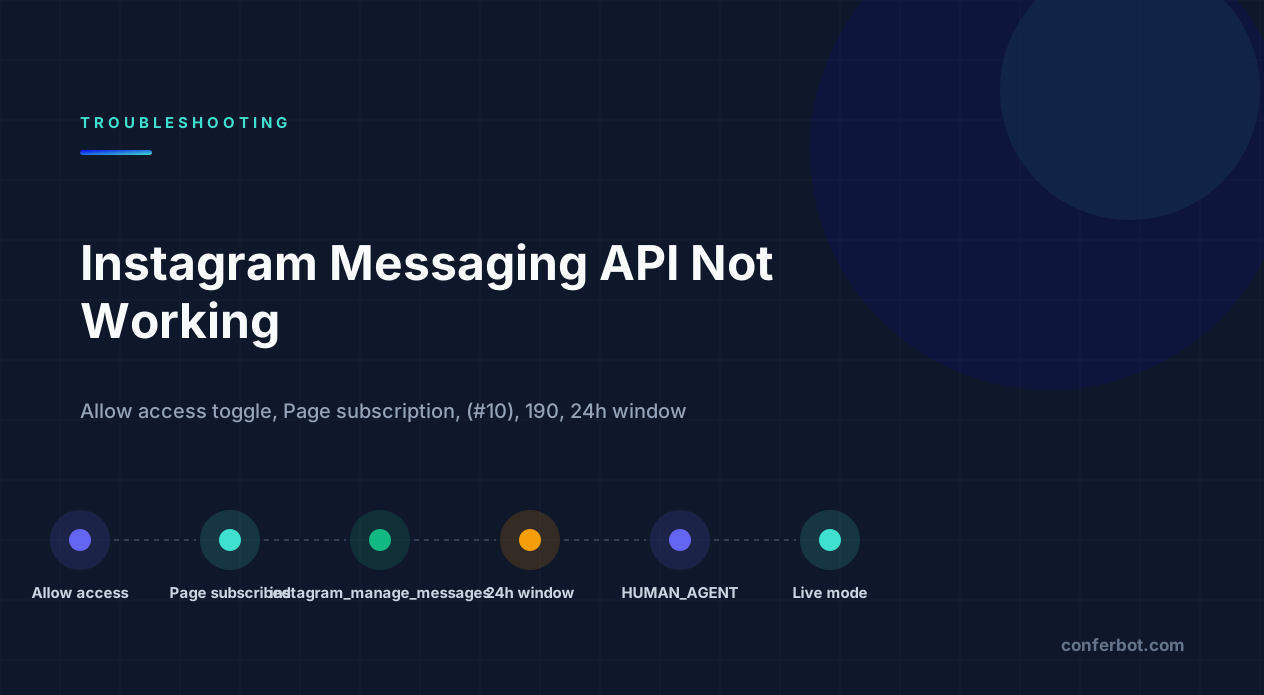
First, work out which of the three failures you have
An Instagram bot that does not reply has one of three problems: messages never reach your webhook, messages reach you but your reply is rejected, or everything works for you and fails for everyone else. Each has a different cause, and the first two minutes of debugging should be spent telling them apart.
Last verified: August 2026 against the Meta for Developers Instagram Platform and Messenger Platform documentation. Error codes and strings quoted are the literal values the platform returns.
Send a DM to the connected account from a personal Instagram account that has a role on your app, then read your webhook logs and the Graph API response to your reply call.
| What you see | What it proves | Start with |
|---|---|---|
| Nothing hits the webhook at all | The account, the Page link, the subscription or the Allow access to messages toggle is wrong | Sections 1-4 |
Webhook fires, reply returns (#10) or 190 | Inbound is fine; your token or permissions are not | Sections 5-6 |
| Webhook fires, reply returns an error about 24 hours | Everything is wired; you are outside the messaging window | Section 7 |
| Works for you, silent for customers | App is in Development mode or lacks Advanced Access | Sections 4-5 |
| Replies arrive but your handler sees its own messages | That is the message echo - not a failure | Section 8 |
The rest of this guide runs in the order that finds the cause fastest; section 10 maps literal error strings to sections, and our error-code directory covers the full code sets for the platforms that publish them. If you also run a Messenger bot on the same Page, much of this overlaps with our guide to a Facebook Messenger bot not responding - the two APIs share infrastructure and several failure modes.
1. The account type: Professional, and linked to a Facebook Page
The Instagram messaging API does not work with personal accounts. The account must be a Professional account - either Business or Creator - and, on the Facebook Login path that most tooling still uses, it must be connected to a Facebook Page. An account that is Professional but not linked to a Page will appear in none of the Graph API calls that your integration relies on, and the symptom is an empty list where you expected to choose an Instagram account.
Check both conditions in the Instagram app: Settings > Account type and tools shows whether you are on a Professional account, and Settings > Business tools and controls (or the Page's own settings under Linked accounts) shows which Facebook Page it is linked to. The Page and the Instagram account must be linked from the Page side too - go to the Page, open Settings, then Linked accounts > Instagram, and confirm it names the right account.
The newer path: Instagram Login without a Page
Since 2026 Meta has also offered the Instagram API with Instagram Login, which lets a Professional account use messaging without a linked Facebook Page. It uses a different permission set (prefixed instagram_business_, for example instagram_business_manage_messages) and a different token. Mixing the two paths is a real source of confusion: a token obtained through Instagram Login will not work against the Page-based endpoints, and vice versa. Pick one path deliberately and make sure every call uses the matching token and permission names. The Instagram Platform overview documents both side by side.
A quick sanity check on the Page-based path: call GET /me/accounts?fields=instagram_business_account with your user token. If the Page you expect is listed but instagram_business_account is missing, the link is not in place, and nothing downstream will work until it is.
2. The toggle almost everyone misses: Allow access to messages
This is the single most common cause of a correctly configured Instagram bot that never receives a message. Inside the Instagram app, the account owner has to explicitly allow third-party tools to read and reply to DMs. Until they do, Meta delivers nothing to your webhook - no error, no warning in the App Dashboard, no entry in the webhook delivery log. The subscription exists; the events are simply never generated.
On the account that is connected to your app, open the Instagram app and go to Settings > Messages and story replies > Message controls, scroll to Connected tools, and turn on Allow access to messages. On older app versions the same toggle lives under Settings > Privacy > Messages > Connected tools. Meta's own Instagram messaging getting-started guide lists this as a prerequisite, but it is easy to skim past because it is a setting in the consumer app rather than the developer dashboard.
Two details that catch people even after they know about it:
- The toggle is per Instagram account, not per app or per Page. If a client connects a second account, it has to be switched on there too.
- It can be turned off again by anyone with access to the Instagram account. A bot that worked for weeks and then went silent after a social media manager "cleaned up settings" has usually lost this toggle.
If the setting is on and you still receive nothing, move to the webhook subscription itself.
3. Webhook subscription: the fields, and the Page-level subscription
There are two separate subscriptions, and both must exist. The first is at the app level: in the App Dashboard, under Instagram > Configuration (or Webhooks, selecting the Instagram object), your callback URL must be verified and the messages field subscribed. Subscribe messaging_postbacks as well if you use buttons, quick replies or ice breakers - a postback is not a message, and an app subscribed only to messages will never see a button tap.
The second is at the Page level, and it is the one people forget. The Facebook Page that owns the Instagram account must be subscribed to your app. Do it in the Messenger settings of the App Dashboard, or directly:
POST https://graph.facebook.com/v21.0/{page-id}/subscribed_apps
  ?subscribed_fields=messages,messaging_postbacks
  &access_token={page-access-token}
Then confirm it took:
GET https://graph.facebook.com/v21.0/{page-id}/subscribed_apps?access_token={page-access-token}The response should list your app with the fields you asked for. An empty data array means the Page is not subscribed and Instagram events will not be routed to you regardless of what the app-level dashboard shows.
The fields worth subscribing
| Field | What it delivers | Needed for |
|---|---|---|
messages | Inbound DMs, story replies, story mentions, media, reactions to your messages | Everything |
messaging_postbacks | Taps on buttons, quick replies, ice breakers, persistent menu items | Any structured UI |
messaging_seen | Read receipts | Optional |
message_reactions | Reactions to messages | Optional |
messaging_handover | Thread control changes between apps | Multi-app setups |
Webhook verification itself - the hub.challenge handshake - is shared with Messenger and fails in exactly the same ways: wrong verify token, a non-200 response, or an endpoint that returns JSON instead of the raw challenge string. If the dashboard will not accept your URL, the webhook verification section of the Messenger guide walks through it. If the URL verifies but events still do not arrive, our cross-platform webhook debugging guide covers signature checks, timeouts and the 200-with-nothing-happening case.
4. Development mode: it works for you because you are on the app
An app in Development mode only exchanges messages with people who have a role on the app. That means your own account works, your co-founder's works, and every real customer is silently ignored - inbound events for them are not delivered, and outbound sends fail. This is the cause behind almost every "it worked in testing, it does nothing in production" report.
To test with an account that is not an admin or developer, add it as an Instagram Tester: App Dashboard > App roles > Roles, add the Instagram username under Instagram Testers, then accept the invitation from inside the Instagram app under Settings > Apps and websites > Tester invites. Until the invite is accepted, that account is a stranger to your app.
To serve real users you need two things: the app switched to Live mode, and Advanced Access for instagram_manage_messages, which requires App Review and, for most apps, Business Verification. Standard Access - what you have by default - only covers roles on the app. This is the other half of the same symptom, and the next section covers it.
5. Permissions and (#10): what the app is actually allowed to do
The error that points here is unambiguous:
{"error":{"message":"(#10) Application does not have permission for this action","type":"OAuthException","code":10}}It means the token you are using was not granted the permission the call requires, or the app has not been approved for that permission at the access level you need. For Instagram messaging on the Page-based path, the set you need is:
| Permission | Why | Access level needed for public use |
|---|---|---|
instagram_basic | Read the connected account's profile and ID | Advanced |
instagram_manage_messages | Read and send DMs | Advanced |
pages_manage_metadata | Subscribe the Page to webhooks | Advanced |
pages_show_list | List the Pages the user manages so you can find the linked account | Standard is usually enough |
pages_messaging | Only if the same app also replies on Messenger | Advanced |
Inspect the token rather than guessing. Paste it into the Access Token Debugger and read the Scopes line. If instagram_manage_messages is not listed, the user never granted it - usually because the login dialog was built with an older scope list, or because the user unticked it. Re-run the login with the full scope and make sure you replace the stored token.
A second form of (#10) is the 24-hour window, which carries a different message and is covered in section 7. Read the full message string before deciding which one you have - the code alone is ambiguous.
Also remember that approval is per app, not per account. An agency app approved for Advanced Access can message on behalf of any account that grants it; an app still in Standard Access cannot, no matter how many accounts are connected. The App Review requirements are listed on Meta's permissions reference.
6. Error 190: the token has expired or been invalidated
A bot that ran for weeks and stopped on a specific day almost always has a token problem:
{"error":{"message":"Error validating access token: Session has expired on ...","type":"OAuthException","code":190,"error_subcode":463}}Code 190 is the generic OAuth token failure; the subcode tells you why. 463 is plain expiry. 460 means the user changed their Facebook password or logged out of the session that issued the token. Other subcodes indicate the user removed the app, or the Page or Instagram account was disconnected.
The lifecycle matters. A short-lived user token lasts about an hour. Exchange it for a long-lived user token (around 60 days), then fetch the Page access token with that long-lived token - a Page token obtained this way does not expire on a timer, but it does die if the user who issued it loses access to the Page, changes their password, or deauthorises the app. Store the Page token for messaging, not the user token, and handle 190 by prompting the account owner to reconnect rather than retrying.
If you are on the Instagram Login path, tokens are refreshed with the refresh_access_token endpoint before they expire; a missed refresh produces the same 190. Our WhatsApp API error-codes guide covers the equivalent 190 behaviour on that platform, because it is the same Graph API underneath. The code 190 reference page lists the subcodes and fixes in one place.
7. The 24-hour window and the HUMAN_AGENT tag
Instagram follows the same standard messaging window as Messenger: once a user sends you a message, you may reply freely for 24 hours. After that, ordinary sends are refused. The refusal surfaces as code 10 with a window-specific message rather than the permission message from section 5:
{"error":{"message":"(#10) Message failed to send because more than 24 hours have passed since the customer last replied to this account.","type":"OAuthException","code":10,"error_subcode":2534022}}There is exactly one sanctioned way past it. A message sent with "tag": "HUMAN_AGENT" may be delivered up to 7 days after the user's last message, and it must be a human - a genuine human handoff, not an automation - actually replying. It also requires the Human Agent permission, which is granted through App Review. Automations that stamp every message with the tag to dodge the window are a policy violation and a fast route to losing access.
POST /{ig-user-id}/messages
{
  "recipient": {"id": "{igsid}"},
  "message": {"text": "Following up on your question from yesterday"},
  "tag": "HUMAN_AGENT"
}
Notably, Instagram does not support the Messenger message tags like CONFIRMED_EVENT_UPDATE or POST_PURCHASE_UPDATE, and it has no equivalent of WhatsApp's approved templates for re-opening a conversation. If you need to reach someone after seven days on Instagram, you need them to message you again. That constraint shapes how an Instagram bot should be designed: collect what you need while the window is open, and use comment replies, story replies and ice breakers to prompt the next inbound message.
Every platform draws this window slightly differently - the WhatsApp version is covered in our WhatsApp error-codes guide under 131047, and the difference between them matters if you run both. The 131047 reference page has the exact re-engagement rules. For the full set of WhatsApp windows, tiers and throughput ceilings, see the WhatsApp limits page.
8. Message echo, story replies, mentions and the events that look like bugs
Several legitimate events look like failures until you know what they are.
The echo
When your app sends a message, Meta delivers a webhook event for it back to you with "is_echo": true. If your handler treats every messages event as a user message, your bot replies to itself, which then echoes again. Nothing loops forever because the echo carries the account's own ID as sender - but your logs fill with phantom conversations, and a carelessly written auto-reply will send one unwanted message per outbound. Guard the top of your handler:
if (event.message && event.message.is_echo) return;Story replies and mentions
A reply to your story arrives as a normal messages event with a reply_to.story object containing the story URL and ID. A mention of your account in someone else's story arrives as a message whose attachment type is story_mention. Both are genuine inbound messages and both open the 24-hour window. Stories expire, so the attachment URL you receive for a mention becomes invalid once the story does - download anything you need immediately.
Ice breakers and the persistent menu
Ice breakers (up to four tappable questions a new user sees before typing) and the persistent menu are set through the Messenger Profile API with platform=instagram:
POST /me/messenger_profile?platform=instagram
{
  "ice_breakers": [
    {"call_to_actions": [
      {"question": "Where is my order?", "payload": "ORDER_STATUS"},
      {"question": "Do you ship internationally?", "payload": "SHIPPING"}
    ], "locale": "default"}
  ]
}
Taps arrive as messaging_postbacks, which is why that subscription matters. If ice breakers are set but do not show, the user has usually already messaged the account - they only appear in brand-new conversations - or the app lacks the permission to set them.
9. Rate limits: the bot that works in testing and stalls at scale
Instagram messaging has its own rate limits on top of the general Graph API ones. Meta documents a Send API limit of 100 calls per second per Instagram account and a much lower limit for reading conversation history through the Conversations API (around 2 calls per second per account). The first applies to most bots only during a burst - a giveaway post that drives thousands of DMs in a minute - but the second bites anyone who rebuilds inbox state by re-reading threads on every event.
When you hit them you see the standard Graph API throttling errors:
{"error":{"message":"(#4) Application request limit reached","type":"OAuthException","code":4}}

{"error":{"message":"(#32) Page request limit reached","type":"OAuthException","code":32}}
Back off and retry with jitter. Code 4 is the same throttling error the WhatsApp Cloud API returns, and the code 4 reference page covers the back-off rules. Do not re-read the conversation on every inbound message - cache what you need from the webhook payload itself, which already contains the sender ID, text and attachments. Check the X-App-Usage and X-Business-Use-Case-Usage response headers to see how close to the ceiling you are before you hit it. The Graph API rate-limiting reference explains how those headers are calculated. Published ceilings for WhatsApp, Telegram and Discord are collected in our platform limits directory if you run several channels from one service.
10. Quick reference and the 10-minute diagnostic
If you have a literal error in hand, this table sends you to the right place. For the WhatsApp side of the same Graph API, the WhatsApp error-code directory lists every code with its fix.
| What you have | Most likely cause | Section |
|---|---|---|
| No webhook events at all, dashboard shows subscription | Allow access to messages is off, or the Page is not subscribed | 2, 3 |
| Events for admins only | Development mode or Standard Access | 4, 5 |
(#10) Application does not have permission for this action | Missing instagram_manage_messages scope or access level | 5 |
(#10) Message failed to send because more than 24 hours have passed... | Outside the standard window | 7 |
190 with subcode 463 or 460 | Token expired, password changed or app deauthorised | 6 |
(#4) or (#32) | Rate limit | 9 |
| Bot replies to itself | Echo events not filtered | 8 |
Empty instagram_business_account on the Page | Account not linked to the Page, or not Professional | 1 |
| Ice breakers never show | Not a new conversation, or messaging_postbacks missing | 8, 3 |
If none of these match, check the app's Webhooks page in the dashboard for delivery failures - Meta records non-2xx responses from your endpoint, and a webhook that returns slowly or errors will eventually have its subscription disabled. That failure mode is the same one described for a chat widget that is installed but not showing: the wiring looks right from the outside and the failure is in the last hop.
The 10-minute diagnostic, in order
- Confirm the account. Professional, linked to the Page,
instagram_business_accountpresent on the Page. - Confirm the toggle. Allow access to messages is on in the Instagram app, on that specific account.
- Confirm the subscription.
GET /{page-id}/subscribed_appslists your app withmessagesandmessaging_postbacks. - Confirm the token. Access Token Debugger shows a Page token with
instagram_manage_messagesand no expiry warning. - Send a DM from a tester account. Not your admin account - you want to know what a stranger sees.
- Read the reply response. Code 10 with a permission message is section 5; code 10 with a 24-hour message is section 7; 190 is section 6.
- Check mode. If all of the above pass for testers and fail for the public, the app is in Development mode or lacks Advanced Access.
That sequence resolves most reports without touching code. The rest are usually on your side of the webhook: a handler that throws on an event type it did not expect, or a callback URL pointing at the wrong environment. Our Telegram and Discord troubleshooting guides have the same class of "the platform is fine, my process is not" checks if you want a second opinion on that half.
Avoiding this layer altogether
Everything above is connection plumbing - account linking, a consumer-app toggle, two levels of webhook subscription, App Review, token lifecycles, the window, the echo. None of it is the conversation you actually want to have with customers, and all of it is the same for every business on the platform. A managed platform owns that layer so these errors do not land on you: with Conferbot's Instagram integration you connect the account through Meta's login flow, and the subscription, token refresh, window handling and echo filtering are handled on our side, while you build the replies in the visual flow builder. The same applies to Messenger and WhatsApp if those are your other channels. If you want to try it before committing, you can start free; and if you are generating entry points for a campaign, the Messenger link generator gives you a clean deep link to put in a bio or ad. Once the connection is stable, our Instagram DM automation guide covers what to build on top of it.
Was this article helpful?
Build and deploy in 10 minutes. No coding needed.
Instagram Messaging API Not Working? The Toggle, the Window, 8 More Causes FAQ
Everything you need to know about chatbots for instagram messaging api not working? the toggle, the window, 8 more causes.
About the Author
The Conferbot team writes about building, deploying, and improving AI chatbots.
View all articlesRelated Articles
From the reference shelf
Fact-checked reference pages and free tools for the platform this article covers.