
iOS SDK Chatbot Builder
Native iOS SDK in Swift for SwiftUI and UIKit. Version 2.0.0 matches the web widget: every flow step, the AI agent, live chat handover, the help centre and your dashboard's look, in five languages. iOS 13+ with Swift Package Manager; the SwiftUI chat needs iOS 15.
To build a iOS SDK chatbot with Conferbot, sign up free, design your flow in the no-code visual builder, connect your iOS SDK account, and publish - typically live in a few minutes with no coding. The free plan needs no credit card, and the same bot can also run on your website and other messaging channels.
Install the iOS SDK 2.0.1
iOS 13+ (Swift Package Manager) or 14+ (CocoaPods); the SwiftUI chat needs iOS 15. Swift 5.7, Xcode 14+.
.package(url: "https://github.com/conferbot/conferbot-ios", from: "2.0.1")pod 'Conferbot', '~> 2.0'import Conferbot
ConferBot.shared.initialize(apiKey: "conf_test_key", botId: "YOUR_BOT_ID")
// SwiftUI
ContentView().conferBotWidget()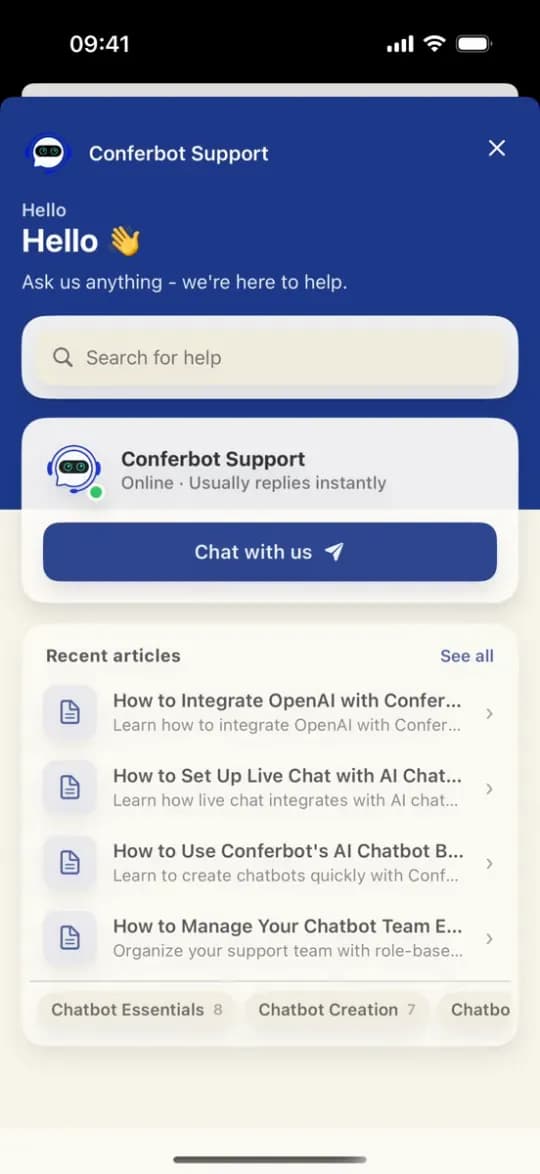 Chat open on the home screen
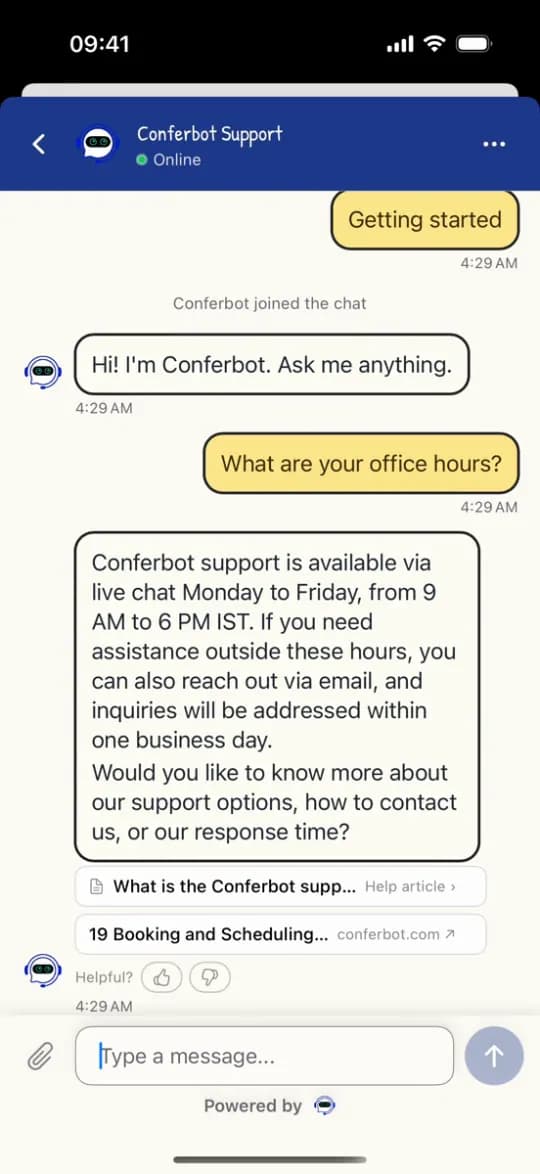 AI answer with sources
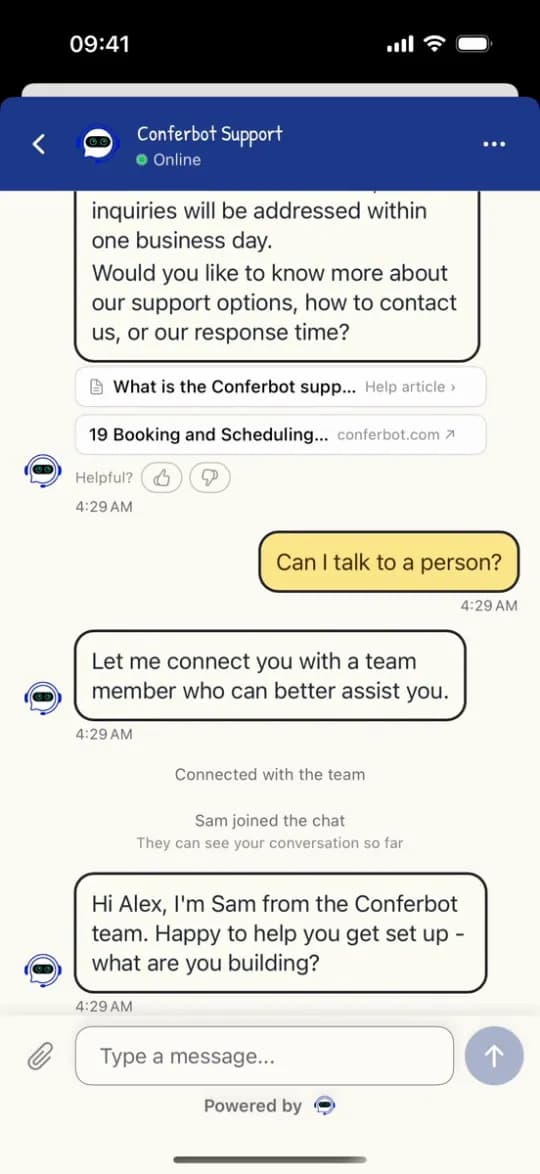 Handover to a person
iOS Chatbot Features
Everything you need to build powerful automated conversations
SwiftUI launcher and chat
.conferBotWidget() adds the web widget's floating launcher; ChatView opens the chat from any screen.
UIKit ChatViewController
On iOS 15+ ChatViewController hosts the same chat as SwiftUI, so UIKit apps get every feature.
All 82 flow step types
Questions, choices, conditions, loops, AI routing, knowledge-base answers, OTP, consent, payment and more run as they do in the web widget.
AI agent replies
Formatted AI answers with their sources, starter and follow-up questions, and Helpful? feedback under each answer.
Live chat handover
The handover to your team with the queue and wait time, leave a message, the agent's live replies and the post-chat rating.
Home screen, help centre and Your requests
The web widget's home screen, help articles inside the app and the visitor's own conversations with your team.
Your theme, fonts and sounds
Your dashboard's colours, launcher, greeting card, font and sounds, read when the chat starts.
Five languages
The SDK's own words in English, Dutch, French, German or Spanish, chosen from your settings or the phone's language.
Opt-in APNs push
No push or Firebase library: pass your APNs token, and a tapped notification opens its conversation.
What Can You Build?
Get Started in 7 Simple Steps
Follow this guide to connect your iOS chatbot
Add the package with Swift Package Manager (https://github.com/conferbot/conferbot-ios, from 2.0.0) or CocoaPods (pod 'Conferbot', '~> 2.0')
Add import Conferbot to your Swift file
Call ConferBot.shared.initialize(apiKey:botId:) at launch
SwiftUI: add .conferBotWidget() to your root view
UIKit: call ConferBot.shared.present(from: self)
Optional: pass your APNs token for push notifications
Your iOS chatbot is ready!
Introduction
iOS users expect apps to feel native. They notice when an interface does not follow the Human Interface Guidelines, when dark mode is missing, or when a support screen is really a web page in disguise. A chatbot that looks and behaves like the rest of your app is the baseline for users trusting it.
The Conferbot iOS SDK adds your Conferbot chatbot, live chat and help centre to a native iOS app. Version 2.0.0 brings the SDK to parity with the Conferbot web widget: the same flows, the same AI agent, the same handover to your team, the same launcher and the same dashboard settings. It works with SwiftUI and UIKit, ships a floating chat bubble that you add with one view modifier, and exposes its state as an ObservableObject when you want to build your own UI. It supports iOS 13 and later with Swift 5.7+; the SwiftUI chat, launcher, home screen and help centre need iOS 15.
Behind the native interface, the SDK connects to the same no-code chatbot builder, AI engine, and live chat system that powers all Conferbot channels. Build your conversational flows once, and the iOS SDK runs them natively. This guide covers installation, what is new in 2.0.0, SwiftUI and UIKit integration, App Clips, privacy, Siri Shortcuts, push notifications and best practices for 2026.
New to chatbot building? Start with our complete guide to building a chatbot without coding. The same chatbot works on Android, your website, WhatsApp, and Messenger. Browse our template library for pre-built in-app chatbot flows. For cross-platform alternatives, see the Flutter SDK and React Native SDK guides.
Source code & documentation: conferbot-ios on GitHub | Swift Package Manager from 2.0.0 and CocoaPods | Developer Portal Guide | Human Interface Guidelines
Installation Guide
The Conferbot iOS SDK installs with Swift Package Manager or CocoaPods. The module is Conferbot and it pulls in socket.io-client-swift 16.x for you. It adds no push or Firebase library.
Requirements
| Minimum | |
|---|---|
| iOS, Swift Package Manager | 13.0 |
| iOS, CocoaPods | 14.0 |
| SwiftUI chat, launcher, home screen, help centre | 15.0 (on iOS 13 and 14, the UIKit ChatViewController shows a simpler chat) |
| Swift | 5.7 |
| Xcode | 14 or later |
Option A: Swift Package Manager (Recommended)
- In Xcode, go to File > Add Package Dependencies...
- Enter the repository URL:
https://github.com/Conferbot/conferbot-ios - Choose "Up to Next Major Version" from
2.0.0 - Add the
Conferbotlibrary to your app target
In a Package.swift: .package(url: "https://github.com/Conferbot/conferbot-ios", from: "2.0.0"), then depend on .product(name: "Conferbot", package: "conferbot-ios").
Option B: CocoaPods
Add to your Podfile (platform :ios, '14.0' and use_frameworks!):
pod 'Conferbot', '~> 2.0'
Then run pod install. The pod is listed on cocoapods.org. Use 2.0.0 or later: the old 1.0.0 tag does not compile.
Step 2: Initialize the SDK
The SDK is a singleton, ConferBot.shared (the module is Conferbot, the class is ConferBot with a capital B). Initialize it once at launch, in your App struct's init or your AppDelegate. It connects, loads your bot's dashboard settings and restores the visitor's last conversation when it is still valid. The bot ID is what identifies your bot; the apiKey is a placeholder for now, and any non-empty value works (the dashboard snippet uses conf_test_key):
import Conferbot
ConferBot.shared.initialize(apiKey: "conf_test_key", botId: "YOUR_BOT_ID")
Find your bot ID in the dashboard: open the bot, go to the Share tab and pick iOS under Mobile apps. The snippet there has your bot ID filled in. Publish the bot first: draft flows are not served to the SDK. No account yet? The public demo bot ID 691c970890527a0468f9b2c9 works without one.
Step 3: Add the Chat UI
Floating chat bubble (recommended, same as the web widget):
MyAppContent().conferBotWidget()
SwiftUI: use the built-in ChatView in a sheet or any container (it starts the conversation itself):
.sheet(isPresented: $showChat) { ChatView() }
UIKit: one line opens the chat full screen, in its own navigation controller:
ConferBot.shared.present(from: self)
Step 4: Push Notifications (Optional)
- Turn on the Push Notifications capability for your app target
- Register for remote notifications and pass the device token to the SDK:
ConferBot.shared.setPushToken(deviceToken) - Forward notifications with
ConferBot.shared.handlePushNotification(userInfo). It returns true only for a Conferbot push of this bot, and a tap opens its conversation
Push support is built into the SDK; your app passes its APNs token. Delivery is switched on per Conferbot deployment, so check with Conferbot before you rely on it. For a full walkthrough, see the iOS SDK guide on the developer portal and the README on GitHub.
What's New in iOS SDK 2.0.0
Version 2.0.0 (October 2026) is the release where the iOS SDK behaves like the Conferbot web widget, from the launcher to the AI agent, the handover and the help centre. The SDK's parity document tracks each feature with its issue, files and tests.
- Every flow step: the flow engine runs the shared flow-node spec used by the web widget (82 step types) and passes all 156 of its shared test cases. Steps that wait for the visitor have native SwiftUI views: consent, OTP, address, signature, matrix, ranking, slider, date and time, calendar with booked slots greyed out, payment and cards. Loops and sub-flows run as on the web. GPT, AI and integration steps run on Conferbot's server, so the app holds no AI key.
- AI agent: formatted replies (tables, headings, quotes, code), sources and article cards, question chips, "Helpful?" with reasons, a notice when a reply takes longer than 45 seconds, and the inactivity close ("Chat paused").
- Live handover lifecycle: "Connecting you with the team…" and how the wait ended, the wait card with the estimate and a max-wait countdown, Cancel to leave the queue (
leaveQueue), transfers, a live chat picked back up after a restart, the post-chat survey, Start a new chat, and the web widget's handover signals throughonWidgetSignal. - While you wait: help articles 6 seconds into a wait, the server's suggested article with "That solved it", and seven small games.
- Home screen: greeting, "Ask anything", "Talk to us" with the team's reply time, recent articles and customer logos, when the owner turns it on.
- Help centre and Your requests: the help centre follows the dashboard setting, and AI answers that cite an article open it in the app. "Your requests" lets visitors follow and answer their conversations with your team.
- Launcher as on the web: shapes and styles, all 56 icons and their motion, 12 entrance effects, 8 attention modes, idle calls, 27 mascots, and the greeting card in 11 styles with its rules and frequency.
- Your look: 27 widget themes with light, dark and auto, the dashboard's colours, chat backgrounds and corners, the owner's Google font, and the owner's sounds with Sound on / off in the chat menu.
- Human touches: the bot's tapback on an answer, confetti, "No rush" nudges and "Edit" on the latest answer.
- Languages: the SDK's own words in English, Dutch, French, German or Spanish, chosen the way the web widget chooses.
- After the chat: the post-chat redirect with a 10-second countdown and Cancel, the rating at the end of a flow, and "Email me this chat".
- Signed-in users: identity verification with a hash made on your server, and a clean sign-out with
identify(user: nil)for shared devices. - Offline and reconnect: messages are queued while offline or while the socket reconnects, and sent when the connection is back.
- Push notifications:
setPushToken,unregisterPush()andhandlePushNotification(_:open:), with no push library inside the SDK. - UIKit gets the full chat: on iOS 15 and later,
ChatViewControllerhosts the SwiftUI chat, so UIKit apps get the home screen, help centre, step cards, wait cards and games too.
Upgrading from 1.0.0? The CHANGELOG lists the breaking changes: the SwiftUI views need iOS 15, registerPushToken is deprecated in favour of setPushToken, custom UIs answer steps with answerStep(_:forNodeId:), and the old SwiftUI node views were replaced by the chat's own step views.
Key SDK Features
The Conferbot iOS SDK follows your bot and your dashboard. Most of what it does needs no code.
Floating Chat Bubble (FAB)
Attach .conferBotWidget() to any SwiftUI view (or wrap content in ConferBotWidgetOverlay) and you get the same bottom-corner launcher as the Conferbot web widget, with no styling code: the button, the greeting card, the unread badge, and the chat in a sheet. Its shape, colour, icon, position, motion, mascot and greeting all come from your dashboard, so changing them once updates web and iOS together. There is no UIKit version of the launcher; UIKit apps open the chat from their own button, or host .conferBotWidget() in a UIHostingController.
SwiftUI Native Views
ChatView is the drop-in chat screen. Its Help tab follows the owner's help centre setting, and ChatView(enableKnowledgeBase: false) hides it. KnowledgeBaseView is the help centre on its own, HomeScreenView the home screen, and RequestsPortalView the visitor's "Your requests". MessageBubble is available for custom layouts. ChatView starts the conversation itself on first appearance, so it works in a sheet, a navigation destination or any container.
UIKit Compatibility
ConferBot.shared.present(from: viewController) opens the chat full screen in its own navigation controller, and you can push ChatViewController() yourself. On iOS 15 and later, ChatViewController hosts the same chat as SwiftUI, so a UIKit app gets every feature. The chat draws the bot's own header, so your navigation bar is hidden while it is on screen and put back when it goes. On iOS 13 and 14 it shows a simpler UIKit-drawn chat (plain bubbles and the composer; no step cards, home screen, help centre or requests).
Observable State and Delegate Callbacks
ConferBot.shared is an ObservableObject: observe published properties such as messages, isConnected, isOnline, unreadCount, currentAgent, isAgentTyping, isLiveChatMode, queuedMessageCount, currentUIState and widgetLanguage from SwiftUI or Combine. For imperative code, implement ConferBotDelegate: callbacks cover messages, agent joined and left, session started and ended, unread count, connection status, and optional flow, goal, queue and network events. Core operations use Swift concurrency: try await ConferBot.shared.startSession() and try await ConferBot.shared.sendMessage("Hello").
Apple Human Interface Guidelines
The chat is built from standard SwiftUI and UIKit, respects safe areas, uses sheets and gesture dismissal the way iOS users expect, and keeps Dynamic Type when it draws the owner's font. Launcher motion is turned off when the user has Reduce Motion on. Follow the HIG in any custom UI you build on top.
Dark Mode and Themes
The dashboard's 27 widget themes come with light, dark and auto modes; auto follows the phone's appearance. The owner picks the theme in the dashboard and the app follows it with no code.
Node Flow Engine
The SDK runs every step type the flow builder offers, checked against the same 156 shared test cases as the web widget. Text questions are answered in the composer, answered choices stay in the transcript with the selection highlighted, and steps that need more (OTP, signature, payment, calendar and others) get their own native card. Flow content comes from the server, so flow-builder changes appear without an app update.
Live Agent Handover
The handover runs without code when a flow step or the AI agent hands over. From your own code, ConferBot.shared.initiateHandover(message:) asks for a person and leaveQueue leaves the queue. The visitor sees "Connecting you with the team…", the wait card with the estimate, help articles and games while they wait, the agent's replies live, and the post-chat rating when it ends. onWidgetSignal gives you the web widget's waiting, human-joined and wait-over signals.
Push Notifications via APNs
Push support is built in: your app passes its APNs device token with setPushToken(_:), and the SDK registers it with the current conversation and again for each new one. Forward notifications to handlePushNotification(_:): a tap opens its conversation, and one that arrives in the foreground is counted as unread. It returns false for anything that is not a Conferbot push of this bot. Delivery is enabled per Conferbot deployment.
Offline Support and Session Persistence
Messages sent while offline, or while the socket is reconnecting, are queued and sent when the connection is back (enableOfflineMode, on by default). Observe isOnline and queuedMessageCount to show the state. Conversations persist across launches and are restored while still valid; tune the window with configureSessionStorage(expiryMinutes:) and forget it with clearStoredSession().
Knowledge Base
The help centre shows while Help articles is on in the dashboard and at least one article is published. AI answers that cite an article open it in the app, and openHelpArticle(id:) opens one from your own screens. For custom UIs, async APIs cover categories, articles, search, article detail and ratings.
Headless Custom UIs
Use the SDK as the engine and draw everything yourself: observe ConferBot.shared or set its delegate, start the conversation with try await startSession(), and render messages. A waiting flow step is currentUIState; read its type and data with waitingStep(_:) and answer it with answerStep(_:forNodeId:) and a FlowStepAnswer.
App Store Review Guidelines
A chat SDK does not change how App Review treats your app, but a few guidelines are worth checking before you submit:
- Guideline 4.0 (Design) - Keep any custom chat UI consistent with the Human Interface Guidelines
- Guideline 2.5.1 (Software Requirements) - The SDK is open source, so you can check what it uses; it builds on public Apple frameworks and socket.io-client-swift
- Guideline 5.1.1 (Privacy) - Declare the chat's data (messages, and the push token if you turn push on) in your app's privacy nutrition label
- Guideline 4.2 (Minimum Functionality) - The chatbot should support your app's main purpose, not be its only feature
- Guideline 2.1 (App Completeness) - Publish the bot and make sure it answers during review; an unpublished bot serves no flow
If your app is in a regulated category (health, finance), check that your chatbot flows meet that category's guidelines too.
APNs Push Notification Configuration
In your app: (1) turn on the Push Notifications capability in Signing & Capabilities, (2) request notification permission and register for remote notifications, (3) pass the token in didRegisterForRemoteNotificationsWithDeviceToken with ConferBot.shared.setPushToken(deviceToken) (or setPushToken(fcmToken, type: .fcm) if you use Firebase Messaging), and (4) forward taps and foreground notifications to handlePushNotification. In a SwiftUI app, attach the AppDelegate with @UIApplicationDelegateAdaptor. unregisterPush() stops this device's pushes. Sending from Conferbot's side is enabled per deployment; ask Conferbot about push for your own bundle ID before you depend on it.
SwiftUI Chatbot Integration
SwiftUI is Apple's declarative UI framework, and the Conferbot SDK's chat, launcher, home screen and help centre are SwiftUI views (iOS 15 and later). Its state is published, its calls are async, and everything composes with Combine.

Observing State with SwiftUI
ConferBot.shared is an ObservableObject, so SwiftUI integration is direct, with no wrapper models:
- @ObservedObject -
@ObservedObject private var bot = ConferBot.sharedgives your views reactive access tobot.messages,bot.isConnected,bot.unreadCount,bot.currentAgentand more - Published properties - include
isConnected,isOnline,isAgentTyping,isLiveChatMode,currentSession,messages,currentAgent,unreadCount,queuedMessageCount,currentUIState,serverCustomizations,customizationsandwidgetLanguage - Sub-objects -
ConferBot.shared.requests(the visitor's requests and unread replies),ConferBot.shared.home(the chat's view) andConferBot.shared.sounds(Sound on / off) are observable too - Combine - because these are @Published, they compose with
.onReceive,sinkand any pipeline you already have
Async/Await API
Core operations use Swift concurrency:
try await ConferBot.shared.startSession()- Start (or reuse the restored) conversation;startSession(forceNew: true)starts a fresh onetry await ConferBot.shared.sendMessage("Hello")- Send as the visitor (queued while offline)try await ConferBot.shared.fetchKnowledgeBaseCategories()/searchKnowledgeBaseArticles(query:)- Async help centre reads
Floating Widget in SwiftUI
The .conferBotWidget() view modifier overlays the floating launcher on any view, typically your root NavigationView or TabView, exactly like the web widget's launcher. ConferBotWidgetOverlay { MyAppContent() } is the same overlay as a container view. The launcher's colour, icon, shape, motion, mascot, greeting card and unread badge are driven by your dashboard settings with no client code.
NavigationStack and TabView Integration
Embed the chat view in your app's navigation hierarchy:
- NavigationStack - Use
NavigationLinkor.navigationDestinationto pushChatView()as a screen - TabView - Add ChatView as a tab with a badge:
.badge(bot.unreadCount) - .sheet / .fullScreenCover - Present the chat modally; ChatView starts the conversation itself on first appearance
- .conferBotWidget() - The floating launcher as a persistent overlay across all screens
- RequestsPortalView() - Overlay it on a screen with your own "Your requests" button, opened with
ConferBot.shared.requests.open()
Headless Flow Engine (Fully Custom UIs)
For a completely custom chat surface, observe the published properties (or set ConferBot.shared.delegate) and render everything yourself. A step that waits for the visitor is currentUIState; read its type and data with waitingStep(_:) and answer it with ConferBot.shared.answerStep(FlowStepAnswer.value(4), forNodeId: nodeId), using the FlowStepAnswer case for that step. initiateHandover(message:) asks for a person from your own button, and the exported MessageBubble view can be reused in custom layouts.
iOS App Clips with Chatbot
App Clips are small parts of your app that users can open without installing it, from QR codes, NFC tags, Safari banners or Messages links. A chat in an App Clip can give instant help at a physical touchpoint.
App Clip Chatbot Use Cases
- Restaurant ordering - A table QR code opens an App Clip with a bot that answers menu questions and takes requests
- Hotel concierge - An NFC tag in the room opens a bot for room service, housekeeping and local recommendations
- Retail support - A product QR code opens a bot for size guides, compatibility questions and warranty registration
- Event help desk - A badge or poster opens a bot for schedules, speakers and venue directions
- Service booking - A shared link opens a bot that books an appointment with the calendar step
Technical Integration
The SDK has no App Clip specific code. It is a regular Swift package, so you add it to an App Clip target the same way as to your app:
- Add an App Clip target to your Xcode project (File > New > Target > App Clip)
- Add the
Conferbotpackage product to the App Clip target as well - Initialize
ConferBot.sharedin the App Clip's entry point with the same bot ID as your main app - Use
ChatView()as the App Clip's main screen, or.conferBotWidget()over light content
App Clip Size Constraints
App Clips have a size limit set by Apple. The SDK's main dependency is socket.io-client-swift, and it bundles the widget's words for five languages as a resource. Build your App Clip with the SDK and check its size in Xcode's size report against Apple's current limit for your invocation types before you plan around it.
Context Transfer to Full App
Conversations live on Conferbot's server, so the team sees the full history either way. To link the App Clip and the full app to the same person, call ConferBot.shared.identify(user:) with the same user ID in both, ideally with the identity verification hash from your server. "Your requests" then lists every verified conversation of that signed-in user. The SDK's local session store belongs to each app container, so the stored conversation itself does not move across.
App Clip Invocation URLs
Configure your App Clip experience in App Store Connect with invocation URLs that carry context, for example https://yourapp.com/chat?location=lobby&topic=checkin. Parse the parameters in your App Clip and pass them as user metadata through identify(user:), so the flow and your team can see where the visitor started.
For businesses with physical locations, an App Clip chat can answer routine questions at every touchpoint without an app download. Explore hospitality chatbot solutions and retail chatbot solutions for industry-specific flows.
iOS Privacy, ATT & Chatbot Data Collection
iOS apps must handle App Tracking Transparency (ATT), privacy nutrition labels, privacy manifests and data minimisation. Here is what the Conferbot SDK does, so you can declare it accurately.

App Tracking Transparency (ATT)
The Conferbot SDK does not use the IDFA (Identifier for Advertisers) or the AppTrackingTransparency framework, so it does not need ATT permission. If your app asks for ATT for other reasons, the chat works the same whatever the user chooses.
Privacy Nutrition Labels
When completing the App Store privacy nutrition label, the chat's data typically maps to these categories. Check them against how you use the SDK:
| Data Type | Collection | Linked to Identity | Used for Tracking | Purpose |
|---|---|---|---|---|
| User Content (chat messages, answers, files the visitor sends) | Yes | If you call identify(user:) or the visitor gives a name or email | No | App Functionality |
| Identifiers (an anonymous visitor ID, your user ID if you pass one, the push token) | Yes (push token only if you turn push on) | Your user ID: yes | No | App Functionality |
| Usage Data (chat interactions, goals you track) | Yes | No | No | Analytics |
The SDK also sends the phone's preferred language with the conversation, so the AI can answer in it. It does not read location, contacts or browsing history. Photos, documents and voice are only sent when the visitor picks or records them in a step that asks for them.
Privacy Manifest (PrivacyInfo.xcprivacy)
Apple requires privacy manifest declarations for the data your app and its SDKs handle. The Conferbot SDK 2.0.0 does not ship a privacy manifest of its own, so declare its data in your app's manifest:
- NSPrivacyAccessedAPITypes - The SDK stores its session and settings in UserDefaults, so declare the UserDefaults API category with the reason for your app's own data
- NSPrivacyCollectedDataTypes - Match the nutrition label declarations above
- NSPrivacyTracking -
falsefor the SDK, which does not track users across apps or websites
Data Minimization
- Chat messages go to Conferbot's servers for processing; on the device the SDK keeps the stored conversation, queued messages and a few settings (such as Sound on / off) in the app's sandbox, and the owner's font in Caches
- Card numbers, ids and passwords a visitor types are masked in answers and records unless the bot's redaction setting is off
- Stored conversations expire (
configureSessionStorage(expiryMinutes:)), after which they are no longer restored ConferBot.shared.clearHistory()andclearStoredSession()remove locally stored chat data on demand
GDPR and CCPA Compliance
For apps serving EU (GDPR) or California (CCPA) users:
- Data deletion -
clearHistory()plusclearStoredSession()remove local chat data;identify(user: nil)signs a user out and drops their requests from the device. Server-side deletion is available through Conferbot - Data export - Conversation history is available in the Conferbot dashboard
- Consent management - The SDK does nothing until you call
ConferBot.shared.initialize(), so you can put initialization behind a consent dialog - Data processing agreement - See our data security guide and contact Conferbot for a DPA
Because the SDK uses no IDFA and does no cross-app tracking, the tracking parts of App Review's privacy checks are simple for the chat.
Siri Shortcuts + Chatbot Integration
The Conferbot SDK has no built-in Siri or App Intents support: it ships no intent definitions and does not use the Intents frameworks. Because the SDK's API is plain Swift, your own App Intents can call it, so a Siri phrase or a Shortcut can open the chat or send a message.
Shortcut Actions You Can Build
Ideas for your own App Intents using the SDK's public API:
- "Open Chat" - An intent that opens your app and shows
ChatView, or callsConferBot.shared.present(from:) - "Ask a Question" - An intent that calls
try await startSession()andtry await sendMessage(text), then opens the chat so the visitor sees the answer - "Check Last Message" - An intent that reads the latest item of
ConferBot.shared.messages - "Unread Count" - An intent that reports
getUnreadCount(), so users can ask whether support replied
Integration Steps
- Define App Intents - Create
AppIntenttypes in your app target that call the SDK (startSession,sendMessage) or navigate to your chat screen - Expose them - Add an
AppShortcutsProviderwith phrases, so the intents appear in Siri, Spotlight and the Shortcuts app - Initialize first - Make sure
ConferBot.shared.initializehas run before an intent calls the SDK - Test end to end - Siri runs your intent code, not the SDK; test each phrase on a device
Shortcuts App Integration
Once your intents are exposed, users can combine them with other actions in the Shortcuts app, for example "When I arrive at work, open the IT support chat" or "When I open the app, check for unread chat messages".
Voice-First Design Considerations
- Keep bot replies short if you plan to read them aloud
- Rich steps (buttons, forms, cards) need the screen, so open the chat for them
- Use the bot's conditional logic with user metadata you pass in to adapt a flow to where the visitor came from
Voice entry points can help in healthcare, e-commerce and hospitality apps. They are your app's code built on the SDK, not an SDK feature.
Customization and Theming
In 2.0.0 the rule is simple: the dashboard first, code as a fallback. Almost everything is set in the dashboard (Customize) and applied with no code. Once the bot's settings arrive, they win.
Server Customizations (Automatic)
When the SDK connects, it loads the same settings the web widget uses and draws the chat from them: the theme (27 themes, light / dark / auto), colours, chat background, bot name and avatar, bubble and option corners, the launcher's shape, icon, motion and greeting card, the mascot, the home screen, sounds, font, language and the post-chat redirect. The launcher is styled from the dashboard only.
ConferBotCustomization (Local Fallback)
A local ConferBotCustomization passed to initialize styles the chat until the bot's settings arrive:
- primaryColor - Accent colour
- botBubbleColor / userBubbleColor - Bubble colours
- fontFamily - Font used until, or instead of, the owner's font
- bubbleCornerRadius - Bubble corner radius
- headerTitle - Chat header title
- showAvatar / avatarURL - Bot avatar
- hideBrand - Hide the footer branding
Precedence, Precisely
The dashboard's values win over ConferBotCustomization once they arrive. Code is for the defaults before that, and for what only the app knows: ConferBotConfig sets widgetLanguage ("en", "nl", "fr", "de", "es" or "auto", which wins over the owner's choice), enableOfflineMode, and onPostChatRedirect or disablePostChatRedirect to handle or turn off the post-chat redirect.
Languages, Fonts and Sounds
- Languages - The SDK's own words (buttons, hints, errors, handover lines, the help centre, dates) are in English, Dutch, French, German or Spanish, with the web widget's wording. What the owner wrote is shown as written
- Fonts - The owner's Google font is fetched at run time and cached, with Dynamic Type kept; until it loads, the system font is used
- Sounds - The owner's message sound and sound pack play under the ambient audio session, so the silent switch mutes them; the chat menu has Sound on / off
Delegate Callbacks
Implement the ConferBotDelegate protocol for event handling:
- didReceiveMessage - A bot or agent message arrived
- agentDidJoin / agentDidLeave - Live agent lifecycle
- didStartSession / didEndSession - Session lifecycle
- didUpdateUnreadCount / didChangeConnectionStatus - Badge and connectivity updates
- didUpdateUIState / didCompleteFlow / didReachGoal / didUpdateQueuedMessageCount / didChangeNetworkStatus - Optional callbacks with default empty implementations
For SwiftUI, the same state is available as @Published properties on ConferBot.shared, and onWidgetSignal gives the handover signals.
In-App Chatbot Use Cases
Keeping iOS users supported inside your app avoids sending them to email or a website at the moment they need help.
Premium Customer Support
An in-app chatbot gives instant, branded support without leaving the app. The bot or the AI agent handles routine questions and hands complex issues to live agents, with the queue, wait estimate and help articles shown while the visitor waits.
Subscription Management
Help users understand plans, troubleshoot payment issues and handle cancellation requests. Pass the signed-in user with identify(user:) so your team sees who they are talking to, and use "Your requests" so users can follow up on their conversations.
Concierge and Personalization
Travel apps and premium services use the chatbot as a digital concierge: recommendations, preferences and bookings, greeting users by name with the {{first_name|there}} placeholder. Explore hospitality chatbot solutions.
Health and Wellness
Appointment scheduling with the calendar step, intake questions and reminders. Healthcare apps must balance helpful automation with medical accuracy and privacy rules; let the chatbot handle administrative tasks and route clinical questions to qualified people.
Educational Assistance
Course navigation, study material recommendations, deadline questions and quizzes. Education apps can answer from their help centre articles through the AI agent.
In-App Commerce
Product questions, order tracking, returns and promotions. For iOS e-commerce apps, product and carousel steps let the chatbot show items inside the conversation.
Getting Started
The Conferbot iOS SDK brings your AI chatbot and live chat to your iOS app with a native experience. Here is your integration path.
Quick Start
- Design your chatbot in the Conferbot visual builder and publish it. The same bot powers your app, website and messaging channels
- Add the SDK with Swift Package Manager (
https://github.com/Conferbot/conferbot-ios, from 2.0.0) or CocoaPods (pod 'Conferbot', '~> 2.0') - Initialize -
ConferBot.shared.initialize(apiKey: "conf_test_key", botId: "YOUR_BOT_ID")in your App struct or AppDelegate. The bot ID identifies your bot; any non-empty apiKey works - Add the chat UI -
.conferBotWidget()for the floating launcher,ChatView()(SwiftUI), orConferBot.shared.present(from:)(UIKit) - Customize in the dashboard - Theme, launcher, greeting, home screen, font, sounds and language all come from the dashboard
- Sign users in - Call
identify(user:)with a hash made on your server if you turn on identity verification - Test accessibility - Check VoiceOver, text sizes and dark mode in your app
- Add push notifications if you want agent replies to reach users in the background
No account yet? The public demo bot ID 691c970890527a0468f9b2c9 works without a Conferbot account, and the example app in the repo can run against it. For the complete walkthrough, follow the README on GitHub or the iOS SDK guide on the developer portal.
Accessibility Checklist
Apple users rely on accessibility features. The SDK uses standard controls, but verify these items in your app before App Store submission:
- VoiceOver navigates through all chat elements correctly
- Dynamic Type scales text to all sizes, including accessibility sizes
- Dark mode renders all elements with proper contrast
- Reduce Motion turns off the launcher's motion
- The chat works in landscape orientation on iPad
- Keyboard avoidance works on all screen sizes
Conferbot iOS SDK vs Intercom vs Zendesk
Choosing an in-app chat SDK for iOS involves more than a feature list. Here is how Conferbot's iOS SDK is set up compared with the two best-known alternatives. Check each vendor's current documentation and pricing for their side.
| Criteria | Conferbot iOS SDK | Intercom iOS SDK | Zendesk iOS SDK |
|---|---|---|---|
| SwiftUI Support | SwiftUI views and a launcher modifier; UIKit hosts the same chat | See vendor docs | See vendor docs |
| No-Code Bot Builder | Visual flow builder with 82 step types, plus AI agents | Workflow builder | Flow builder |
| AI Capabilities | AI agent with sources from your help centre, included | Fin AI, priced separately | AI agents, priced separately |
| Minimum iOS Version | iOS 13 (SPM) / 14 (CocoaPods); SwiftUI chat iOS 15 | See vendor docs | See vendor docs |
| Server-Driven Theming | 27 themes, launcher, greeting, fonts and sounds from the dashboard | Messenger settings | Widget settings |
| Languages | SDK words in English, Dutch, French, German, Spanish | See vendor docs | See vendor docs |
| Offline Message Queue | Built in, sent on reconnect | See vendor docs | See vendor docs |
| Source Code | Open source (Apache 2.0) on GitHub | Closed source | Closed source |
| Omnichannel Deployment | Website, WhatsApp, Messenger, Instagram, Telegram, Slack and more, plus Android, Flutter and React Native SDKs | Website, mobile, several channels | Website, mobile, email and more |
| Pricing | Mobile SDK on every plan, including Free | Per seat | Per agent |
| Calendar Booking | Built-in calendar step | Via integrations | Via integrations |
| Custom UIs | Headless ObservableObject, delegate and step-answer API | See vendor docs | See vendor docs |
Conferbot's strength is a powerful AI chatbot builder together with an open-source, fully native iOS SDK that follows your dashboard. If you want to deploy the same chatbot across iOS, Android, your website and messaging channels like WhatsApp and Messenger, all from one visual builder, Conferbot covers it on flat workspace pricing. See pricing details for a full plan comparison.
Omnichannel Integration
Your iOS chatbot is part of Conferbot's omnichannel platform. The same bot powers your Android app, website, WhatsApp and other channels. Build the conversational logic once and every conversation lands in the same team inbox.
Why Conferbot iOS SDK
- Web widget parity - The same flows, AI agent, handover, launcher and help centre as the web widget
- SwiftUI and UIKit - SwiftUI views, and a UIKit controller that hosts the same chat
- Floating launcher - One-line
.conferBotWidget()overlay, styled from your dashboard - Themes and dark mode - 27 widget themes with light, dark and auto
- Five languages - The SDK's words in English, Dutch, French, German and Spanish
- Privacy first - No IDFA, no tracking, sensitive answers masked
- APNs push - Built in, opt-in, with no push library inside the SDK
- Offline support - Messages queued and sent on reconnect, conversations kept across launches
- AI-powered - AI knowledge base and OpenAI for intelligent in-app support
- Omnichannel - Same bot on Android, website, WhatsApp and more
- Analytics - Track in-app engagement with built-in analytics
The iOS SDK is included on every plan, including Free. View pricing for details, or start building your chatbot flows today with the visual builder and add iOS integration when your app is ready. See how Conferbot compares to other chatbot platforms for mobile SDK capabilities.
SwiftUI vs UIKit: Which to Use
Choosing between SwiftUI and UIKit for your Conferbot integration depends on your app's architecture and minimum deployment target. On iOS 15 and later both get the same chat, because the UIKit controller hosts the SwiftUI one.
Comparison Table
| Criteria | SwiftUI (ChatView) | UIKit (present(from:) / ChatViewController) |
|---|---|---|
| Minimum iOS Version | iOS 15+ | iOS 13+ (the full chat on iOS 15+; a simpler UIKit chat on 13 and 14) |
| Integration Approach | SwiftUI view in NavigationStack, TabView or a sheet | One line: ConferBot.shared.present(from: self), or push ChatViewController() |
| Floating Bubble (FAB) | .conferBotWidget() modifier or ConferBotWidgetOverlay | No UIKit launcher: open the chat from your own button, or host .conferBotWidget() in a UIHostingController |
| Customization Model | Dashboard settings, ConferBotCustomization as fallback | The same |
| Dark Mode | Dashboard theme with light, dark or auto | The same on iOS 15+ |
| Knowledge Base | ChatView's Help tab or KnowledgeBaseView | Included in the chat on iOS 15+ |
| Your requests | RequestsPortalView | RequestsViewController (iOS 15+) |
| State Management | @ObservedObject on ConferBot.shared, Combine | ConferBotDelegate callbacks |
| Navigation | NavigationStack, NavigationLink, sheets | The chat draws its own header; your navigation bar is hidden while it shows and restored after |
| Session Start | ChatView starts the conversation on first appearance | Handled for you |
Migration Path: UIKit to SwiftUI
If your app is moving from UIKit to SwiftUI step by step, start with ConferBot.shared.present(from:) in your UIKit screens. As you move screens over, switch to ChatView in sheets or navigation destinations, and add .conferBotWidget() to your SwiftUI root for the floating launcher. Both use the same ConferBot.shared engine and share the conversation, so switching UI layers does not affect ongoing chats.
Recommendation by Project Type
New projects: Use SwiftUI with .conferBotWidget() or ChatView. Existing UIKit projects: Use ConferBot.shared.present(from:) for a one-line integration; on iOS 15+ it is the full chat. Apps that still support iOS 13 or 14: Use ChatViewController or present(from:), and wrap SwiftUI views in if #available(iOS 15.0, *).
For detailed integration examples, see the iOS SDK repository on GitHub and the developer portal guide. Browse our template library for chatbot flows designed for mobile in-app experiences.
App Store Optimization with In-App Chat
In-app chat can help your App Store presence, as long as the integration passes review. This section covers the relevant guidelines, common rejection reasons and how chat can support your listing.
Apple Review Guidelines for Chat SDKs
- Guideline 4.0 (Design) - Follow the Human Interface Guidelines. The SDK's chat uses standard SwiftUI and UIKit patterns; keep any custom UI consistent with them
- Guideline 2.5.1 (Software Requirements) - Only public APIs are permitted. The SDK is open source, built on Apple's public frameworks and the open-source socket.io-client-swift
- Guideline 5.1.1 (Data Collection and Storage) - Disclose the chat's data in your privacy nutrition label: user content (messages, answers, files), identifiers (the visitor ID, your user ID, the push token if push is on) and usage data
- Guideline 4.2 (Minimum Functionality) - The chatbot should support your app's main purpose; Apple rejects apps whose only content is a chatbot wrapper
- Guideline 2.1 (App Completeness) - Make sure the bot is published and answers during review. Reviewers will try it
Common Rejection Reasons and How to Avoid Them
| Rejection Reason | Guideline | How to Avoid |
|---|---|---|
| Chatbot returns errors during review | 2.1 | Publish the bot and test its flows before submission |
| Privacy label does not include chat data | 5.1.1 | Add "User Content" and "Identifiers" categories to your privacy nutrition label |
| Chat UI does not match iOS design patterns | 4.0 | Use the SDK's chat, or follow the HIG when you build your own |
| Missing privacy manifest (PrivacyInfo.xcprivacy) | 5.1.1 | The SDK 2.0.0 ships no manifest of its own; declare its UserDefaults use and collected data in your app's manifest |
| Push notifications without clear user benefit | 5.6 | Only send notifications for replies the user is waiting for |
App Store Metric Improvements
In-app help gives users a place to solve problems before they turn into a one-star review, and help during onboarding can keep new users going. Measure the effect for your own app rather than assuming it: compare review themes and ratings before and after you add chat. If you offer in-app support, say so in your App Store description, and consider support-related terms in your keywords where they fit your category.
For detailed analytics on how your chatbot is used, use Conferbot's analytics dashboard, with goals you track from the app through trackGoal.
Troubleshooting: the build and runtime errors people actually hit
These are the problems that come up in practice, with the fix for each.
| Symptom or error | Cause | Fix |
|---|---|---|
No such module 'Conferbot' | The package was added to the project but not linked to this target, or resolution failed | Target > General > Frameworks, Libraries, and Embedded Content: add Conferbot. Then File > Packages > Reset Package Caches |
'ChatView' is only available in iOS 15.0 or newer | Deployment target is below 15 | Wrap in if #available(iOS 15.0, *), or use ChatViewController / present(from:), which work from iOS 13 |
Unable to find a specification for `Conferbot` | Local CocoaPods specs are stale | pod repo update, or pin :git => 'https://github.com/Conferbot/conferbot-ios.git', :tag => '2.0.1' |
| CocoaPods says the pod requires a higher minimum deployment target | Podfile platform is below 14.0 | Set platform :ios, '14.0', or switch to Swift Package Manager, which supports 13.0 |
| The 1.0.0 tag fails to compile | Known broken tag | Use 2.0.0 or later |
| Socket.IO build errors after an upgrade | Stale DerivedData or pods | Delete DerivedData; with CocoaPods run pod deintegrate && pod install |
| The chat opens but stays empty | Bot not published, wrong ID, or WebSockets blocked | Publish the flow; check the 24-character ID; test on a network without a VPN; try the demo bot |
| My navigation bar disappears in the chat | The chat draws its own header on iOS 15+ | Expected; style the chat in the dashboard |
| Identity hash rejected | Hashing a different string than the id passed, or an old secret | Hash the exact trimmed id with the current secret, as hex |
For anything else, turn on logging with ConferBotLogger.isEnabled = true and watch the Xcode console while you open the chat. The quickest isolation test is the demo bot: if 691c970890527a0468f9b2c9 loads and yours does not, the problem is your bot's ID or publish state, not your integration.
Once the chat is live, watch the conversations themselves for problems the build never shows: questions the bot cannot answer, flows people abandon, and handovers nobody picks up. The analytics view and the performance monitoring guide cover what to track.
Which chat SDK for iOS? Support chatbots and messaging SDKs are different products
Searches for "the best chat SDK for iOS" mix two different kinds of product, and picking the wrong kind is an expensive mistake. Decide which problem you have first.
Messaging SDKs give your users a way to talk to each other: marketplace buyers and sellers, a dating app, a community, a team tool. Stream and CometChat are well-known examples. Stream's iOS documentation describes a low-level client "including offline storage and optimistic updates" plus UIKit and SwiftUI component libraries, built around channels, threads, reactions and read indicators. CometChat's Swift page describes "1:1, group, and broadcast conversations" with a prebuilt UI Kit. Neither is a chatbot builder: you would still need to build or connect the bot, the flows, the AI and the agent inbox yourself.
Support chat SDKs put your business in the conversation: a bot that answers first, a knowledge base, and a team inbox behind it. Intercom's iOS SDK is an example; its installation docs recommend Swift Package Manager, mark CocoaPods support as deprecated, and require iOS 15 or later. Conferbot's SDK sits in this category, with the bot built in a visual editor and the same bot running on your website and messaging channels.
| Build on an LLM API yourself | Messaging SDK (Stream, CometChat) | Support chatbot SDK (Conferbot) | |
|---|---|---|---|
| Who talks to whom | User and your model | Users with each other | User with your bot, then your team |
| Bot logic and flows | You write it | Not included | Visual flow builder, no app release to change |
| AI answers from your docs | You build retrieval | Not included | Knowledge-base AI on the server |
| Human handover and inbox | You build both | Messaging between users, not a support desk | Built in: queue, wait card, agent inbox |
| Secrets in the app | Risk of shipping an API key | SDK auth tokens | None: AI runs server-side |
| Same bot on web and messaging apps | Separate work per channel | Not the goal | Yes, one bot across channels |
| Best fit | Novel AI features you own end to end | Social, marketplace and community chat | Customer support, onboarding, lead capture |
If you need both, they coexist: a marketplace can run Stream for buyer-seller chat and a support chatbot for "talk to us". For a broader vendor checklist, see the questions to ask a chatbot vendor, and if you are weighing a build, choosing an LLM for your chatbot covers the model side.
Push Notifications with APNs
Push notifications bring users back when an agent or the AI replies while they are not in the chat. Push support is built into the iOS SDK and is opt-in: nothing happens until your app passes its APNs token, and the SDK depends on no push library. Delivery from Conferbot's side is enabled per deployment, so confirm it with Conferbot for your app before you rely on it.
Certificate vs Key-Based Authentication
Apple supports two ways to authenticate push requests. Whoever sends your pushes needs one of them:
| Method | APNs Authentication Key (p8) | APNs Certificate (p12) |
|---|---|---|
| Recommended | Yes (Apple's preferred method) | Legacy - still supported by Apple |
| Expiration | Does not expire | Expires annually |
| Scope | All apps under your team | One certificate per app |
| Environment Support | Sandbox and production | Separate certificates |
| Where to Generate | Apple Developer > Keys | Apple Developer > Certificates |
Per-workspace APNs credentials for your own bundle ID are not self-serve in the Conferbot dashboard yet. Your app's tokens register with the SDK today; talk to Conferbot about enabling delivery for your app.
Token Registration and Payload Routing
In didRegisterForRemoteNotificationsWithDeviceToken, call ConferBot.shared.setPushToken(deviceToken) with the token's Data, or setPushToken(fcmToken, type: .fcm) with Firebase Messaging. The token is registered with the current conversation and again for each new one. In your UNUserNotificationCenterDelegate, call ConferBot.shared.handlePushNotification(userInfo) for a tap, which opens its conversation (also from a cold start), and handlePushNotification(userInfo, open: false) in willPresent, which counts a foreground push as unread instead of taking the screen. Without the floating launcher, set ConferBot.shared.onPushOpen to present your chat.
Coexisting with Your Own Notifications
handlePushNotification returns true only for a Conferbot push of this bot, so routing is explicit: branch on the result and pass everything else to your own handlers. isConferbotPush(_:) and parseConferbotPush(_:) read a payload without side effects. The SDK draws no notifications itself; the system does, one thread per conversation.
Badge and Unread Management
The SDK exposes the unread count through the published unreadCount property, getUnreadCount() and the didUpdateUnreadCount delegate callback, which suits tab bar badges. ConferBot.shared.requests.unread counts unread team replies in "Your requests".
Signing Out and Unregistering
unregisterPush() or setPushToken(nil) stops this device's pushes. identify(user: nil) signs the user out and unregisters the device's token from their conversation, so the next person on a shared device does not get their notifications.
Notification Privacy
For apps handling sensitive information (healthcare, finance), rely on iOS's "Show Previews: When Unlocked" setting for lock-screen privacy, and keep the conversation itself inside the app.
For the complete mobile engagement strategy, see our engagement optimization guide. Compare iOS push with Android FCM and other channels on the platform comparison page.
How Conferbot Compares for iOS
Most platforms charge per message, per seat, or limit channels by tier. Here's how Conferbot is different.
| Feature | Conferbot | Typical Competitor |
|---|---|---|
| Channels included | 8 (all plans) | 3-6 (varies by tier) |
| Pricing model | Flat rate from $19/mo | Per-seat or per-message |
| AI chatbot builder | Yes (plain English) | No or limited |
| Native mobile SDKs | 4 (Android, iOS, Flutter, RN) | None (WebView only) |
| Knowledge base AI | Included | Add-on ($30-99/mo) |
| Live chat handoff | Included | Higher tiers only |
| Calendar booking | Built-in | Third-party required |
| Setup time | Under 10 minutes | Hours to days |
iOS FAQ
Everything you need to know about chatbots for ios.
Continue Exploring
Explore features, connect third-party tools, and browse ready-made templates.
Deep-dive pillar guides, real use cases, and the chatbot & AI glossary.
Pairing your iOS app with messaging channels? The webhook debugging guide covers delivery failures across every platform, and the error code directory documents 325 platform error codes with causes and fixes.