
Android SDK Chatbot Builder
Native Android SDK with Jetpack Compose and XML support. Material You theming, Kotlin coroutines, and optimized for all Android versions from API 21+.
To build a Android SDK chatbot with Conferbot, sign up free, design your flow in the no-code visual builder, connect your Android SDK account, and publish - typically live in a few minutes with no coding. The free plan needs no credit card, and the same bot can also run on your website and other messaging channels.
Android Chatbot Features
Everything you need to build powerful automated conversations
Jetpack Compose Support
Build your chat UI with modern Compose components that integrate seamlessly into your declarative UI.
XML Layout Support
Drop the ChatFragment into existing XML-based layouts - no rewrite needed for legacy codebases.
Material You Theming
Automatically adapts to the user's dynamic color palette on Android 12+ for a system-native feel.
Kotlin Coroutines
All async operations use structured concurrency so chat operations never block the main thread.
FCM Push Notifications
Deliver new message alerts via Firebase Cloud Messaging, even when the app is in the background.
Offline Support
Queue messages locally when offline and sync seamlessly when the network returns.
ProGuard Compatible
Fully tested with R8/ProGuard code shrinking - no custom keep rules required.
API 21+ Support
Runs on Android 5.0 Lollipop and above, covering 99%+ of active Android devices worldwide.
Firebase Cloud Messaging
Deliver push notifications through Firebase to re-engage users even when the app is in the background.
What Can You Build?
Get Started in 8 Simple Steps
Follow this guide to connect your Android chatbot
Add Maven repository to build.gradle
Add dependency: implementation 'com.conferbot:sdk:1.0.0'
Sync Gradle files
Initialize SDK in Application class
Add ChatActivity or ChatFragment
Configure with your bot ID
Customize appearance via themes
Your Android chatbot is ready!
Introduction
Android dominates the global mobile market with over 3 billion active devices worldwide. For businesses building native Android apps with Kotlin or Java, in-app customer engagement is not a luxury - it is a retention necessity. Users who encounter friction when seeking help or guidance will uninstall and switch to a competitor, often within the first three days.
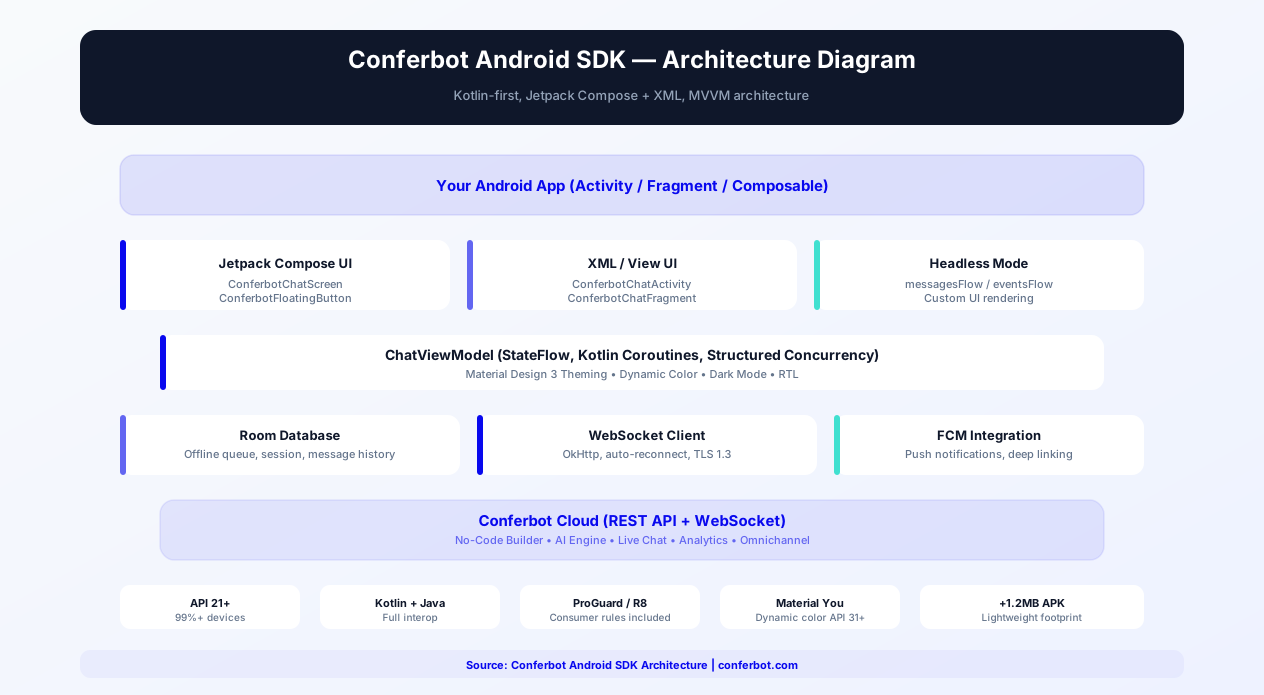
The Conferbot Android SDK brings a fully native chatbot experience to your Android app. Built for modern Android development, the SDK supports both Jetpack Compose and traditional XML layouts, ships a floating chat bubble (FAB) that mirrors your web widget, applies your dashboard theming automatically (server-driven, zero styling code), leverages Kotlin coroutines and StateFlow for reactive state, and integrates seamlessly with Firebase Cloud Messaging for push notifications.
Unlike WebView-based chat solutions that feel foreign and perform poorly, the Conferbot Android SDK renders native Android views that match your app's look, feel, and performance standards. Users interact with the chatbot as naturally as any other screen in your app. The bot itself is powered by the same no-code builder and AI engine that drives all Conferbot channels - build once, deploy everywhere.
This guide covers installation, Compose and XML integration, key features, theming, Firebase integration, offline strategies, Play Store compliance, and best practices for delivering a production-grade chatbot experience in your Android app in 2026.
New to chatbot building? Start with our complete guide to building a chatbot without coding. The same chatbot you build for your Android app works on your website, WhatsApp, Messenger, and iOS app. Browse our template library for pre-built in-app chatbot flows. For cross-platform alternatives, see our Flutter SDK and React Native SDK guides.
Source code & documentation: android-sdk on GitHub | com.conferbot:android-sdk on Maven Central | Developer Portal Guide | Android Developer Docs
Installation Guide
The Conferbot Android SDK is distributed via Maven Central as com.conferbot:android-sdk and integrates into your Gradle build like any standard Android library.
Step 1: Add the Repository
In your settings.gradle or project-level build.gradle, ensure Google and Maven Central are included:
dependencyResolutionManagement { repositories { google(); mavenCentral() } }
Step 2: Add the Dependency
In your app-level build.gradle:
implementation 'com.conferbot:android-sdk:1.0.0'
Jetpack Compose support is included in the same artifact - there is no separate Compose module to add.
Step 3: Sync and Initialize
Sync Gradle files, then call Conferbot.initialize() once, in your Application class. The bot ID is the operative credential; the apiKey parameter accepts any placeholder (for example conf_test_key):
Conferbot.initialize(context = this, apiKey = "conf_test_key", botId = "YOUR_BOT_ID")
No account yet? The public demo bot ID 691c970890527a0468f9b2c9 works without one.
Step 4: Add the Chat UI
Floating chat bubble (recommended - the same experience as the web widget):
ConferBotWidgetScope { MyMainScreen() }
Or place the bubble yourself inside a Box overlay:
ConferBotWidget()
Jetpack Compose full screen:
ConferBotChatScreen(onDismiss = { showChat = false })
XML layouts: launch the built-in full-screen chat Activity with one call:
Conferbot.openChat(context)
Step 5: Configure Push Notifications (Optional)
The SDK integrates with Firebase Cloud Messaging (FCM):
- Set up FCM in your Firebase project (the SDK already depends on firebase-messaging; you provide google-services.json)
- Register the FCM token with the SDK:
Conferbot.registerPushToken(token) - Forward payloads from your FirebaseMessagingService:
Conferbot.handlePushNotification(message.data)returns true only for Conferbot payloads, so your other notifications are untouched
Basic integration takes 15 minutes. The SDK supports API 21+ (Android 5.0 Lollipop and above) with Kotlin 1.9+ and Java 17 (jvmTarget), covering 99%+ of active Android devices. For a full step-by-step walkthrough, see the Android SDK guide on the developer portal.
Key SDK Features
The Conferbot Android SDK is built by Android developers, for Android developers. It follows modern Android architecture patterns and leverages the latest platform capabilities.
Floating Chat Bubble (FAB)
The flagship integration pattern: the same bubble-in-the-corner experience as the Conferbot web widget, with zero styling code. Wrap your content in ConferBotWidgetScope { ... } (or drop ConferBotWidget() into a Box) and the bubble appears in the bottom corner. Tapping it opens an animated bottom-sheet chat with a scrim; it shows an unread badge and an optional CTA tooltip. Everything is server-driven from your dashboard: bubble color, launcher icon (all 15 web widget icons), size, left/right position, edge offsets, corner radius, and the CTA tooltip text. Server values always win; a local ConferBotWidgetConfig acts only as a per-attribute fallback.
Jetpack Compose Support
First-class Jetpack Compose composables for the entire chat UI. Use ConferBotWidget / ConferBotWidgetScope for the floating bubble, ConferBotChatScreen for a full chat screen (server-themed), and ConferBotChatView for a chat screen with local light/dark theming. State is exposed as Kotlin StateFlow and consumed with collectAsState().
Traditional XML Support
For apps not yet migrated to Compose, Conferbot.openChat(context) launches the built-in full-screen ChatActivity, styled through a ConferBotCustomization passed at initialization. There is no XML version of the floating bubble; host it in a ComposeView, or call openChat() from your own FAB.
Server-Driven Theming
Everything you configure in the dashboard's flow builder (Customize tab) is fetched with the bot data and applied with no code: header and bubble colors, chat background (solid, gradient, or image), bot name, avatar, font size, bubble radius, branding, and all floating-widget settings. Server settings win over local themes; local themes act as fallbacks when the bot has no dashboard customizations.
Kotlin Coroutines and StateFlow
All asynchronous operations use Kotlin coroutines with structured concurrency. Message sending, receiving, and network operations run on appropriate dispatchers without blocking the UI thread. The SDK exposes its full state as StateFlow properties on the Conferbot singleton - record (messages), isConnected, currentAgent, unreadCount, isAgentTyping, isLiveChatMode, serverTheme, and more.
Full Flow-Builder Node Support
The SDK renders the full flow-builder node set natively - choices, buttons, ratings, dates, cards, GIFs, file uploads, and more (50+ node types). Text questions are answered by typing in the single unified bottom input bar, and answered choice chips stay in the transcript with the selection highlighted - exactly like the web widget.
Live Agent Handover
Call Conferbot.initiateHandover(message) to bring in a human. Agent join/leave events, typing indicators, and the current agent are all exposed through ConferBotEventListener callbacks and StateFlow properties.
FCM Push Notifications
When the bot or a live agent sends a message while the app is backgrounded, users receive a push notification via Firebase Cloud Messaging. Register the token with Conferbot.registerPushToken(token) and route payloads with Conferbot.handlePushNotification(data). Tap handling, in-app banners, and unread badges are built in.
Offline Message Queuing
Messages typed while offline are stored in a local queue and sent automatically when connectivity returns. The SDK uses Android's ConnectivityManager to detect network state changes, ensuring no messages are lost during transient network disruptions.
ProGuard and R8 Compatible
The SDK ships with its own ProGuard rules. No additional configuration needed for release builds with code shrinking enabled. Tested with both ProGuard and R8 optimizers.
Kotlin/Compose Integration Details
The SDK is built with Kotlin-first principles, leveraging modern language features like data classes, sealed interfaces, extension functions, and type-safe builders. For headless integrations, every piece of state is a StateFlow on the Conferbot singleton: collect Conferbot.record, Conferbot.isConnected, and Conferbot.currentAgent with collectAsState() and drive the conversation with sendMessage(), sendTypingStatus(), initiateHandover(), and endChat(). Local theming uses the fluent ConferbotThemeBuilder with light/dark theme pairs that can follow the system setting automatically.
Theming Deep Dive
Theming is server-first: ConferBotChatScreen collects Conferbot.serverTheme, and whenever the dashboard provides a customizations object, the chat is wrapped in that theme - even if you supplied a local theme. For local fallbacks, ConferbotThemeBuilder exposes primary and secondary colors, header colors, bot/user/agent bubble colors, input colors, font family, text sizes, corner radii, spacing, and animation durations. The FAB follows the same rule per attribute: dashboard values like widgetIconBgColor, widgetSize, widgetPosition, and chatIconCtaText override the local ConferBotWidgetConfig.
Performance Benchmarks
The Conferbot Android SDK is optimized for performance across the Android device ecosystem:
| Metric | Conferbot Native SDK | WebView Chat | Hybrid (React Native bridge) |
|---|---|---|---|
| Initial Load Time | 380ms | 2,400-3,200ms | 1,100-1,800ms |
| Memory Usage (idle) | 12-18MB | 65-95MB | 35-55MB |
| Memory Usage (active chat) | 22-30MB | 85-130MB | 50-75MB |
| Battery Drain (1hr active use) | 0.8% per hour | 3.5-4.5% per hour | 2.0-2.8% per hour |
| Frame Rate (scrolling) | 60fps constant | 30-45fps (drops on scroll) | 50-58fps |
| APK Size Impact | +1.2MB | +0.1MB (but WebView overhead) | +8-12MB (JS engine) |
| Cold Start Penalty | None | 800-1200ms WebView init | 400-600ms JS engine init |
| Offline Support | Full (Room database) | None | Partial |
| Push Notifications | Native FCM | Not possible | Requires bridge |
| Server-Driven Theming | Full (dashboard-controlled) | CSS only | Limited |
These benchmarks are measured on a mid-range device (Pixel 6a / Samsung Galaxy A54, 6GB RAM, Android 14) with a conversation containing 50 messages. On low-end devices common in emerging markets (India, Southeast Asia, Africa) with 2-3GB RAM, the native SDK's advantage becomes critical - where WebView-based solutions may lag or crash entirely, the native SDK maintains smooth 60fps interactions and stays well within memory limits.
Room Database for Offline Storage
The Conferbot Android SDK uses the Room persistence library for reliable local storage of conversation history and session data, so chat history survives app restarts. Room provides compile-time SQL verification, reducing the risk of runtime database errors. Restore a previous conversation with Conferbot.hasPersistedSession() and Conferbot.restorePersistedSession(), or wipe it with clearHistory(). History loading is paginated - tune it with a PaginationConfig (page size, in-memory message limits, pagination threshold) passed to initialize(). Offline message queuing preserves ordering: if three messages are queued offline, they are sent in the exact order typed once connectivity returns. The SDK monitors network state changes via ConnectivityManager, and the built-in UI shows offline, connection, and syncing banners automatically.
FCM Push Notifications Deep-Dive
Setting up FCM push notifications with the Conferbot SDK requires three steps. First, add Firebase to your project via the Firebase Console and include the google-services.json in your app module (the SDK already depends on firebase-messaging). Second, register the FCM token after a session starts with Conferbot.registerPushToken(token) - token refreshes are forwarded automatically once notifications are initialized. Third, in onMessageReceived, pass the payload map to Conferbot.handlePushNotification(message.data) - it returns true only for Conferbot payloads, so your other notifications are untouched. Additional controls include unregisterPushToken() (on logout), handleNotificationTap(data), setCurrentActivity(activity) for in-app banners, setNotificationChatActivity() for custom deep links, and updateNotificationSettings(NotificationSettings).
App Store Optimization Tips
Adding in-app chat support improves your Google Play Store metrics in measurable ways. Apps with responsive in-app support tend to see fewer 1-star reviews related to unresolved customer issues, because users have a direct channel to resolve problems before resorting to negative reviews. Include "in-app chat support" and "24/7 customer service" in your Play Store description to improve discoverability for support-related searches. The Conferbot SDK's lightweight footprint (1.2MB APK size increase) keeps your app within Google Play's recommended size thresholds. Monitor your Android Vitals dashboard - the SDK is engineered for zero impact on ANR (Application Not Responding) rates and crash-free session metrics, both of which directly affect your Play Store ranking and recommendation visibility.
Jetpack Compose Chatbot Integration
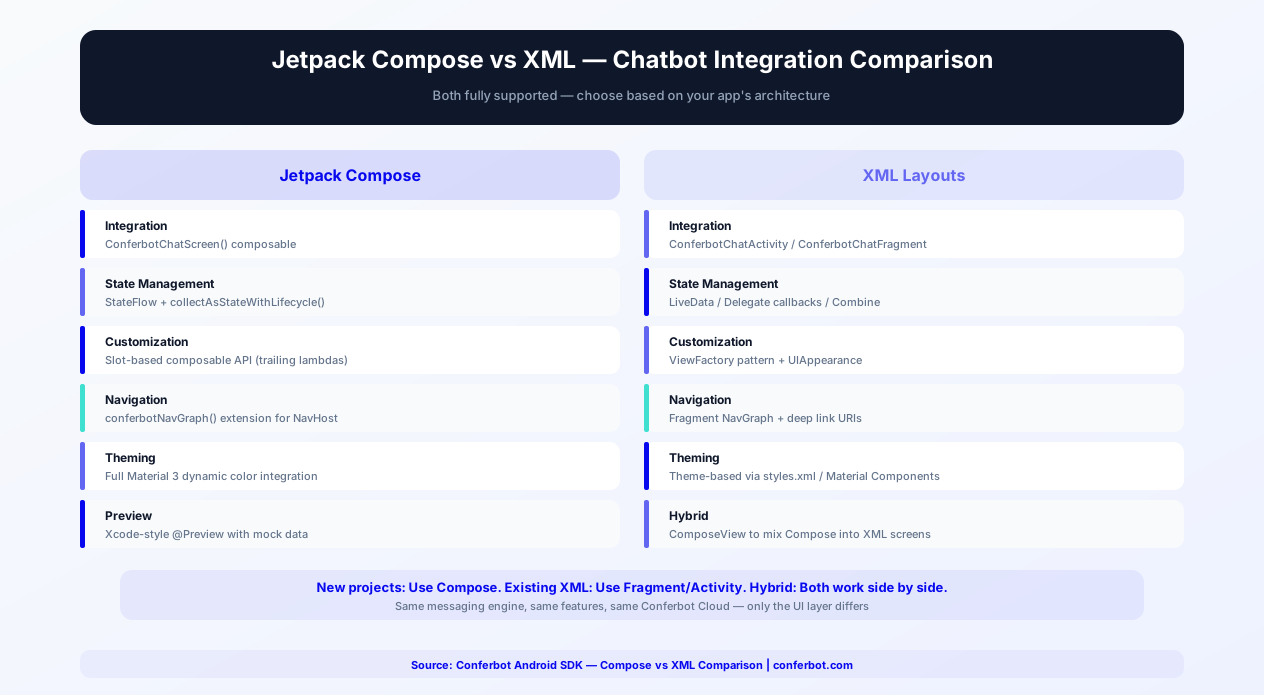
Jetpack Compose is Android's modern UI toolkit and Google's recommended approach for building new Android UIs. The Conferbot Android SDK provides first-class Compose support with composables designed for seamless integration into your Compose-based architecture.
Composable API Surface
The SDK provides a small set of composable entry points that follow Compose conventions:
- ConferBotWidget / ConferBotWidgetScope - The floating chat bubble (FAB) plus its bottom-sheet chat overlay.
ConferBotWidgetScopewraps your app content;ConferBotWidgetcan be placed in a Box yourself. Shows an unread badge and the server-configured CTA tooltip automatically - ConferBotChatScreen - The full chat screen (server-themed) with an
onDismisscallback. Handles pagination, offline banners, and node rendering for you - ConferBotChatView / ConferBotThemedChatScreen - Chat screens with local light/dark theming (
lightTheme,darkTheme,useDarkTheme = nullto follow the system) - KnowledgeBaseScreen - The built-in help center with categories, articles, search, and ratings
State Management with Compose
The SDK exposes chat state through Kotlin StateFlow properties on the Conferbot singleton, designed for Compose consumption:
Conferbot.record-StateFlow<List<RecordItem>>for the message listConferbot.isConnected- socket connection statusConferbot.unreadCount- unread count for badge updatesConferbot.currentAgent/Conferbot.isAgentTyping/Conferbot.isLiveChatMode- live agent handover stateConferbot.serverTheme/Conferbot.serverCustomization- the theme built from your dashboard customizationsConferbot.isOnline/Conferbot.pendingMessageCount/Conferbot.isSyncingQueue- offline queue state
Consume these in your composables with collectAsState() (or collectAsStateWithLifecycle()) for reactive UIs that update as messages arrive.
Headless Custom UIs
Building a fully custom chat UI is a first-class pattern: render Conferbot.record in your own LazyColumn, then drive the conversation with Conferbot.sendMessage(text), sendTypingStatus(isTyping), initiateHandover(message), and endChat(). Call Conferbot.loadMoreMessages() when the user scrolls near the top and check hasMoreMessages() for pagination. The built-in ConferBotChatScreen does all of this for you.
Server Theme Precedence
Server settings win over local ones. ConferBotChatScreen collects Conferbot.serverTheme, and whenever the dashboard provides a customizations object it wraps the chat in that theme - even if you supplied your own via ConferBotChatView. Local themes built with ConferbotThemeBuilder therefore act as fallbacks that only apply when the bot has no server customizations. The FAB applies the same rule per attribute (color, icon, size, position, offsets, radius, CTA text).
Event Handling
Implement ConferBotEventListener (all methods have default no-op implementations, so override only what you need): onMessageReceived, onMessageSent, onAgentJoined, onAgentLeft, onSessionStarted, onSessionEnded, onTypingIndicator, onUnreadCountChanged, onOnlineStatusChanged, onMessageFailed, and onQueueSynced. For lower-level access, subscribe to raw embed-server events with Conferbot.on(SocketEvents.BOT_RESPONSE, listener).
Android Chatbot + Firebase
Firebase is the backbone of most Android app infrastructure - push notifications, crash reporting, and analytics. The Conferbot Android SDK plugs into your Firebase setup for background message delivery, and its event listener makes it easy to mirror chatbot activity into your analytics stack.
FCM Push Notifications (Complete Setup)
Firebase Cloud Messaging delivers push notifications when the bot or a live agent sends messages while your app is backgrounded. Complete setup involves three steps:
- Firebase Console - Create a Firebase project (or use your existing one) and register your Android app with the package name. Download
google-services.json, place it in yourapp/directory, and apply thecom.google.gms.google-servicesplugin. The SDK already depends onfirebase-messaging-ktx - Register the token - After a session starts, fetch the FCM token and call
Conferbot.registerPushToken(token). Token refreshes are forwarded automatically once notifications are initialized. CallConferbot.unregisterPushToken()on logout - Forward payloads - In your
FirebaseMessagingService.onMessageReceived(), callConferbot.handlePushNotification(message.data). It returns true only for Conferbot payloads and handles display, tap routing, and badge updates; all other notifications pass through to your own handling
Notification Behavior Controls
Beyond registration and routing, the SDK exposes granular notification controls: handleNotificationTap(data) for tap intents, setCurrentActivity(activity) to enable in-app banners while the app is foregrounded, setNotificationChatActivity(MyChatActivity::class.java) to deep-link taps into a custom chat screen, updateNotificationSettings(NotificationSettings) to tune behavior, addNotificationListener(listener) to observe notification events, and cancelAllNotifications().
Forwarding Chatbot Events to Firebase Analytics
The SDK does not silently fire Firebase Analytics events on its own - your data stays under your control. Instead, register a ConferBotEventListener and forward the callbacks you care about (onMessageReceived, onMessageSent, onAgentJoined, onSessionStarted, onSessionEnded, onUnreadCountChanged) to Firebase Analytics, Amplitude, Mixpanel, or your own pipeline. This lets you use chatbot engagement as conversion events in Google Ads campaigns while keeping full control over event naming.
Conferbot's Built-In Analytics
Chat lifecycle events are tracked automatically in Conferbot's own analytics. Optional extras from the SDK: Conferbot.setUtmParameters(...) for attribution, trackInteraction(type, data) for custom interaction events, trackGoalCompletion(goalId, conversionValue) for conversions, and submitChatRating(csatScore, feedback) for CSAT/NPS. All of this surfaces in the Conferbot analytics dashboard alongside your web widget data.
For a comprehensive mobile engagement strategy combining Firebase and Conferbot, see our customer engagement guide. Track chatbot ROI with Conferbot's analytics dashboard alongside Firebase Analytics for a complete picture of in-app user behavior.
Offline-First Android Chatbot
Android devices frequently experience network interruptions - subway tunnels, airplane mode, poor cellular coverage in rural areas, or Wi-Fi transitions. An offline-first chatbot architecture ensures users can always interact with the bot, with messages syncing seamlessly when connectivity returns.
Room Database Architecture
The SDK uses Room (Android's recommended persistence library) for local storage of sessions, messages, and the offline queue. Enable it with ConferBotConfig(enableOfflineMode = true) - the default. Session persistence means chat history survives app restarts: check Conferbot.hasPersistedSession() and call restorePersistedSession() to resume a previous conversation (history restored, room rejoined) instead of starting fresh, or clearHistory() to wipe the local record.
Room's compile-time SQL verification reduces the risk of runtime database errors, and all database operations run on Kotlin coroutine dispatchers, keeping the UI thread free.
Sync Strategy
When the device reconnects to the network, the SDK executes a three-phase sync:
- Queue Flush - Pending messages are sent in order, with server acknowledgment for each. If a message fails, the SDK retries with exponential backoff (1s, 2s, 4s, max 30s) before moving to the next
- Gap Detection - The SDK compares its last known server sequence number with the current server state. If messages were sent by the bot while the device was offline, they are fetched and inserted into the local database in the correct chronological position
- State Reconciliation - Conversation metadata (status, assigned agent, tags) is updated to match the server state
Graceful Degradation
When offline, the SDK provides visual feedback to the user:
- A subtle banner at the top of the chat indicates "Offline - messages will be sent when connected"
- User messages appear with a "pending" indicator (clock icon) that transitions to a checkmark when delivered
- The input bar remains fully functional - users can type and "send" messages that queue locally
- If the bot flow includes quick reply buttons, previously cached options remain interactive for flows that do not require a server round-trip
Network State Monitoring and Queue Control
The SDK monitors connectivity via ConnectivityManager and exposes everything as StateFlow: Conferbot.isOnline (device connectivity), pendingMessageCount (queued messages), and isSyncingQueue (sync in progress). Manual controls are available too: processOfflineQueue() forces a sync attempt, clearOfflineQueue() drops all queued messages, and clearCurrentSessionQueue() drops only the current session's queue. The onQueueSynced(successCount, failCount) event listener callback reports sync results.
Pagination and Memory Configuration
Tune how history is loaded and kept in memory through PaginationConfig passed to initialize():
| Parameter | Default | Description |
|---|---|---|
| pageSize | 50 | Messages loaded per page of history |
| maxMemoryMessages | 100 | Max messages kept in memory while active |
| backgroundMemoryLimit | 50 | In-memory message cap while backgrounded |
| paginationThreshold | 10 | How close to the top before loading more |
In headless UIs, call Conferbot.loadMoreMessages() when the user scrolls near the top and check hasMoreMessages(); the built-in ConferBotChatScreen does this automatically. For GDPR and CCPA workflows, call Conferbot.clearHistory() to purge the local record and persisted session on demand - see our data security guide for details.
Android Chatbot Security & Play Store Compliance
Releasing an Android app with a chatbot SDK requires attention to security best practices, code obfuscation, Play Store guidelines, and the data safety section. The Conferbot SDK is designed to pass Play Store review smoothly while maintaining strong security posture.
ProGuard / R8 Obfuscation
The SDK ships with consumer ProGuard rules that are automatically applied during release builds. You do not need to add any ProGuard configuration manually. The SDK's rules preserve necessary class names for serialization and reflection while allowing R8 to optimize and shrink everything else. Tested with both ProGuard (legacy) and R8 (default since AGP 3.4) in full mode. The SDK's contribution to your final APK is approximately 1.2MB after R8 optimization - smaller than most image assets.
HTTPS-Only Transport and Endpoint Control
The SDK talks to https://wdt.conferbot.com (REST + Socket.IO) over TLS. If you route traffic through your own proxy or a self-hosted embed server, override the endpoints before initialize() with ConferBotEndpoints.setApiBaseUrl(...) and ConferBotEndpoints.setSocketUrl(...) - HTTPS is enforced, so plain-HTTP endpoints are rejected. Network behavior (API timeout, socket timeout, reconnection attempts and delay) is tunable through ConferBotNetworkConfig.configure(...), and baseUrl / socketUrl can also be passed directly to Conferbot.initialize(). This works cleanly alongside your app's network_security_config.xml.
Play Store Review Guidelines
Google Play's review team evaluates chatbot integrations against specific developer policies:
- User Data Policy - The SDK transmits chat messages over HTTPS (TLS) and stores conversation data only in your app's private Room database. Ensure your privacy policy discloses that chat messages are transmitted to a third-party service (Conferbot) for processing
- Permissions Policy - The SDK requests no dangerous permissions. Push notifications use the POST_NOTIFICATIONS permission (Android 13+), which requires explicit user opt-in
- Ads Policy - If your chatbot delivers promotional content, ensure it complies with Google Play's ads policy for in-app messaging
- Content Policy - Bot responses must not contain prohibited content (hate speech, violence, illegal content). Test your bot flows thoroughly before submission
Data Safety Section
Google Play requires a Data Safety section for all apps. For the Conferbot SDK, declare the following data types:
| Data Type | Collected | Shared | Purpose |
|---|---|---|---|
| Messages / User Content | Yes | Yes (Conferbot) | App functionality, customer support |
| Device Identifiers | Optional (push token) | Yes (FCM, Conferbot) | Push notifications |
| App Interactions | Yes | Yes (Conferbot) | Analytics, service improvement |
The SDK does not collect: precise location, advertising ID, contacts, photos, videos, audio, health data, financial data, or browsing history. For apps handling regulated data, local storage lives in your app's private sandbox, and Conferbot.clearHistory() deletes the local record and persisted session on demand.
Android App Bundle and APK Analysis
The SDK's total contribution to your AAB/APK can be verified using Android Studio's APK Analyzer (Build > Analyze APK). Expect approximately 1.2MB for the SDK (Compose UI included in the single artifact). The SDK uses no native C/C++ libraries (no .so files), keeping your APK clean of ABI-specific native code. For apps optimizing for emerging markets where download size directly impacts install conversion, the SDK's lightweight footprint preserves your install rate.
For the complete security and compliance guide, see our data security and privacy best practices. Review Conferbot analytics for compliance auditing and data retention configuration.
Customization and Theming
The SDK has two layers of appearance control: server customizations from your dashboard (which apply automatically and always win) and local themes as fallbacks.
Server Customizations Apply Automatically
Everything you configure in the dashboard's flow builder (Customize tab) is fetched with the bot data and applied by the SDK with no code: header and bubble colors, chat background (solid, gradient, or image), bot name, avatar, font size, bubble radius, branding/tagline, and all floating-widget settings (bubble color, icon, size, position, offsets, CTA tooltip text). Change the design once in the dashboard and it updates on web and Android together.
Local Themes with ConferbotThemeBuilder (Compose)
For granular local control, build a theme with the fluent ConferbotThemeBuilder:
- primaryColor / secondaryColor - Accent colors for the send button and interactive elements
- headerColors - Header background and text colors
- botBubbleColors / userBubbleColors / agentBubbleColors - Separate background and text colors per bubble type
- inputColors, fontFamily, text sizes - headerSize, bodySize, messageSize, captionSize, inputSize, buttonSize
- corner radii and spacing - bubbleRadius, buttonRadius, cardRadius, inputRadius, imageRadius, plus animation durations
Pass it to ConferBotChatView(theme = myTheme), or supply a light/dark pair with ConferBotChatView(lightTheme = ..., darkTheme = ..., useDarkTheme = null) where null follows the system setting.
Precedence: Server Wins Over Local
Whenever the server provides a customizations object, ConferBotChatScreen wraps the chat in the server theme - even if you supplied your own. Local themes only apply when the bot has no dashboard customizations. If you want your local branding to win, leave the bot's flow-builder appearance settings at their defaults.
XML ChatActivity Customization
The built-in XML ChatActivity (launched by Conferbot.openChat()) reads a ConferBotCustomization passed to initialize(): primaryColor, headerTitle, enableAvatar, botBubbleColor, and userBubbleColor, with a parseColor() helper for hex strings. It applies to the XML chat Activity only; the Compose UI is themed through ConferbotTheme and the server theme.
Event Listeners
Register a single ConferBotEventListener via Conferbot.setEventListener(...). All methods have default no-op implementations, so override only what you need: onMessageReceived, onMessageSent, onAgentJoined, onAgentLeft, onSessionStarted, onSessionEnded, onTypingIndicator, onUnreadCountChanged, onOnlineStatusChanged, onMessageFailed, and onQueueSynced.
Fully Custom UIs
For complete UI control, skip the built-in screens and build on the headless layer: render Conferbot.record yourself and drive the conversation with sendMessage(), sendTypingStatus(), initiateHandover(), and endChat(). Raw socket events are available through Conferbot.on(event, listener) with constants in SocketEvents.
In-App Chatbot Use Cases
Android's massive global install base means your app serves diverse users with diverse needs. Here are the chatbot use cases that deliver the highest impact.
Customer Support at Scale
Android apps in markets like India, Brazil, and Southeast Asia serve tens of millions of users. In-app chatbot support handles the volume that human agents cannot - resolving common inquiries instantly and routing complex issues to live agents. Apps with in-app support tend to see fewer negative Play Store reviews related to support responsiveness.
Guided Onboarding
Walk new users through your app's features conversationally. Instead of overwhelming users with all features at once, the chatbot asks what they want to achieve and guides them to the relevant screen with step-by-step instructions. This is especially effective for complex apps like fintech, health, and productivity tools.
Order and Delivery Tracking
E-commerce and food delivery apps can let users check order status, modify orders, report issues, and request refunds through conversational chat. The chatbot pulls order data in real time and presents it clearly, reducing the need for users to navigate through multiple screens. Explore e-commerce chatbot solutions.
Subscription and Payment Support
Handle billing inquiries, explain subscription tiers, process upgrade requests, and troubleshoot payment failures. For apps with in-app purchases or subscriptions, chatbot-driven support can reduce involuntary churn from unresolved billing issues.
Feedback and Bug Reporting
Replace clunky bug report forms with conversational feedback collection. The chatbot asks what happened, when it happened, and what the user expected - collecting structured reports that developers can act on. Users tend to find this far less frustrating than traditional forms.
Getting Started
Adding a chatbot to your Android app with the Conferbot SDK is straightforward for any Android developer familiar with Gradle dependencies and modern Android architecture.
Quick Start
- Build your chatbot in the Conferbot visual builder and publish it - the same bot works on your app, website, and messaging channels
- Add the Gradle dependency -
implementation 'com.conferbot:android-sdk:1.0.0'from Maven Central - Initialize in your Application class -
Conferbot.initialize(context = this, apiKey = "conf_test_key", botId = "YOUR_BOT_ID"). The bot ID is the operative credential; any placeholder apiKey works - Add the UI -
ConferBotWidgetScope { ... }for the floating chat bubble,ConferBotChatScreen(Compose), orConferbot.openChat(context)(XML) - Customize in the dashboard - Server-driven theming applies your web widget design automatically; local themes act as fallbacks
- Test on multiple devices - Verify on different API levels, screen sizes, and network conditions
No account yet? The public demo bot ID 691c970890527a0468f9b2c9 works without a Conferbot account (any non-empty API key, e.g. conf_test_key). If the demo bot loads but yours does not, check that your bot is published and the 24-character bot ID is correct. For the complete integration walkthrough, follow the Android SDK deep guide on the developer portal.
Compose vs XML - Which to Use?
| Consideration | Jetpack Compose | XML Layouts |
|---|---|---|
| New projects | Recommended | Supported |
| Existing XML apps | Can mix with ComposeView | Native integration |
| Entry point | ConferBotWidget / ConferBotChatScreen | Conferbot.openChat() ChatActivity |
| Customization | ConferbotThemeBuilder + server theme | ConferBotCustomization + server theme |
| Floating bubble (FAB) | Built in | Host in a ComposeView, or use your own FAB |
Cross-Channel Deployment
Your Android chatbot is part of Conferbot's omnichannel ecosystem. The same bot logic powers your website widget, WhatsApp, Messenger, and iOS app. Build once, reach users everywhere. A customer who starts a conversation in your Android app can continue it on WhatsApp - conversation context follows seamlessly.
Why Conferbot Android SDK
- Native performance - 60fps Compose and XML rendering, not a WebView wrapper
- Floating chat bubble - Web-widget parity FAB, styled from your dashboard with zero code
- Kotlin-first - Coroutines, StateFlow, sealed classes, and modern Kotlin patterns
- Jetpack Compose - First-class composables plus a headless StateFlow API for custom UIs
- FCM push notifications - Native Firebase integration for background messaging
- Offline support - Room database message queuing with automatic sync on reconnection
- Server-driven theming - Dashboard colors, avatar, backgrounds, and widget placement apply automatically
- AI-powered - AI knowledge base and OpenAI for intelligent responses
- Omnichannel - Same bot on iOS, website, WhatsApp, and more
- Analytics - Track in-app engagement with built-in analytics
- Play Store compliant - Designed for zero ANR impact, data safety ready
The Android SDK is included in Pro plans and above. View pricing for details, or start building your chatbot today and add Android integration when your app is ready. See how Conferbot compares to other chatbot platforms for mobile SDK capabilities.
Advanced Integration Patterns
The Conferbot Android SDK supports advanced integration patterns that give your team full control over the chat experience while maintaining the convenience of a managed platform. The full API surface is documented in the Android SDK guide on the developer portal.
Headless Mode
For teams that need complete UI control, every piece of SDK state is exposed as Kotlin StateFlow on the Conferbot singleton - no separate headless initialization needed. Collect Conferbot.record (messages), isConnected, currentAgent, unreadCount, and isAgentTyping, and render the UI entirely yourself. Create a session manually with initializeSession() and drive the conversation with sendMessage(), sendTypingStatus(), initiateHandover(), and endChat(). This is ideal for apps with highly custom design systems or apps where the chatbot must integrate into an existing conversation screen.
User Identity
Attach user details so dashboard conversations show who you are talking to: call Conferbot.identify(ConferBotUser(id, name, email, phone, metadata)) or pass the user at initialization. Identify the user before the chat is opened - the user ID is sent when the session is created, and calling identify afterwards does not retroactively re-tag the running session.
Dark Mode and Themed Variants
The SDK's Compose chat views accept explicit light and dark themes: ConferBotChatView(lightTheme = myTheme, darkTheme = DarkTheme, useDarkTheme = null), where null follows the system setting. Build each theme with ConferbotThemeBuilder for precise color control. Remember that server customizations from the dashboard take precedence whenever they exist.
Knowledge Base
If your bot has a knowledge base, show the built-in help center with KnowledgeBaseScreen after calling Conferbot.initKnowledgeBaseService() and fetchKnowledgeBase(). Headless access is available too: searchKnowledgeBase(query), article view and engagement tracking, scroll-depth updates, and rateKnowledgeBaseArticle(articleId, helpful).
Notification Deep Links
Notification taps route through Conferbot.handleNotificationTap(data), and setNotificationChatActivity(MyChatActivity::class.java) points taps at your own chat screen instead of the built-in one. Call setCurrentActivity(activity) to enable in-app notification banners while the app is foregrounded.
Analytics and Event Tracking Integration
Forward chatbot events to Firebase Analytics, Amplitude, Mixpanel, or your custom analytics pipeline using the ConferBotEventListener interface (registered with Conferbot.setEventListener(...)). Track metrics like chat open rate, average messages per session, and handover frequency. The SDK also has first-party hooks: setUtmParameters(...), trackInteraction(type, data), trackGoalCompletion(goalId, conversionValue), and submitChatRating(csatScore, feedback, thumbsUp, npsScore). For apps using Conferbot's built-in analytics, chat lifecycle metrics are tracked automatically with zero configuration.
Raw Socket Events and Custom Endpoints
Subscribe to any embed-server event by name with Conferbot.on(SocketEvents.BOT_RESPONSE, listener) / Conferbot.off(...) - the same events the web widget uses. Self-hosting or proxying? Override endpoints before initialization with ConferBotEndpoints.setApiBaseUrl(...) and setSocketUrl(...) (HTTPS only), and tune timeouts and reconnection policy with ConferBotNetworkConfig.configure(...).
Switching Bots and Re-Initialization
Conferbot.initialize() is one-time and throws an IllegalStateException if called twice. To switch to a different bot at runtime (for example a support bot vs. a sales bot), call Conferbot.disconnect() first - it tears down the socket and state and allows a fresh initialize() with the new bot ID.
Security and Data Privacy
Conversation data is stored in your app's private Room database, and network traffic to wdt.conferbot.com uses HTTPS (TLS) exclusively - custom endpoints must be HTTPS too. The SDK does not collect advertising IDs or location data. For apps subject to GDPR, CCPA, or other privacy regulations, Conferbot.clearHistory() purges the locally stored conversation record and persisted session on demand. Review our data security and privacy guide for detailed compliance information.
Push Notification Strategy
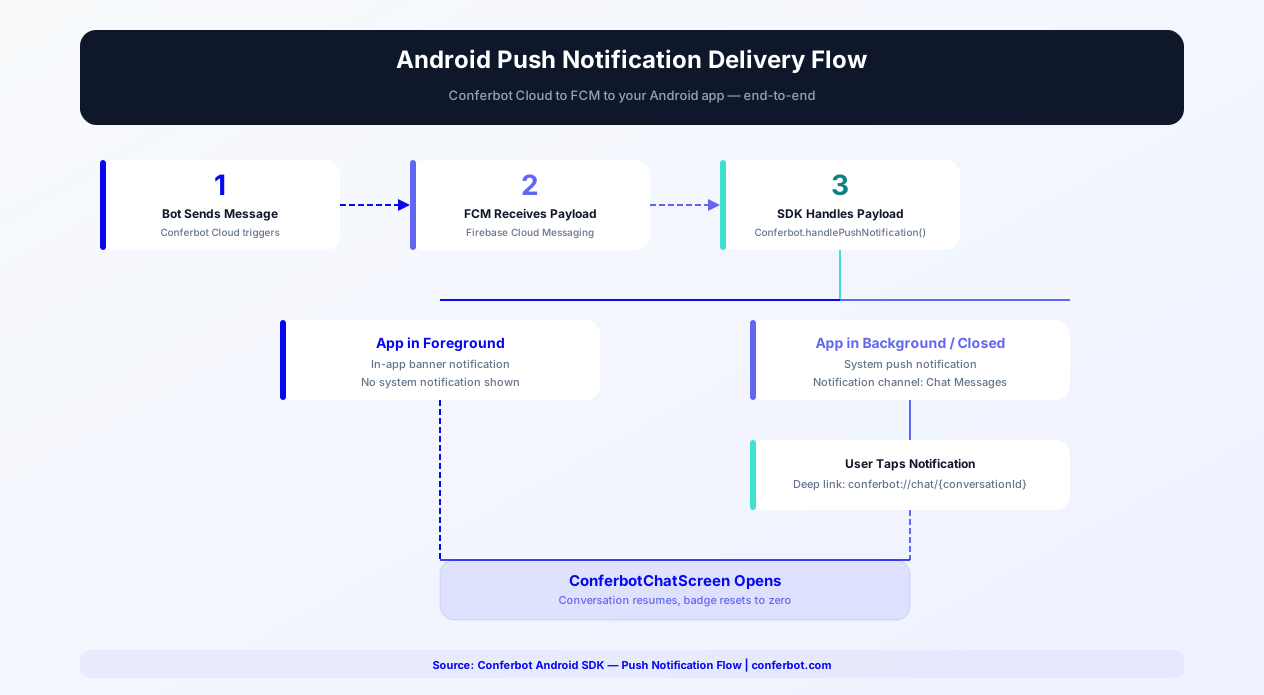
Push notifications are the primary re-engagement mechanism for mobile apps. The Conferbot Android SDK integrates with Firebase Cloud Messaging to deliver timely, relevant notifications that bring users back into conversations.
FCM Setup and Configuration
Setting up FCM with the Conferbot SDK involves four steps: (1) Add Firebase to your Android project via the Firebase Console and download the google-services.json file (the SDK already depends on firebase-messaging), (2) Register the FCM token after a session starts with Conferbot.registerPushToken(token), (3) Forward payloads from your FirebaseMessagingService with Conferbot.handlePushNotification(message.data) - it returns true only for Conferbot payloads, and (4) Tune behavior through Conferbot.updateNotificationSettings(NotificationSettings). The SDK handles payload parsing, notification display, and tap routing to the chat screen automatically.
Notification Channels (Android 8.0+)
Android 8.0 introduced notification channels that give users granular control over notification behavior. The SDK creates a default "Chat Messages" channel with importance level HIGH, which shows heads-up notifications with sound. You can customize the channel settings including notification sound (use a custom sound file in res/raw for brand consistency), vibration pattern (the default is a short double-buzz), LED color (for devices with notification LEDs), and whether the notification shows on the lock screen. Register an addNotificationListener(listener) to observe notification events, and call cancelAllNotifications() when the user opens the chat from elsewhere in your app.
In-App vs Push Notifications
The SDK distinguishes between in-app notifications (shown while the user is actively using your app) and push notifications (shown when the app is backgrounded or closed). In-app notifications appear as a subtle banner at the top of the screen and do not disrupt the user's current activity. Push notifications use the standard Android notification system. Configure which notification type to use for different message categories:
| Message Type | App in Foreground | App in Background | App Closed |
|---|---|---|---|
| Bot response | In-app banner | Push notification | Push notification |
| Live agent message | In-app banner + sound | High-priority push | High-priority push |
| Proactive campaign | In-app banner (optional) | Standard push | Standard push |
| Conversation resolved | In-app banner | Silent push (badge update) | Silent push |
Re-Engagement Strategy
Beyond reactive notifications, push tokens registered through the SDK let your team re-engage users from the Conferbot side when a conversation is left hanging - most importantly, live agent replies that arrive after the user has backgrounded the app. Effective re-engagement messages include abandoned conversation reminders ("You had a question about our pricing - want to continue?") and follow-ups on unresolved support threads. Keep frequency low (at most one re-engagement nudge per couple of days) and respect the user's notification and Do Not Disturb preferences - the in-app notification settings exposed through NotificationSettings let users tune behavior without disabling notifications entirely.
Notification Grouping and Bundling
When multiple messages arrive while the app is backgrounded, the SDK groups them into a single expandable notification using Android's NotificationCompat.InboxStyle. The summary notification shows the count ("3 new messages from Conferbot") while expanding reveals individual message previews. This prevents notification spam and respects the user's notification tray. On Android 12+, the SDK uses the updated notification trampoline restrictions, launching the chat screen directly from the notification intent without intermediate activities.
For a complete guide on mobile engagement strategies, see our customer engagement guide. Compare the Android SDK's notification capabilities with other platforms on our comparison page.
Conferbot Android SDK vs Competitors
Choosing the right in-app chat SDK for your Android app is a critical decision that affects performance, cost, and development velocity. Here is a detailed comparison of the Conferbot Android SDK against the most popular alternatives in 2026.
| Criteria | Conferbot Android SDK | Intercom Android SDK | Zendesk Android SDK | WebView Chat Widget |
|---|---|---|---|---|
| Architecture | Native Kotlin + Compose | Native (Kotlin/Java) | Native (Java) | WebView wrapper |
| Initial Load Time | 380ms | 900-1,200ms | 800-1,100ms | 2,400-3,200ms |
| Memory Usage (idle) | 12-18MB | 30-45MB | 25-40MB | 65-95MB |
| Battery Drain (1hr) | 0.8% | 1.5-2.0% | 1.2-1.8% | 3.5-4.5% |
| APK Size Impact | +1.2MB | +8-12MB | +6-9MB | +0.1MB (but WebView overhead) |
| Frame Rate (scrolling) | 60fps constant | 55-60fps | 50-58fps | 30-45fps |
| Jetpack Compose Support | Native composables | UIKit wrapper | Not available | Not applicable |
| Server-Driven Theming | Full (web widget parity) | Limited | Not available | CSS only |
| No-Code Bot Builder | Full visual builder + AI | Limited flow builder | Basic answer bot | Depends on provider |
| AI Capabilities | OpenAI + knowledge base | Fin AI ($0.99/resolution) | Basic AI answers | Varies |
| Offline Message Queue | Room database backed | Yes | Yes | None |
| Omnichannel | All channels from one builder | Website + mobile | Website + email + mobile | Website only |
| Pricing (Starter) | Free tier available | $74/seat/month | $55/agent/month | Varies |
| Calendar Booking | Built-in | Third-party integration | Not available | Varies |
The Conferbot Android SDK delivers the best combination of native performance, lightweight footprint, and full-featured automation. While Intercom and Zendesk are established support platforms, their SDKs carry significantly larger APK size impacts (8-12MB vs 1.2MB), higher per-seat pricing, and less flexible bot building. For Android teams building with Jetpack Compose, Conferbot ships native composables including a dashboard-styled floating chat bubble with web widget parity. The same chatbot you build for Android deploys to iOS, your website, WhatsApp, Messenger, and other channels - all from one visual builder. See pricing for plan details or compare platforms for the complete feature breakdown.
How Conferbot Compares for Android
Most platforms charge per message, per seat, or limit channels by tier. Here's how Conferbot is different.
| Feature | Conferbot | Typical Competitor |
|---|---|---|
| Channels included | 8 (all plans) | 3-6 (varies by tier) |
| Pricing model | Flat rate from $19/mo | Per-seat or per-message |
| AI chatbot builder | Yes (plain English) | No or limited |
| Native mobile SDKs | 4 (Android, iOS, Flutter, RN) | None (WebView only) |
| Knowledge base AI | Included | Add-on ($30-99/mo) |
| Live chat handoff | Included | Higher tiers only |
| Calendar booking | Built-in | Third-party required |
| Setup time | Under 10 minutes | Hours to days |
Android FAQ
Everything you need to know about chatbots for android.
Continue Exploring
Explore features, connect third-party tools, and browse ready-made templates.
Deep-dive pillar guides, real use cases, and the chatbot & AI glossary.
Pairing your Android app with messaging channels? The webhook debugging guide covers delivery failures across every platform, and the error code directory documents 325 platform error codes with causes and fixes.