
Android SDK Chatbot Builder
Native Android SDK in Kotlin for Jetpack Compose and XML Views, from Android 5.0 (API 21). Version 2.0.0 matches the web widget, and the XML ChatActivity hosts the same Compose chat, so View-based apps get every feature.
To build a Android SDK chatbot with Conferbot, sign up free, design your flow in the no-code visual builder, connect your Android SDK account, and publish - typically live in a few minutes with no coding. The free plan needs no credit card, and the same bot can also run on your website and other messaging channels.
Install the Android SDK 2.0.1
Android 5.0 (API 21)+, compileSdk 34, Kotlin 1.9, JDK 17. Jetpack Compose and XML Views.
repositories {
    google()
    mavenCentral()
    maven { url 'https://jitpack.io' }
}implementation 'com.github.Conferbot:conferbot-android:2.0.1'Conferbot.initialize(context = this, apiKey = "conf_test_key", botId = "YOUR_BOT_ID")
// Compose: ConferBotWidgetScope { MyMainScreen() }
// XML Views: Conferbot.openChat(this)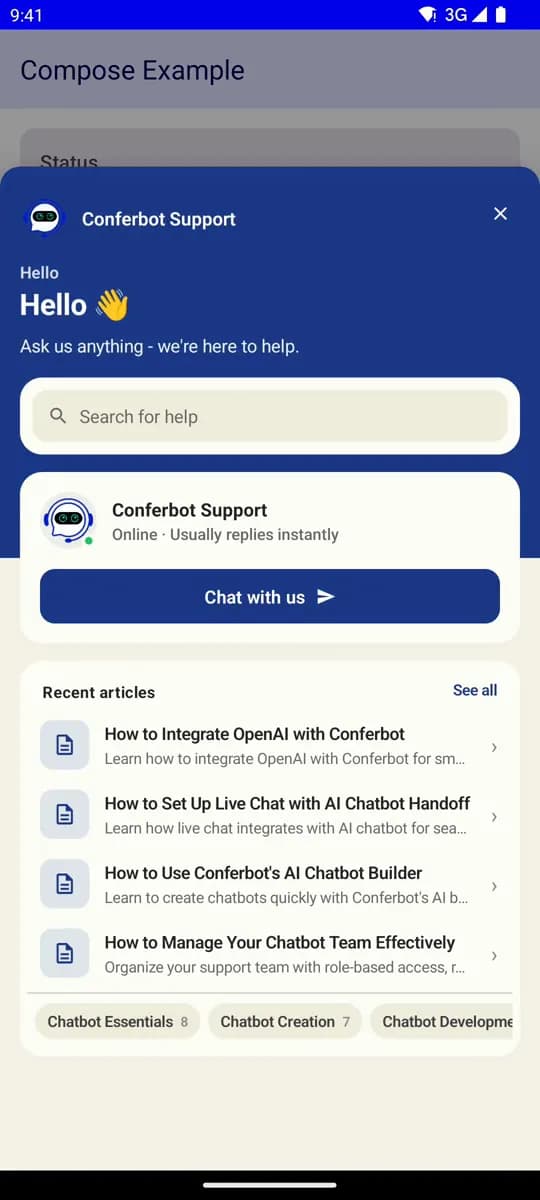 Chat open on the home screen
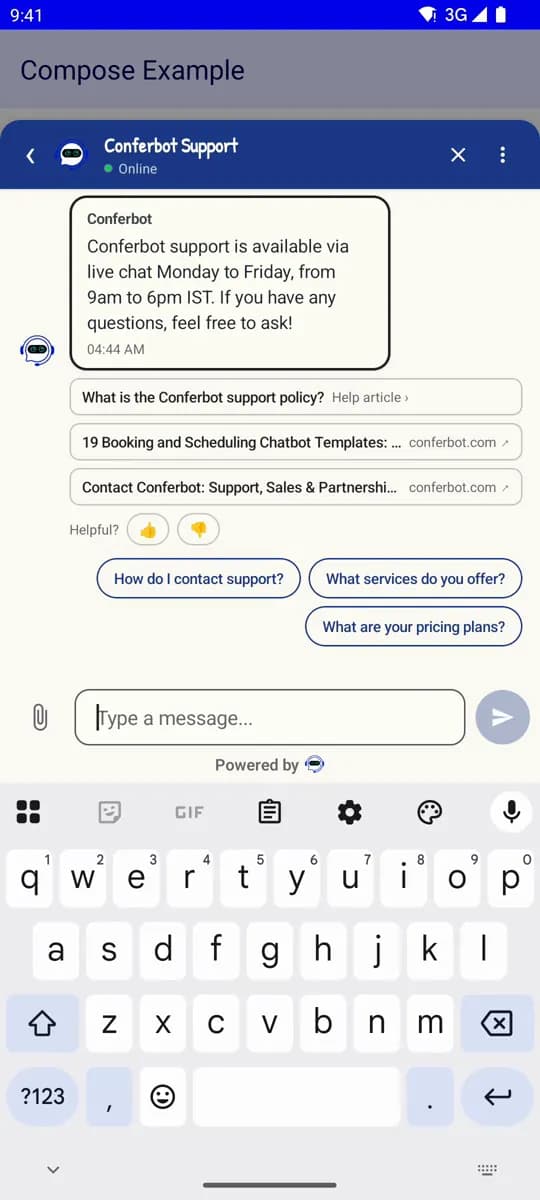 AI answer with sources
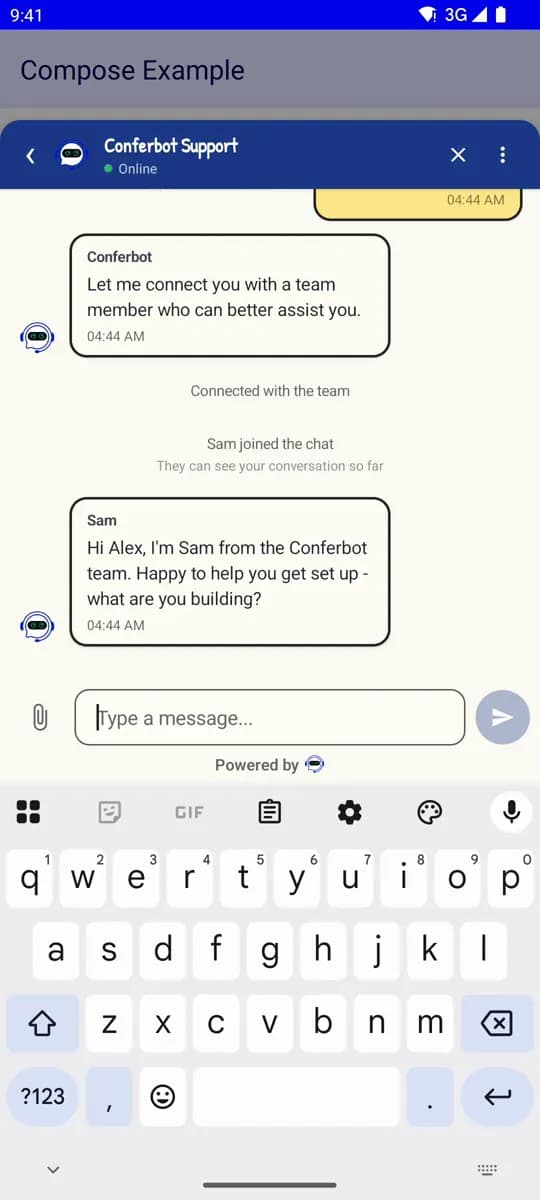 Handover to a person
Android Chatbot Features
Everything you need to build powerful automated conversations
Jetpack Compose launcher and chat
ConferBotWidgetScope adds the web widget's floating launcher; ConferBotChatScreen opens the chat anywhere.
XML Views with ChatActivity
Conferbot.openChat(activity) opens the full chat in a View-based app, with no Compose setup.
All 82 flow step types
Questions, choices, conditions, loops, AI routing, knowledge-base answers, OTP, consent, payment and more run as they do in the web widget.
AI agent replies
Formatted AI answers with their sources, starter and follow-up questions, and Helpful? feedback under each answer.
Live chat handover
The handover to your team with the queue and wait time, leave a message, the agent's live replies and the post-chat rating.
Home screen, help centre and Your requests
The web widget's home screen, help articles inside the app and the visitor's own conversations with your team.
Your theme, fonts and sounds
Your dashboard's colours, launcher, greeting card, mascots, font and sounds, read when the chat starts.
Five languages
The SDK's own words in English, Dutch, French, German or Spanish, chosen from your settings or the phone's language.
Optional FCM push
Firebase is optional: add it and pass the SDK your FCM token. ProGuard and R8 rules ship with the SDK.
What Can You Build?
Get Started in 7 Simple Steps
Follow this guide to connect your Android chatbot
Add maven { url 'https://jitpack.io' } to the repositories in settings.gradle
Add dependency: implementation 'com.github.Conferbot:conferbot-android:2.0.0'
Sync Gradle files
Call Conferbot.initialize() in your Application class with your bot ID
Compose: wrap your screen in ConferBotWidgetScope
XML Views: call Conferbot.openChat(this) from a button
Your Android chatbot is ready!
Introduction
For businesses building native Android apps with Kotlin or Java, in-app help is part of retention. A user who cannot get an answer inside the app has to leave it, and many do not come back.
The Conferbot Android SDK brings a fully native chatbot, AI agent and live chat to your Android app. Version 2.0.0 behaves like the Conferbot web widget: the same flows, the same AI agent, the same handover to your team and the same help centre, drawn with native Android views. It supports both Jetpack Compose and classic XML Views, ships a floating chat bubble that mirrors your web widget, applies your dashboard settings automatically (theme, colours, launcher, font, sounds and language), exposes its state as Kotlin StateFlow, and supports Firebase Cloud Messaging push when your app passes it a token.
Unlike WebView-based chat, the SDK renders native Android views that follow your app's keyboard, back button and system dark mode. The bot itself is built in the same no-code builder and runs on the same AI engine that drives every Conferbot channel - build once, deploy everywhere.
This guide covers installation, what is new in 2.0.0, Compose and XML integration, key features, theming, Firebase push, offline behaviour, Play Store compliance and best practices for a production-grade chat in your Android app in 2026.
New to chatbot building? Start with our complete guide to building a chatbot without coding. The same chatbot you build for your Android app works on your website, WhatsApp, Messenger, and iOS app. Browse our template library for pre-built in-app chatbot flows. For cross-platform alternatives, see our Flutter SDK and React Native SDK guides.
Source code & documentation: conferbot-android on GitHub | conferbot-android on JitPack | Developer Portal Guide | Android Developer Docs
Installation Guide
The Conferbot Android SDK is published on JitPack as com.github.Conferbot:conferbot-android. The current version is 2.0.0.
Requirements
- Android 5.0 (API 21) or later (
minSdk 21) - compileSdk 34 (the SDK's AndroidX dependencies need it)
- Kotlin 1.9 and JDK 17 with Android Gradle Plugin 8.x
- Jetpack Compose is optional: the SDK brings its own Compose libraries, so an XML app needs no Compose setup; a Compose app needs Compose 1.5 or newer
- Firebase is optional: only needed for push notifications
Step 1: Add the JitPack Repository
In settings.gradle:
dependencyResolutionManagement {
    repositories {
        google()
        mavenCentral()
        maven { url 'https://jitpack.io' }
    }
}
Step 2: Add the Dependency
In your app module's build.gradle:
implementation 'com.github.Conferbot:conferbot-android:2.0.0'Kotlin DSL: implementation("com.github.Conferbot:conferbot-android:2.0.0"). Jetpack Compose support is included in the same artifact - there is no separate Compose module to add.
Step 3: Initialize Once, in Your Application Class
Sync Gradle, then call Conferbot.initialize() once, in your Application class (and register that class in AndroidManifest.xml). The bot ID is the credential; the apiKey parameter accepts any non-empty placeholder, such as conf_test_key:
Conferbot.initialize(
    context = this,
    apiKey = "conf_test_key",
    botId = "YOUR_BOT_ID"
)
Find the bot ID in the dashboard under the bot's Share tab, Mobile apps, Android; the snippet there has it filled in. Publish the bot first: draft flows are not served to the SDK. No account yet? The public demo bot ID 691c970890527a0468f9b2c9 works without one.
Step 4: Add the Chat UI
Floating chat bubble in Compose (recommended - the same experience as the web widget):
ConferBotWidgetScope { MyMainScreen() }Or place ConferBotWidget() yourself, last in a Box that fills the screen.
Jetpack Compose full screen: ConferBotChatScreen(onDismiss = { showChat = false })
XML Views: launch the built-in full-screen chat Activity with one call: Conferbot.openChat(this)
Step 5: Push Notifications (Optional)
Push is off until your app hands the SDK a token. Add Firebase Cloud Messaging to your app yourself (the SDK no longer brings Firebase), then pass the token with Conferbot.setPushToken(token, PushTokenType.FCM) and forward messages with Conferbot.handlePushNotification(message.data, open = false). Details are in the push sections below.
The SDK ships its own consumer ProGuard / R8 rules, so minified release builds need nothing extra. For a full step-by-step walkthrough, see the Android SDK guide on the developer portal.
What's New in Android SDK 2.0.0
Version 2.0.0 (October 2026) is the release where the Android SDK reaches parity with the Conferbot web widget. Everything below follows the bot and the dashboard; you do not need code for it.
- Every flow step: all 82 step types of the flow builder run as on the web, with native step cards for consent, OTP, address, signature, matrix, ranking, slider, date and time, calendar, payment, carousel and product cards. Loops and sub-flows work, and GPT, AI and knowledge-base steps run on Conferbot's server, so the app holds no AI key.
- AI agent: formatted replies (tables, headings, quotes, code), cited help articles that open in the app, "Helpful?" with reasons, a notice when a reply takes longer than 45 seconds, and the inactivity close.
- Live handover lifecycle: "Connecting you with the team", the wait card with the estimate and the step's max wait, Cancel to leave the queue, transfers, a live chat picked back up after a restart, the post-chat rating and survey, and "Start a new chat".
- While you wait: help articles six seconds into a wait, the server's suggested article with "That solved it", and seven small games.
- Home screen, help centre and "Your requests": the web widget's home screen (greeting, "Ask anything", "Talk to us" with the reply time, recent articles), the help centre drawn natively without a WebView, and the visitor's own conversations with your team, with live replies and an unread badge.
- Launcher and greeting card: launcher shapes and styles, all 56 icons, entrance effects, attention modes, the idle call, 27 mascots and the greeting card in 11 styles with its rules and frequency (Compose).
- Your look and language: 27 widget themes with light, dark or auto mode, chat backgrounds and patterns, the owner's Google font, sounds and sound packs, and the SDK's words in English, Dutch, French, German or Spanish.
- Human touches: tapbacks, confetti, "No rush" nudges and "Edit" on the latest answer.
- After the chat: the post-chat rating offered 1.5 seconds after a flow ends, and the owner's post-chat redirect with a 10-second countdown and Cancel.
- Identity verification:
ConferBotUser.hash, an HMAC-SHA256 made on your server, files the chat under the verified user. - Push notifications:
setPushToken,unregisterPush,handlePushNotificationandhandlePushIntent; a tap opens its conversation. - The XML chat gets everything:
ChatActivitynow hosts the Compose chat, so an XML app gets every feature above without any Compose setup. - Reconnect: after a network blip the visitor rejoins the chat's room, so agent messages keep arriving.
Upgrading from 1.0.0? Firebase is now optional, registerPushToken() is deprecated in favour of setPushToken(), and ChatActivity no longer inflates the old XML layouts. The CHANGELOG lists every breaking change with its migration.
Key SDK Features
The Conferbot Android SDK follows modern Android architecture patterns: Kotlin, coroutines, StateFlow and Compose, with a classic Activity for XML apps.
Floating Chat Bubble (FAB)
The flagship integration pattern: the same bubble-in-the-corner experience as the Conferbot web widget, with zero styling code. Wrap your content in ConferBotWidgetScope { ... } (or drop ConferBotWidget() into a Box) and the bubble appears in the corner with its greeting card, unread badge and the chat in a sheet. Its shape, colour, icon, size, position, motion and greeting all come from your dashboard. Server values always win; a local ConferBotWidgetConfig acts only as a per-attribute fallback.
Jetpack Compose Support
Compose composables for the whole chat: ConferBotWidget / ConferBotWidgetScope for the floating bubble, ConferBotChatScreen for a full chat screen, and ConferBotChatView / ConferBotThemedChatScreen for a chat with local light and dark themes. State is exposed as Kotlin StateFlow and consumed with collectAsState().
Traditional XML Support
For apps not yet on Compose, Conferbot.openChat(context) launches the built-in full-screen ChatActivity. Since 2.0.0 it hosts the same Compose chat, so XML apps get the home screen, help centre, "Your requests", wait cards and games, step cards and the post-chat redirect. There is no XML version of the floating bubble; call openChat() from your own button or FloatingActionButton.
Every Flow Step, Natively
The SDK runs all 82 step types of the flow builder as the web widget does, checked against the 156 shared flow cases. Rich steps get native cards (consent, OTP, address, signature, matrix, ranking, slider, date and time, calendar, payment, carousel, product). Card numbers, ids and passwords a visitor types are masked in answers unless the bot turns that off.
AI Agent and Help Centre
Bots built as AI agents reply with formatted answers and cited articles, "Helpful?" feedback with reasons, and a "took too long" notice after 45 seconds. The help centre follows the owner's settings and opens articles in the app.
Server-Driven Theming
Everything you configure in the dashboard (Customize) is fetched with the bot data and applied with no code: 27 widget themes with light, dark or auto mode, colours, chat background, bot name and avatar, bubble and option corners, header, the launcher and greeting card, the mascot, the home screen, sounds, font, language and the post-chat redirect.
Kotlin Coroutines and StateFlow
Asynchronous work runs on Kotlin coroutines without blocking the UI thread. The SDK exposes its state as StateFlow properties on the Conferbot object - record (messages), isConnected, currentAgent, unreadCount, isAgentTyping, isLiveChatMode, serverTheme, requestsUnread and more.
Live Agent Handover
Flows hand over to your team on their own, and Conferbot.initiateHandover(message) brings in a human from code. The web widget's handover signals are available through Conferbot.onWidgetSignal(...) with HandoverSignals (waiting for a human, human joined, wait over), and leaveQueue lets the visitor leave the queue.
Opt-In FCM Push Notifications
When an agent or the AI replies while the visitor is not in the chat, Conferbot can send a push. Pass the FCM token with Conferbot.setPushToken(token, PushTokenType.FCM), forward messages with Conferbot.handlePushNotification(data), and route taps with Conferbot.handlePushIntent(intent). One notification per conversation, on the conferbot_messages channel.
Offline Message Queuing
Messages typed while offline are queued and sent when connectivity returns (enableOfflineMode, on by default). After a reconnect the visitor rejoins the chat's room, so agent replies sent during a network blip still arrive.
ProGuard and R8 Compatible
The SDK ships its own consumer ProGuard / R8 rules, including -dontwarn com.google.firebase.** so R8 does not fail in an app without Firebase. No additional configuration is needed for release builds.
Kotlin/Compose Integration Details
For headless integrations, every piece of state is a StateFlow on the Conferbot object: collect Conferbot.record, Conferbot.isConnected and Conferbot.currentAgent with collectAsState(), and drive the conversation with sendMessage(), sendTypingStatus(), initiateHandover() and endChat(). A waiting flow step is Conferbot.currentUIState.value?.step; answer it with Conferbot.answerStep(FlowStepAnswer...). Local theming uses the fluent ConferbotThemeBuilder.
Theming Deep Dive
Theming is server-first: whenever the dashboard provides customizations, the chat uses them - even if you supplied a local theme. For local fallbacks, ConferbotThemeBuilder sets primary colours, header colours, bubble radius, font family and more, and ConferBotCustomization (primary colour, bubble colours and radius, font, header title) themes the chat until the bot's settings arrive. The floating bubble follows the same rule per attribute.
Room Database for Offline Storage
Chat history is kept on the device with the Room persistence library, so it survives app restarts. Pick a conversation back up with Conferbot.hasPersistedSession() and Conferbot.restorePersistedSession(): a live chat comes back live with its agent, and a chat still in the queue waits again. clearHistory() forgets the conversation. History loading is paginated and can be tuned with a PaginationConfig passed to initialize().
FCM Push Notifications Deep-Dive
Push takes four steps. Add Firebase Cloud Messaging to your app (google-services.json, the Google services plugin and firebase-messaging-ktx). Give the SDK the token with Conferbot.setPushToken(token, PushTokenType.FCM); it is registered with the current conversation and again for each new one. Receive messages either with the SDK's ConferbotNotificationService (when Conferbot is your only FCM sender) or by calling Conferbot.handlePushNotification(message.data, open = false) from your own service - it returns true only for this bot's Conferbot pushes. Finally, call Conferbot.handlePushIntent(intent) in your launcher activity's onCreate and onNewIntent so a tap opens its conversation. unregisterPush() stops this device's pushes.
App Store Optimization Tips
Responsive in-app support gives unhappy users a way to get help before they reach for the review button. Mention in-app chat support in your Play Store description if you offer it, and keep an eye on your Android Vitals (ANR rate and crash-free sessions) after any SDK update, as you would for any library.
Jetpack Compose Chatbot Integration
Jetpack Compose is Android's modern UI toolkit and Google's recommended approach for new Android UIs. The Conferbot Android SDK provides Compose entry points designed to fit a Compose-based architecture.

Composable API Surface
- ConferBotWidget / ConferBotWidgetScope - The floating chat bubble plus its sheet chat.
ConferBotWidgetScopewraps your app content;ConferBotWidgetcan be placed in a Box yourself. Shows the unread badge and the dashboard's greeting card automatically - ConferBotChatScreen - The full chat screen (server-themed) with an
onDismisscallback - ConferBotChatView / ConferBotThemedChatScreen - Chat screens with local light and dark themes
- KnowledgeBaseScreen - The built-in help centre, shown when
Conferbot.isHelpCentreOn - HomeScreenView and RequestsPortalView - The home screen and "Your requests", for your own Compose screens
State Management with Compose
The SDK exposes chat state through Kotlin StateFlow properties on the Conferbot object:
Conferbot.record- the message list (List<RecordItem>)Conferbot.isConnected- socket connection statusConferbot.unreadCount- unread count for badge updatesConferbot.currentAgent/Conferbot.isAgentTyping/Conferbot.isLiveChatMode- live agent handover stateConferbot.serverTheme- the theme built from your dashboard customizationsConferbot.isOnline/Conferbot.pendingMessageCount/Conferbot.isSyncingQueue- offline queue stateConferbot.requests/Conferbot.requestsUnread- "Your requests"
Consume these in your composables with collectAsState() (or collectAsStateWithLifecycle()) for UIs that update as messages arrive.
Headless Custom UIs
Building a fully custom chat UI is a supported pattern: render Conferbot.record in your own LazyColumn, then drive the conversation with Conferbot.sendMessage(text), sendTypingStatus(isTyping), initiateHandover(message) and endChat(). Answer a waiting flow step with Conferbot.answerStep(...). Call Conferbot.loadMoreMessages() when the user scrolls near the top and check hasMoreMessages() for pagination. The built-in ConferBotChatScreen does all of this for you.
Server Theme Precedence
Server settings win over local ones. Whenever the dashboard provides customizations, the chat uses that theme - even if you supplied your own via ConferBotChatView. Local themes built with ConferbotThemeBuilder therefore act as fallbacks that apply when the bot has no customizations of its own. The floating bubble applies the same rule per attribute.
Event Handling
Implement ConferBotEventListener (all methods have default no-op implementations, so override only what you need), for example onSessionStarted, onMessageReceived, onAgentJoined and onUnreadCountChanged, and register it with Conferbot.setEventListener(...). For lower-level access, subscribe to raw embed-server events with Conferbot.on(SocketEvents.BOT_RESPONSE, listener) (add the Socket.IO client to your app to use the listener type).
Android Chatbot + Firebase
Firebase is part of most Android app infrastructure - push notifications, crash reporting and analytics. Since 2.0.0 the Conferbot SDK does not bring Firebase itself: it compiles against firebase-messaging but declares no service, so nothing happens until your app adds Firebase and hands the SDK a token. Apps that do not want push carry no Firebase at all.
FCM Push Notifications (Complete Setup)
- Add Firebase to your app - Register your Android app in the Firebase Console, place
google-services.jsonin yourapp/directory, apply thecom.google.gms.google-servicesplugin and addfirebase-messaging-ktx - Give the SDK the token -
Conferbot.setPushToken(token, PushTokenType.FCM). It is registered with the current conversation and again for each new one, and unregistered on sign-out,clearHistory()orunregisterPush() - Receive messages - Declare the SDK's
ConferbotNotificationServiceif Conferbot is your only FCM sender, or callConferbot.handlePushNotification(message.data, open = false)from your ownFirebaseMessagingService. It returns true only for this bot's Conferbot pushes; all other notifications pass through to your own handling - Open taps - Call
Conferbot.handlePushIntent(intent)in your launcher activity'sonCreateandonNewIntent. The tap opens the chat on that conversation, or the conversation in "Your requests"
Push support is built into the SDK and opt-in. Server-side delivery is switched on per Conferbot deployment, so check with us before you rely on it for your own Firebase project.
Notification Behavior Controls
Beyond registration and routing, the SDK exposes notification controls: setCurrentActivity(activity) to enable in-app banners while the app is foregrounded, setNotificationChatActivity(...) to send taps to a custom chat screen, updateNotificationSettings(NotificationSettings) to tune behaviour, addNotificationListener(listener) to observe notification events, and cancelAllNotifications(). On Android 13+ ask for POST_NOTIFICATIONS at a moment that suits your app.
Forwarding Chatbot Events to Firebase Analytics
The SDK does not fire Firebase Analytics events on its own - your data stays under your control. Register a ConferBotEventListener and forward the callbacks you care about (such as onSessionStarted, onMessageReceived, onAgentJoined and onUnreadCountChanged) to Firebase Analytics, Amplitude, Mixpanel or your own pipeline, with your own event names.
Conferbot's Built-In Analytics
Chat lifecycle events are tracked in Conferbot's own analytics. Optional extras from the SDK: Conferbot.setUtmParameters(...) for attribution, trackInteraction(type, data) for custom interaction events, and trackGoalCompletion(goalId, conversionValue) for conversions. All of this surfaces in the Conferbot analytics dashboard alongside your web widget data.
For a broader mobile engagement strategy, see our customer engagement guide. Track chatbot ROI with Conferbot's analytics dashboard alongside Firebase Analytics for a complete picture of in-app user behavior.
Offline-First Android Chatbot
Android devices often lose their connection - in tunnels, in airplane mode, on poor cellular coverage or during Wi-Fi handovers. The SDK is built so a visitor can keep typing and nothing they send is lost.
Room Database Architecture
The SDK uses Room (Android's recommended persistence library) for local storage of sessions, messages and the offline queue. Offline mode is on by default (ConferBotConfig(enableOfflineMode = true)). Chat history survives app restarts: check Conferbot.hasPersistedSession() and call restorePersistedSession() to resume a previous conversation instead of starting fresh, or clearHistory() to wipe the local record.
Sync Strategy
When the device reconnects:
- Queue flush - Messages typed while offline are sent, in the order they were typed
- Room rejoin - The visitor is put back in the chat's room, so agent messages sent after the network blip arrive
- Queue position - A visitor waiting for a person has their queue position asked again at once
Graceful Degradation
While offline, the built-in UI shows offline, connection and syncing banners, and the input bar keeps working so visitors can type messages that are queued locally.
Network State Monitoring and Queue Control
The SDK monitors connectivity and exposes it as StateFlow: Conferbot.isOnline (device connectivity), pendingMessageCount (queued messages) and isSyncingQueue (sync in progress). Manual controls are available too: processOfflineQueue() forces a sync attempt, clearOfflineQueue() drops all queued messages, and clearCurrentSessionQueue() drops only the current session's queue.
Pagination and Memory Configuration
Tune how history is loaded and kept in memory with a PaginationConfig passed to initialize():
| Parameter | Default | Description |
|---|---|---|
| pageSize | 50 | Messages loaded per page of history |
| maxMemoryMessages | 100 | Max messages kept in memory while active |
| backgroundMemoryLimit | 50 | In-memory message cap while backgrounded |
| paginationThreshold | 10 | How close to the top before loading more |
In headless UIs, call Conferbot.loadMoreMessages() when the user scrolls near the top and check hasMoreMessages(); the built-in ConferBotChatScreen does this automatically. For GDPR and CCPA workflows, call Conferbot.clearHistory() to purge the local record and persisted session on demand - see our data security guide for details.
Android Chatbot Security & Play Store Compliance
Releasing an Android app with a chatbot SDK means checking code shrinking, network security, Play Store policies and the Data Safety form. Here is what the Conferbot SDK does in each area.
ProGuard / R8 Obfuscation
The SDK ships consumer ProGuard / R8 rules that are applied automatically during release builds. You do not need to add any configuration. The rules include -dontwarn com.google.firebase.**, so an app without Firebase still minifies cleanly.
HTTPS-Only Transport and Endpoint Control
The SDK talks to https://wdt.conferbot.com (REST and Socket.IO) over TLS. If you route traffic through your own proxy, pass baseUrl and socketUrl to Conferbot.initialize(), or call ConferBotEndpoints.setApiBaseUrl(...) and ConferBotEndpoints.setSocketUrl(...) before it - HTTPS only. Network timeouts and reconnection behaviour can be tuned through ConferBotNetworkConfig.configure(...).
Identity Verification and Shared Devices
With identity verification turned on in your workspace, send ConferBotUser.hash (an HMAC-SHA256 of the user's id, made on your server with your identity secret - never put the secret in the app). When the workspace requires verification, a missing or wrong hash drops the claimed name, email and id. Signing out with Conferbot.identify(null) drops the last user's requests and draft replies and unregisters the device's push token from their conversation. Card numbers, ids and passwords a visitor types are masked in answers unless the bot turns that off, and the agent's typing preview is never sent for a password field.
Play Store Review Guidelines
Google Play's review team evaluates chatbot integrations against its developer policies:
- User Data Policy - The SDK transmits chat messages over HTTPS (TLS) and stores conversation data in your app's private Room database. Make sure your privacy policy discloses that chat messages are sent to a third-party service (Conferbot) for processing
- Permissions Policy - The SDK's manifest adds
INTERNET,ACCESS_NETWORK_STATE,POST_NOTIFICATIONS,VIBRATE,WAKE_LOCKandFOREGROUND_SERVICE. Notifications on Android 13+ need the user's explicit opt-in - Ads Policy - If your chatbot delivers promotional content, make sure it complies with Google Play's ads policy for in-app messaging
- Content Policy - Bot responses must not contain prohibited content. Test your bot flows before submission
Data Safety Section
Google Play requires a Data Safety section for all apps. For the Conferbot SDK, consider declaring the following data types (your answers depend on how you configure the bot):
| Data Type | Collected | Shared | Purpose |
|---|---|---|---|
| Messages / User Content | Yes | Yes (Conferbot) | App functionality, customer support |
| Device Identifiers | Optional (push token) | Yes (FCM, Conferbot) | Push notifications |
| App Interactions | Yes | Yes (Conferbot) | Analytics, service improvement |
If your flows ask for personal details (name, email, phone, address) or files, declare those too. Local storage lives in your app's private sandbox, and Conferbot.clearHistory() deletes the local record and persisted session on demand.
Android App Bundle and APK Analysis
Check the SDK's contribution to your AAB/APK with Android Studio's APK Analyzer (Build > Analyze APK). Compose UI is included in the single artifact, so an XML-only app also carries the Compose libraries the built-in chat uses.
For the complete security and compliance guide, see our data security and privacy best practices. Review Conferbot analytics for compliance auditing and data retention configuration.
Customization and Theming
The SDK has two layers of appearance control: your dashboard settings (which apply automatically and always win) and local values in code as fallbacks.
Server Customizations Apply Automatically
Everything you configure in the dashboard (Customize) is fetched with the bot data and applied with no code: theme (27 themes, light, dark or auto), colours, chat background, bot name and avatar, bubble and option corners, the launcher's shape, icon, motion and greeting card, the mascot, the home screen, sounds, font, language and the post-chat redirect. Change the design once in the dashboard and it updates on web and Android together.
Local Themes with ConferbotThemeBuilder (Compose)
For local fallbacks in Compose, build a theme with the fluent ConferbotThemeBuilder:
val brand = ConferbotThemeBuilder.create()
    .primaryColor(Color(0xFF0808EE))
    .headerColors(background = Color(0xFF0808EE), text = Color.White)
    .bubbleRadius(16.dp)
    .build()

ConferBotChatView(lightTheme = brand)
Precedence: Server Wins Over Local
Whenever the bot has dashboard customizations, the chat uses them - even if you supplied your own. Local themes apply until the bot's settings arrive, or when the bot has none. If you want your local branding to win, leave the bot's appearance settings at their defaults.
XML ChatActivity Customization
The built-in ChatActivity (launched by Conferbot.openChat()) reads a ConferBotCustomization passed to initialize(): primaryColor, botBubbleColor, userBubbleColor, bubbleRadius, fontFamily and headerTitle apply until the bot's settings arrive, with a parseColor() helper for hex strings. The Activity follows the phone's dark mode until the bot's theme arrives.
Languages, Fonts and Sounds
The SDK's own words are in English, Dutch, French, German or Spanish, chosen as the web widget chooses (your ConferBotConfig.widgetLanguage, then the owner's choice, then the phone's languages, then English). The owner's Google font is fetched once and cached on the device. Message sounds and sound packs play at the media volume, and the chat menu has Sound on / off.
Event Listeners
Register a ConferBotEventListener via Conferbot.setEventListener(...). All methods have default no-op implementations, so override only what you need, such as onSessionStarted, onMessageReceived, onAgentJoined and onUnreadCountChanged.
Fully Custom UIs
For complete UI control, skip the built-in screens and build on the headless layer: render Conferbot.record yourself and drive the conversation with sendMessage(), sendTypingStatus(), initiateHandover(), answerStep() and endChat(). Raw socket events are available through Conferbot.on(event, listener) with constants in SocketEvents.
In-App Chatbot Use Cases
Android apps serve a wide range of users with different needs. Here are the chatbot use cases that tend to matter most.
Customer Support at Scale
Android apps often serve very large audiences. An in-app chatbot answers common questions instantly and routes complex issues to live agents, with help articles and small games while the visitor waits.
Guided Onboarding
Walk new users through your app's features conversationally. Instead of showing every feature at once, the chatbot asks what they want to achieve and guides them step by step. This works well for complex apps such as fintech, health and productivity tools.
Order and Delivery Tracking
E-commerce and food delivery apps can let users check order status, change orders, report issues and request refunds in the chat, without navigating through several screens. Explore e-commerce chatbot solutions.
Subscription and Payment Support
Handle billing questions, explain subscription tiers and troubleshoot payment failures. The flow builder's payment step opens Stripe Checkout in the browser when a flow needs to take a payment.
Feedback and Bug Reporting
Replace long bug report forms with conversational feedback. The chatbot asks what happened, when it happened and what the user expected, and can collect ratings, rankings and files with the native step cards.
Getting Started
Adding a chatbot to your Android app with the Conferbot SDK takes a Gradle dependency, one init call and one line of UI.
Quick Start
- Build your chatbot in the Conferbot visual builder and publish it - the same bot works on your app, website and messaging channels
- Add the Gradle dependency -
implementation 'com.github.Conferbot:conferbot-android:2.0.0'from JitPack (addmaven { url 'https://jitpack.io' }to your repositories) - Initialize in your Application class -
Conferbot.initialize(context = this, apiKey = "conf_test_key", botId = "YOUR_BOT_ID"). The bot ID is the credential; any placeholder apiKey works - Add the UI -
ConferBotWidgetScope { ... }for the floating chat bubble,ConferBotChatScreen(Compose), orConferbot.openChat(this)(XML) - Sign users in (optional) -
Conferbot.identify(ConferBotUser(...))before the chat opens, with a server-madehashfor identity verification - Customize in the dashboard - Your web widget's design applies automatically; local themes act as fallbacks
- Test on multiple devices - Verify on different API levels, screen sizes and network conditions
No account yet? The public demo bot ID 691c970890527a0468f9b2c9 works without a Conferbot account (any non-empty API key, e.g. conf_test_key). If the demo bot loads but yours does not, check that your bot is published and the 24-character bot ID is correct. For the complete integration walkthrough, follow the Android SDK deep guide on the developer portal.
Compose vs XML - Which to Use?
| Consideration | Jetpack Compose | XML Layouts |
|---|---|---|
| New projects | Recommended | Supported |
| Existing XML apps | Can mix with ComposeView | No Compose setup needed |
| Entry point | ConferBotWidget / ConferBotChatScreen | Conferbot.openChat() ChatActivity |
| Features in the chat | All | All (ChatActivity hosts the Compose chat) |
| Customization | ConferbotThemeBuilder + server theme | ConferBotCustomization + server theme |
| Floating bubble (FAB) | Built in | Use your own button or FAB with openChat() |
Cross-Channel Deployment
Your Android chatbot is part of Conferbot's omnichannel ecosystem. The same bot logic powers your website widget, WhatsApp, Messenger and iOS app, and every conversation lands in the same team inbox. Build once, reach users everywhere.
Why Conferbot Android SDK
- Native UI - Compose and Android views, not a WebView wrapper
- Web widget parity - Every flow step, the AI agent, handover, home screen, help centre and "Your requests"
- Floating chat bubble - Styled from your dashboard with zero code
- Kotlin-first - Coroutines, StateFlow and a headless API for custom UIs
- Jetpack Compose and XML - Both get the full chat
- Opt-in FCM push notifications - No Firebase dependency unless you add it
- Offline support - Room-backed history and message queue, with reconnect
- Five languages - The SDK's words in English, Dutch, French, German and Spanish
- AI-powered - AI knowledge base and OpenAI for intelligent responses, run on Conferbot's server
- Omnichannel - Same bot on iOS, website, WhatsApp and more
- Analytics - Track in-app engagement with built-in analytics
The Android SDK is included on every plan, including Free. View pricing for details, or start building your chatbot today and add Android integration when your app is ready. See how Conferbot compares to other chatbot platforms for mobile SDK capabilities.
Advanced Integration Patterns
The Conferbot Android SDK supports advanced patterns that give your team full control over the chat while keeping the convenience of a managed platform. The full API surface is documented in the Android SDK guide on the developer portal.
Headless Mode
Every piece of SDK state is a Kotlin StateFlow on the Conferbot object - no separate headless initialization is needed. Collect Conferbot.record, isConnected, currentAgent, unreadCount and isAgentTyping, and render the UI yourself. Drive the conversation with sendMessage(), answerStep(), sendTypingStatus(), initiateHandover() and endChat().
User Identity
Attach user details so dashboard conversations show who you are talking to: call Conferbot.identify(ConferBotUser(id, name, email, phone, metadata, hash)) or pass the user at initialization. Identify the user before the chat is opened - the user ID is attached when the conversation is created. name and metadata also fill the owner's "greet by name" placeholders such as {{first_name|there}}. Call Conferbot.identify(null) to sign out.
Dark Mode and Themed Variants
The Compose chat views accept explicit light and dark themes, for example ConferBotChatView(lightTheme = myTheme). Build each theme with ConferbotThemeBuilder. Remember that the dashboard's theme (light, dark or auto) takes precedence whenever it exists.
Home Screen, Help Centre and Your Requests
Open parts of the chat from your own screens: Conferbot.showHome(), showChat() and showHelp(); Conferbot.openHelpArticle(articleId) when Conferbot.isHelpCentreOn; and Conferbot.openRequests() for "Your requests", with Conferbot.requestsUnread for your own badge. Headless help centre access is available too: searchKnowledgeBase(query) and rateKnowledgeBaseArticle(articleId, helpful).
Notification Deep Links
Push taps route through Conferbot.handlePushIntent(intent), and setNotificationChatActivity(...) points taps at your own chat screen instead of the built-in one. The built-in ChatActivity also answers com.conferbot.ACTION_OPEN_CHAT and the conferbot://chat deep link. Call setCurrentActivity(activity) to enable in-app notification banners while the app is foregrounded.
Post-Chat Redirect
When the owner sets a post-chat redirect URL, the chat shows a 10-second countdown with Cancel, then opens the URL in the system browser (only http(s) URLs). Handle it yourself with ConferBotConfig(onPostChatRedirect = { url -> ...; true }), or turn it off with disablePostChatRedirect = true.
Analytics and Event Tracking Integration
Forward chatbot events to Firebase Analytics, Amplitude, Mixpanel or your own pipeline using the ConferBotEventListener interface. The SDK also has first-party hooks: setUtmParameters(...), trackInteraction(type, data) and trackGoalCompletion(goalId, conversionValue). With Conferbot's built-in analytics, chat lifecycle metrics are tracked with no configuration.
Raw Socket Events and Custom Endpoints
Subscribe to embed-server events by name with Conferbot.on(SocketEvents.BOT_RESPONSE, listener) / Conferbot.off(...) - the same events the web widget uses (add the Socket.IO client to your app for the listener type). The handover signals have a typed API: Conferbot.onWidgetSignal(HandoverSignals.WAIT_OVER_EVENT) { ... }. Proxying? Pass baseUrl and socketUrl to initialize(), or call ConferBotEndpoints.setApiBaseUrl(...) and setSocketUrl(...) (HTTPS only) before it.
Switching Bots and Re-Initialization
Conferbot.initialize() is one-time and throws an IllegalStateException if called twice. To switch to a different bot at runtime (for example a support bot vs. a sales bot), call Conferbot.disconnect() first - it tears down the socket and state and allows a fresh initialize() with the new bot ID.
Security and Data Privacy
Conversation data is stored in your app's private Room database, and network traffic to wdt.conferbot.com uses HTTPS (TLS) - custom endpoints must be HTTPS too. GPT, AI and knowledge-base steps run on Conferbot's server, so no AI key ships in your app. For apps subject to GDPR, CCPA or other privacy regulations, Conferbot.clearHistory() purges the locally stored conversation record and persisted session on demand. Review our data security and privacy guide for detailed compliance information.
Push Notification Strategy
Push notifications bring visitors back when an agent or the AI replies after they have left the chat. The Conferbot Android SDK supports Firebase Cloud Messaging, opt-in and without a Firebase dependency of its own.

FCM Setup and Configuration
Setting up FCM with the Conferbot SDK takes four steps: (1) add Firebase Cloud Messaging to your Android app, (2) pass the token with Conferbot.setPushToken(token, PushTokenType.FCM), (3) receive messages with the SDK's ConferbotNotificationService or by calling Conferbot.handlePushNotification(message.data, open = false) from your own FirebaseMessagingService - it returns true only for this bot's Conferbot pushes, and (4) call Conferbot.handlePushIntent(intent) in your launcher activity so a tap opens its conversation. Push support is built in; server-side delivery is switched on per Conferbot deployment.
Notification Channels (Android 8.0+)
Android 8.0 introduced notification channels that give users control over notification behaviour. Conferbot pushes use the conferbot_messages channel, which the SDK creates when enableNotifications is on (the default), with one notification per conversation. Set your own small icon with the com.google.firebase.messaging.default_notification_icon meta-data. Register addNotificationListener(listener) to observe notification events, and call cancelAllNotifications() when the user opens the chat from elsewhere in your app.
In-App vs Push Notifications
The SDK distinguishes between messages that arrive while your app is in the foreground and pushes that arrive while it is in the background or closed:
| Situation | What happens |
|---|---|
| App in the foreground, that conversation on screen | The message simply appears in the chat |
| App in the foreground, chat not on screen | Counted as unread and shown as a notification (in-app banners with setCurrentActivity) |
| App in the background or closed | Android shows the push; a tap starts your launcher activity and handlePushIntent opens the conversation |
| Tap for a conversation not on the device | Opens that conversation in "Your requests" |
Re-Engagement Strategy
The most valuable push is a live agent reply that arrives after the user has backgrounded the app. Ask for POST_NOTIFICATIONS on Android 13+ at a moment when the user understands why, such as right after they start a conversation with your team, and respect their notification settings.
Notification Grouping and Bundling
The SDK posts one notification per conversation, tagged with the conversation, so several replies in the same conversation update a single notification instead of filling the tray. setPushToken(null) or unregisterPush() stops this device's pushes, for example on logout.
For a complete guide on mobile engagement strategies, see our customer engagement guide. Compare the Android SDK's notification capabilities with other platforms on our comparison page.
Troubleshooting: real Gradle and runtime errors
| Symptom or error | Cause | Fix |
|---|---|---|
Could not find com.github.Conferbot:conferbot-android:2.0.1 | JitPack is not in the repositories Gradle uses | Add maven { url 'https://jitpack.io' } in settings.gradle under dependencyResolutionManagement |
| Build was configured to prefer settings repositories over project repositories | JitPack added in a module file while settings use PREFER_SETTINGS or FAIL_ON_PROJECT_REPOS | Move the JitPack line to settings.gradle |
Dependency '...' requires libraries and applications that depend on it to compile against version 34 or later | Your compileSdk is below 34 | Set compileSdk 34 or higher; targetSdk can stay where it is |
| Inconsistent JVM-target compatibility, or class file version 61 errors | The app builds with a JDK older than 17 | Use JDK 17 in Android Studio's Gradle settings and set jvmTarget 17 |
IllegalStateException: Conferbot SDK is already initialized | initialize() called twice, often from an Activity | Initialize once in Application.onCreate(); call disconnect() before re-initializing |
ClassNotFoundException: com.google.firebase... | ConferbotNotificationService declared without Firebase | Add firebase-messaging, or remove the service declaration |
| XML layout or colour overrides do nothing | The XML chat hosts the Compose chat and no longer inflates SDK layouts | Theme through the dashboard or ConferBotCustomization |
| The chat opens but stays empty | Bot not published, wrong ID, or WebSockets blocked | Publish the flow; check the 24-character ID; try another network; test the demo bot |
| Wrong language | widgetLanguage overrides the dashboard | Unset it, or set "auto" to follow the phone |
For anything else, filter Logcat by Conferbot while you open the chat. The demo bot 691c970890527a0468f9b2c9 is the fastest isolation test: if it loads and yours does not, the issue is your bot's ID or publish state, not your Gradle setup.
After launch, the problems that matter show up in conversations, not in Logcat: unanswered questions, abandoned flows, handovers that wait too long. The analytics view and the performance monitoring guide cover what to watch.
Test it before you ship
Most chat bugs in production come from app lifecycle and network conditions, not from the integration code. Run through these on a real device or emulator before the first release:
- The demo bot first, then yours. Point a debug build at
691c970890527a0468f9b2c9, confirm the chat loads, then switch to your published bot. This separates SDK setup problems from bot configuration problems in one step. - Rotation and configuration changes. Rotate the device with the chat open and mid-flow. Because
initialize()lives inApplication, nothing should reconnect or throw. - Process death. With the chat open, background the app and run
adb shell am kill your.package.name, then reopen it. If you restore withhasPersistedSession()andrestorePersistedSession(), the conversation should come back, including a live agent. - Offline and flaky networks. Send a message in airplane mode, then reconnect. It should be queued and delivered. Use the emulator's network settings to try a slow connection and watch for duplicate sends.
- The release build. Test a minified release build, not only debug. The SDK ships consumer R8 rules, but your own rules or obfuscation settings can still interact with it, and only a release build shows that.
- Dark mode and font scale. Switch the system theme with the bot set to auto, and set the largest font size. Check that long bot messages and buttons still fit.
- Sign-out on a shared device. Sign in as one user, open a chat, sign out with
identify(null), sign in as another, and confirm none of the first user's requests or greeting appear. - A full handover. Trigger a handover, answer it from the inbox on another device, end the chat, and check the rating and "Start a new chat" steps.
Run the same checklist again after major Android or SDK upgrades. The chatbot flow templates are a quick way to get a realistic test flow with buttons, inputs and a handover step.
Support chatbot SDK or messaging SDK?
"Chat SDK for Android" covers two different products. A messaging SDK lets your users talk to each other. Stream's Android documentation, for example, describes XML-based and Jetpack Compose UI components plus a low-level client with "built-in state management and offline support", all built around channels and message lists between users. A support chat SDK puts your business in the conversation: Intercom's Android SDK is one, installed from Maven Central and supporting API 21 and above. Conferbot's SDK is in the second group, with the bot designed in a visual builder and shared across your website and messaging channels.
| Build on an LLM API yourself | Messaging SDK | Support chatbot SDK (Conferbot) | |
|---|---|---|---|
| Who talks to whom | User and your model | Users with each other | User with your bot, then your team |
| Flows and bot logic | You write and ship them | Not included | Visual builder; change without a release |
| AI from your docs | You build retrieval | Not included | Knowledge-base AI server-side |
| Handover and inbox | You build both | Not a support desk | Queue, wait card, agent inbox built in |
| Secrets in the APK | Risk of an extractable API key | SDK auth tokens | None: AI runs on the server |
| Best fit | AI features you own end to end | Social, marketplace, community chat | Support, onboarding, lead capture |
A marketplace can run both: a messaging SDK for buyer-seller chat and a support bot for "contact us". For a structured comparison of vendors, use the chatbot vendor evaluation questions; if you are leaning toward building, choosing an LLM for your chatbot covers the model choice and rate limiting covers what breaks at scale.
Conferbot Android SDK vs Competitors
When you add in-app chat to an Android app, the real choice is between a native SDK, a WebView that loads a web chat widget, or building chat yourself. Here is how those approaches compare, and what the Conferbot Android SDK includes.
| Criteria | Conferbot Android SDK | WebView Chat Widget | Build It Yourself |
|---|---|---|---|
| Architecture | Native Kotlin, Compose and an XML Activity | A web page inside the app | Whatever you build |
| Jetpack Compose support | Composables plus a StateFlow headless API | Hosted in an AndroidView | Your own |
| Push notifications for replies | FCM, opt-in | No system push from the web view | You build the server and client |
| Offline messages | Queued on the device and sent on reconnect | Lost if the page cannot load | You build it |
| Flow builder steps | All 82 step types, with native step cards | As the web widget | You build each one |
| AI agent and help centre | Included | As the web widget | You build them |
| Live agent handover and team inbox | Included | As the web widget | You build them |
| Dashboard-driven theming | Themes, launcher, font, sounds, language | Web styling only | App releases for every change |
| Change the conversation without an app release | Yes | Yes | Usually no |
| Cost | Every plan, including Free | Depends on provider | Engineering time |
For Android teams building with Jetpack Compose, Conferbot ships native composables including a dashboard-styled floating chat bubble with web widget parity, and XML apps get the same chat through ChatActivity. The same chatbot you build for Android deploys to iOS, your website, WhatsApp, Messenger and other channels - all from one visual builder. See pricing for plan details or compare platforms for the complete feature breakdown.
How Conferbot Compares for Android
Most platforms charge per message, per seat, or limit channels by tier. Here's how Conferbot is different.
| Feature | Conferbot | Typical Competitor |
|---|---|---|
| Channels included | 8 (all plans) | 3-6 (varies by tier) |
| Pricing model | Flat rate from $19/mo | Per-seat or per-message |
| AI chatbot builder | Yes (plain English) | No or limited |
| Native mobile SDKs | 4 (Android, iOS, Flutter, RN) | None (WebView only) |
| Knowledge base AI | Included | Add-on ($30-99/mo) |
| Live chat handoff | Included | Higher tiers only |
| Calendar booking | Built-in | Third-party required |
| Setup time | Under 10 minutes | Hours to days |
Android FAQ
Everything you need to know about chatbots for android.
Continue Exploring
Explore features, connect third-party tools, and browse ready-made templates.
Deep-dive pillar guides, real use cases, and the chatbot & AI glossary.
Pairing your Android app with messaging channels? The webhook debugging guide covers delivery failures across every platform, and the error code directory documents 325 platform error codes with causes and fixes.